Run the RFQ pipeline: request, send, and confirm
What this does
The RFQ pipeline turns "we need material" into a confirmed purchase order: draft the request, send it to the vendor, record their answer, confirm. Every document keeps one reference — P00055 — through its whole life; what changes is the state.
Before you start
- You need the Purchase User role for the whole flow described here.
- Products priced on vendor pricelists fill in their own prices and arrival dates; anything else you type by hand.
Steps
-
01
Open Purchase › Orders › Requests for Quotation and click New.
-
02
Pick the Vendor and set the Order Deadline — the date by which this request should be confirmed; arrival dates are computed from it.
-
03
Add the products. Each line prices itself from the vendor's pricelist when a valid entry exists, and sets its Expected Arrival from the vendor's lead time; a price you type yourself sticks.
-
04
Press Send RFQ — the email carries the request without totals, and the document turns RFQ Sent.
-
05
Record the vendor's reply: their offer number in Vendor Reference, corrected prices on the lines, and the promised date in Expected Arrival.
-
06
Press Confirm Order. The request becomes a Purchase Order, the confirmation date is stamped, and the warehouse receipt is created — the confirmed life of the document is the next article.
Reading the list and its scoreboard
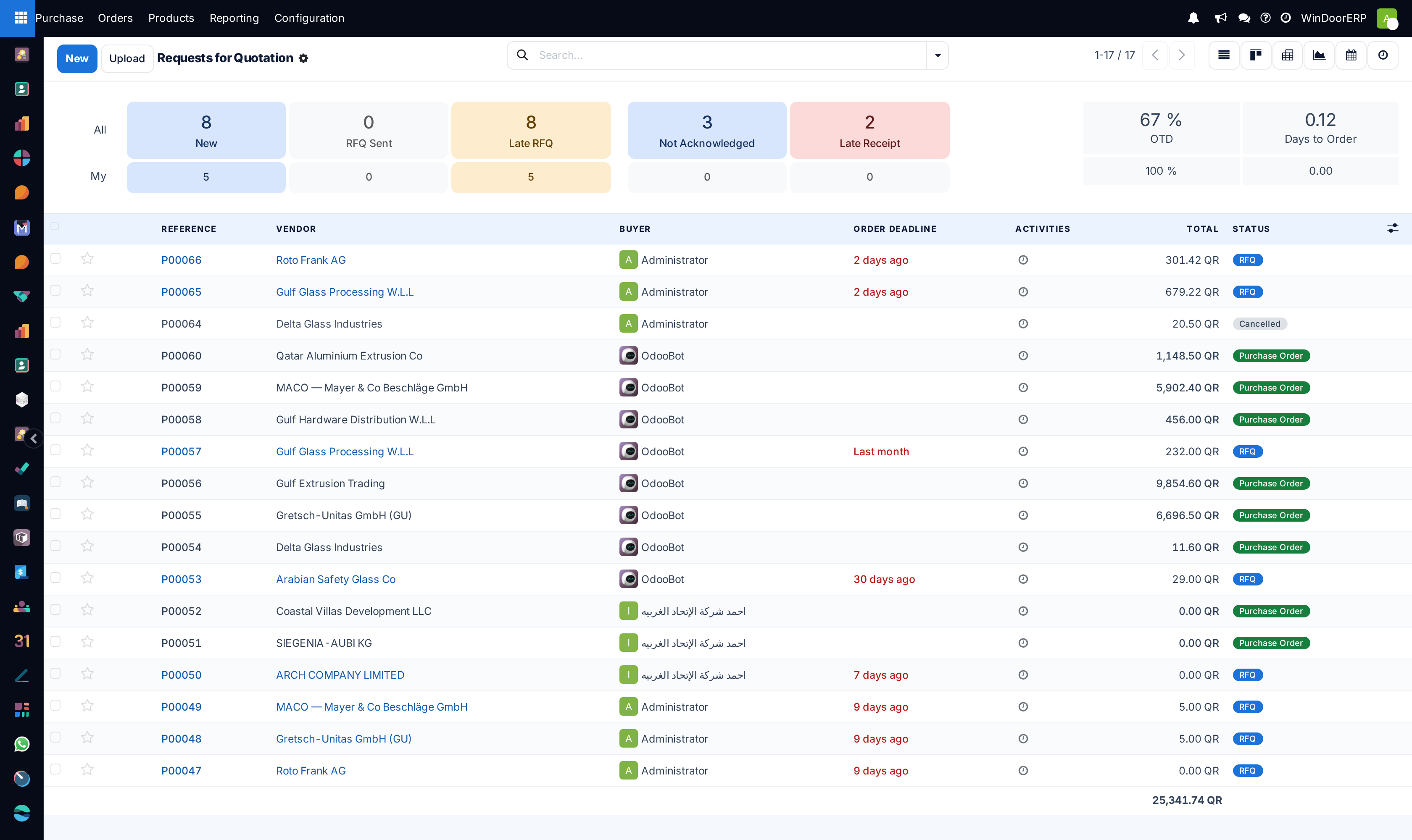
Despite its name, this list shows every purchase document in every state — the Purchase Orders menu is the filtered one. The strip on top is the buyer's scoreboard, with an All and a My row: New, RFQ Sent, Late RFQ (deadline passed, still unconfirmed), Not Acknowledged (confirmed but the vendor has not acknowledged), Late Receipt, plus the on-time-delivery rate and average days to order. Clicking a box filters the list.
The five states
| State | Meaning |
|---|---|
| RFQ | Draft. Nobody outside has seen it. |
| RFQ Sent | Someone pressed Send RFQ — or Print, which flips the state too. It says nothing about the vendor having answered. |
| To Approve | Only with two-step approval enabled, and only for buyers who are not Purchase administrators — an administrator's confirmation goes straight through. A manager releases it with Approve Order. |
| Purchase Order | Confirmed. Receipt created, billing status active. |
| Cancelled | Withdrawn; Set to Draft revives it. |
Where the line price comes from
When a line's product, quantity or vendor changes, WindoorERP looks through the product's vendor pricelist for rows of this vendor that are valid on the order date, match the variant, and whose minimum quantity is reached — and applies the cheapest matching row after discount, not the top one. No matching row means the line falls back to the product's cost. Your own typed price always survives recomputation, and picking a product first suggests the vendor's minimum quantity as the starting quantity.
Comparing vendors — what exists and what does not
- There is no call-for-tenders module on WindoorERP: no Alternatives tab and no bid grid. Comparison is done with separate RFQs, one per vendor.
- Glass procurement automates exactly that: the production order's glass wizard issues one draft RFQ per selected vendor as a tender, each flagged Glass PO and linked back to the production order.
- Price Comparison on the form opens the purchase history of the order's products — what you actually paid, product by product, over the last year.
- A yellow banner warns when the order looks like a duplicate of another open order of the same vendor (same source document or vendor reference).
- Merge RFQs (list action, for users with accounting rights) folds selected draft and sent RFQs of one vendor together: the oldest survives, identical lines keep the lower price, the rest are cancelled with cross-links.
Troubleshooting
| Message or symptom | Cause and fix |
|---|---|
| "Some order lines are missing a product, you need to correct them before going further." | Confirm refuses while a line has text but no product. Sections and notes are fine; product-less item lines are not. |
| An RFQ shows RFQ Sent though nobody emailed it | Printing does it too — the state records that the document left the building, on paper or by mail. |
| "Please select at least two purchase orders with state RFQ and RFQ sent to merge." | Merge works on unconfirmed documents only, at least two of them. |
| "In selected purchase order to merge these details must be same Vendor, currency, destination, dropship address and agreement" | Only like-for-like RFQs merge — same vendor, currency and receiving operation type. |
| "In order to delete a purchase order, you must cancel it first." | Deletion is for cancelled documents only. |
| The line priced itself with an old price | The cheapest valid pricelist row won, or no row matched (minimum quantity, validity dates, variant) and the cost price was used. Fix the pricelist, or type the agreed price — it sticks. |
Common mistakes
- Reading RFQ Sent as "vendor has confirmed" — that is what Acknowledged is for, set by the vendor's portal click or automatically at the first receipt.
- Leaving the Order Deadline at its default while negotiating for weeks, so every computed arrival date is fiction.
- Building one RFQ with two vendors' prices in it — one vendor per document; comparison is across documents.
Was this article helpful?
Thanks — your feedback helps.
Running a window or door factory?
Ask for a demo