Pack finished openings for dispatch
What this does
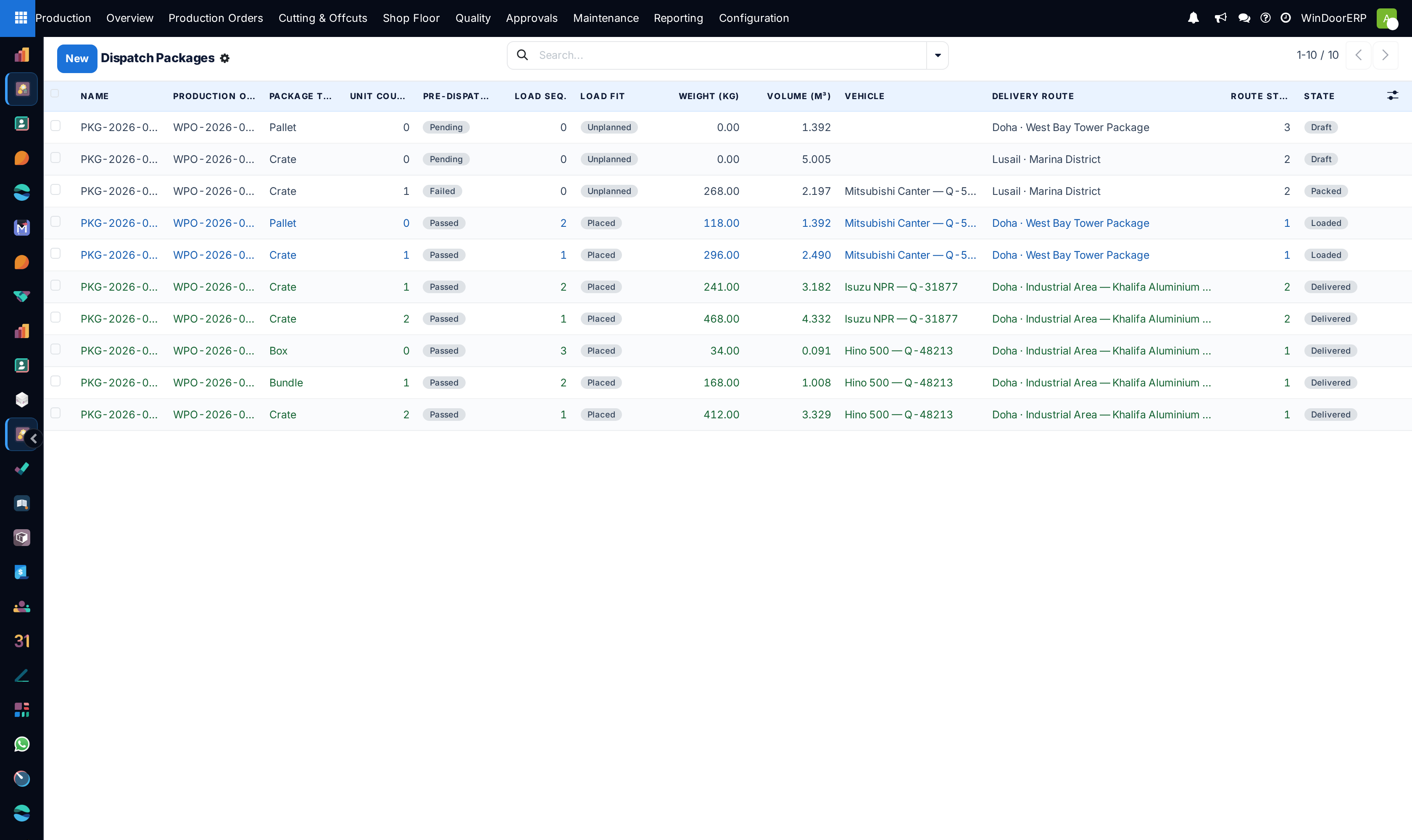
Production › Shop Floor › Dispatch Packages is how finished openings leave the factory as physical bundles: a crate, pallet or box holding named serials, with its weight and dimensions, its place in a delivery route, and — when a pre-dispatch quality gate exists — an inspection it must pass before it can be loaded. A load planner checks each package against the vehicle envelope.
Before you start
- The Finished-Goods Inventory & Delivery feature on — the menu and the produced units it packs both depend on it.
- Units finished and packed on the floor. A package is a container for serials, not a substitute for producing them.
Steps
-
01
Open Production › Shop Floor › Dispatch Packages and create one, or open the package the floor already started.
-
02
Set the Package Type — Crate, Bundle, Pallet or Box — and link the production order.
-
03
Fill the Packed Units tab with the serials that physically went in; the count keeps itself. On the floor, units are usually scanned in instead of picked from a list.
-
04
Record the physicals: Weight (kg), length, width and height (the volume computes), plus stacking limits — Stackable, Max Stack Level, Max Stack Weight.
-
05
Add the logistics: Vehicle, Delivery Route, Route Stop and route distance. Load planning uses reverse stop order, so the last stop is loaded last.
-
06
Drive the state: Mark Packed → Mark Loaded → Mark Delivered. Only the middle one checks anything: Mark Packed and Mark Delivered are bare writes that verify nothing at all, not even that the package holds a single unit.
-
07
Check the fit: open a package and press Plan Load in its header. It places that package against the default vehicle envelope and reports whether it was placed, did not fit, or lacks dimensions — with a warning if it alone exceeds the vehicle payload.
The pre-dispatch quality gate
The gate fires only when the Quality Control Gates feature is on. With it on, if a blocking QC point exists for the pre-dispatch stage and the package has no passed inspection yet, Mark Loaded does not load the package: it creates (or reuses) the pre-dispatch inspection, loads its checklist and opens it. The package quietly stays Packed — the redirect is the only signal, so read the screen you land on. Pass the inspection and press Mark Loaded again. With the QC feature off, Mark Loaded simply loads, inspection or not.
| Field | What it tells you |
|---|---|
| Pre-Dispatch QC | Not Required, Pending, Pass or Fail — computed from the package's inspections. |
| Pre-Dispatch Inspections tab | The inspections raised for this package, read-only. |
| Load Fit and Load Fit Note | The planner's verdict: Unplanned, Placed, Missing Dimensions or No Fit, with the reason — "Set length/width/height to plan the load.", "Does not fit the vehicle floor.", or the payload message. |
| Load X/Y/Z, Load Row, Stack Level, Rotated in Load | Where the planner put the package. Read-only planner output. |
| Delivery Order | The finished-goods delivery this package was attached to, filled when the delivery is created from the production order. |
Note
Scanning a unit into a package is the floor's normal path, and it refuses to double-count: a serial already in another package that has not been delivered is rejected, naming the package that holds it. A scanned unit is also advanced to packed — unless it is already received or delivered, in which case its later stage is left alone.
Troubleshooting
| Mark Loaded keeps opening an inspection | The pre-dispatch gate: the package loads only once that inspection passes. |
|---|---|
| A unit will not scan into the package | It is already in another undelivered package — the message names it. Remove it there first. |
| Plan Load reports "missing dimensions" | Those packages have no length, width or height. Fill them; the planner cannot place a box of unknown size. |
| Plan Load warns about payload | This one package weighs more than the configured vehicle payload. The envelope (13.6 m × 2.48 m × 2.7 m, 24 t by default) lives in system parameters an administrator maintains — there is no settings screen for it. |
| The menu is missing | The Finished-Goods feature is off. |
| Packages exist but no delivery | Deliveries are created from the production order (Create Delivery Order) once units are in stock; undelivered packages are then linked to that transfer. |
Common mistakes
- Writing the state directly — by mass edit, import or script — which bypasses the pre-dispatch gate entirely; the check lives inside the Mark Loaded button.
- Leaving dimensions empty and then blaming the load planner.
- Packing by memory instead of scanning: the double-packing refusal only protects you if the serials are actually scanned in.
- Treating the route stop as decoration — the planner loads in reverse stop order, so a wrong stop number means unloading the wrong crate first.
Was this article helpful?
Thanks — your feedback helps.
Running a window or door factory?
Ask for a demo