Configure the technical office: stages, types, teams and survey settings
What this does
Two configuration menus shape the technical office. Technical Tasks › Configuration defines how requests are classified and flow: stages, tags, request types and teams. Technical Tasks › Site Surveys › Configuration governs the measuring side: the approval rules in Settings, the survey template library, and the notification rules. This article covers both, screen by screen; the dropdown master lists (finishes, fittings, floors, locations) have their own topic.
Before you start
- The Technical Tasks configuration menus need the Technical Manager access right; the Site Surveys ones need Survey Manager.
- Decide the stage vocabulary with the team first — stages, types and tags are shared by everyone from day one.
First-time setup
-
01
Review Configuration › Technical Request Stages. Five ship ready: New, Assigned, In Progress, Completed and Cancelled, the last two folded. Reorder by the drag handle; add stages with New.
-
02
Open Technical Request Types and adapt the four shipped types — Site Survey Quote, Quote/Drawing, Fabrication Request, Other Request. For types that should open with a measuring visit, switch on Auto Create Survey and pick the Survey Type.
-
03
Create your Technical Teams — name, team leader, members — and prune the Technical Request Tags list.
-
04
Move to Site Surveys › Configuration › Settings and set the approval policy: the Approval Threshold (%) and whether every production survey needs a manager's approval.
-
05
Map the two Journey Auto-Advance stages so approved surveys move the request forward on their own.
-
06
Finish with Notification Settings: one rule per event you want announced, with its channels and recipients.
Technical Request Stages
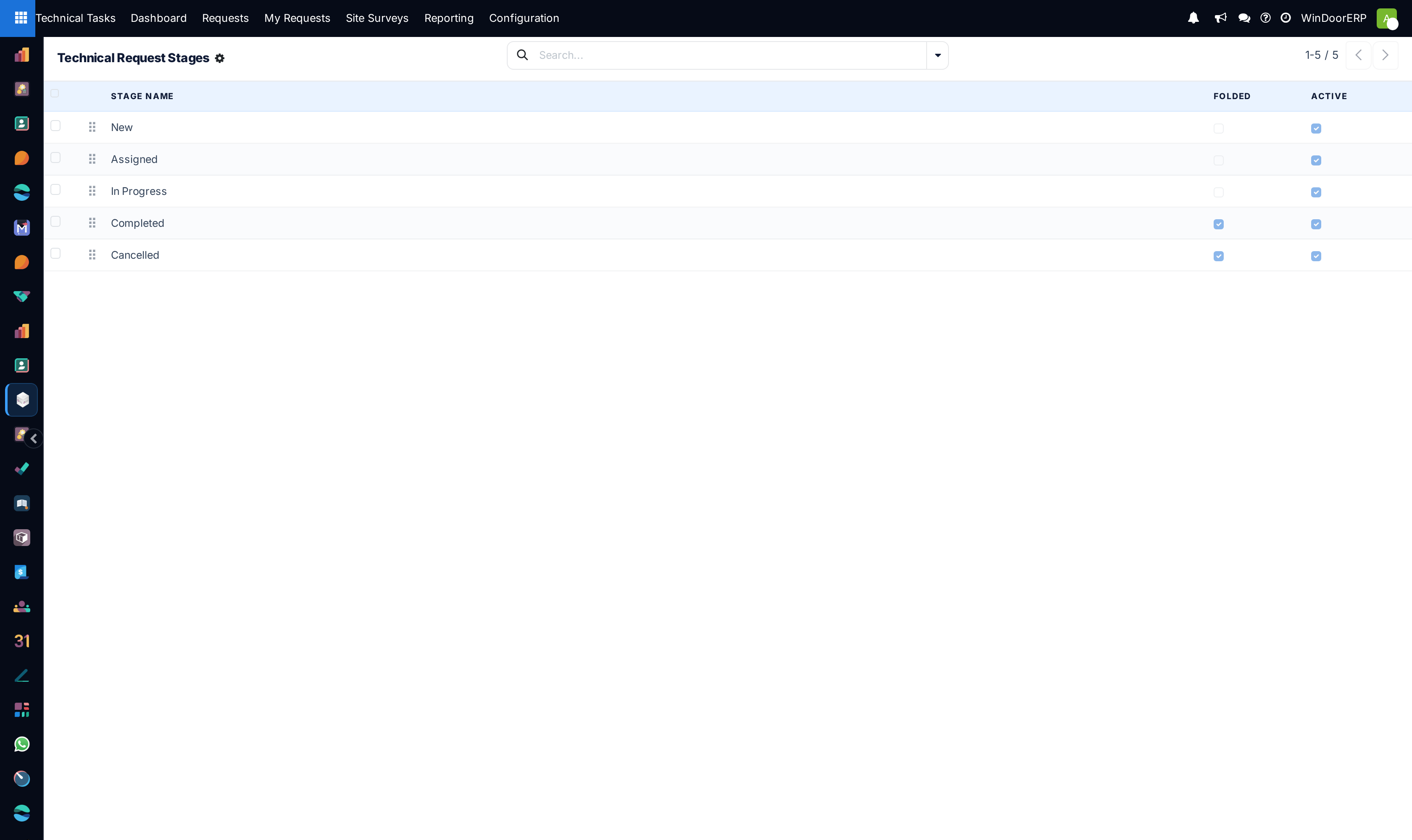
A stage is four fields: Stage Name, Sequence (the kanban order), Folded in Kanban and Active. The Folded flag does far more than collapse a column — it is what the system treats as "closed": folded-stage requests are excluded from the overdue calculation, shown muted in lists, and a folded technical-request stage is also what makes the surveyor portal refuse further re-visit requests on that job. Two behaviours to keep in mind:
| Behaviour | Consequence |
|---|---|
| The five shipped stages are updatable seed data. | Renaming or re-sequencing them is undone by the next module upgrade, which restores the shipped names. Add your own stages instead of renaming the built-ins. |
| The Tasks Analysis quick filters match stages by name. | Filters named New, Assigned, In Progress, Completed, Cancelled silently return nothing once those names change. |
Technical Request Types
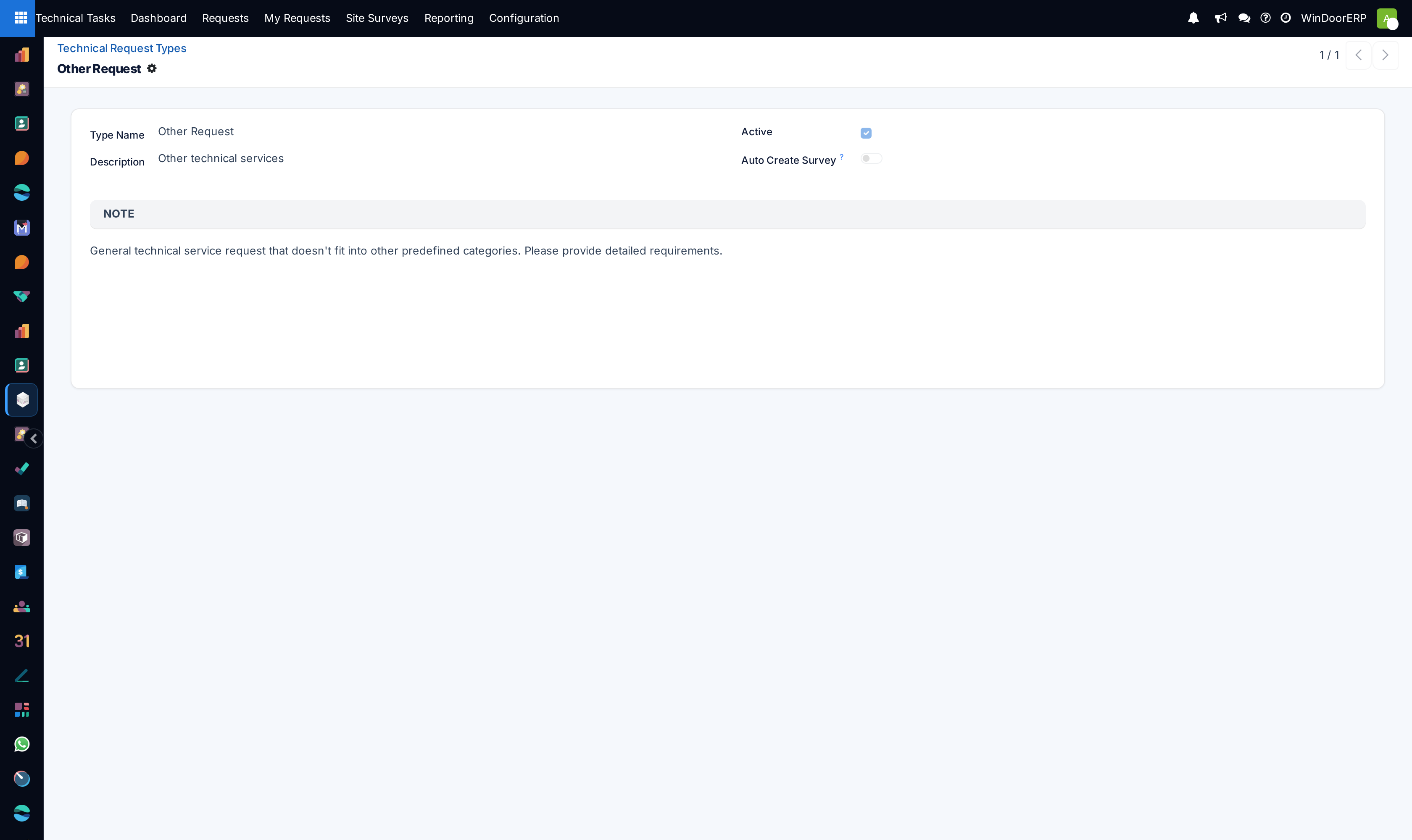
A type carries a Type Name, a one-line Description, an Active flag and a rich-text Note. The description and note are not decoration: the request dialog shows them to whoever raises a request of this type, and copies them onto the request itself — the note is your standing instruction sheet per kind of work.
The two survey fields wire types into the measuring flow. With Auto Create Survey on and a Survey Type chosen (Pre-Quote Survey or Production Survey), every request created with this type — and every existing request switched to it — gets a draft survey of that type created automatically, assigned to whoever created the request, unless a live survey of that type already exists on it. The Survey Type becomes required as soon as the toggle is on; a half-configured type is refused with "Please select a Survey Type for request type '…': 'Auto Create Survey' has no effect without one."
Technical Request Tags and Technical Teams
Tags are a name, a colour and an Active flag; Urgent, Installation, Repair, Maintenance and Consultation ship as starters. Teams are a Team Name, a Team Leader and a member list of employees (Installation Team, Fabrication Team and Technical Support ship ready). Both are labels for grouping and filtering: assigning a team to a request routes nothing and notifies nobody — the request's Manager field is the assignment that matters.
Site Surveys › Settings
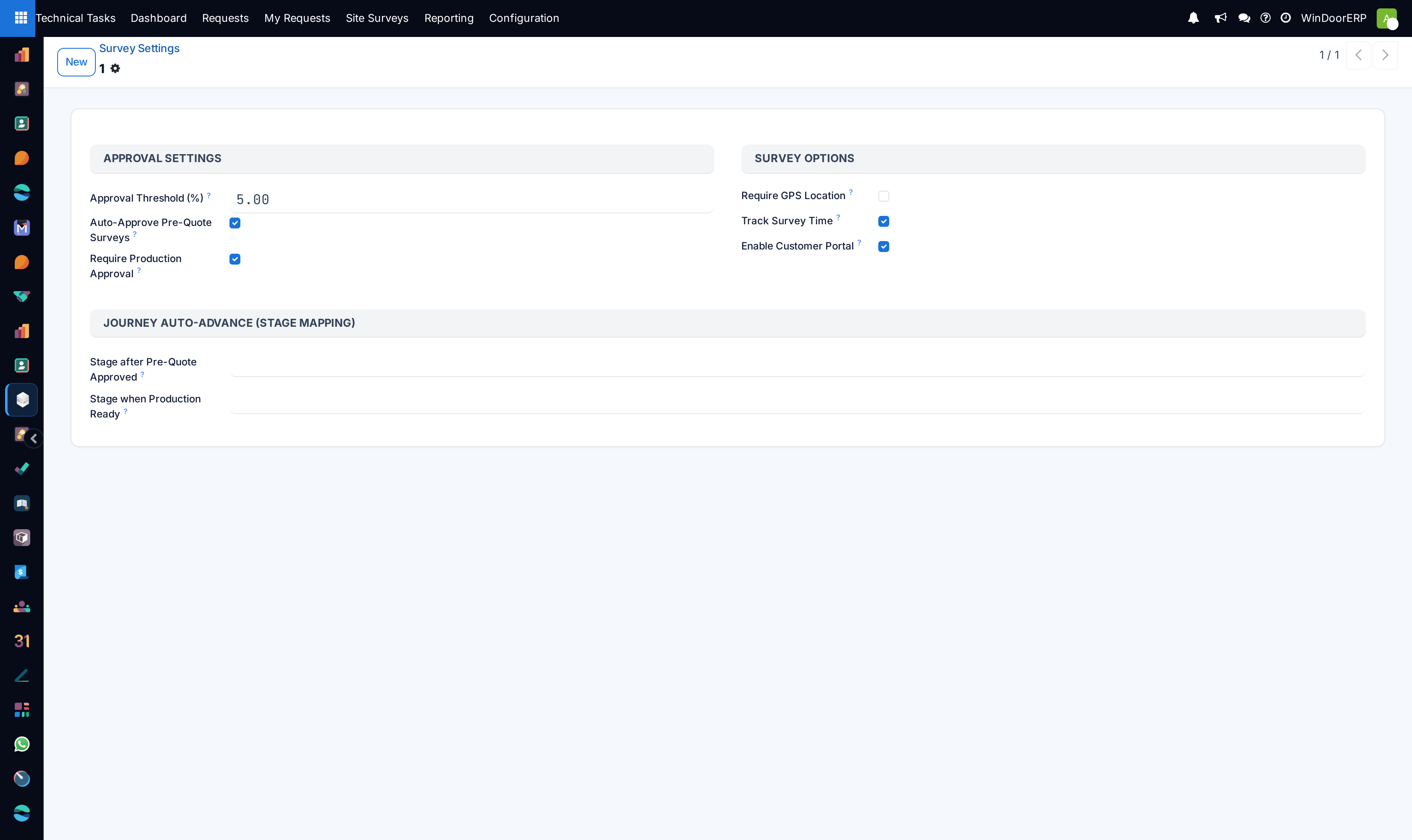
One settings row exists per company (creating a second raises "Configuration already exists for this company!"). What each field really does:
| Setting | Effect in this release |
|---|---|
| Approval Threshold (%) (default 5) | A survey whose total surveyed area differs from the quoted area by more than this goes to Pending Approval when completed instead of Completed. |
| Require Production Approval (default on) | While on, every production survey goes to Pending Approval on completion regardless of the threshold. Approval is also what posts measured quantities back to the sale order — switch this off only if you accept unreviewed quantities flowing to production paperwork. |
| Auto-Approve Pre-Quote Surveys (default on) | Stored but not read by the current workflow — a pre-quote within threshold finishes as Completed, not Approved, whatever this toggle says. |
| Require GPS Location (default off) | Also inert today: start and completion positions are captured whenever the device provides them, and never block the action. |
| Track Survey Time (default on) | Informational — actual start and end times are always recorded by the Start and Complete buttons. |
| Enable Customer Portal (default on) | The master switch of the surveyor mobile portal: switched off, every /my/surveys page redirects the surveyor back to the plain portal home. |
| Stage after Pre-Quote Approved / Stage when Production Ready | The journey auto-advance mapping. When a pre-quote survey is approved, or Release to Production is pressed, the technical request moves to the mapped stage — forward only, never backwards. Left empty, the journey never moves stages by itself. |
Survey Templates
A template is a named bundle of defaults: which survey type it applies to, default Site Conditions and Access notes, and template items that pair a Location Pattern with default window position, drainage face, aperture finish, threshold and scaffolding values. In this release the library is exactly that — a library: the only action wired to it is Clone Template (in the Actions menu of a template), which copies a template with or without its lines. No button on a survey applies a template automatically, so treat templates as documented standards your surveyors read, not as an automation.
Notification Settings
Each rule names a Trigger Event, an Apply To scope (all surveys, pre-quote only, production only), the channels, and the recipients. Events that actually fire are the workflow ones — Survey Created, Survey Assigned to Surveyor, Survey Started, Survey Completed, Survey Pending Approval, Survey Approved and Survey Rejected (a rejection is the move from pending approval back to draft). They fire on the real transition however it happens — form buttons, bulk actions, or the surveyor portal.
| Channel / recipients | Notes |
|---|---|
| Needs an Email Template built on the survey model; without one the rule sends nothing. | |
| SMS / WhatsApp | Free-text templates with placeholders {survey_name}, {customer}, {scheduled_date}, {surveyor}, {order}, {state}, {survey_type}. SMS needs the SMS gateway module; WhatsApp only prepares the message unless the WhatsApp integration is installed. |
| Recipients | Any mix of the customer, the order's salesperson, the surveyor, all survey managers, and named users. |
Troubleshooting
Renamed stages came back after an update — the five shipped stages are updatable seed records; the upgrade restored their names. Create your own stages for custom names.
A request type saved from the form but the list refuses the same change — both views enforce the same rule: Auto Create Survey without a Survey Type is always refused.
A notification rule stays silent — check, in order: the rule is Active; its Apply To matches the survey's type; the channel has a template (email rules without an email template send nothing); and the event is one of the workflow events. The Scheduled Survey Reminder and Survey Overdue events have no scheduler behind them in this release and never fire.
"Configuration already exists for this company!" — someone pressed New on the Settings screen; open and edit the existing row instead.
Common mistakes
- Renaming the shipped stages instead of adding new ones — the names revert on the next upgrade and the name-based report filters break meanwhile.
- Enabling Auto Create Survey on a type that is also used for non-measuring work — every request of that type will open a draft survey.
- Turning off Require Production Approval without another control on measured quantities — approval is the step that writes them to the order.
Was this article helpful?
Thanks — your feedback helps.
Running a window or door factory?
Ask for a demo