Configure production lines, work centers and factory layouts
What this does
Production lines and work centers are the map of your factory that WindoorERP schedules against: a production line is an ordered chain of stations for one product family, and a work center is one station on that chain — with a capacity, a cost rate, the operators allowed to run it, and the stations that must finish before it can start. When you generate work orders on a production order, one work order is created per item and work center of the matching line, so what you configure here decides exactly which operations the shop floor sees.
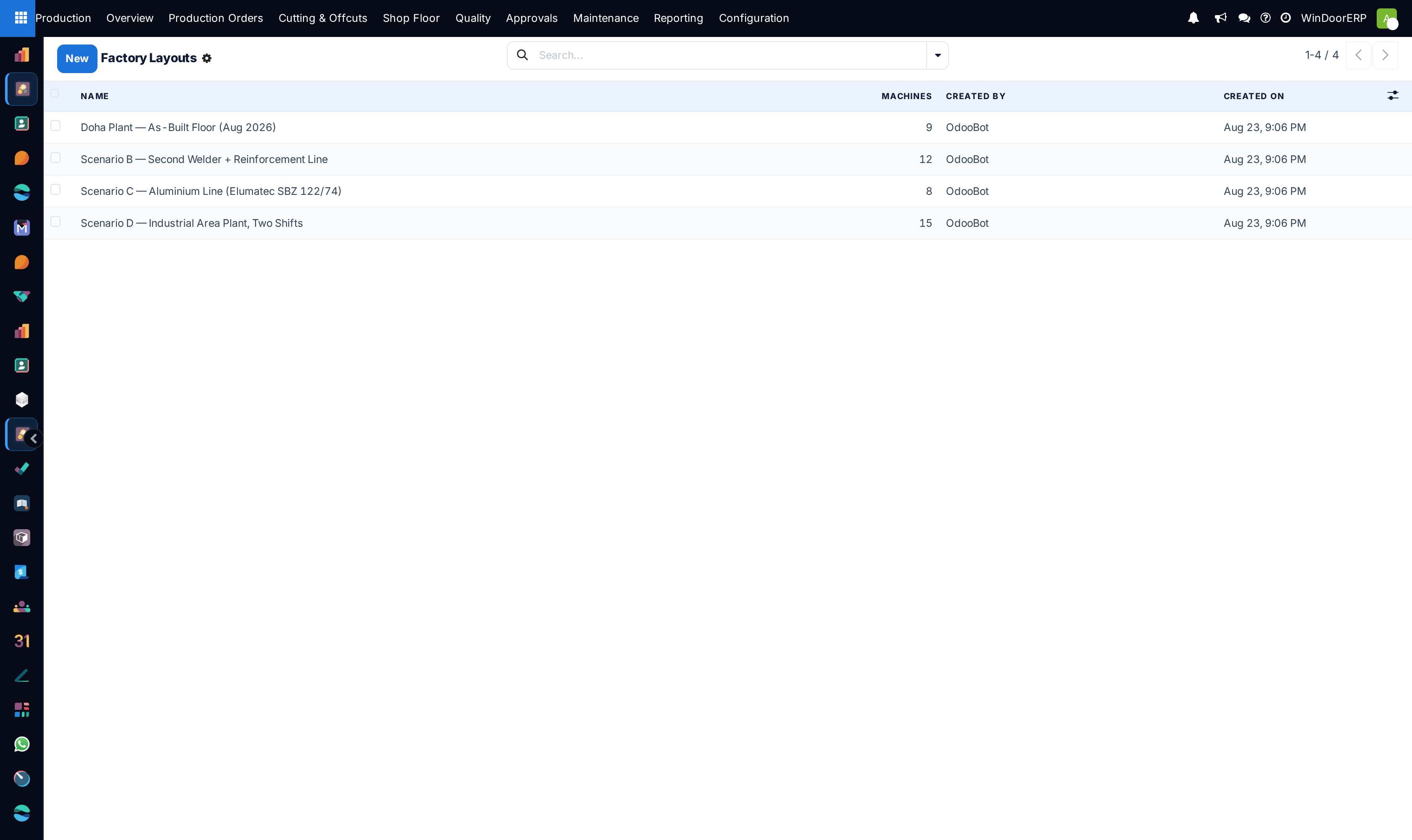
A factory layout is different: it is a saved scenario from the visual Factory Planner — a snapshot of machines, zones and walls you arranged on the floor plan — kept so you can reopen and compare arrangements. It does not drive scheduling.
All three screens live under Production › Configuration. The Configuration menu itself is visible only to the Production Manager role; these three entries inside it appear only while Work Orders & Routing is switched on in Production › Configuration › Settings. Turning that toggle off hides them for everyone at once — the switch is per database, not per user.
Before you start
- The Work Orders & Routing feature enabled in Production › Configuration › Settings, and the Production Manager role — plain production users have read-only access to lines and work centers and no menu entry to reach these screens at all.
- Real numbers for each station: throughput in units per hour, hourly cost, and working hours per day. These feed finite-capacity scheduling and labour costing, so guesses here become wrong schedules later.
Steps
-
01
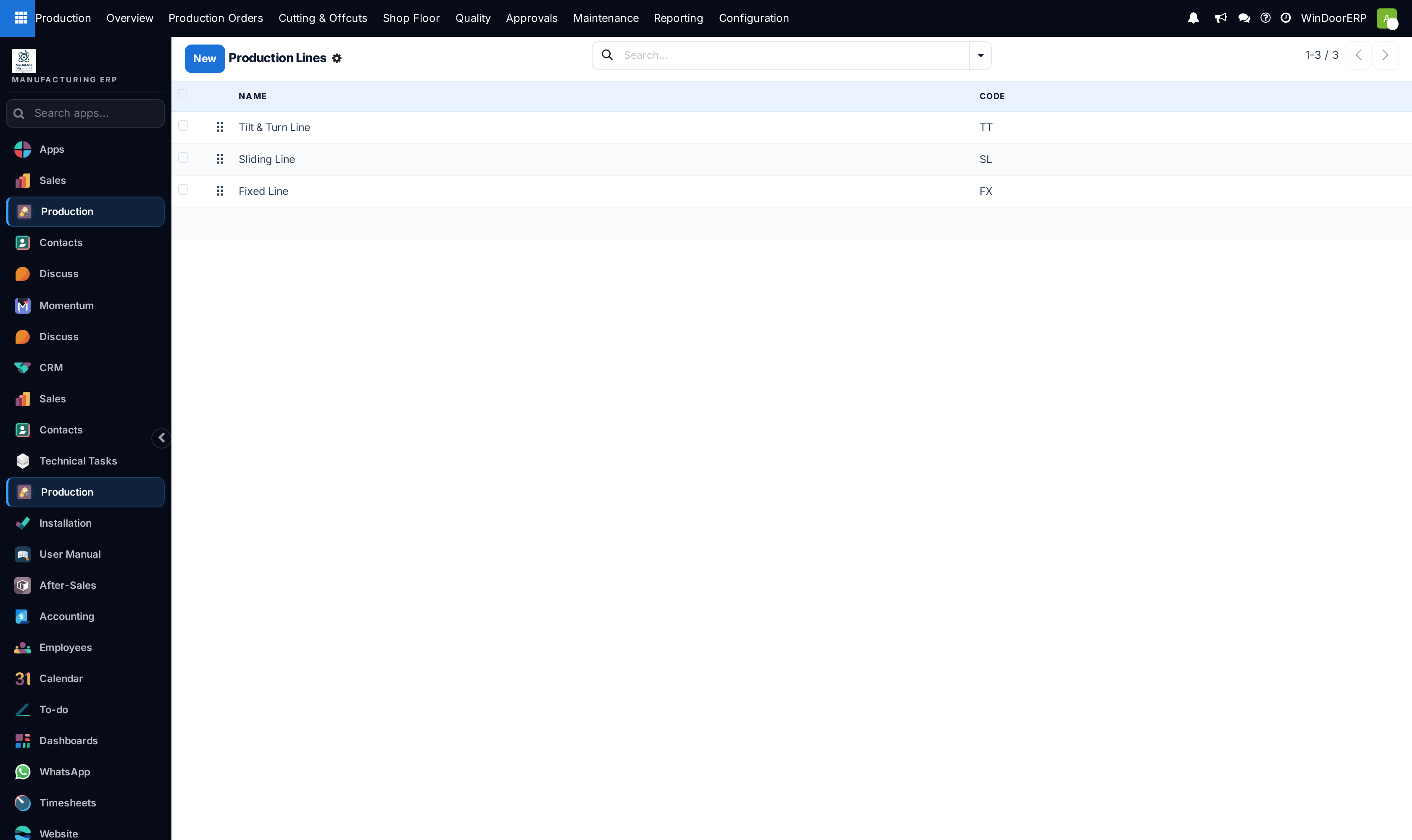
Open Production › Configuration › Production Lines. Three lines ship ready-made: Tilt & Turn Line (code TT), Sliding Line (SL) and Fixed Line (FX) — one per product family, each already carrying its chain of work centers.
-
02
Open a line and set its Product Family. When a production order is generated for that family and no line is chosen by hand, order generation prefers the line whose family matches.
-
03
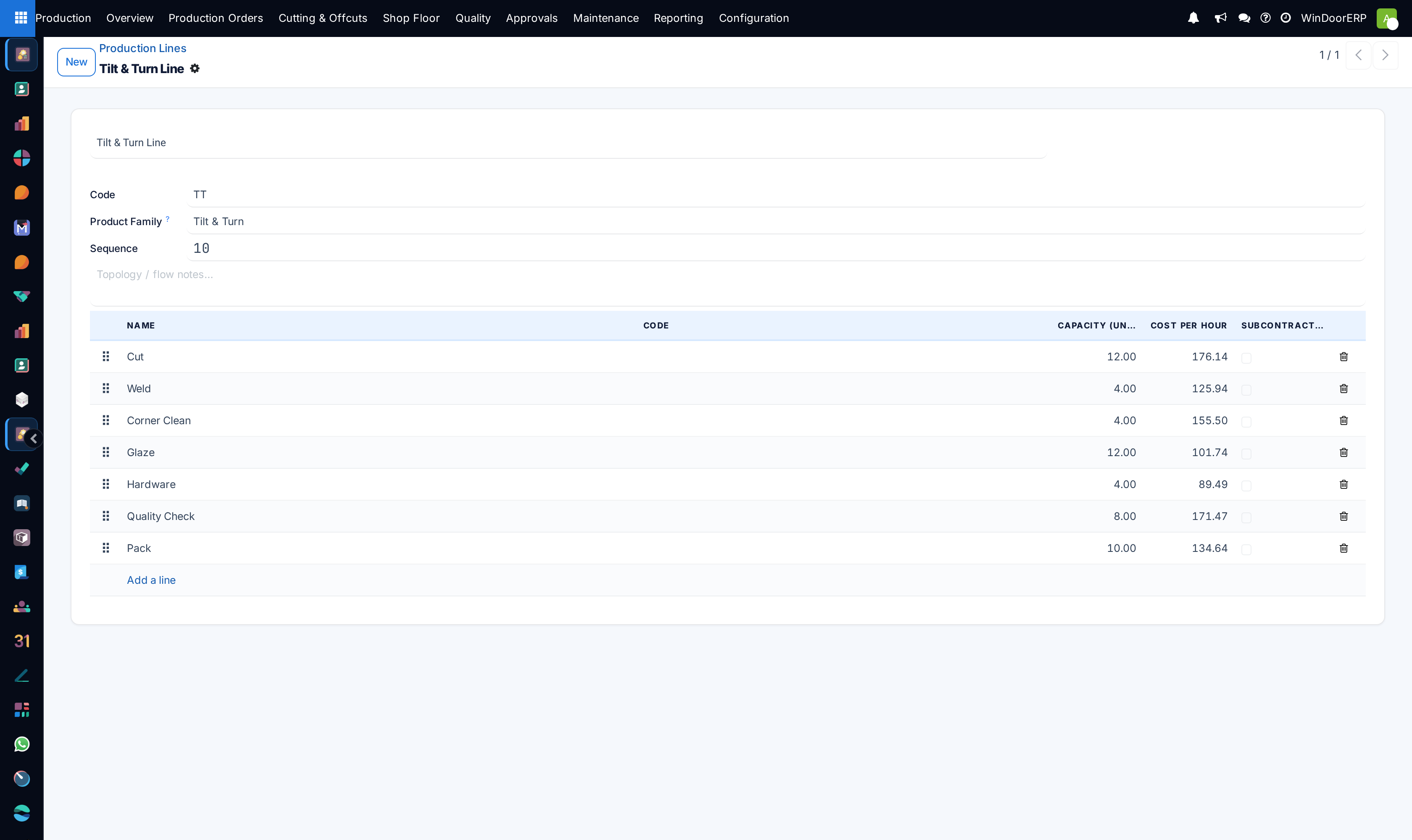
Review the line's Work Centers list — you can edit capacity, cost per hour and the subcontract flag directly in the embedded rows, and drag the handle to re-order stations.
-
04
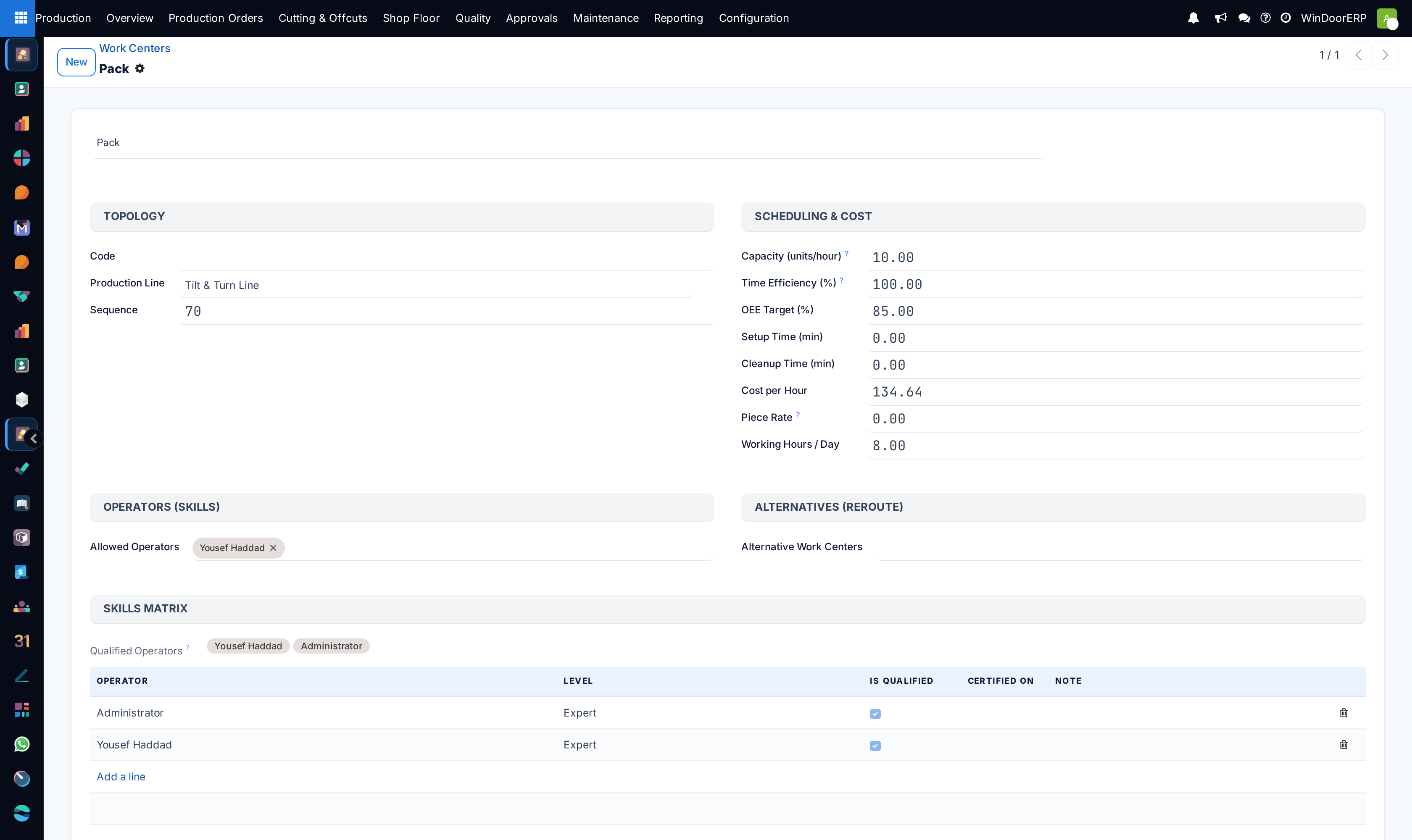
Open Production › Configuration › Work Centers and complete each station: Capacity (units/hour), Time Efficiency (%), Cost per Hour, and Working Hours / Day.
-
05
On each work center, fill the Depends On stations — the routing graph that decides when a work order becomes ready — and, for stations that can take over from each other, the Alternative Work Centers.
-
06
Under Operators (Skills), list who may run the station: either directly in Allowed Operators, or as skill rows in the Skills Matrix with a level per operator.
-
07
If a station is outsourced, tick Subcontracted Operation and set the Subcontractor and Lead Time (days) — work orders at this station then follow the subcontract flow instead of in-house execution.
Production lines
The line form is deliberately small: it names the chain, ties it to a family, and embeds its stations.
| Field | What it does |
|---|---|
| Name, Code | The line's name (required) and short code — the shipped lines use TT, SL, FX. |
| Product Family | Tilt & Turn, Sliding, Fixed or Generic (the default). Work-order generation prefers the line whose family matches the order's family when no line is set on the order. |
| Sequence | Ordering of the list, default 10 — and the tie-breaker: when no line's family matches an order, work-order generation falls back to the lowest-sequence active line. |
| Notes | Free text — the placeholder suggests topology / flow notes. |
| Work Centers | The embedded, re-orderable station list. Rows are editable in place: name, code, capacity, cost per hour, subcontract flag. |
The three shipped lines are loaded once and then left alone on upgrades, so any change you make to them survives updates. Their work centers ship as bare routing graphs — the capacities and cost rates you see on an existing database were entered locally, not shipped.
Work centers
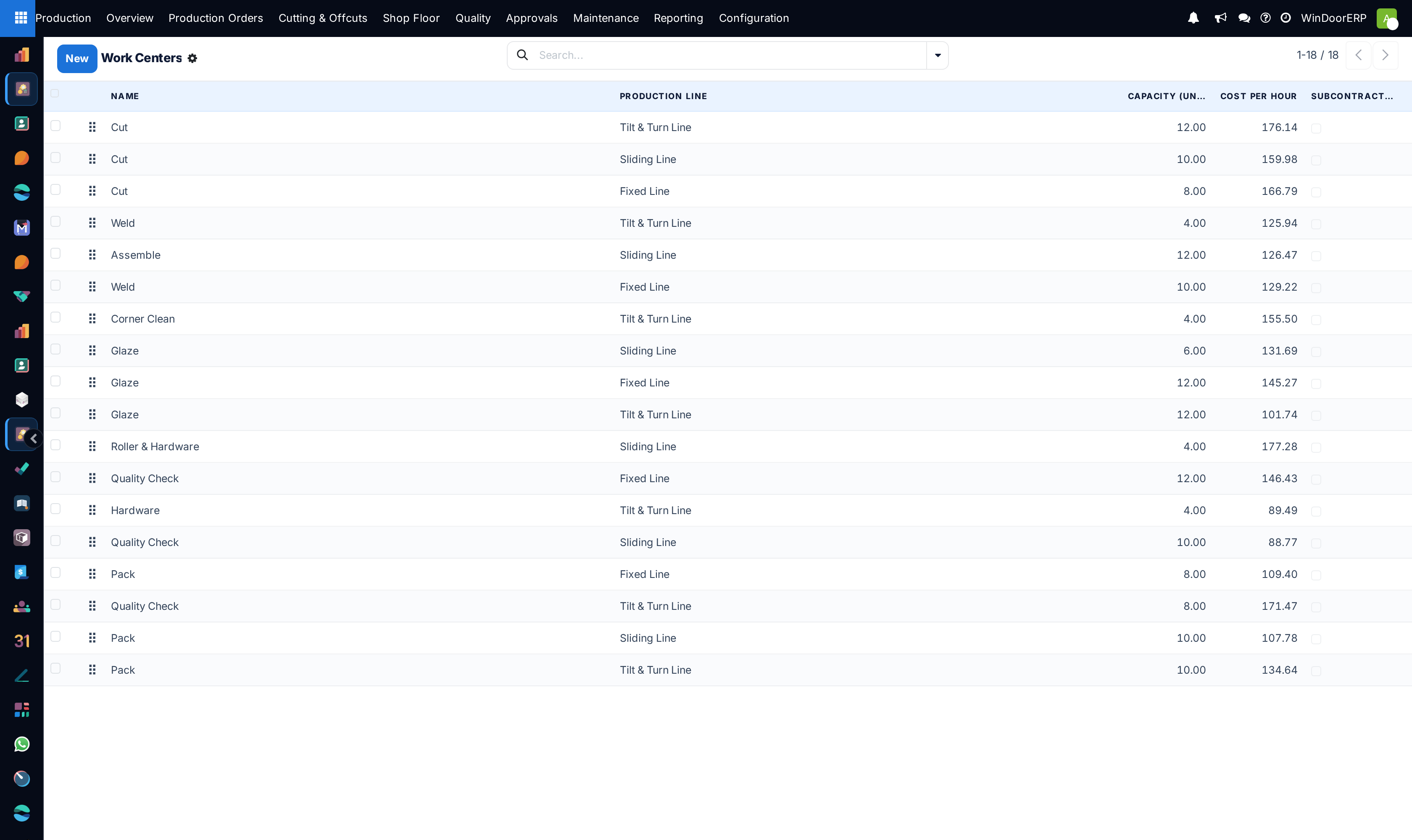
The list shows name, production line, capacity, cost per hour and the subcontract flag; everything else lives on the form, grouped into Topology, Scheduling & Cost, Operators (skills), Alternatives (reroute), Routing Template (holding Depends On) and Subcontracting — plus an embedded Machines list showing each machine's type, capacity, cost, power and live state.
| Field | What it does |
|---|---|
| Code, Production Line, Sequence | Identity and position. The sequence orders stations within the line. |
| Capacity (units/hour) | Throughput used for finite-capacity scheduling. Default 1.0 — leaving it there makes every station look like a one-unit-per-hour bottleneck. |
| Time Efficiency (%) | Actual versus theoretical speed; 100% means at standard. |
| OEE Target (%) | The target shown against measured OEE. Default 85. |
| Setup Time (min), Cleanup Time (min) | Fixed minutes added around processing when scheduling. |
| Cost per Hour | The labour/machine rate used to cost labour logs recorded at this station. |
| Piece Rate | Optional labour amount paid per good unit completed at this work center. It becomes the default piece rate on each labour log. |
| Working Hours / Day | Shift length used by scheduling. Default 8. |
| Allowed Operators | Direct allow-list of users who may work this station on the shop-floor terminal. |
| Skills Matrix | Per-operator skill rows: level (Trainee / Competent / Expert), a computed Is Qualified flag, certification date and note. Qualified rows authorise the operator just like the allow-list; the read-only Qualified Operators field shows the union of both. |
| Alternative Work Centers | Fallback stations used when a quality disposition reroutes work away from this station. |
| Depends On | Stations of the same line that must finish first. This is the graph work-order generation follows: a work order stays Pending until its predecessors are done. |
| Subcontracted Operation, Subcontractor, Lead Time (days) | Marks the station as outsourced. The subcontractor and lead days pre-fill the subcontract flow on work orders at this station. |
Note
Neither screen has header buttons or validations — there is no guard against a circular Depends On chain or a zero capacity, so review the graph by eye. Archiving is the only removal path that preserves history, and the Active toggle is hidden on the form: use the list's Archive action.
Factory layouts
A layout record is a named snapshot of the Factory Planner's canvas, saved from inside the planner. The list shows the name, a computed Machines count, and who created it when; the form adds a note and the raw layout JSON, which is read-only — it is written by the planner, not by hand.
The one button, Open in Planner, reopens the scenario on the planner canvas. It appears once the record is saved. The layout records are writable by any production user — that is how the Factory Planner saves scenarios — but this backend screen sits under the manager-only Configuration menu, so non-managers work with layouts only through the planner.
Troubleshooting
| The Configuration menu (or one of these screens) is missing | Either you lack the Production Manager role, or Work Orders & Routing is off in Settings. The feature toggle applies to every user in the database at once. |
|---|---|
| "Configure a Production Line with work centers first (Configuration ▸ Production Lines)." | Raised when generating work orders on a production order and no line with stations exists (or matches). Create or complete a line here first. |
| Rows won't save on the Work Centers or Production Lines list | Plain production users have read-only access to both models — lines, work centers and skills need the manager role (machines and factory layouts are the user-writable exceptions). |
| A layout's Machines count reads 0 for a scenario you know has machines | The count is parsed from the stored layout JSON; if the JSON is invalid the count silently falls back to 0. Reopen the scenario in the planner and save it again. |
| A work order never becomes Ready | Its work center's Depends On predecessors are not all done — or the chain is circular, which nothing prevents at configuration time. |
Common mistakes
- Leaving Capacity at the default 1.0 unit/hour, which makes the finite-capacity scheduler treat every station as a severe bottleneck.
- Deleting the shipped lines to "start clean" instead of editing them — the shipped rows are the routing templates order generation looks for by family.
- Authorising operators only in your head: the shop-floor terminal enforces Allowed Operators and qualified skill rows, and an operator listed on neither sees no work centers at all.
- Treating a factory layout as configuration. It is a planning snapshot; deleting or editing it changes no schedule and no routing.
- Building a Depends On graph across two different lines — the field only accepts stations of the same line, so a cross-line dependency has to be modelled as one longer line.
Was this article helpful?
Thanks — your feedback helps.
Running a window or door factory?
Ask for a demo