Map sales territories as circles and hand their opportunities to a team
What this does
A territory is a circle drawn on the map: a centre point and a radius in kilometres. Every customer and every opportunity whose coordinates fall inside that circle belongs to the territory. Nothing is typed in by hand and nothing is stored — membership is measured from the coordinates each time you look.
Use it to see how much business sits around Lusail as opposed to Al Wakrah, to give each area a manager, and to hand every opportunity in an area to the team that covers it in one click.
Before you start
- The menu is restricted. You need All Documents lead visibility — an ordinary salesperson who only sees their own deals will not find Territories in the Configuration menu at all.
- Customers and opportunities need coordinates before any territory can contain them. A record with no latitude and longitude is invisible to every territory, however obviously it sits in the area.
- Have the centre coordinates ready. The form asks for numbers, not an address — there is no address box and no map picker on this screen.
Steps
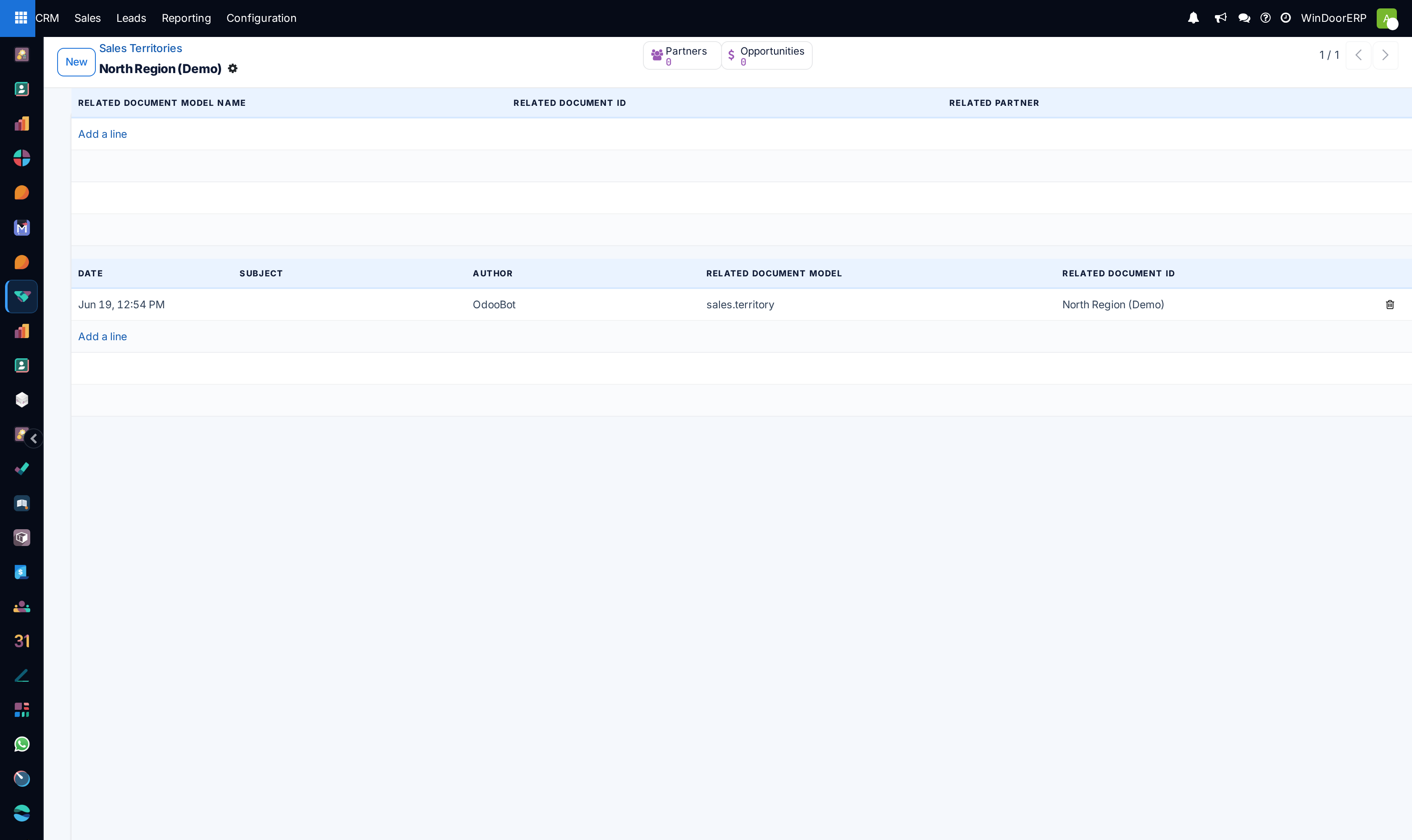
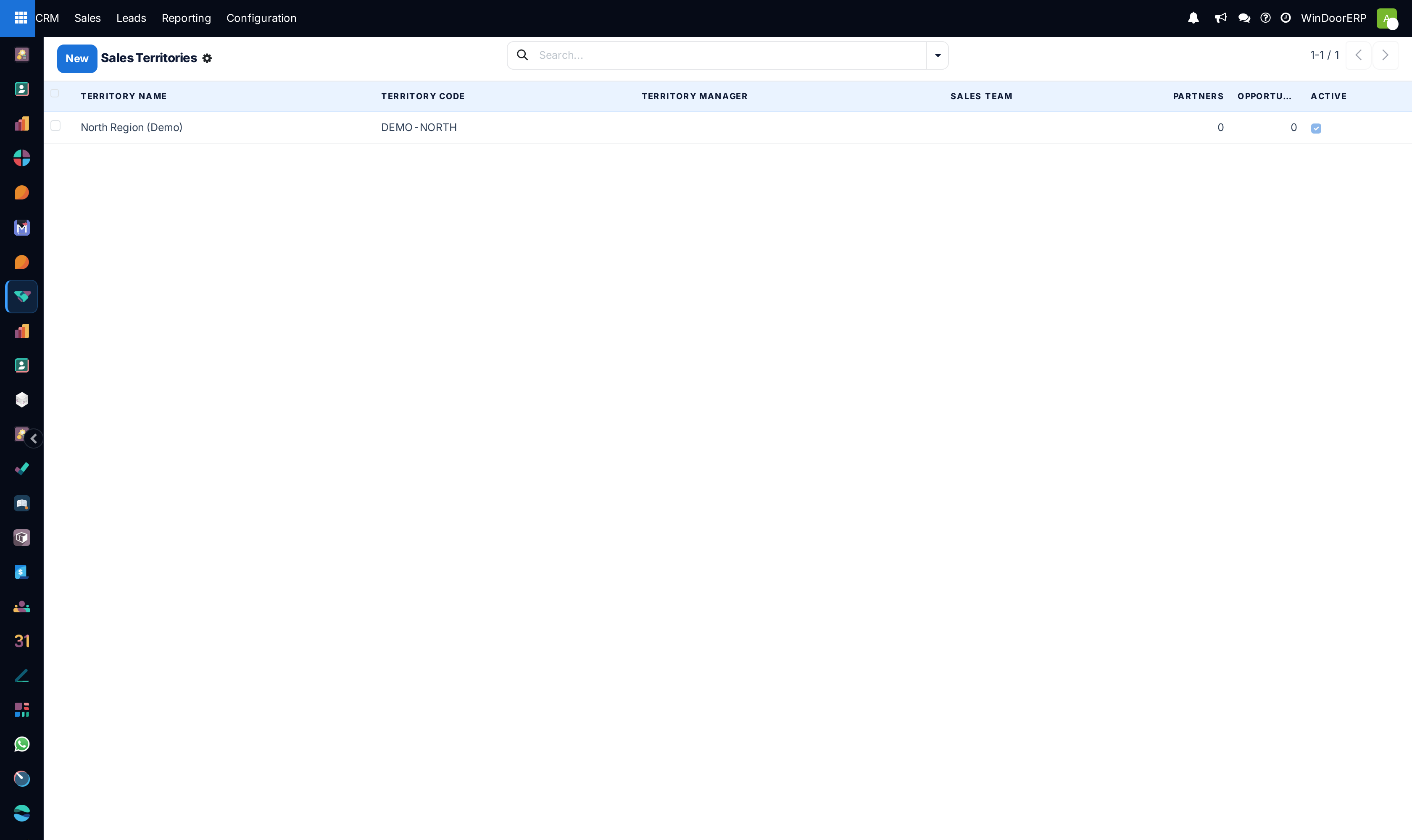
-
01
Open CRM › Configuration › Territories and click New.
-
02
Give it a Territory Name. This is the only required field.
-
03
Fill in Territory Code for a short handle such as QA-DOH, and pick a Territory Manager and a Sales Team. All three are optional, but the Sales Team is what the Assignment tab needs later.
-
04
Choose a Map Color. It is a label for your own eye — the colour is stored but no screen draws the circle yet.
-
05
On the Geographic Boundaries tab, under Circular Territory, enter Center Latitude, Center Longitude and Radius (km). The radius starts at 50.
-
06
Save. The Partners and Opportunities buttons at the top fill in immediately — that is your check that the circle is where you think it is.
The territory form, field by field
| Territory Name | Required. Shown everywhere the territory is referred to. |
|---|---|
| Territory Code | A short handle of your own choosing. Nothing validates it and nothing enforces uniqueness. |
| Territory Manager | A user. Recorded here, and used by the Assignment tab: if it is set, assigning the territory also puts this person on every opportunity in the circle. |
| Sales Team | The team that covers the area. Nothing happens automatically when you set it — it arms the Assignment tab, which you still have to press. |
| Map Color | A colour swatch. Stored, not yet drawn anywhere. |
| Center Latitude / Center Longitude | Decimal degrees, seven decimal places. Negative for west and for south. |
| Radius (km) | Straight-line distance from the centre, in kilometres. Default 50. |
| Notes | Free text on its own tab. Not searched. |
| Partners / Opportunities | Two buttons at the top. Live counts, never stored — see below. |
How membership is decided
The distance from the centre to each record is worked out with the haversine formula — the true distance across the curve of the earth — and anything at or inside the radius is in. A bounding box is applied first as a coarse filter so the calculation does not have to run over every record in the database, but the box only narrows the search; the circle decides.
The two counts are not stored. They are recomputed every time the record is displayed, deliberately: a stored number would go stale the moment a customer's address is corrected or a new opportunity is created, and nothing would tell you. The cost is that a territory list with many territories is a little slower to open than an ordinary list.
The number on the button and the list behind it can disagree
The Opportunities counter looks only at coordinates stored on the opportunity itself. The list you get when you click the button also accepts an opportunity positioned through its customer's address. So an opportunity that has no coordinates of its own, but whose customer does, appears in the list without being counted. If the two disagree, this is why — and the list is the more generous of the two.
Assigning a territory to its team
The Assignment tab holds a single button, Assign Opportunities to Team, and it stays hidden until a Sales Team is set. Pressing it writes that team onto every opportunity inside the circle at that moment, and — if the territory has a Territory Manager — writes that person into the opportunity's salesperson field as well. A green notice reports how many were changed.
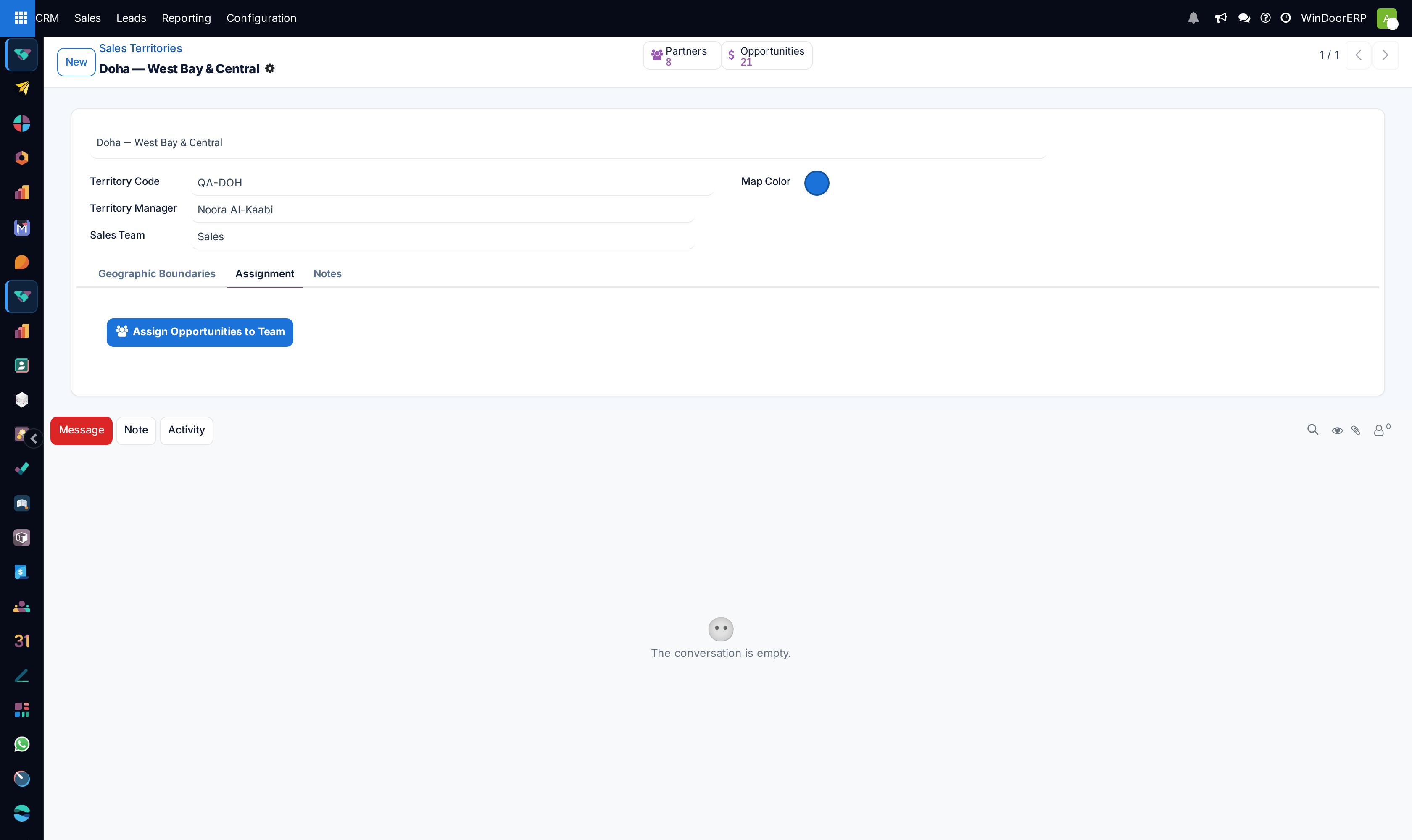
There is no confirmation and no undo
The button acts the instant it is clicked — no dialog asks whether you are sure, and there is no way to reverse it in one step. It overwrites the salesperson already on those opportunities, including deals someone is actively working. Check the Opportunities counter first so you know how many records you are about to touch, and be aware that the button acts on every opportunity in the circle, open or not.
Territories and automatic lead assignment are separate things
This is the point most often misread. A territory does not route anything by itself. It has no place in the rule-based assignment engine, it is not consulted when new leads arrive, and setting one up changes nothing about how leads are shared out. Territories are a manual instrument: a way to see an area and to push its opportunities to a team when you decide to.
If you want incoming leads routed automatically, that is the assignment domain on the sales team, which is a different mechanism with a different screen.
Troubleshooting
| Both counts are zero on a territory that should be full | Almost always the centre. Latitude and longitude are easy to swap, and a sign dropped from a negative value puts the circle in the wrong hemisphere. Check the numbers against a map before widening the radius. |
|---|---|
| A customer you expect is missing | They have no coordinates. Open the contact and set the location on its map tab; until then no territory can see them. |
| Territories is not in the Configuration menu | You do not have All Documents lead visibility. The menu is hidden, not disabled, so there is nothing to click and no message. |
| Assign Opportunities to Team is not there | The territory has no Sales Team. Set one and the button appears. |
| Two territories overlap | Nothing stops them, and a record inside both is counted by both. If you then assign both, the second one you press wins. |
Common mistakes
- Expecting the circle to be drawn on a map. There is no map on this screen — you work in numbers and check your work with the two counters.
- Treating the radius as a boundary that follows roads or districts. It is a plain circle, so a coastal area will always include sea, and a tight urban district will always spill into its neighbours.
- Pressing Assign Opportunities to Team to "see what it does". It does it, to every opportunity in the circle, at once.
- Building territories in the hope that new leads will start routing themselves. They will not.
Was this article helpful?
Thanks — your feedback helps.
Running a window or door factory?
Ask for a demo