Set member capacity, pause assignment and the two lead filters
What this does
A team member record is one person's place in one team, and it is where you say how much work that person should be given: their capacity, whether they are taking new work at all, and which deals they should get first.
These records only matter when rule-based assignment is on. With assignment off they exist quietly in the background and nothing reads them; with it on, they are what the engine divides the work by.
Before you start
- Enable Rule-Based Assignment under CRM › Configuration › Settings. Without it the capacity and filter fields on this screen are hidden and nothing acts on them.
- Understand the unit before you type a number. Capacity is expressed over thirty days, not per day and not per month-to-date.
- Have your team structure settled first — a member record belongs to exactly one team, and someone selling for two teams needs multi-team membership turned on.
Steps
-
01
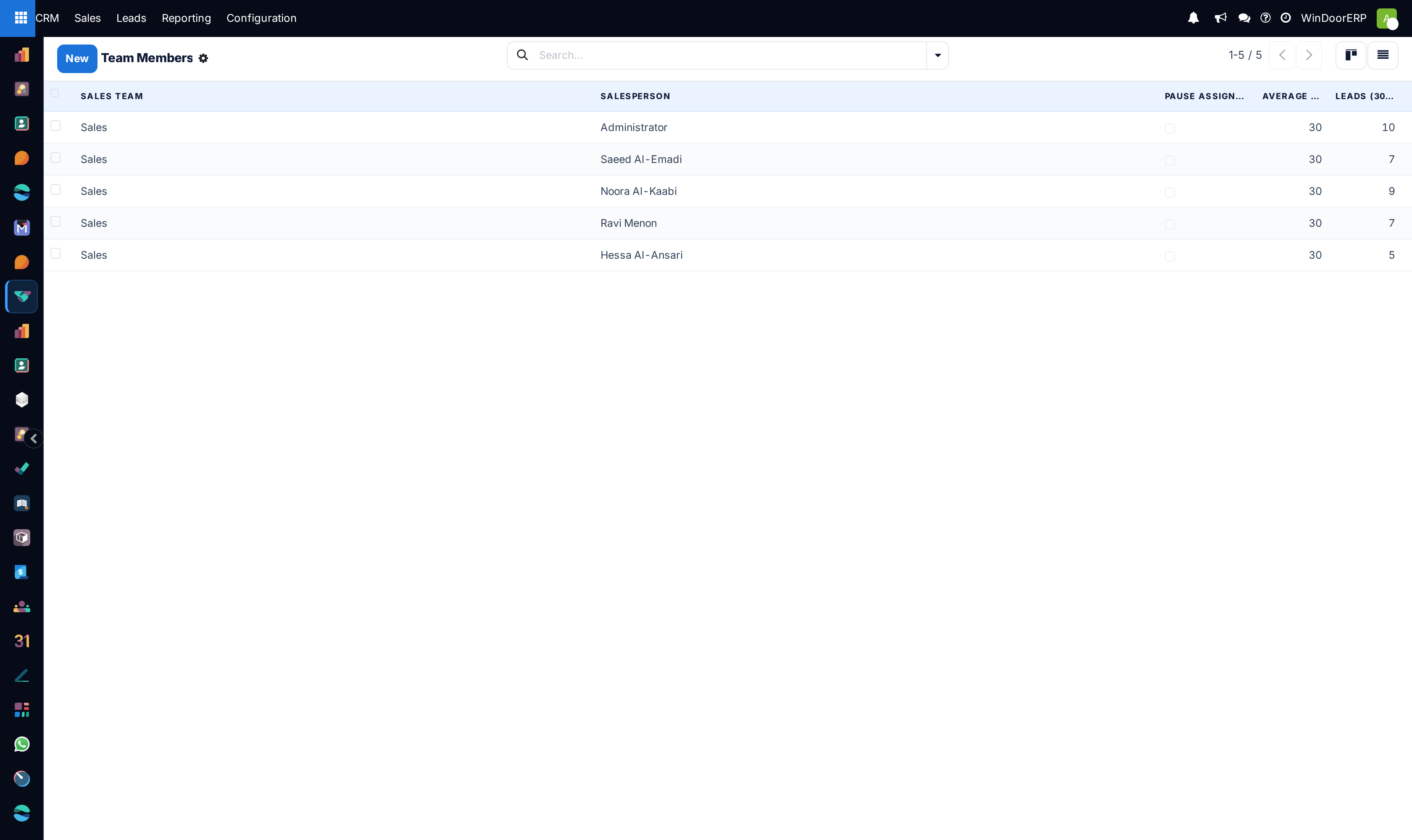
Open CRM › Configuration › Teams Members. The list shows every person-and-team pairing in the database.
-
02
Click a row to open it, or New to add someone to a team.
-
03
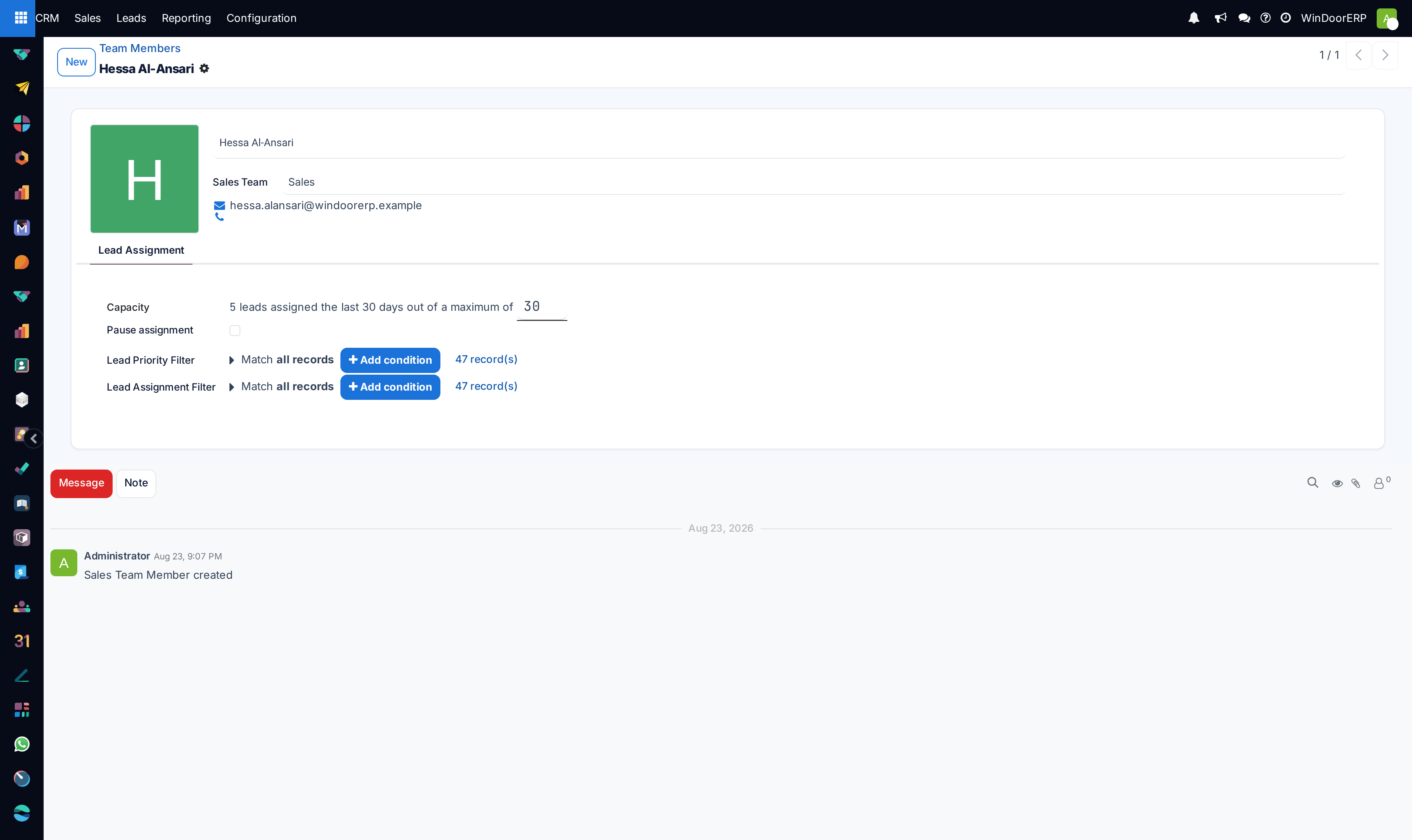
On the Lead Assignment tab, set Capacity. It starts at 30, and the line around it reads back how many leads the person has actually received in the last 30 days.
-
04
Tick Pause assignment for anyone who should keep their existing deals but receive no new ones — someone on leave, or leaving.
-
05
Use Lead Priority Filter to describe the deals this person should be offered first.
-
06
Use Lead Assignment Filter to describe the deals this person may receive at all.
-
07
Save. The team's own capacity figure updates itself: it is the sum of its members' capacities and cannot be edited directly.
The fields, one by one
| Salesperson | The user. Together with the team it identifies the record — the same person can appear once per team. |
|---|---|
| Sales Team | The team this membership is in. |
| Capacity | How many leads this person should receive over thirty days. Default 30. Zero means they never receive any, which is a different thing from pausing. |
| Leads (30 days) | Read-only, beside the capacity: how many were actually assigned in the last thirty days. This is the number to compare the capacity against. |
| Pause assignment | Suspends new assignment for this person. When ticked, the capacity and both filters disappear from the form — there is nothing left to configure. |
| Lead Priority Filter | A filter over leads. Leads matching it are offered to this person before anything else is considered. |
| Lead Assignment Filter | A filter over leads. This person is only ever given leads that match it. Empty means no restriction. |
Both filters are hidden unless assignment is enabled, the capacity is non-zero and the person is not paused. If you cannot see them, one of those three is the reason.
Capacity is a thirty-day figure spent one day at a time
This is the single most misread number on the screen. The engine does not hand someone thirty leads and stop. It divides the capacity by thirty, rounds to a whole number, and treats the result as that person's daily quota.
So the default capacity of 30 means one lead per day. A capacity of 60 means two a day. And a capacity of 20 rounds to one a day as well — and every value from 15 to 44 rounds to one a day, so the daily behaviour does not change at all across that whole range. It takes 45 to reach two.
Capacities below 15 stop assignment altogether
A capacity of 10 divided by 30 rounds to zero, and a zero daily quota means the person is never chosen. Anyone whose capacity is set below 15 silently receives nothing at all, while the screen still shows a perfectly reasonable-looking number. If someone is mysteriously getting no leads, look here first.
The daily quota is also reduced by what the person has already been given in the last twenty-four hours, so a scheduled run does not double up. The manual Assign Leads button deliberately ignores that reduction and grants the full daily quota again.
How the two filters differ
They are easy to confuse and they do different jobs.
The Lead Assignment Filter is a gate. It decides what this person is eligible for, and a lead outside it will never reach them however free they are.
The Lead Priority Filter is a queue position. Assignment runs in two passes: first it walks the leads that match somebody's priority filter — highest probability first — and offers each to the people who asked for that kind of work; only then does it distribute what is left. Both passes spend the same daily quota, so a priority filter does not earn anyone extra leads. It changes which leads they get, not how many.
Set a priority filter to reflect genuine specialisation — curtain walling, a language, a region. Setting one for everybody achieves nothing, because when everyone has priority no one does.
Reading the member cards
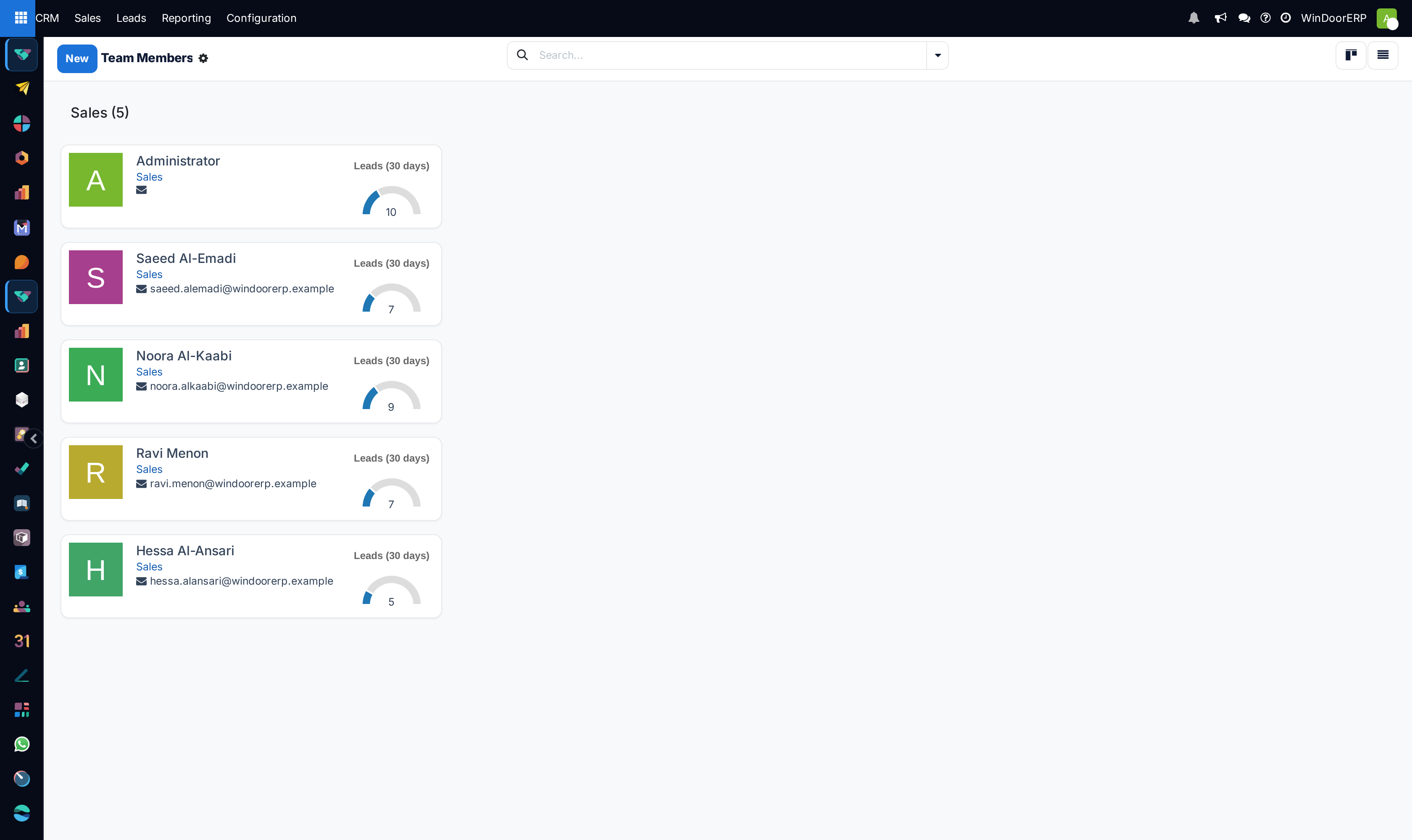
With assignment enabled, a team's Members tab shows a card per person with a gauge: leads received in the last thirty days against the capacity. It is the fastest way to see an unbalanced team — one gauge near full while another sits near empty usually means the filters are narrower than intended, not that someone is idle.
Troubleshooting
| One person receives nothing | In order: capacity under 15 (rounds to a zero daily quota), Pause assignment ticked, or an assignment filter that matches nothing. |
|---|---|
| The capacity and filter fields are missing | Rule-based assignment is off, the capacity is zero, or the person is paused. Any of the three hides them. |
| The whole team receives nothing | Check the team, not the members: a team whose members total zero capacity never enters the draw at all. |
| The team capacity looks wrong | It is not editable — it is the sum of the members' capacities. Change a member and it follows. |
| Someone gets more than their share | Priority filters are the usual cause. They do not raise a quota, but they do let one person take the good leads before anyone else is offered them. |
Common mistakes
- Reading Capacity as a daily number and setting it to 5. That rounds to zero and the person disappears from the rota.
- Using Pause assignment when someone leaves the company. Pausing keeps the membership; if they are gone, remove the membership or archive the user.
- Setting a priority filter for everyone in the hope of fairness. It cancels out.
- Tuning capacities to fix an uneven spread that is actually caused by the team's own domain upstream.
Was this article helpful?
Thanks — your feedback helps.
Running a window or door factory?
Ask for a demo