Print quotations with drawings, survey reports, and delivery documents
What this does
Between the first quotation and the signed handover, WindoorERP prints a paper trail: the quotation family on the sales order, the survey reports that record what was measured on site, the delivery documents that travel with the glass, the QC dossier that proves the installation was checked, the after-sales Service Report, and the Customer Statement and Follow-up Letter that chase what remains unpaid. This article covers each document — where its button actually lives, what fills it, and which ones capture a real signature versus printing a blank line for a pen.
Before you start
- Sales quotations, survey records, or delivery transfers to print from.
- For quotation drawings: each line's design saved in the WebCC designer — the drawing on the PDF is the saved design image, not a live render.
- For survey and QC reports: the fieldwork recorded — measurements, photos, inspection answers, captured signatures.
The quotation family
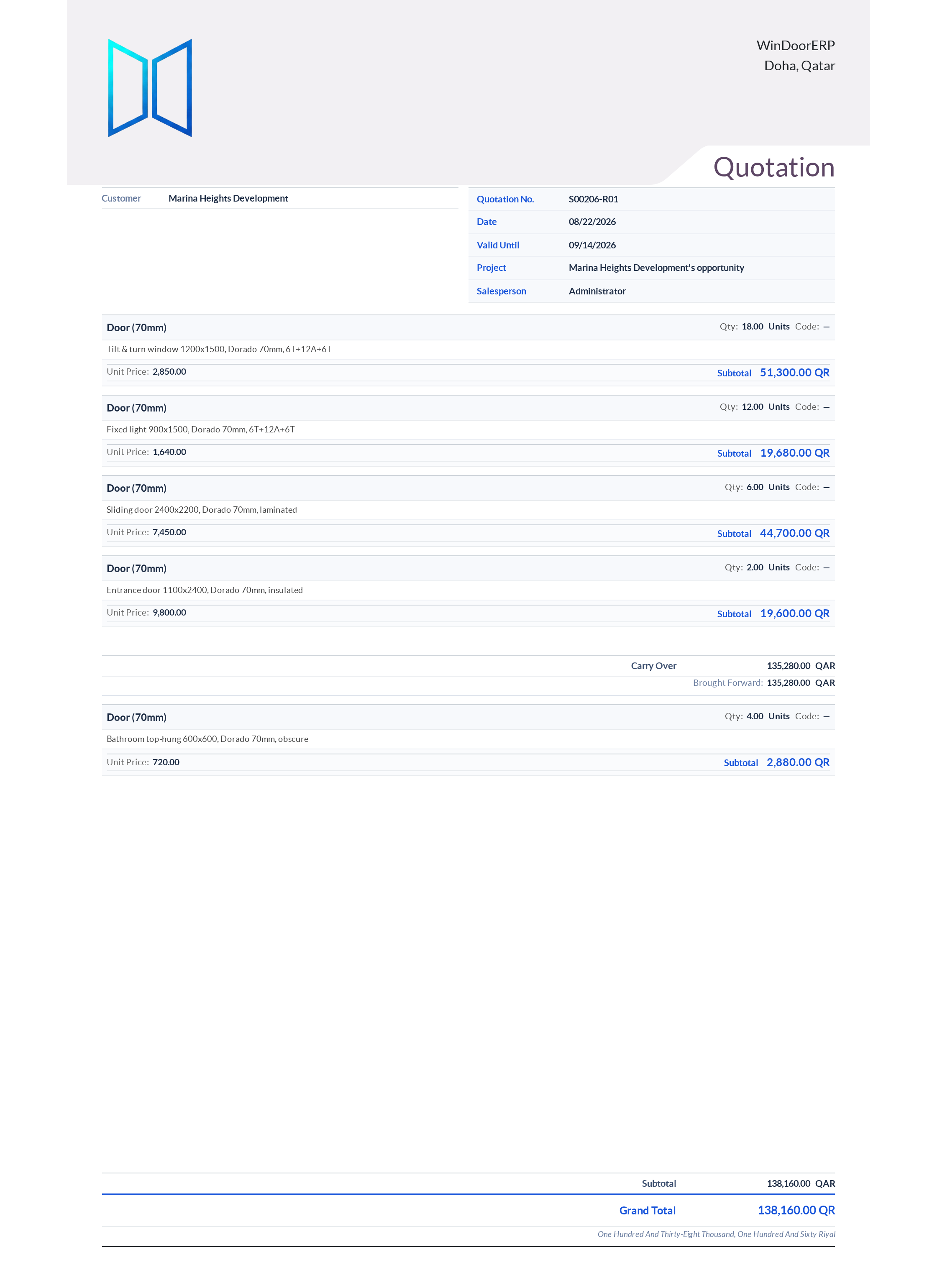
A sales order's ⚙ Print menu offers several quotation documents, and two of them are the same document twice. PDF Quote and Quotation / Order both render the standard Odoo line-item quotation; "PDF Quote" is the standard report renamed, and it only earns its separate name when header/footer documents are configured under Sales › Configuration › Quotation Layout or the ordered products carry PDF datasheets — then it merges those extra pages around the quotation. With none configured, the two print byte-identical output.
The document architects actually ask for is Print Quotation with Drawing: one card per order line with the saved WebCC elevation drawing on the left and a specification panel on the right — width, height, area and sill height, profile name, outside/inside colours, glass, the line note, floor level, location and install position. The drawing is the image captured when the design was last saved in the WebCC designer; a line whose design was never opened and saved (or a plain none-type product line with no specifications) prints as a compact text-only card with, at best, the product's small catalogue thumbnail. A fourth entry, Print Quotation with Product PDFs, prints the same card layout and then appends any PDF documents attached to the ordered products — one merged file for the client.
PRO-FORMA Invoice exists in the code but is invisible to every user on a standard tenant: the print action is gated to the pro-forma sales group and nobody is in it until an administrator adds them. If you cannot see it, that is why.
Printing the commercial set
-
01
On the quotation, open ⚙ Print › Print Quotation with Drawing — and before sending it, check that every window line shows its drawing; a placeholder card means that design was never saved in WebCC.
-
02
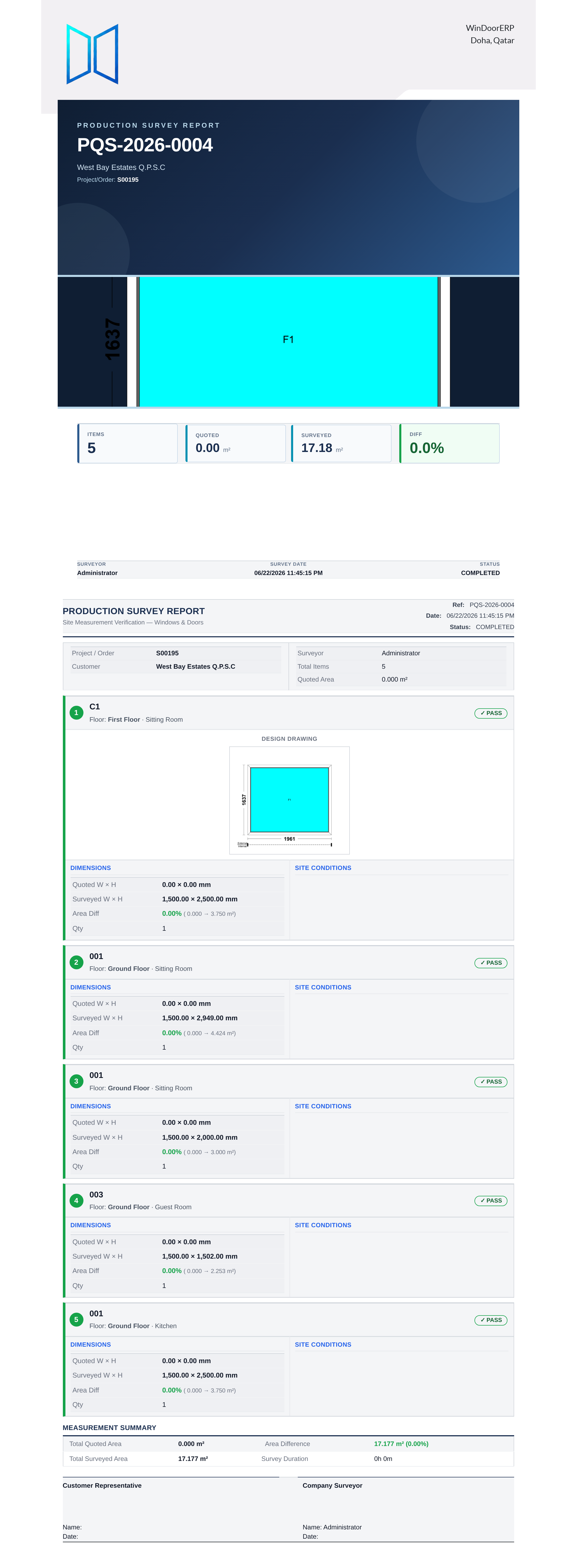
From an approved site survey, print the Pre-Quote Survey Report (a measurement record — two items per page with dimension bands and photo slots, deliberately without design drawings) or the Production Survey Report (per-item pass/fail cards with the design drawing, site conditions, photos and the captured signatures).
-
03
On the delivery transfer, print the Delivery Slip or Picking Operations sheet from the Print menu — and the WinDoor Delivery Note from its own Print Delivery Note button beside the Dispatch fields, after filling the Vehicle and Route fields it prints.
-
04
From the installation project (or a single task), print the Site QC Dossier — every recorded inspection answer with its measured value against tolerance, plus the QC-sourced snags and their fix notes.
-
05
From a service order, use its Print Report button for the after-sales Service Report — problem, work done, materials with pricing, and the customer's captured signature when one was taken on screen.
-
06
From Accounting › Follow-up Reports, use the Statement and Print Letter buttons for the Customer Statement and the Follow-up Letter.
Delivery documents — and what a signature is worth
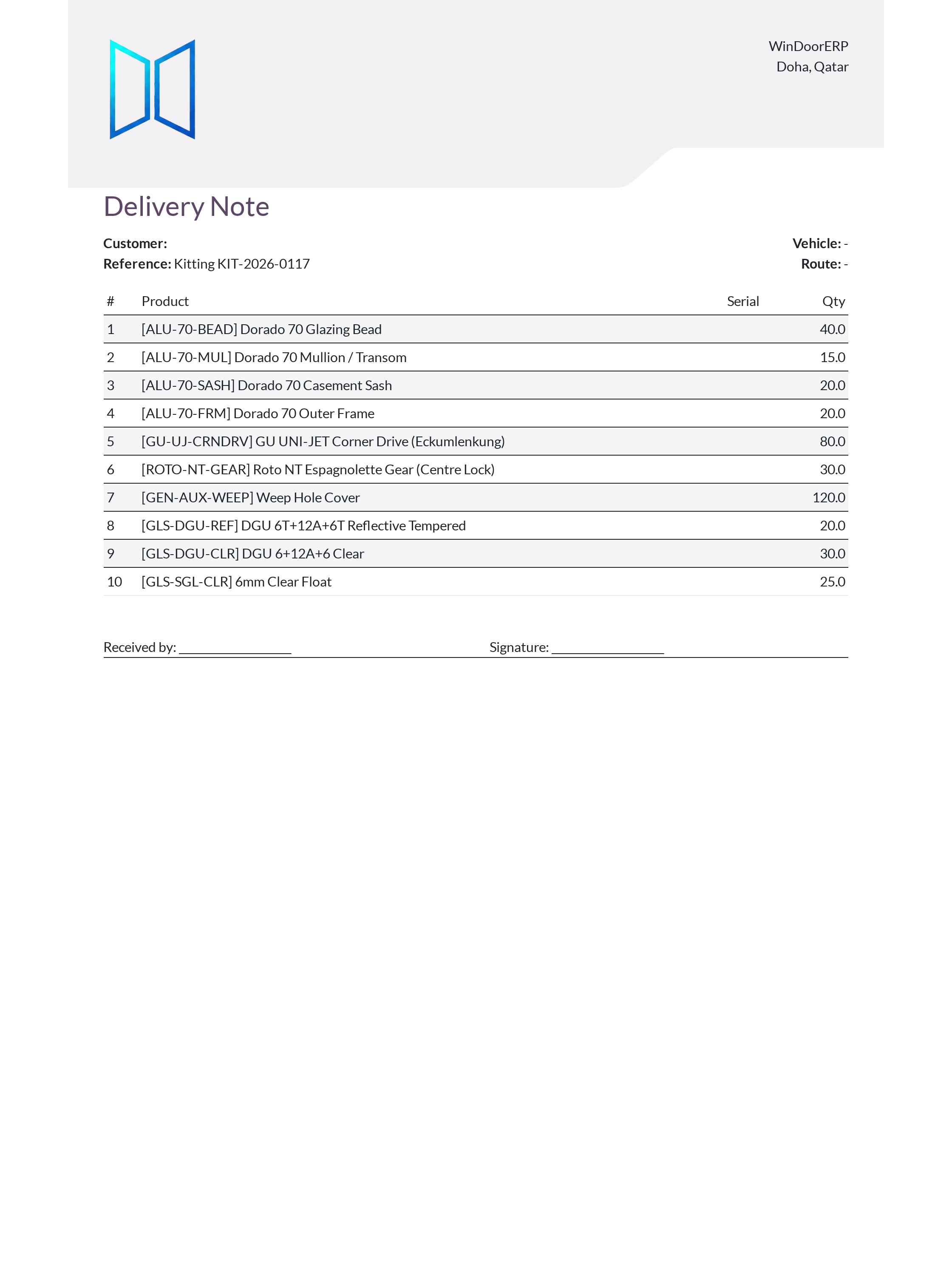
The WinDoor Delivery Note is deliberately minimal: customer, order reference, the Vehicle and Route you typed on the transfer (they print as "-" when left empty), a product/serial/quantity table, and two blank lines — Received by and Signature. Understand what that means: the signature is ink on paper after printing; nothing on the delivery note is captured back into the system. If you need a signature that lives in the database, that is what the survey reports and the after-sales Service Report do — they embed the signature image captured on screen. A signed delivery note is filed paper, not a system record, so scan and attach it to the transfer if it matters contractually.
Three more stock documents behave unexpectedly. Packages only appears on the Print menu when package tracking is enabled in Inventory settings. The Return slip is not a goods-received document — it is an address-and-barcode label for sticking on a returned parcel. And the Reception Report is not on the Print menu at all: it is an interactive screen reached from the transfer's Reception Report button, which has its own print option inside.
Survey reports — three, but only two buttons
The survey app ships three PDF layouts but only two appear under Print on the survey form: Pre-Quote Survey Report and Production Survey Report. The third, the generic Site Survey Report, works in the background — it is the PDF the survey e-mail wizard attaches, and the one filed onto the sale order when a pre-quote survey converts to a quotation. Don't hunt the Print menu for it; it arrives as an attachment.
Statements and follow-up letters
The Customer Statement summarises a customer's position: credit limit, totals due and overdue, five aging bands, the outstanding invoices with days-overdue badges, recent payments, any payment plans and promises, and payment-behaviour statistics. The Follow-up Letter changes its language with the customer's follow-up level — from a polite "Payment Follow-up Notice" through "URGENT PAYMENT REMINDER" to "FINAL NOTICE" with a seven-business-day deadline — and closes with your company's bank details. If the company has no bank account on file, the letter prints "Please contact us for bank details" instead; set the bank account before the first letter goes out.
Troubleshooting
A quotation line prints without its drawing — the design was never saved in the WebCC designer, so no image was captured for the line; open the design, save it, and print again.
PDF Quote looks identical to Quotation / Order — it is, until header/footer documents are configured under Sales › Configuration › Quotation Layout or products carry PDF datasheets to merge.
No PRO-FORMA Invoice on the Print menu — the pro-forma group has no members by default; an administrator must add users to it before the entry appears.
Vehicle and Route print as "-" — the two fields on the transfer were left empty; they are free-text fields, filled by hand per delivery.
No Site Survey Report under Print on a survey — by design; print the Pre-Quote or Production variant, or send the survey by e-mail to get the generic report as its attachment.
The follow-up letter shows "Please contact us for bank details" — no bank account is recorded on the company; add one under the company's contact record.
No Packages report on a transfer — enable package tracking in Inventory settings; the report is group-gated.
Common mistakes
- Treating the signed delivery note as a system record — the signature exists only on the printed paper; scan and attach it if the handover matters.
- Sending "Print Quotation with Drawing" without checking every card — one unsaved design means one placeholder card in front of the architect.
- Expecting the Pre-Quote Survey Report to show design drawings — it is a measurement record by design; drawings belong to the Production Survey Report.
- Using the Return slip as a goods-received note — it is a parcel label with barcodes, nothing more.
- Escalating a customer to a severe follow-up level without noticing the letter's tone escalates with it — read the letter before it leaves.
Was this article helpful?
Thanks — your feedback helps.
Running a window or door factory?
Ask for a demo