View live orders, approve quotes, track milestone invoices, and submit service requests
What this does
The customer portal is the page behind Sign in on your website: one place where a customer reviews and signs quotations, reads their orders and invoices, watches their installation progress opening by opening, confirms the site is ready, and raises after-sales service requests — without phoning your team for any of it.
Before you start
- Access is by invitation: open the customer's contact and choose Action › Grant portal access. The contact needs a valid, unique email; the invitation email carries the link where they set their password.
- Portal cards appear only when there is something behind them — a customer with no invoices sees no invoices card at all.
Steps
-
01
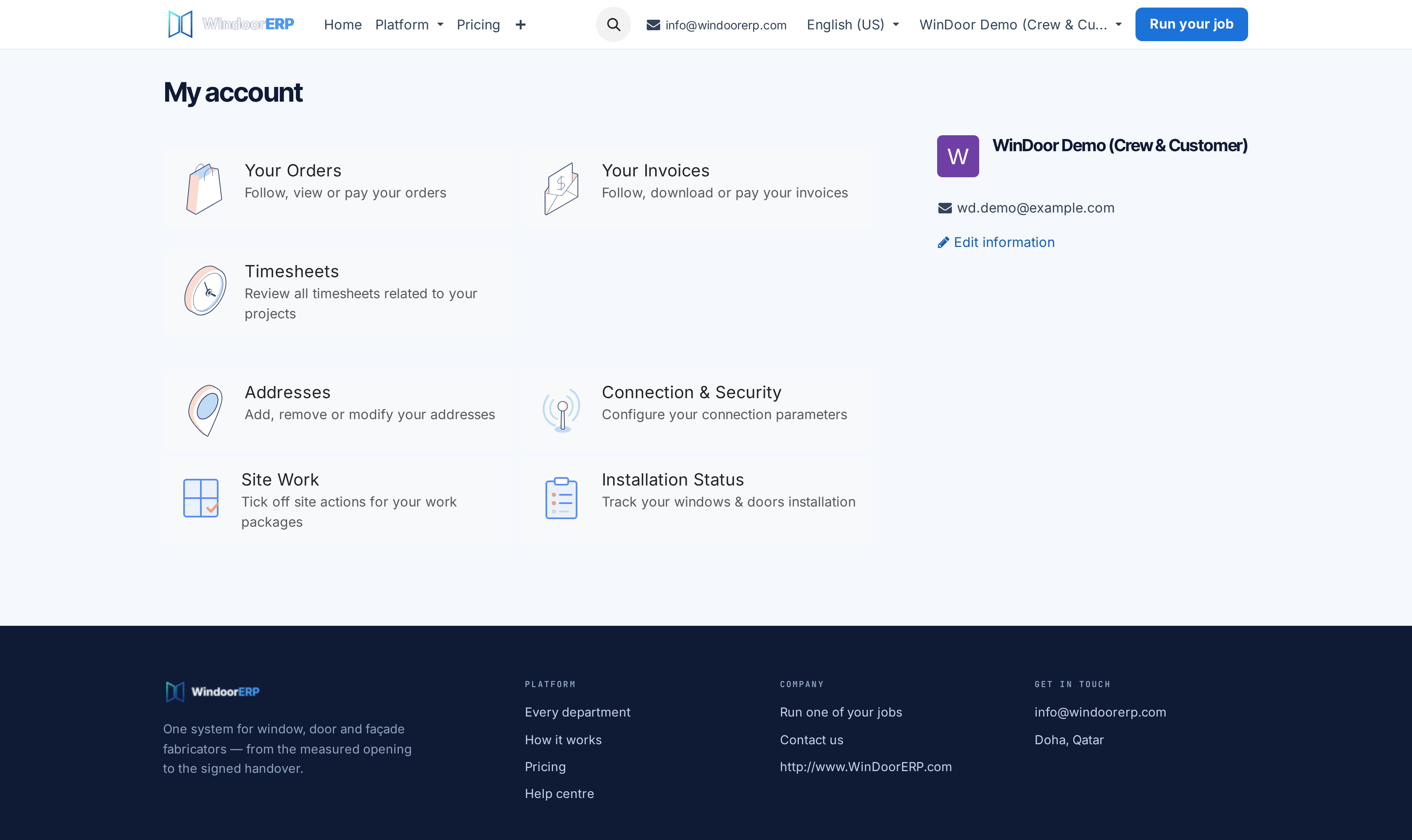
The customer signs in and lands on My account — a card for each area they have documents in, plus their contact details and salesperson.
-
02
A quotation waiting for them shows under Quotations to review. Opening it shows the full offer with its drawings, the salesperson, and a View Details button for the PDF.
-
03
They press Accept & Sign, type their name and sign — drawn, typed or uploaded. The order confirms on the spot, the confirmation email goes out, and the signed PDF is filed into the document's message thread.
-
04
Confirmed work appears under Your Orders; invoices — milestone invoices included — under Your Invoices, each with a Download button for the legal PDF.
-
05
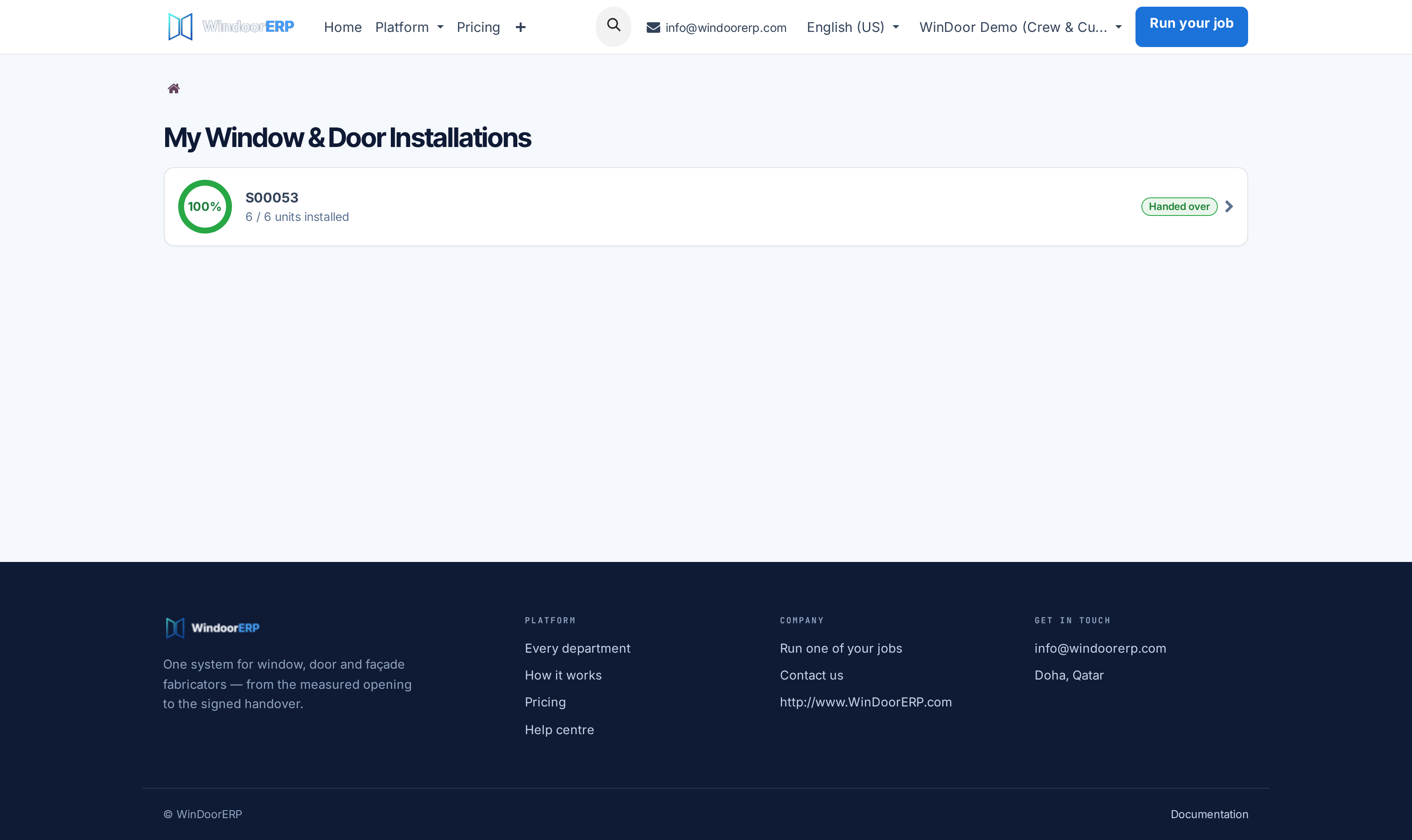
Installation Status shows each job as a progress ring, and inside it every opening with its own steps, photos and warranty badge; this is also where the customer confirms site ready, reports an issue, and signs the handover.
-
06
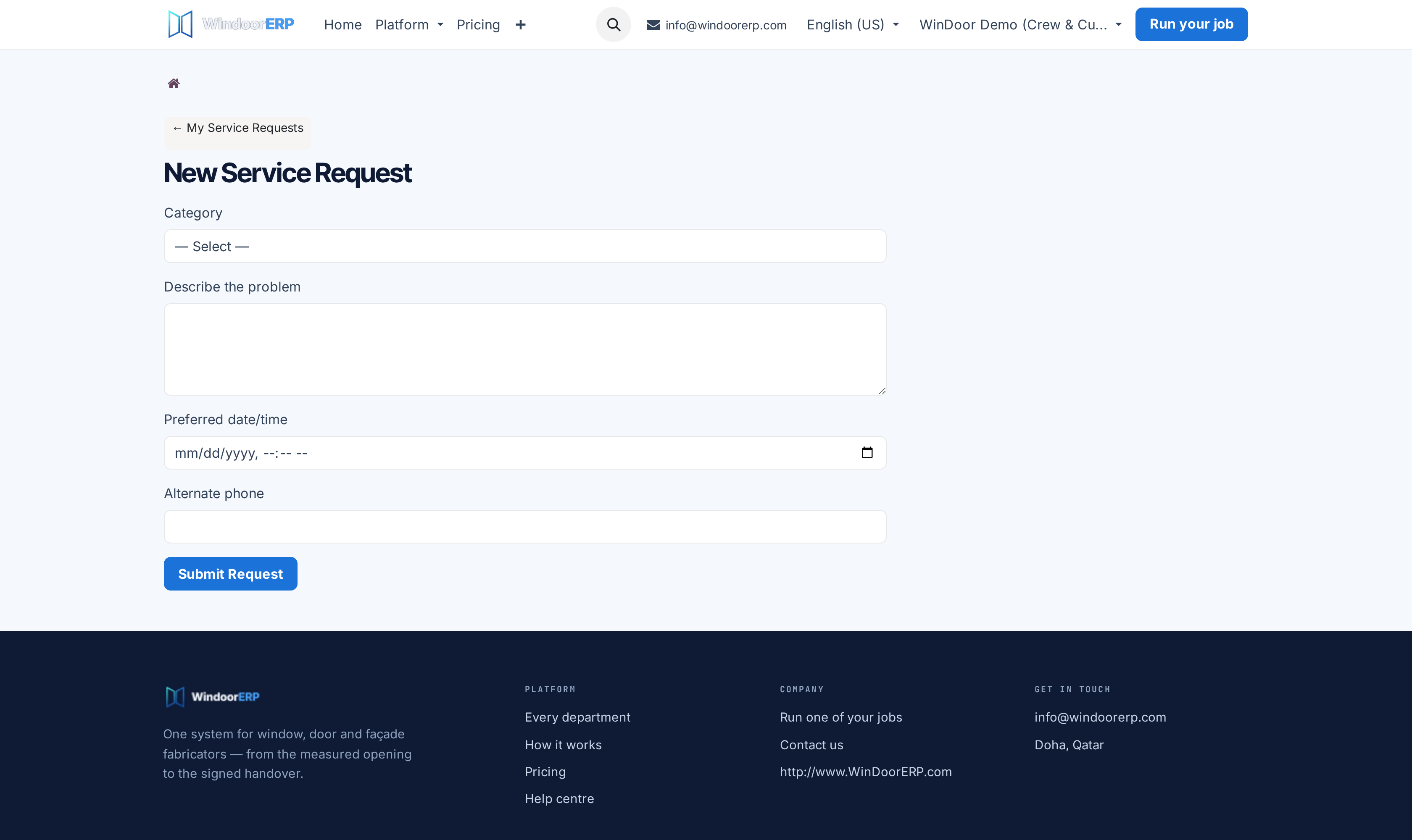
Service Requests lists their after-sales tickets, with + New Request to raise one: a category, the problem, a preferred time and a phone.
-
07
Every document ends with Communication history — messages the customer writes there land in the record's chatter for your team, and replies come back the same way.
What the customer can actually do per page
| Page | What it offers |
|---|---|
| Quotations | Quotes that were sent to them, with validity date. Actions: Accept & Sign, Reject (a reason is required and lands in your chatter), Feedback, View Details (PDF). An expired quote shows "This offer expired!" instead of the buttons. |
| Your Orders | Confirmed orders, read-only, with the same PDF and message thread. No editing, ever. |
| Your Invoices | Posted invoices with amount due, overdue dates in red, and Download. A milestone invoice from progressive billing appears here as a normal invoice whose lines carry the progress detail. |
| Installation Status | The per-opening tracker: rings, steps, photos, warranty passports, Confirm site ready (with photo), Report issue (creates a snag on the job), Accept & sign handover once every unit is installed. |
| Service Requests | Their tickets with a status stepper; a completed service offers Sign off with a 1–5 rating. |
| Addresses / Connection & Security | Their own address book, password change and sessions. Always present. |
Signing a quotation — what actually happens
The modal reads "By signing, you confirm acceptance on behalf of …". Both name and signature are required, and on submit the order is confirmed immediately — signature alone confirms; no payment step is involved. The customer sees "Thank You! Your order has been confirmed.", your salesperson sees "Order signed by …" with the signed PDF in the chatter, and production planning can start from the confirmed order.
A quotation still in draft is not listed on the portal — it appears once you press Send. The direct link in the quotation email works either way.
About paying online
Invoices are downloaded and settled outside the portal on a standard WindoorERP setup: no online payment provider is enabled, so a Pay Now button, where it appears, ends at "No payment method available". Treat the portal's payment surface as inactive until your company deliberately enables a payment provider.
Troubleshooting
| Symptom | Cause and fix |
|---|---|
| "The contact "…" does not have a valid email." / "…has the same email as an existing user" | The portal invitation needs a valid, unique email on the contact — fix the address in the wizard's list and grant again. |
| A card the customer expects is missing | Cards appear only with documents behind them. The Service Requests card in particular appears only after the first request exists — send first-time customers the direct link to the service page, or raise their first request from the backend. |
| "Your order is not in a state to be rejected." | The quote was already signed, confirmed, cancelled or expired — rejection only works while it is signable. |
| The customer signed but sees "Signature is missing." or "Invalid signature data." | The signature pad submitted empty — sign again; both the name and the signature are required. |
| Customer submitted a service request and nobody noticed | Creation posts no alert to your team — the request simply appears in After-Sales in the New state. Keep a triage routine on that queue. |
| The customer asks about "Site Work" or "My Surveys" pages | Those are the crew's and surveyor's portals, which share the same sign-in. A customer's page is Installation Status; never send a customer to the installer pages. |
Common mistakes
- Emailing PDFs around instead of granting portal access — the portal's whole value is that the answer to "what's the status" is self-service.
- Leaving customer messages in Communication history unanswered; they sit in the document's chatter waiting for someone to follow the record.
- Confusing the portal's signed quotation with a signed handover — the first confirms the order, the second closes the installation; they are different signatures on different pages.
Was this article helpful?
Thanks — your feedback helps.
Running a window or door factory?
Ask for a demo