Track order deadlines and fulfilment status — and what the calendar actually plots
What this does
This is the other half of Sales › Orders › Orders. The previous article works one order at a time; this one works the whole book at once — the calendar, the activity board, the pivot and the graph that sit behind the view switcher at the top right of that same screen, plus the handful of fields that carry a contract's fulfilment state.
The reason it is worth a separate read is that the analytical views on this menu do not measure what their names suggest. The calendar is not a delivery calendar. The graph is not a monthly trend. And the field called Delivery Status is empty on most orders on this fleet for a reason that has nothing to do with anything being late. Getting those three right is most of the value of this page.
For the record-by-record work — invoicing, variations, cancelling, what Confirm changed — read Work a confirmed sales order.
Before you start
- Every view here inherits the Sales Orders filter chip the menu applies, so all of them are looking at confirmed orders only until you remove it.
- Deadlines on this fleet are tracked with activities. If nobody schedules activities, the calendar and the activity board will both be nearly empty and neither is broken.
- Fabricated lines create no warehouse transfer, so warehouse-based fulfilment fields stay blank on window and door contracts. That is the normal state, not a fault.
Steps
-
01
Open Sales › Orders › Orders and use the view switcher at the top right. Six views are offered: list, kanban, calendar, pivot, graph and activity.
-
02
Switch to the calendar to see what is due when. Read the section below first — it plots activity deadlines, not delivery dates.
-
03
Switch to the activity view to see the same deadlines laid out as a grid of orders against activity types, colour-coded by how late they are.
-
04
Add Filters ▸ To Invoice, To Upsell or Late Availability to narrow the book to the orders that need a decision.
-
05
Switch to pivot or graph for the money view, and change the measure from the default before you quote a number to anyone.
-
06
To read one contract's fulfilment state in full, open it and go to Other Info ▸ Delivery.
The calendar plots activity deadlines, not delivery dates
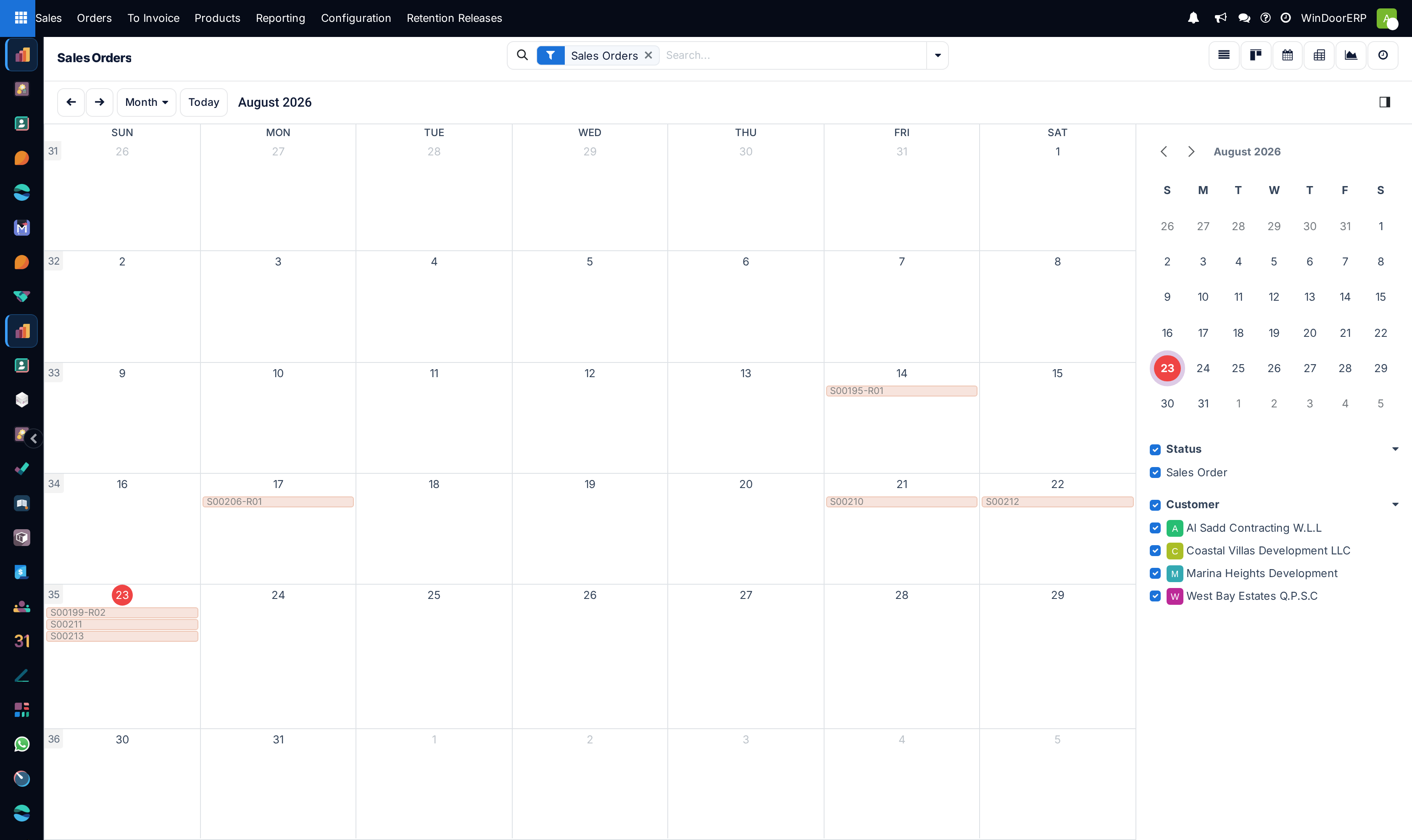
This is the single most misread screen in the Sales app. The calendar's date is the order's next activity deadline. It is not the delivery date, not the order date, and not the expected date. An order sitting on the 23rd is an order somebody has to do something about on the 23rd.
Three consequences follow, and all three surprise people:
- An order with no scheduled activity does not appear at all. A month showing seven chips out of thirteen confirmed orders is not a filtered view — it is six orders nobody has planned anything on.
- The calendar cannot create. There is no New button and clicking an empty day does nothing. You cannot drag a chip to reschedule a delivery, because the date underneath it is an activity's deadline.
- Rescheduling here reschedules an activity, not a promise to a customer. Moving a delivery promise means editing Delivery Date on the order.
The controls are the arrows and Today at the top left, a period picker that the view opens on Month, and a side panel — on the right in English, mirrored to the left in Arabic — that carries a mini month picker and two filter groups, Status and Customer. Chips are coloured by status, which is why they are all one colour while the Sales Orders chip is applied. Each chip shows the order number; hovering opens a card with the customer, the total and the payment terms.
Do not use this as a delivery schedule
Sending a site programme built from this calendar tells the contractor when your own staff have follow-up tasks booked. For a real delivery view, turn on the Delivery Date column in the list and sort on it, or use the production and installation schedules, which are built from the manufacturing and site plans rather than from someone's to-do list.
The activity view — chasing by deadline
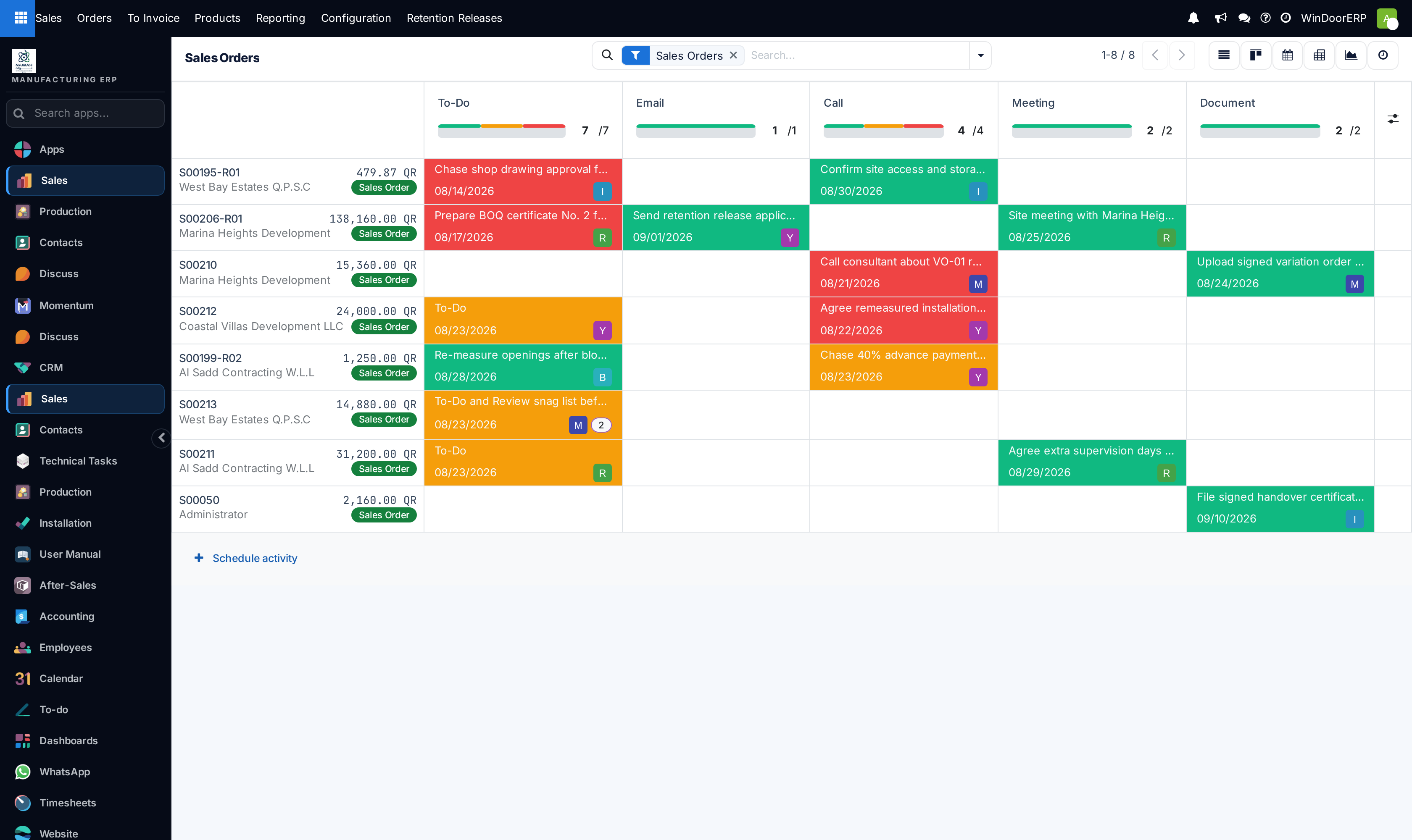
The activity view is the same information as the calendar, transposed. Orders run down the side, one row each; activity types run across the top — To-Do, Email, Call, Meeting and Document on a standard tenant. Each cell holds the scheduled activity of that type on that order, with its summary, its due date and the avatar of whoever owns it.
Cells are colour-coded by urgency: green is planned, orange is due today, red is overdue. The column header carries a mini progress bar and a count of the same three states, so you can read the whole book's health without scrolling. The Schedule activity link at the foot adds one, and clicking a cell lets you mark done, edit or cancel it in place.
Like the calendar, this view lists only orders that have activities — the record counter at the top right will read lower than the list's. Use it when the question is "what is falling behind and who owns it"; use the calendar when the question is "what does next week look like".
The fulfilment fields, and where to read them
A confirmed order's fulfilment state lives on Other Info ▸ Delivery, and most of the same fields are available as optional columns in the list.
| Field | What it means |
|---|---|
| Warehouse | Which warehouse the order sources from. Read-only once confirmed. |
| Shipping Policy | As soon as possible ships each item when ready; When all products are ready waits for the whole order. It also decides how Expected Date is computed — the earliest line lead time under the first, the latest under the second. Read-only once confirmed. |
| Delivery Date | The date you have promised the customer. Typed by a person; nothing computes it. This is the field to edit when a site slips. |
| Expected: hint | Shown in grey next to the delivery date. This is Expected Date, computed from the lines' lead times under the shipping policy. It is an estimate, not a commitment. |
| Effective Date | Appears only once something has actually shipped. It is the completion date of the first customer-bound transfer that reached Done — not the last, so on a phased contract it marks the beginning of delivery, not the end. |
| Delivery Status | A badge with four values. Only shown once the order is confirmed. See below. |
| Incoterm and Incoterm Location | International trade terms, for export documentation. Editable at any time. |
Delivery Status, and why it is usually blank here
Delivery Status is computed entirely from the transfers linked to the order. Its four values are Not Delivered, Started, Partially Delivered and Fully Delivered — but there is a fifth, unnamed state that the field spends most of its life in on this fleet: empty.
| Value | Reached when |
|---|---|
| (blank) | The order has no transfers at all, or every one of them is cancelled. This is the normal state of a fabricated windows-and-doors contract, because confirmation deliberately creates no delivery order for designed lines. |
| Not Delivered | Transfers exist but none is done. |
| Started | At least one transfer is done, but no line yet shows a delivered quantity. |
| Partially Delivered | At least one transfer is done and at least one line has a delivered quantity. |
| Fully Delivered | Every transfer is done or cancelled. |
Blank is not "nothing has shipped"
On a fabricated contract, the finished goods leave on a delivery raised out of production, and the Delivered quantities on the order lines are driven by progressive bill-of-quantities billing rather than by warehouse moves. So an order can be half installed on site while Delivery Status is still blank. Read the line-level Produced Qty, Delivered Qty and Installed Qty columns for the real picture, and the Production smart button for the factory's.
Invoice Status — the badge that drives the To Invoice menus
Invoice Status is shown by default in the list and is what the Sales › To Invoice menus filter on. It is computed from the order's lines, ignoring down-payment lines and section or note lines.
| Badge | Meaning |
|---|---|
| Nothing to Invoice | The default, and the only value an unconfirmed order can have. |
| To Invoice | At least one line has something invoiceable. The Total column turns bold blue on these rows. |
| Fully Invoiced | Every line is invoiced. |
| Upselling Opportunity | Every line is invoiced or upselling — i.e. more has been delivered than was ordered, so there is scope to bill. These feed Sales › To Invoice › Orders to Upsell. |
Filters and groupings on this screen
Beyond the Sales Orders chip the menu applies, the Filters drop-down offers a short, specific list — noticeably shorter than the one on the Quotations menu, which is a different search view.
| Filter | What it selects |
|---|---|
| My Orders | Orders where you are the salesperson. |
| To Invoice | Invoice status is To Invoice. |
| To Upsell | Invoice status is Upselling Opportunity. |
| Order Date | A date filter with the usual month and quarter shortcuts. |
| Late Availability | Any linked transfer whose products are forecast to arrive late. Blank-by-nature on fabricated contracts, since they have no transfers — this filter finds trading and accessory orders, not window contracts. |
| Main Orders Only / Variation Orders Only | Splits main contracts from their variation orders. Use Main Orders Only before totalling anything, or you will count the same scope twice. |
The Group By list offers Salesperson, Customer, Order Date and Payment Method. There is no group-by for delivery or invoice status; add those as columns and sort instead.
Pivot — what it opens on
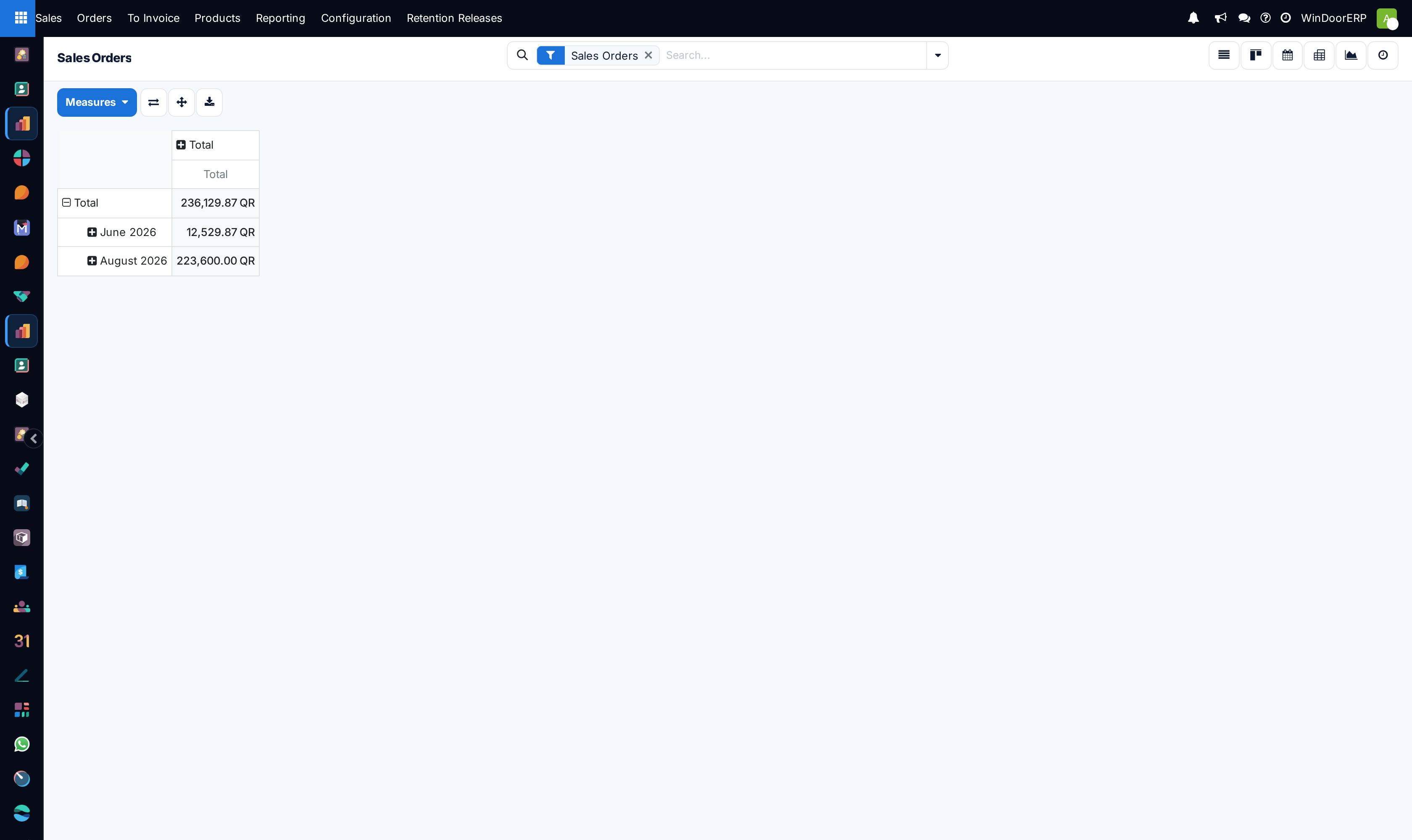
The pivot arrives with Order Date grouped by month down the rows, nothing across the columns, and a single measure: Total. That measure is the tax-inclusive order total, and its grand total matches the sum at the foot of the list exactly — which is a useful sanity check, and a trap if you quote it as revenue.
Open Measures to swap it. Untaxed Amount is the figure most reports mean by revenue; Count gives you order volumes rather than value. Click a row header to expand it by any field — Customer, Salesperson, Sales Team. The toolbar beside Measures flips the axes, expands everything, and downloads the grid to a spreadsheet.
Graph — one bar per customer, not per month
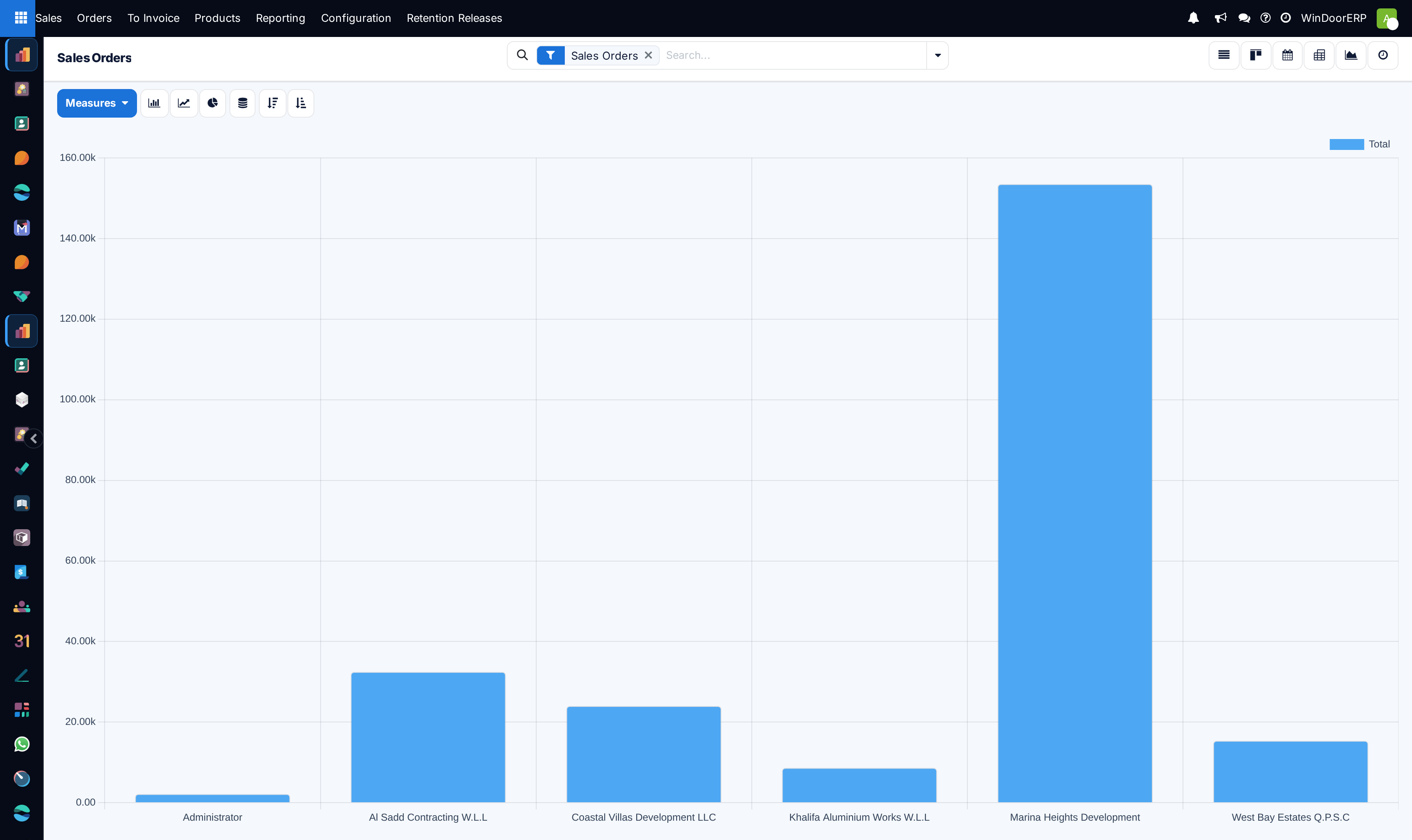
The graph opens as a bar chart of Total by Customer. It is not a time series and it does not show a trend; a single tall bar means one large contract, not a good month. To make it a trend, change the grouping to Order Date and switch to the line chart. The toolbar also offers pie, stacking and ascending or descending sort.
These views are not the Sales Analysis report
The pivot and graph here run on the orders themselves, one row per order, and they honour the Sales Orders chip. The reports under Sales › Reporting run on a different model, one row per order line, with their own filters and their own defaults — including two of them that count quotations unless you say otherwise. Do not expect the two to agree unless you have matched the filters deliberately. See Sales Analysis: measures, groupings and the two filters that are already on.
Troubleshooting
| What you see | Why, and what to do |
|---|---|
| The calendar is nearly empty although there are plenty of orders | Only orders with a scheduled activity appear. Schedule activities, or use the list sorted on Delivery Date. |
| There is no New button on the calendar | By design — creating orders from the calendar is disabled. |
| The record counter differs between the list and the calendar or activity view | Expected. Those two views only show orders that have activities. |
| Delivery Status is empty on a confirmed order | The order has no transfers. Normal for fabricated contracts; check the line-level progress columns and the Production smart button instead. |
| Effective Date is set but the contract is far from complete | It records the first completed customer delivery, not the last. |
| The pivot total does not match a Reporting figure | Different model, different filters, and this pivot's default measure is tax-inclusive. Switch to Untaxed Amount and match the filters before comparing. |
| Totals look roughly double | Variation orders are being counted alongside their main contracts. Add Main Orders Only. |
| Late Availability returns nothing | It searches linked transfers, and fabricated contracts have none. |
Common mistakes
- Treating the calendar as a delivery programme and sending it to a contractor.
- Reading a blank Delivery Status as "nothing has been made or shipped" on a fabricated contract.
- Quoting the pivot's default Total as revenue. It includes tax.
- Totalling the list without Main Orders Only, so variations are counted twice.
- Editing Expected Date to move a promise. It is computed; the field a customer cares about is Delivery Date.
- Removing the Sales Orders chip for a wider search and then comparing the numbers with a previous reading taken with it on.
Was this article helpful?
Thanks — your feedback helps.
Running a window or door factory?
Ask for a demo