Manage apps: install, upgrade, and uninstall modules
What this does
The Apps menu is where an administrator installs, upgrades and uninstalls WindoorERP modules. Installation is real and immediate — one click adds menus, database tables and scheduled jobs for every user — and uninstallation permanently deletes the feature's data. This article covers the Apps screen, the developer-mode utilities behind it, and what each button genuinely does on a WindoorERP database.
Before you start
- Apps is visible to system administrators only; the utility entries — Update Apps List, Import Module, Apply Scheduled Upgrades — additionally need developer mode.
- There is no confirmation dialog on install. The only confirmation in the whole flow guards Uninstall — because that one deletes data.
- If you want to experiment, do it on a demo database, not on the one your colleagues work in.
Steps
-
01
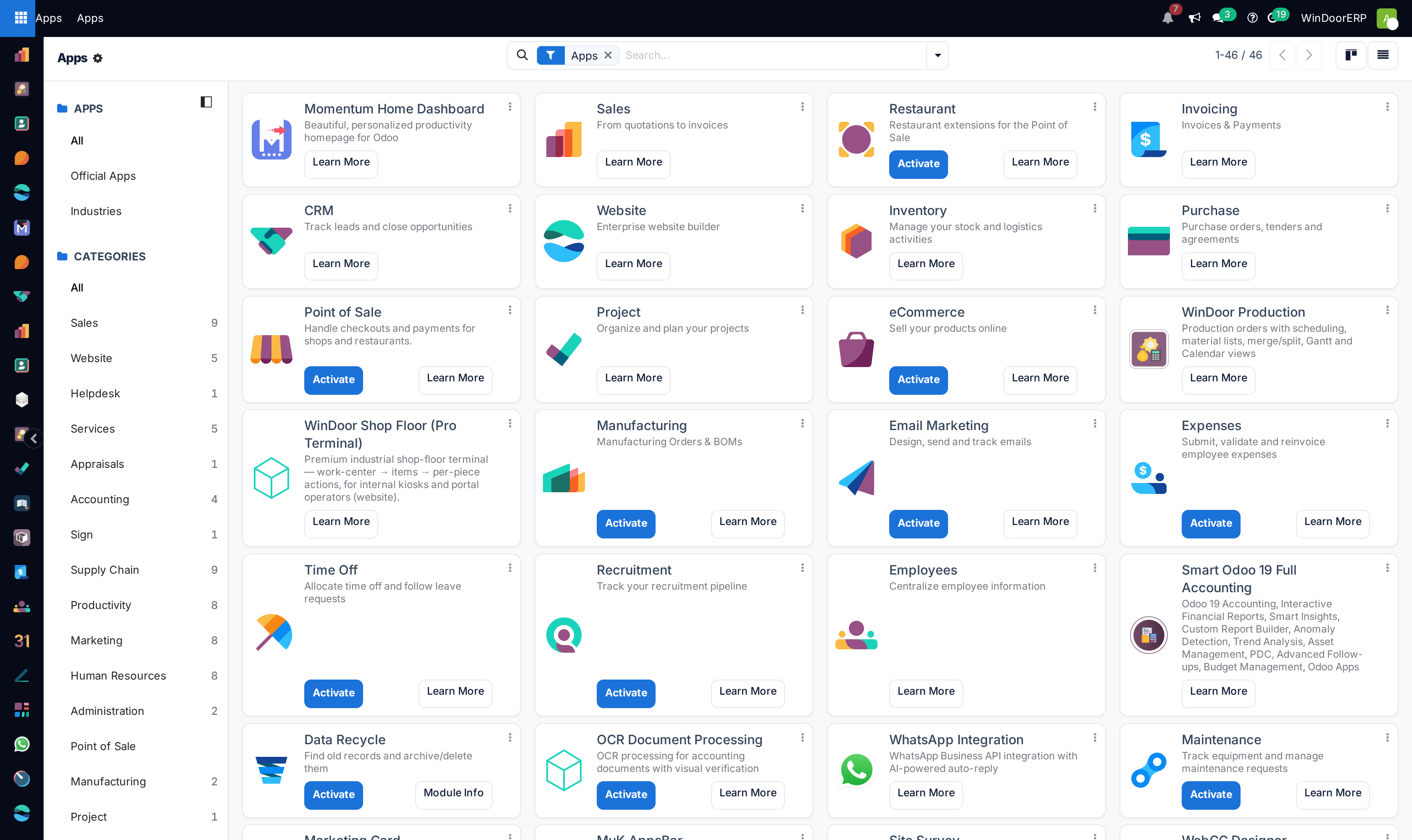
Open Apps. The kanban opens filtered to Apps — the installable applications; remove the filter or use the Extra filter to see technical modules too.
-
02
Find a module by name in the search box, or browse the category panel on the left.
-
03
Press Activate on a card to install it — the module and everything it depends on install right away, and the interface reloads with the new menus.
-
04
To remove one, open its ⋮ menu, choose Uninstall, and read the confirmation wizard: it lists the impacted apps and the documents that will be deleted.
The Apps screen
Each card shows the module's icon, name and summary, and its state through its buttons: Activate on an installable module, a grey Installed tag afterwards, with Upgrade and Uninstall in the card's ⋮ menu. The search matches the name, summary and technical name; the filters split Apps (full applications) from Extra (technical add-ons), and Installed from Not Installed. With developer mode on, cards show technical names and the form view exposes each module's category, license, dependencies and the menus, views and reports it created.
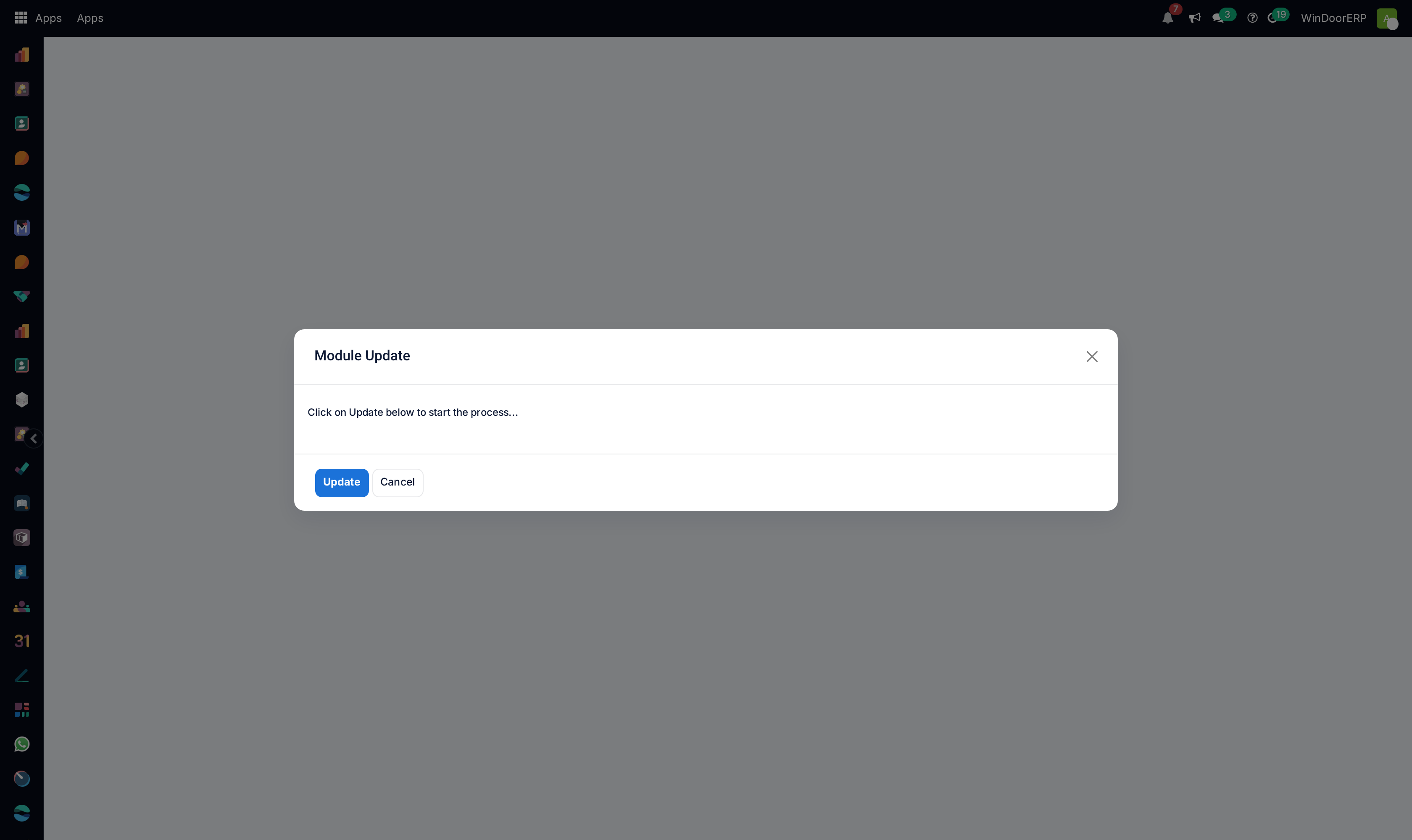
Two version numbers appear on a module form, and their labels are easy to misread: one is the version of the code on disk, the other the version the database last loaded. When the two differ, the module's code is newer than what is running and an upgrade is pending — on a WindoorERP tenant that state normally appears and clears when the platform operator rolls out updates.
What the buttons really do
| Action | What happens |
|---|---|
| Activate | Installs the module and all its dependencies immediately, silently pulling in auto-installed companions. New menus, tables, crons and mail behaviour appear for every user when the screen reloads. There is no undo other than Uninstall. |
| Upgrade | Re-applies the module's views and data from the code on disk. On a WindoorERP tenant new code arrives only when the operator deploys it — Upgrade re-applies what is already there. |
| Uninstall | Opens the confirmation wizard: the impacted modules (everything that depends on the one you picked comes out with it) and, under Documents to Delete, the record types that will be erased, with counts. Its own banner says it best: "Uninstalling modules can be risky, we recommend you to try it on a duplicate or test database first." Confirming really deletes that data. |
| Learn More / Module Info | The module's website, or its form view — no side effects. |
A module marked Uninstallable is present in the registry but cannot be installed on this database (missing code or not compatible); its buttons simply do not appear. Pressing two module operations at once is refused with "Odoo is currently processing another module operation." — wait for the first to finish, and never close the tab mid-install.
The developer-mode utilities
Update Apps List re-scans the server's addons directories and refreshes the module registry — new modules staged by the platform operator appear as Not Installed. It installs nothing and changes no code; on a WindoorERP tenant it finds something new only after the operator has staged it.
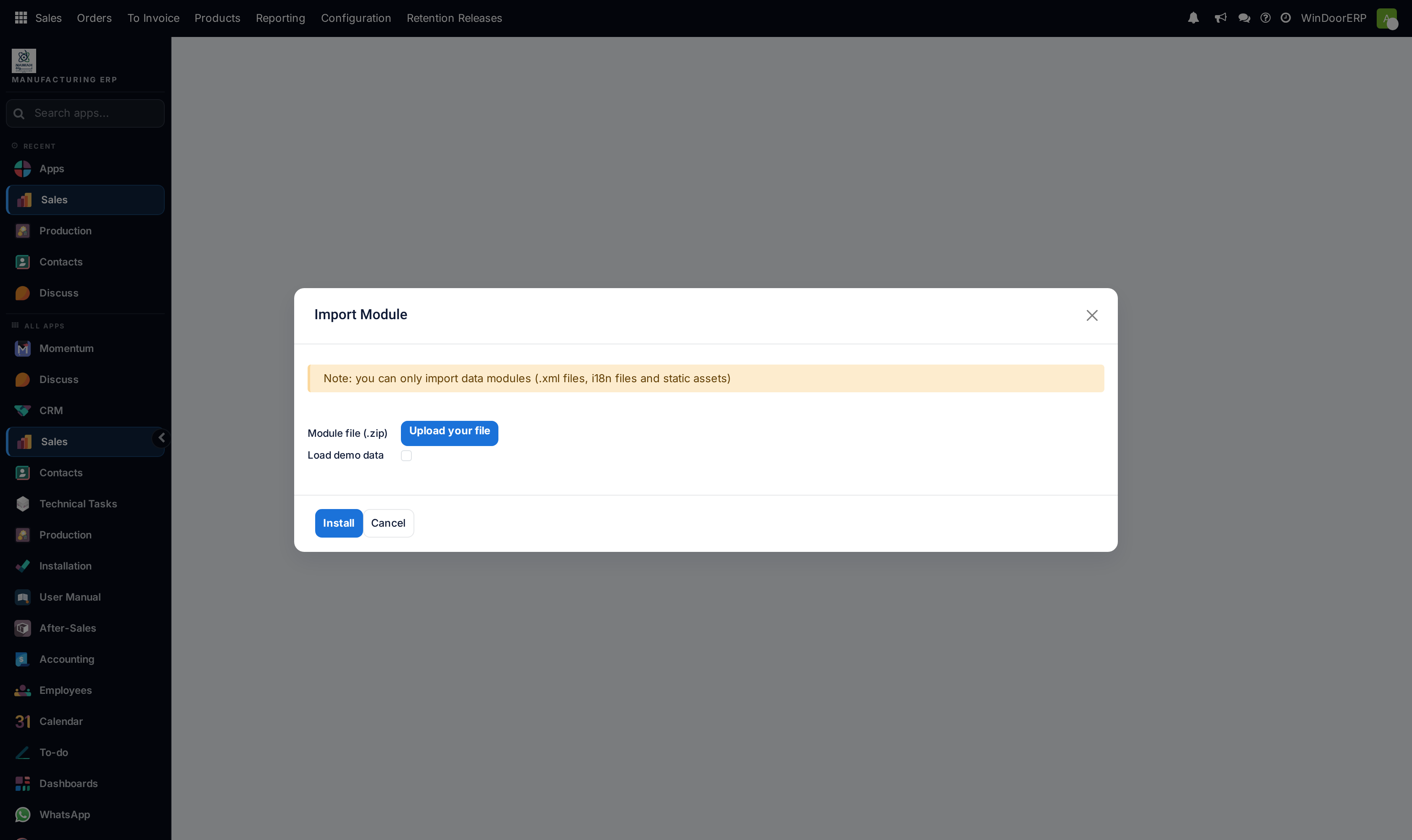
Import Module accepts a zip of a data module — themes, report templates, industry data. Only data files, static assets and translations are read from the archive; Python code in the zip is ignored entirely, so this is not a way to add server code. Admins only ("Only administrators can install data modules."), zip only.
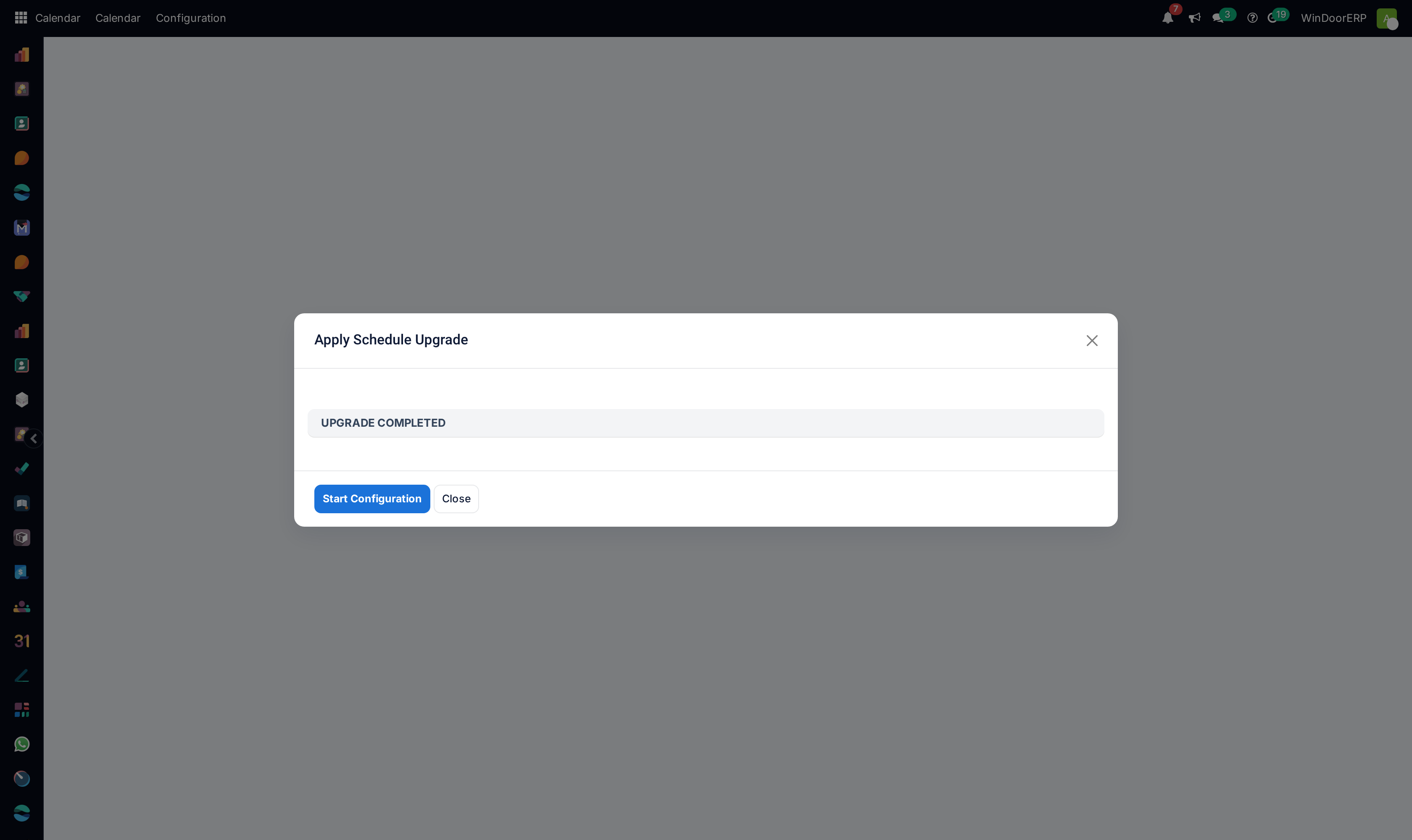
Apply Scheduled Upgrades executes whatever is already flagged To be upgraded / installed / removed — the immediate buttons above rarely leave anything in that state. It has nothing to do with version migrations of the platform itself; those are operator-side work.
On a WindoorERP tenant specifically
Your database ships with the full WindoorERP module set staged, so Apps offers many modules the platform team has not rolled out to you. Activate genuinely installs any of them — permanently, schema and all. What you cannot do from here: add server code (Import Module is data-only), affect any other tenant, or uninstall the framework modules the server itself runs on ("Those modules cannot be uninstalled"). If a menu misbehaves right after a module operation — an "action does not exist" flash — the screen reloads itself; that is the platform recovering stale menu entries, not damage.
Troubleshooting
| Symptom | Cause and fix |
|---|---|
| "Odoo is currently processing another module operation." | Another install/upgrade is running (possibly a colleague's). Wait and retry — never force a reload mid-operation. |
| A module you expect is not in the list | It has not been staged on your database. Update Apps List (developer mode) refreshes the registry; if it still does not appear, ask the WindoorERP team to stage it. |
| "Cannot upgrade module '…'. It is not installed." | Upgrade only applies to installed modules — Activate it instead. |
| Uninstall removed more than expected | The wizard listed every dependent module and the documents to delete — anything that depends on the removed module goes with it. Restore is a platform-operator backup restore; there is no undo button. |
| "Only zip files are supported." on Import Module | The importer takes a zipped data module only. It will not accept folders, and Python inside the zip is ignored by design. |
| After installing, features seem missing | Some features are per-user access rights, not module presence — check the user's Access Rights tab before reinstalling anything. |
Common mistakes
- Trying modules out on the production database — Activate is immediate, for everyone, and its only undo deletes data. Use a demo database.
- Confirming an Uninstall without reading the Documents to Delete list.
- Expecting Update Apps List to fetch new software — it only re-reads what the operator has already staged.
- Importing a zip and expecting new server behaviour — code in the archive is deliberately ignored.
- Reading the two version numbers by their labels alone — check which is disk and which is database before concluding anything is stale.
Was this article helpful?
Thanks — your feedback helps.
Running a window or door factory?
Ask for a demo