Record bank accounts, countries, states and country groups
What this does
Holds the two reference lists that sit under every contact: the bank accounts you pay suppliers into and receive customer payments from, and the geography — countries, states and country groups — that addresses, taxes and pricelists are built on.
Before you start
- Administrative access to the Contacts configuration.
- For a bank account, the written confirmation from the account holder. Nothing on this screen is validated for you, so the paper is the only control there is.
Record a bank account
-
01
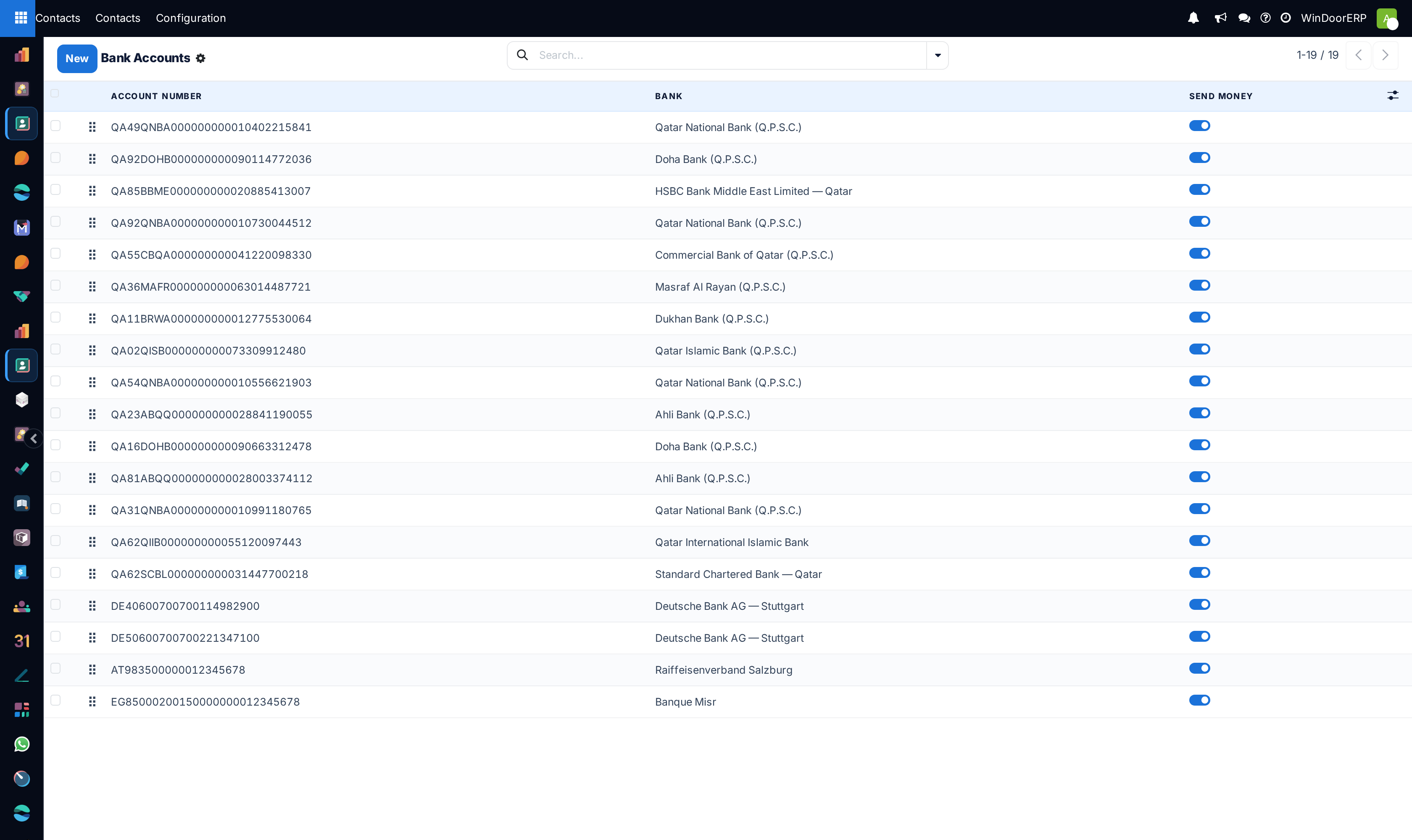
Open Contacts › Configuration › Bank Accounts › Bank Accounts and click New.
-
02
Enter the Account Number and the Account Holder — the contact this account belongs to — plus the Account Holder Name as the bank spells it.
-
03
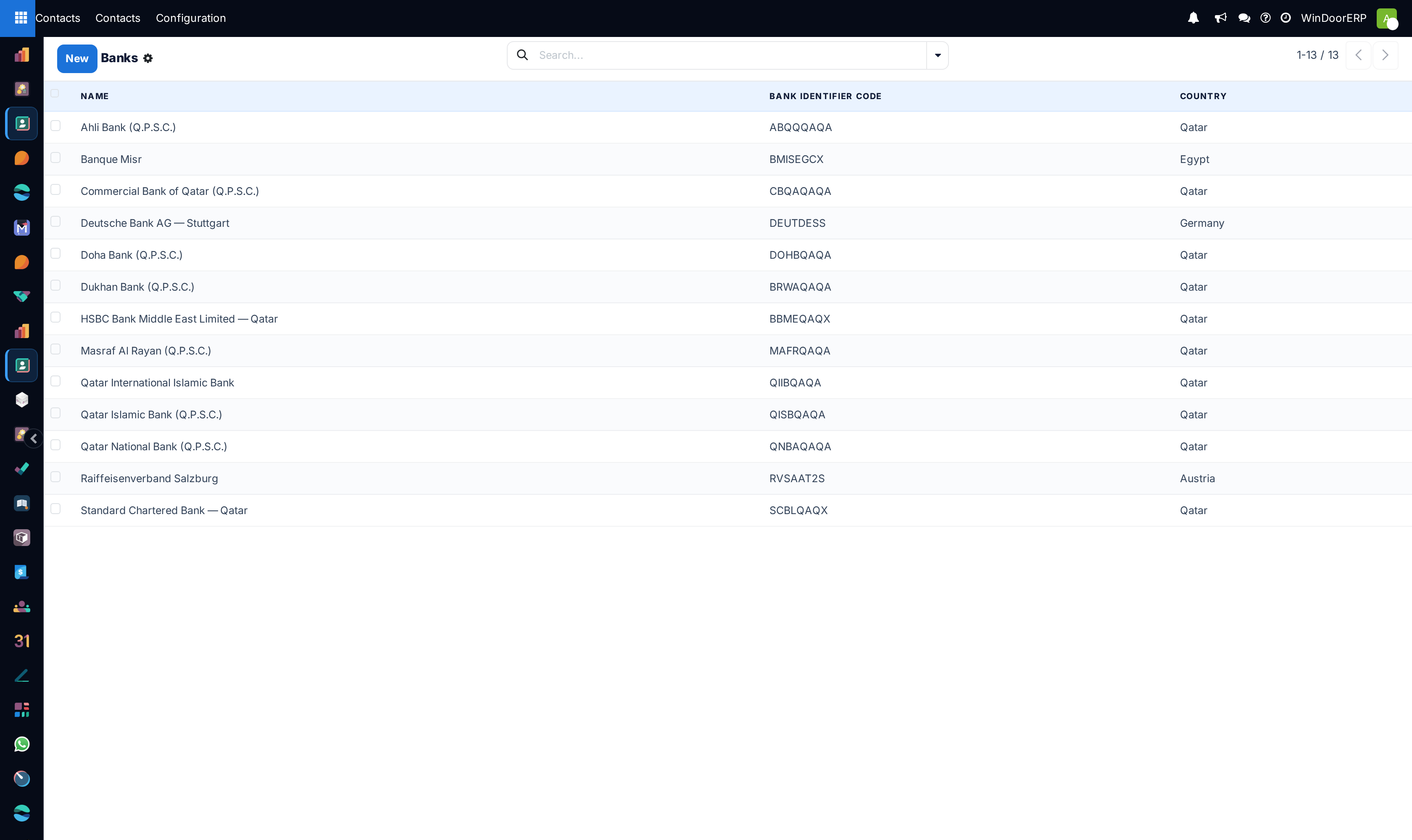
Choose the Bank. If it is not in the list, create it under Bank Accounts › Banks with its name and Bank Identifier Code.
-
04
Set the Currency when the account only accepts one.
-
05
Leave Send Money off until the account is verified — it is what marks an account trusted for outgoing payments.
Nothing here is validated
The account number is a free text field on this system: there is no IBAN checksum, no length check, no warning when two contacts carry the same account, and no lookup against the bank. A digit typed wrongly is accepted without complaint and will be used exactly as typed. Treat entry as a two-person job for supplier accounts — one to type from the bank letter, one to read it back — because the system will not catch what you get wrong.
Geography, and what depends on it
| Screen | What it feeds |
|---|---|
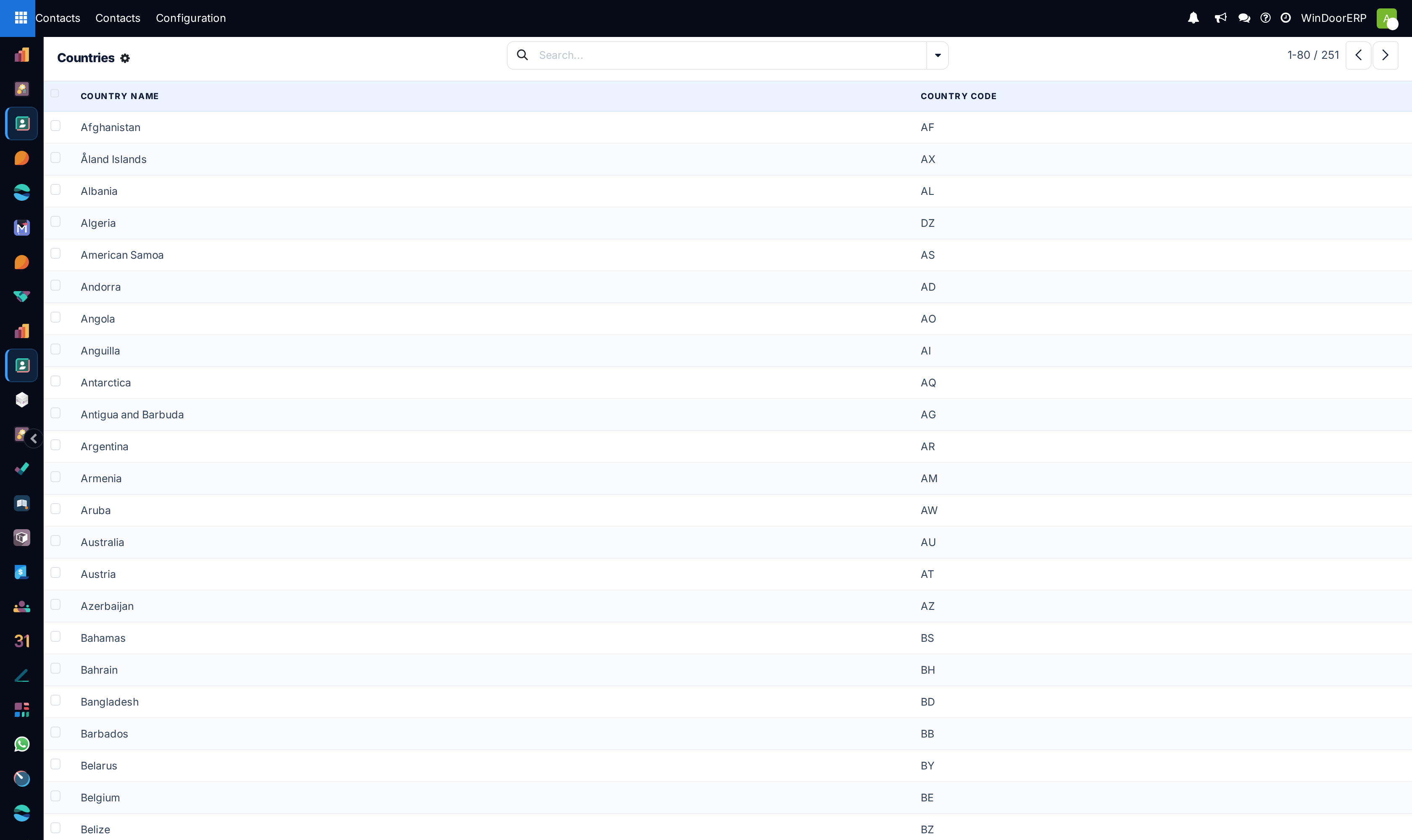
| Localization › Countries | The country on every address, its currency and the address layout used when printing. |
| Localization › Fed. States | The state or province list offered under each country. Add municipalities here only if you genuinely pick them on addresses. |
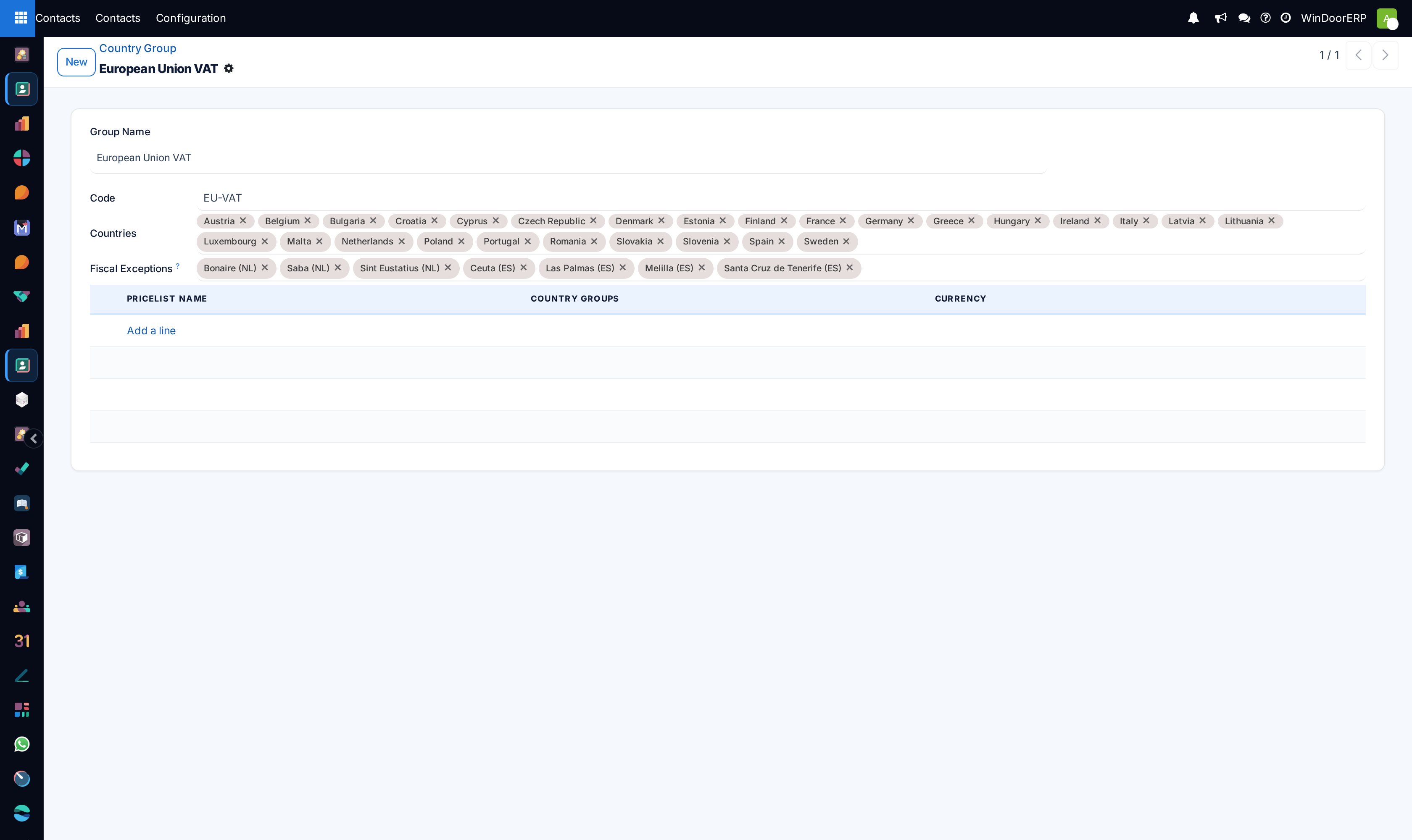
| Localization › Country Group | A named set of countries — the GCC, say. Fiscal positions and pricelists can be attached to a group instead of listing countries one by one. |
That last one is the reason the screen matters beyond addresses: a tax rule or a price list built on a country group applies to every country in it, so adding a country to the group changes commercial behaviour everywhere it is used. It is not a description — it is a switch.
Troubleshooting
A supplier's account is not offered when paying — check it is recorded against that contact, and that Send Money is on; an unverified account is deliberately not offered for outgoing payments.
A state is missing on a customer address — it belongs to a different country's list. States hang under one country each; add it under the right one.
A tax or price changed for customers you did not touch — somebody added a country to a country group that a fiscal position or pricelist points at. Check the group's membership before the tax rule.
You cannot delete a country or a state — something still references it. Archive it instead; deleting reference data that documents already point at is how old orders lose their addresses.
Common mistakes
- Typing supplier account numbers from an email rather than a bank confirmation letter — the commonest route to a payment that leaves and does not arrive.
- Ticking Send Money on every account by reflex, which empties the flag of meaning.
- Editing a country group to fix one customer's tax, and changing it for every customer in that region.
Was this article helpful?
Thanks — your feedback helps.
Running a window or door factory?
Ask for a demo