Register factory machinery and vehicles as fixed assets and run their depreciation
What this does
The machines that cut, weld, and coat your profile — and the trucks that deliver the finished frames — are fixed assets: bought once, expensed over years. Accounting › Accounting › Management › Assets is their register. Each asset carries a depreciation board that turns its cost into scheduled journal entries, an Asset Model that supplies the accounts and durations, and a lifecycle from Draft through Running to Close. Assets can also create themselves straight from vendor bills.
Before you start
- Asset Models configured under Configuration › Accounting › Asset Types — WindoorERP ships a fabricator's set: CNC Machining Centres — 8 Years, Cutting, Crimping & Welding Machines — 7 Years, Glass Processing & IGU Line — 6 Years, Powder Coating & Anodising Plant — 10 Years, Delivery Trucks & Mobile Cranes — 5 Years, and more, plus monthly-amortised deferred-expense models for insurance and licence fees.
- The Assets & Depreciation journal (code
DEPR) — the models point their entries at it. - Accounting access; the register is not visible to non-accounting users.
The register
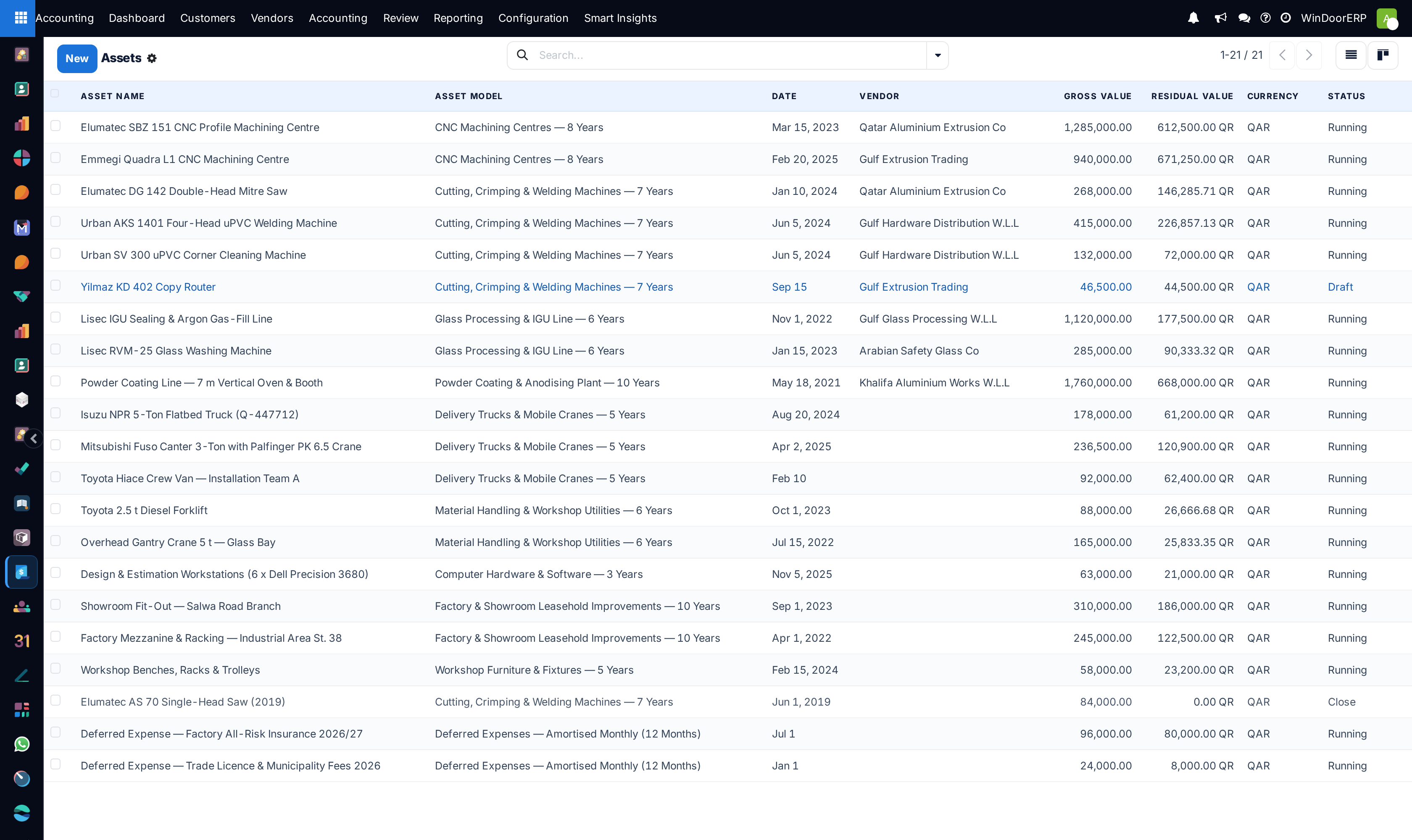
Each row shows the Gross Value, the computed Residual Value (gross minus posted depreciation minus salvage), and the Status: Draft (being prepared), Running (confirmed, depreciating), Close (fully depreciated or disposed), or Cancelled.
Registering and confirming an asset
Tip
Buying a machine through a vendor bill? Put the Asset Category on the bill line (it pre-fills from the product's Asset Type) and post — the asset record is created for you, linked to the bill, and even confirms itself when the model has Auto-confirm Assets ticked. Crediting the bill archives the asset again.
-
01
Click New and name the asset the way the workshop knows it — Emmegi Quadra L1 CNC Machining Centre, not "machine 2".
-
02
Pick the Asset Model. It fills the asset, depreciation, and expense accounts, the journal, the method, and the duration — review rather than retype.
-
03
Enter the Gross Value, the acquisition Date, the Vendor, and any Salvage Value you will not depreciate.
-
04
Click Compute Depreciation and read the board: one line per period with its date, amount, and remaining value. On the machinery models a period is one year (Number of Months in a Period = 12); only the deferred-expense models run monthly.
-
05
Click Confirm. The asset goes Running: entries whose dates have passed post immediately, and each future line's entry is queued to post automatically on its date by the accounting scheduler.
The depreciation method, honestly
Two computation methods exist: Straight Line and Declining (a fixed factor on the remaining balance). Every shipped model, and every asset on the demonstration data, uses Straight Line — Declining is available but not configured anywhere. Prorata Temporis shortens the first period so depreciation starts from the purchase date rather than the start of the year. The board recomputes straight-line amounts over the remaining balance and periods, so a mid-life change never rewrites posted history.
Changing, disposing, cancelling
| Button | What it really does |
|---|---|
| Modify Depreciation | Opens a small dialog to change the number of periods, the period length, or the end date, with a mandatory Reason logged to the chatter; the unposted board regenerates. It does not add value to the asset — capitalising an upgrade means booking the cost and registering it as its own asset (or a new one against the same machine). |
| Sell or Dispose | Cancels the unposted lines and posts one disposal entry for the whole residual value, dated today. The asset closes. |
| Cancel Asset | Deletes every depreciation line and its journal entries — including posted ones. Irreversible for the entries; Set to Draft afterwards does not bring them back. Reserve it for assets registered in error. |
| Save as model | Turns a running one-off asset into a reusable Asset Type. |
Asset Types and the analysis report
An Asset Type (Configuration › Accounting › Asset Types) is the template: the three accounts (asset, accumulated depreciation, expense), the journal, method, number of depreciations, period length, prorata, plus two automation flags — Auto-confirm Assets (bills validate the assets they create) and Group Journal Entries. The same model drives deferred revenue when its type is Sale, which is how the extended-warranty and AMC models spread service income.
Reporting › Management › Assets is the analysis view — a graph/pivot over depreciation lines, by default gross value and unposted depreciation per asset model. It has no list view; to inspect one machine, come back to the register.
Troubleshooting
"You cannot delete a document is in open state." / "You cannot delete a document that contains posted entries." — running and posted assets cannot be deleted; dispose or cancel instead.
"This depreciation is already linked to a journal entry! Please post or delete it." — a board line already has its entry; work with that entry rather than regenerating.
"Prorata temporis can be applied only for time method 'number of depreciations'." — untick prorata or switch the time method.
A confirmed asset's entries stay draft — future-dated entries post on their date via the daily Post draft entries scheduled job; check it is active before assuming the board is stuck.
The depreciation looks yearly but you expected monthly — the machinery models use 12-month periods by design; set Number of Months in a Period to 1 on the model (or the draft asset) for a monthly board.
Common mistakes
- Expensing a CNC centre straight to cost of goods instead of registering it — the year's margin drops by the machine's whole price and the balance sheet loses the asset.
- Typing account codes by hand instead of picking the Asset Model, then depreciating into the wrong accounts for years.
- Using Cancel Asset to "fix" a schedule — it deletes posted entries; Modify Depreciation is the correction tool.
- Selling a truck and just archiving the record — without Sell or Dispose the residual value never leaves the books.
- Forgetting the salvage value on vehicles, so the book runs to zero on machines that clearly have resale value.
Was this article helpful?
Thanks — your feedback helps.
Running a window or door factory?
Ask for a demo