Configure label templates and productivity loss reasons
What this does
Two small Configuration screens feed the shop floor's paperwork and its downtime accounting. Label Templates define the barcode labels the print queue produces — thermal-printer layouts with placeholders filled from the record being labelled. Productivity Loss Reasons are the downtime codes operators and maintenance pick when time is lost; each is bucketed into one of the three OEE losses, which is how the dashboards can split "machine down" from "running slow" from "waiting for material".
Both live under Production › Configuration, manager-only; the Label Templates entry also requires the Production Manager role, and the loss-reason list needs Work Orders & Routing on in Settings.
Before you start
- For labels: know your printer's language — the template body is written in ZPL or EPL; the PDF format ignores the body and uses a fixed report layout instead.
- For loss reasons: agree the code list with production management first. A fresh database ships with no loss reasons — until you create some, downtime cannot be categorised anywhere.
Steps
-
01
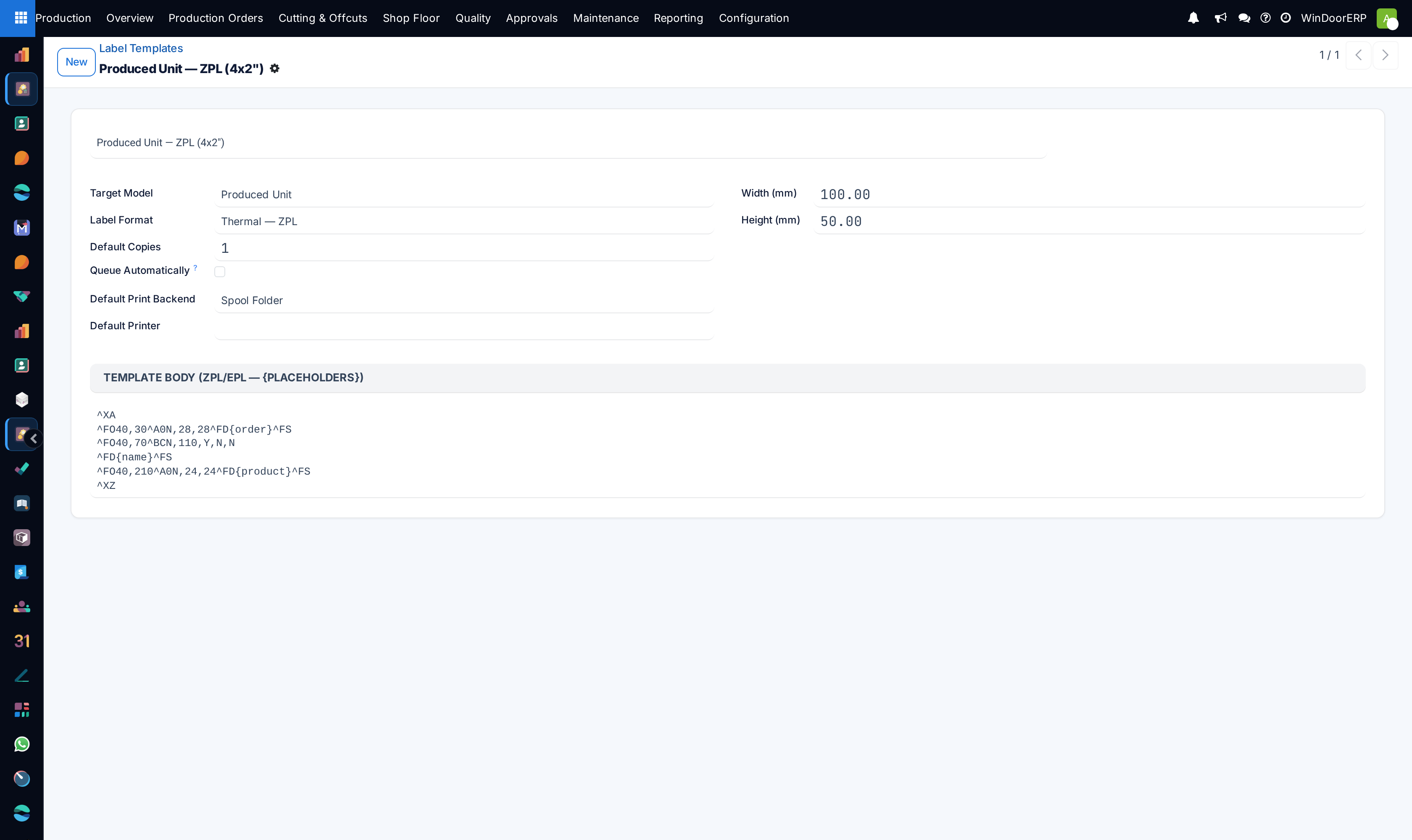
Open Production › Configuration › Label Templates. One template ships ready: Produced Unit — ZPL (4x2"), a 100 × 50 mm thermal label with the order, a Code 128 barcode of the serial, and the product.
-
02
To add one, click New, pick the Target Model (Produced Unit, Package / Crate, Work Order Traveler, Glass Piece, Profile Bar or Delivery Note) and the Label Format (Thermal — ZPL, Thermal — EPL or PDF).
-
03
Write the Template Body with
{placeholders}— for a produced unit the available values are{name},{order},{product},{stage}and{date}. An unknown placeholder is left as-is in the output; it never errors. -
04
Set the print defaults: Default Copies, Default Print Backend (Spool Folder or CUPS Queue), Default Printer, and tick Queue Automatically if jobs from this template should enter the print-server queue the moment they are created.
-
05
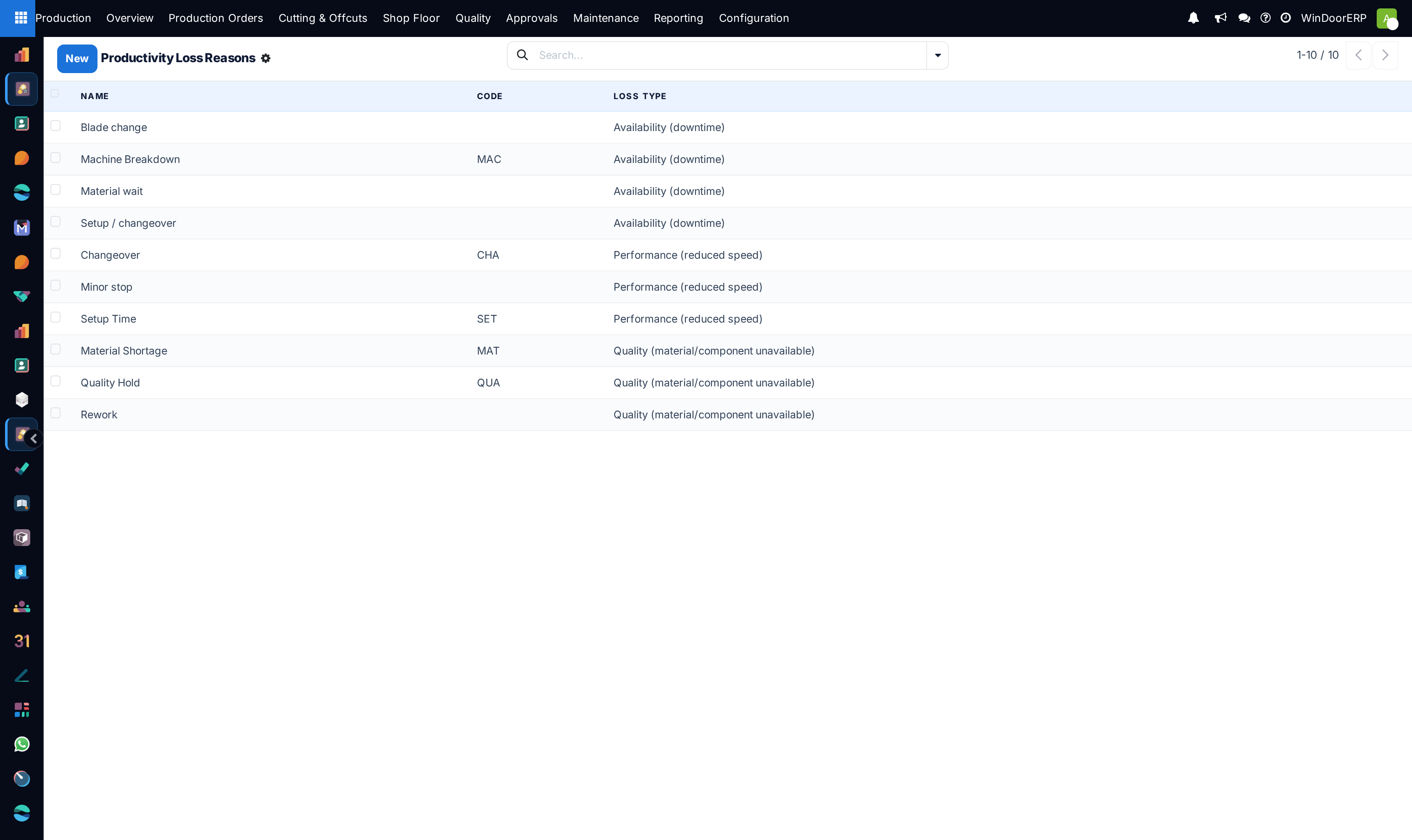
Then open Production › Configuration › Productivity Loss Reasons and add your downtime codes directly in the list: a name, an optional short Code, and the Loss Type.
Label template fields
| Field | What it does |
|---|---|
| Target Model | What kind of record the label describes. The unit form's Print Label picks the first active Produced Unit template, preferring auto-queue ones; the terminal and start-of-production paths simply take the first active one. |
| Label Format | ZPL / EPL bodies are rendered with the placeholders and sent as raw printer text. PDF ignores the body — the PDF label is a fixed 100 × 50 mm report with the order, a Code 128 barcode and the product. |
| Template Body | The raw printer program. An empty body falls back to a built-in minimal label: a Code 128 barcode of {name} plus the name as text. |
| Width / Height (mm) | Label stock size. Default 100 × 50. |
| Default Copies, Default Print Backend, Default Printer, Default CUPS Queue | Copied onto each print job created from this template. The CUPS queue field appears only when the backend is CUPS Queue. |
| Queue Automatically | New jobs from this template go straight to Queued, where the print agent picks them up without anyone opening the job. |
Important
Pressing Queue on a print job re-applies the template's backend and CUPS queue over whatever was typed on the job — the template's defaults win at queue time, not the job's own values. Change the template if the destination is wrong, not the individual job.
Productivity loss reasons
The list is edited in place and has no form view. The three Loss Type buckets are fixed:
| Loss type | Meaning | Where it lands |
|---|---|---|
| Availability (downtime) | The station was not running at all — breakdowns, blade changes, waiting. | Subtracts from operating time in the work order's OEE availability, and is the only type a maintenance request can charge. (The overview's downtime chart aggregates all three types.) |
| Performance (reduced speed) | Running, but slower than standard — changeovers, minor stops. | Categorises the labour log; shown in downtime breakdowns. |
| Quality (material/component unavailable) | Time lost to shortages, holds and rework. | Categorises the labour log. |
Reasons are referenced from labour logs (the Downtime / Loss Reason column) and from maintenance requests, whose Availability Loss Reason field only offers Availability-type reasons.
Note
The reasons in the screenshot are examples entered on the demonstration database — a production install starts with an empty list, deliberately, so each factory defines its own codes.
Troubleshooting
| A placeholder prints literally, braces and all | The record has no value by that name — unknown placeholders are left intact rather than erroring. Check the spelling against the supported list for the target model. |
|---|---|
| Labels print with only a barcode and the serial | The template body is empty, so the built-in minimal fallback label was used. |
| Jobs keep going to the wrong destination even after fixing the job | Queueing re-applies the template's backend and CUPS queue. Fix the defaults on the template. |
| Maintenance's loss-reason dropdown is empty although reasons exist | That field is filtered to Availability (downtime) reasons only. Add availability-type codes. |
| No loss reason can be picked anywhere | The list ships empty on real installs. Create the codes here first. |
Common mistakes
- Writing prose into the ZPL body and expecting a designed label — the body is a printer program; test it on the printer, not in the form.
- Expecting the PDF format to use the template body. It does not; the PDF layout is fixed.
- Creating one catch-all Other loss reason. The whole point of the buckets is separating downtime from slow running from shortages — a single code makes the OEE split meaningless.
- Deleting a loss reason that labour logs already reference — archive it instead (the Active flag exists on the model even though the list does not show it; use the list's Archive action).
- Ticking Queue Automatically before the print agent is running — jobs pile up in Queued with nothing consuming them.
Was this article helpful?
Thanks — your feedback helps.
Running a window or door factory?
Ask for a demo