Connect your WhatsApp Business number and organise teams
What this does
Connects your WhatsApp Business number to WindoorERP through Meta's Cloud API, so customer messages land as conversations and your team sends quotes and notices from inside the system. One account record represents one business phone number; teams are labels for organising who covers what.
Before you start
- You need a Meta developer app with WhatsApp added, a registered business phone number, and a permanent System User access token — a temporary developer token dies within hours.
- The Configuration menu is visible to WhatsApp Administrators only, and the token and secret fields are readable by administrators alone.
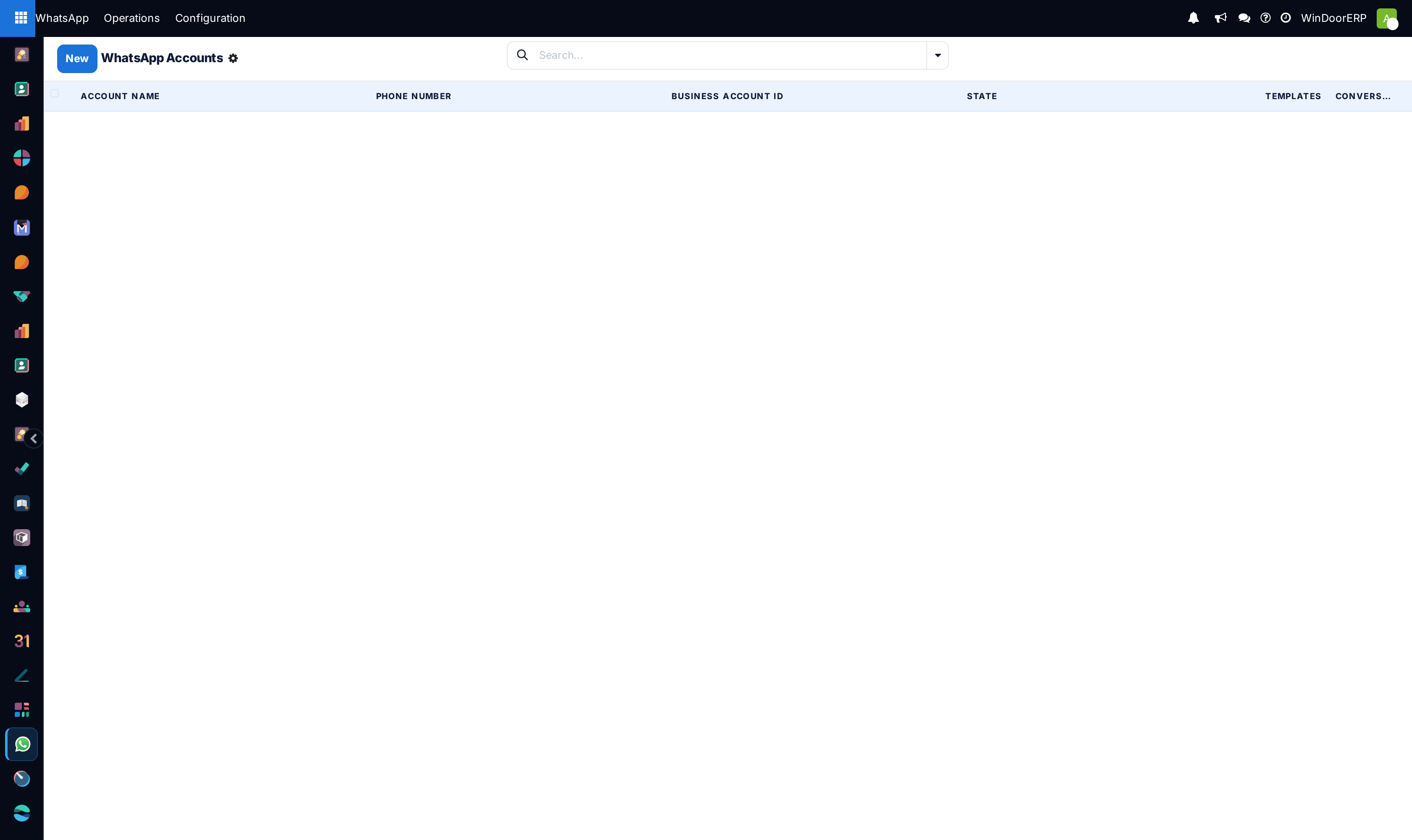
- Nothing is pre-connected: a fresh WindoorERP has no account records at all.
Steps
-
01
Open WhatsApp › Configuration › Accounts and create the account: a name, then the Meta credentials — App ID, App Secret, Phone Number ID, Business Account ID and the permanent Access Token.
-
02
Save, and note the record's Verify Token — a random secret WindoorERP generated for this account.
-
03
In Meta's app dashboard, configure the webhook: the callback address is your database URL followed by
/whatsapp/webhook/and the account's record number — the form's Webhook Configuration block shows the exact Callback URL to copy once the account is out of draft. Paste the Verify Token there too, and subscribe to the messages events. -
04
When Meta verifies the webhook, the account flips to Active by itself — that verification ping is what activates it.
-
05
Press Sync Templates on the active account to pull any templates already approved in Meta Business Manager.
-
06
Optionally add Notify Users — they become members of each conversation's Discuss mirror — and set up Teams as labels for your desks: Sales & Enquiries, Installation & After-Sales.
What a team is — and is not
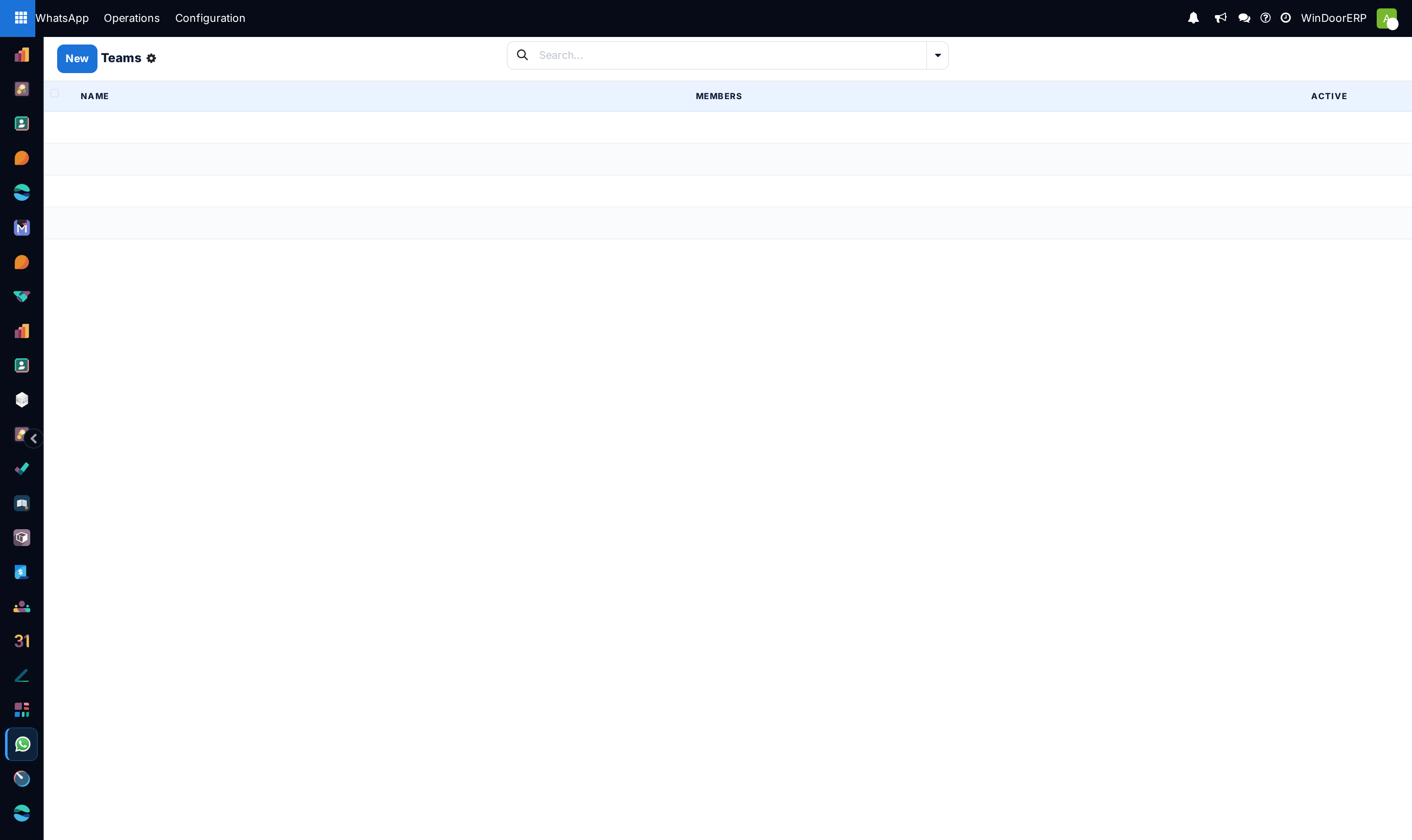
A team holds a name, members and accounts. It is a filter and a label: you can assign a conversation to a team and group the inbox by it. It does not route anything — there is no automatic assignment, no round-robin and no auto-reply in this version; a conversation is picked up when an agent presses Assign to Me. Plan your desk discipline accordingly.
Who can do what
- User — reads conversations, messages and templates; sees their own and unassigned conversations.
- Operator — also writes on conversations and messages, and sees all of them.
- Administrator — everything, including accounts, teams and the credential fields.
- Every internal user can open the Send WhatsApp dialog from a document's chatter once an account is active.
Troubleshooting
| Symptom | Cause and fix |
|---|---|
| The account never leaves Draft | Going live happens when Meta's webhook verification succeeds. Check the callback URL, the Verify Token, and that your database is reachable over HTTPS from the internet. |
| "Please configure Access Token and Phone Number ID." | The connection test refuses while either credential is empty. |
| "WhatsApp API error: …" or "Request failed: …" | Meta rejected the call (the message is Meta's own) or the network failed. An expired temporary token is the classic cause — generate a permanent System User token. |
| Inbound messages arrive but nobody is notified | There are no popup alerts in this version. Put the inbox on a screen and filter to Unassigned, and add the desk to Notify Users so conversations appear in their Discuss sidebar. |
| "No active WhatsApp account configured. Please configure one in WhatsApp > Configuration > Accounts." | The Send WhatsApp button needs at least one account in the Active state for your company. |
Common mistakes
- Using a temporary developer token — the account works for a day and then every send fails.
- Expecting teams to route conversations; they organise the board, people still assign themselves.
- Putting a personal SIM's number on the account — the number belongs to Meta's Cloud API once registered, not to a phone.
Was this article helpful?
Thanks — your feedback helps.
Running a window or door factory?
Ask for a demo