See the month ahead on the My Activities calendar
What this does
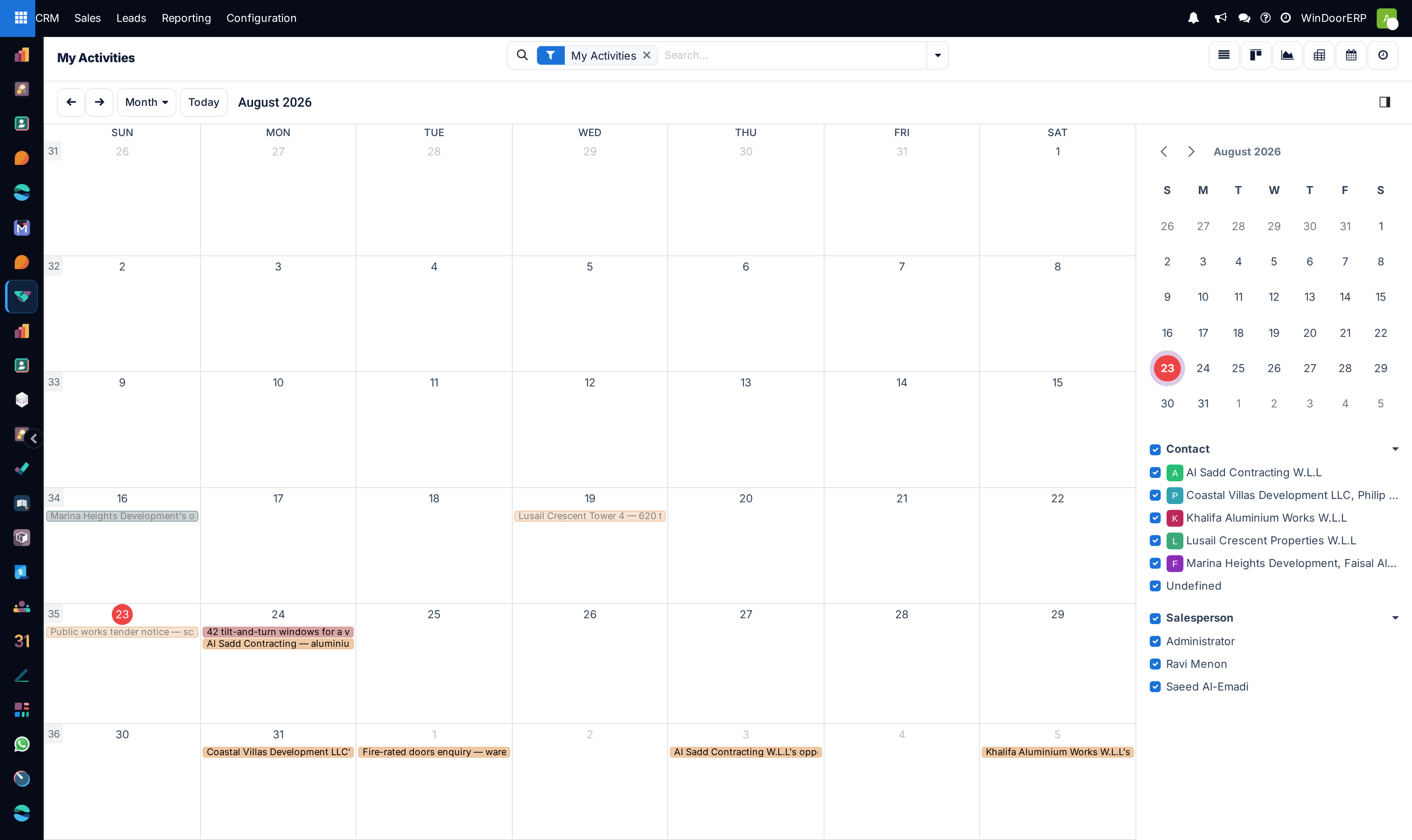
The My Activities calendar is the same set of deals you work from the queue, drawn on a month instead of sorted into a column. It answers a different question: not what do I owe next, but how is the month shaped — which week the site visits bunch up in, which week is empty, and whose deals are filling it.
Every chip on the calendar is an opportunity, not an activity, sitting on the date of the earliest open activity anybody has scheduled on that deal. The screen is a picture rather than a worksheet: nothing can be created on it and nothing can be dragged to a new date. For the queue itself, its row buttons and the activity board, see Work the My Activities queue; for scheduling and completing a step see Plan follow-ups.
Before you start
- The menu is restricted to the Salesperson role, exactly as the list is.
- A deal only appears once it carries an activity that is still open. Complete the last activity on a deal and the deal drops off the calendar, even though it stays in the list.
- The calendar shows dates and never times. An activity due date is a date, so every chip is an all-day chip.
- Only opportunities reach this screen. Meetings, holidays and anything else in the Calendar app are not drawn here.
Read the month
-
01
Go to CRM › Sales › My Activities. It opens as a list with the My Activities facet already applied.
-
02
Click the calendar icon in the view switcher at the top of the screen. The same records are re-drawn on the current month, and the search facet stays where it was.
-
03
Use the Month selector to change the scale to Day, Week or Year, the two arrows to step through periods, and Today to come back to now.
-
04
Untick names in the Contact and Salesperson sections of the side panel to narrow the picture to one account or one colleague.
-
05
Click a chip to read that deal's expected revenue and contact, then use View in the popover to open the deal itself.
-
06
Change a date from the deal or from the queue. The calendar cannot move anything, by design.
What the calendar actually plots
Four decisions in the view definition explain everything the screen does, and one of them is the source of most of the confusion about it.
| Decision | Effect |
|---|---|
| The date is Next Activity Deadline | The deal is placed on the due date of the earliest open activity on it — whoever owns that activity. It is not your own deadline. |
| The colour is the Salesperson | Each deal owner gets a colour, so a month of one colour is one person's month. The colour says nothing about whether the work is late. |
| The scale opens on Month | Day, Week, Month and Year are all available. Week numbers run down the side of the month grid. |
| Five chips per day | A day with more than five deals shows five and a link to the rest. Narrow the side panel filters rather than hunting inside the day. |
The list and the calendar are not sorted by the same date
The queue orders rows by My Deadline — the next step that is yours. The calendar places deals by Next Activity Deadline — the next step by anybody. On a deal where a colleague owes the earlier task, the chip lands on their date and not on yours, so the same record can look a fortnight apart on the two screens. Neither is wrong; they are answering different questions.
The same rule quietly fixes something that irritates people about the queue. The list keeps a deal whose only activity you already completed, because completed activities are archived rather than deleted and the window admits them. The calendar cannot: a deal with no open activity has no date, so it simply is not drawn. If you want a clean picture of outstanding work, this view gives it without any filtering.
The side panel
The panel beside the grid is opened and closed with the small toggle at the far end of the scale bar — the right-hand end in English, the left-hand end in the Arabic interface. It holds three things.
| Part | What it does |
|---|---|
| The mini month | A compact date picker with its own arrows. Clicking a date moves the main grid to it; today is ringed. |
| Contact | One entry per customer currently on the calendar, with its avatar, plus Undefined for deals that have no contact yet. Unticking one hides that customer's deals. |
| Salesperson | One entry per deal owner currently on the calendar. This is the closest thing the screen has to a team view: tick one colleague to see their month. |
The checkbox on a section heading turns that whole section on or off. Both sections list only the values present in the period you are looking at, so stepping to another month changes the lists.
What you cannot do here, and what to do instead
| What people try | What actually happens |
|---|---|
| Click an empty day to add something | Nothing happens, and there is no New button. This view is defined without creation. Schedule the step on the deal, or from the activity board. |
| Drag a chip to another day | The chip will not move. The date it is drawn on is a computed, read-only value — it is a reading of the activity underneath, not a field on the deal. Reschedule from the deal's chatter, or with Reschedule on the row in the queue. |
| Click a chip to edit it | A popover opens with the date, the deal's Expected Revenue, its Contact and any team properties. Its primary button reads View, not Edit, for the same reason. |
| Use the bin icon in that popover | It asks for confirmation and then deletes the opportunity — not the activity that put it on the calendar. A salesperson is refused, because the role has no delete right on deals; a sales manager is not refused. Treat the icon as a trap. |
Where real appointments are booked
This calendar is a workload picture built out of to-dos. It is not a diary: the chips have no start time, no duration, no attendees and no invitations, and moving one would not tell a customer anything.
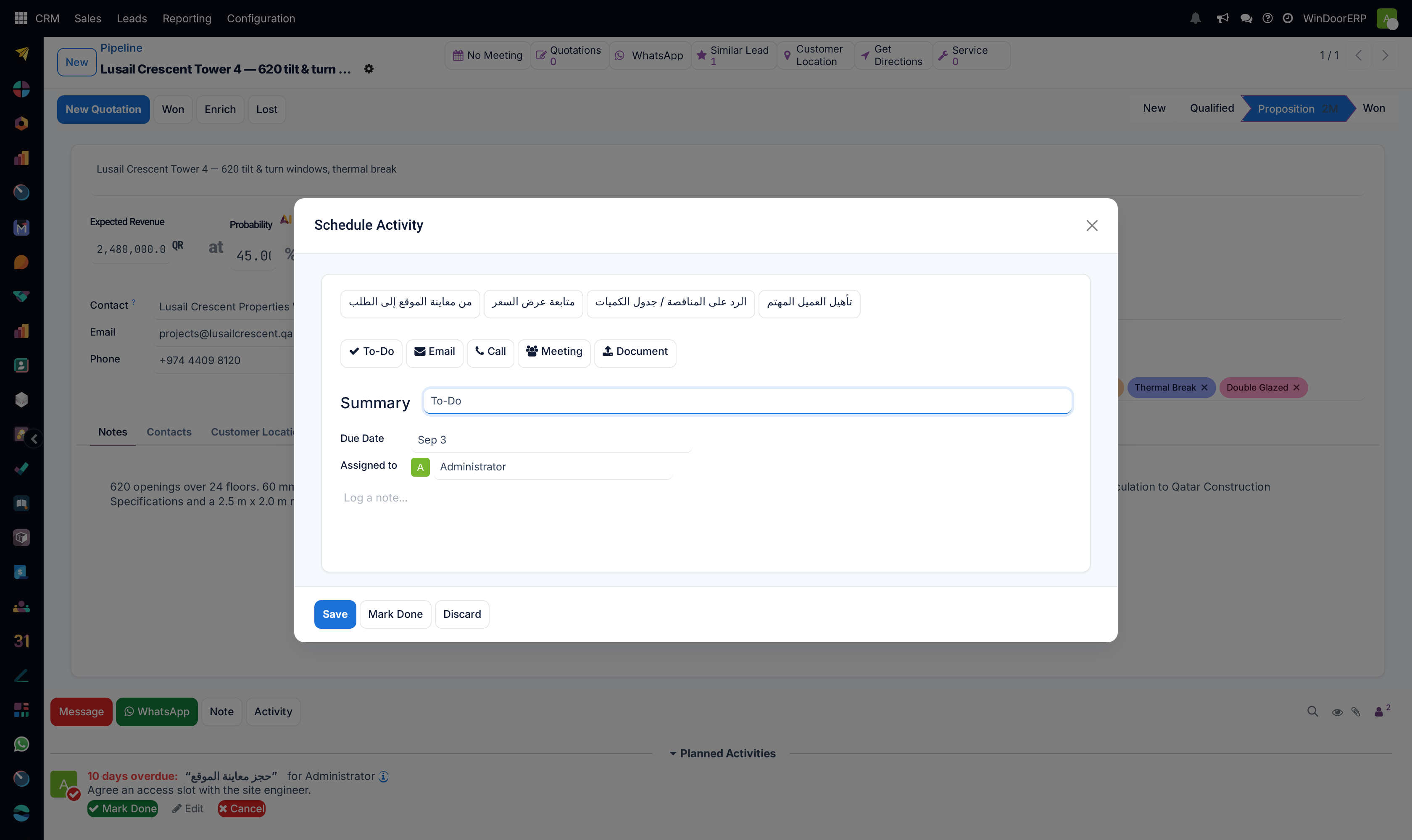
An appointment with a customer — a measurement visit, a showroom meeting, a handover — belongs in the Calendar app, and the way to create one from a deal is the Meetings button on the opportunity. Choosing the Meeting type in the Schedule Activity dialog takes the same route: the summary, due date and assignee are replaced by a prompt reading Schedule a meeting in your calendar, and Schedule hands you to the Calendar app to book a real event with a time and attendees. The two stay tied together afterwards — change the activity's due date and the meeting moves with it — which is why the same commitment can be seen from both places. All of this is covered in Plan follow-ups.
Google and Outlook synchronisation is not enabled here
WindoorERP can mirror the Calendar app into Google Calendar or Outlook, but the connectors that do it are not installed on this system, so no appointment made here reaches a phone by that route. The reminders that do work are the in-app activity notifications and the reminder set on a meeting. If two-way synchronisation matters to your team, ask your administrator for it as a change — it is a configuration and licensing decision, not something a salesperson can switch on.
Troubleshooting
| What you see | Why, and what to do |
|---|---|
| A deal is in the list but not on the calendar | It has no open activity left. The queue keeps it because its completed activity is archived rather than deleted; the calendar has no date to draw it on. |
| A chip sits on a date you did not choose | The chip follows the earliest open activity on the deal, which may be a colleague's. Open the deal and look at who owns the first task. |
| Dragging does nothing | The view is read-only on dates. Use Reschedule in the queue, or change the due date on the activity itself. |
| The month looks almost empty | Check the Contact and Salesperson sections — an unticked box stays unticked as you step from month to month. Check also that the My Activities facet is still the one you want. |
| A day says there is more than it shows | Five chips are drawn per day. Open the day, or switch to Week or Day scale. |
| The panel of filters has disappeared | It is toggled by the small button at the end of the scale bar. It is a display toggle only; nothing is filtered out while it is hidden. |
| You are refused when deleting from the popover | Good. The bin deletes the opportunity, and the Salesperson role is not allowed to. Nobody should be using it to clear a task. |
Common mistakes
- Reading the calendar as your own workload. It is the deals you are involved in, placed on whoever's next step comes first.
- Treating it as a diary and expecting a customer to hear about a change. Nothing on this screen sends anything to anyone.
- Booking a site visit as an activity only, so it never appears in the Calendar app and nobody outside the deal knows about it.
- Filtering the panel down to one colleague, then forgetting and concluding the month is quiet.
- Using the bin in the popover to get rid of a chip, which is an attempt to delete the whole opportunity.
Was this article helpful?
Thanks — your feedback helps.
Running a window or door factory?
Ask for a demo