Track a contract on its project record
What this does
Above the individual drawings, surveys and site visits sits the project: one record per contract that collects its tasks, its sale orders and its hours. WindoorERP deliberately does not ship a standalone "Project" application in the app switcher — projects are created and reached from the flows that own them. A Technical Project is born automatically with each opportunity and followed from CRM; an Installation Project is managed inside the Installation app. This article is about reading and steering the project record itself, wherever you reached it from.
Before you start
- You reach a project through its owning flow — the Installation app's Projects menu for installation projects, or the opportunity for technical projects.
- Kanban cards carry a green Technical or blue Installation badge so the two kinds are always distinguishable.
Reading a project record
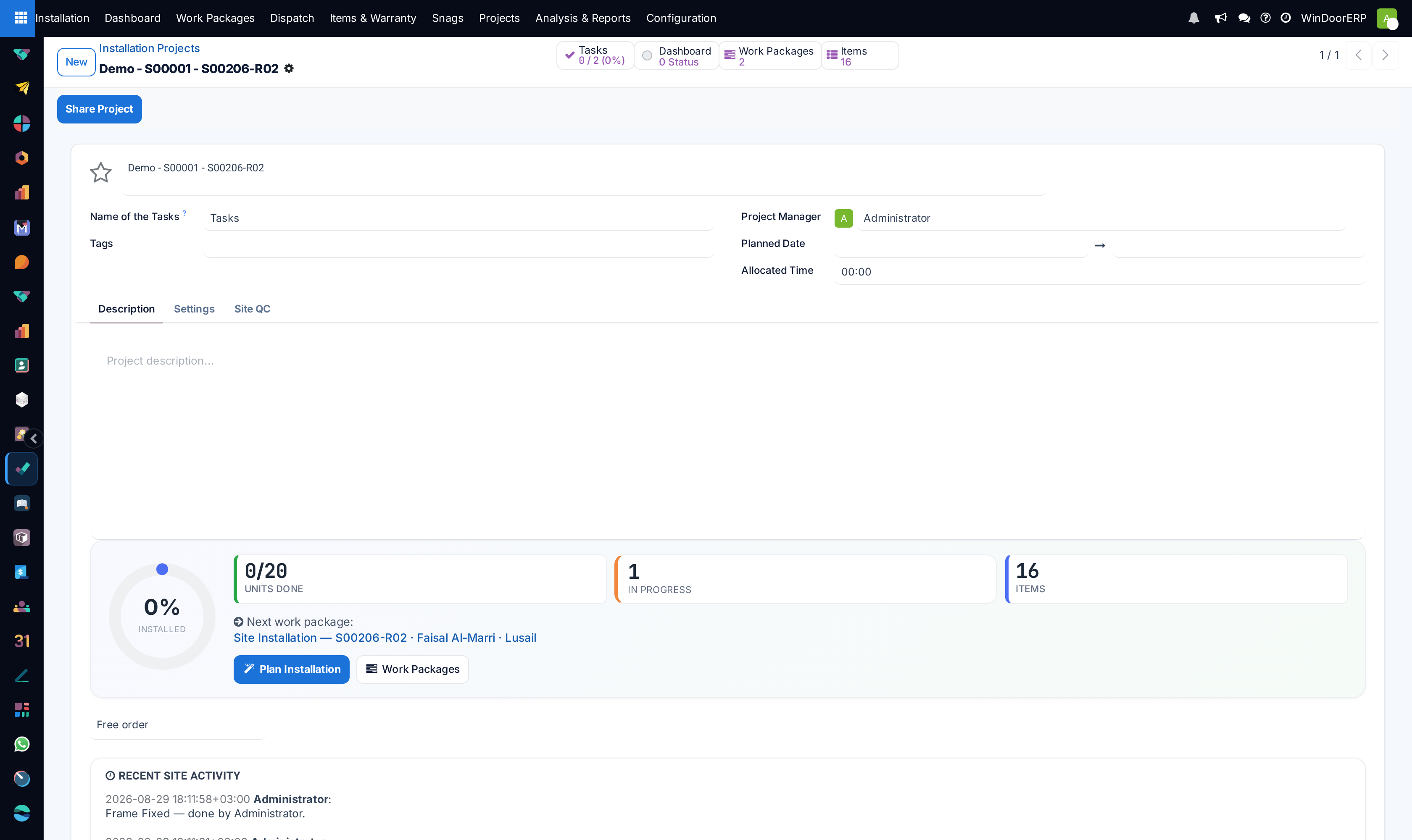
-
01
Open the project — from Installation › Projects, or from the records that link to it.
-
02
Check the smart buttons: Tasks (with the count of closed versus open tasks and a completion percentage), Sales Orders when orders are linked, and — on installation projects — the Work Packages, Items and Snags counters.
-
03
Review the header fields: the project Name, its Tags, the Project Manager, the Planned Date range and the Allocated Time budget — plus the Customer, on projects that carry one.
-
04
Use the Description tab as the contract's narrative home — scope notes, constraints, the things a newcomer must know.
-
05
Open the Settings tab to control sharing and features (below).
The Settings tab
| Setting | What it does |
|---|---|
| Visibility | Who sees the project and its tasks: invited internal users only, all internal users, or invited portal users and all internal users. The portal level is what exposes tasks to a customer — treat it deliberately. |
| Timesheets | Whether hours can be logged on the project's tasks. |
| Milestones, Task Dependencies, Recurring Tasks, Billable | Per-project feature switches. They are off in a fresh WindoorERP; switching one on adds its fields to this project's tasks (a Milestone field, dependency links, and so on). |
| Email alias | An inbox address that turns incoming mail into tasks on this project. |
A project's type — technical or installation — is not editable on the form. It is set by whichever flow created the project, and it decides which menus list it and which extra tabs appear (installation projects carry the Installation gauge and Site QC tabs described in the Installation chapter).
Where the numbers come from
The Tasks completion percentage counts tasks in folded (closed) stages against the total. Hours logged in the Timesheets tab of the project's own tasks accumulate against the project. Hours logged on technical requests stay with the requests — read them in Technical Tasks › Reporting › Timesheets, per request and employee, rather than on the project record.
Troubleshooting
You cannot find a "Project" app — that is by design in WindoorERP; use the Installation app's Projects menu or the owning record's buttons. There is no corpus-wide project list.
A project you renamed keeps reverting — technical projects mirror their opportunity: renaming the opportunity renames the project again on the next edit. Rename the opportunity instead.
The Tasks button shows 0 although work is happening — the work is living on technical requests (Technical Tasks app), which are not project tasks; that is normal for technical projects.
Common mistakes
- Opening project visibility to portal customers on a contract whose task names carry internal commentary.
- Tracking one contract in two projects — link the sale orders and requests to the one record that should carry the history.
Was this article helpful?
Thanks — your feedback helps.
Running a window or door factory?
Ask for a demo