Author the manual: articles, journeys, shelves and federation
What this does
This app is the manual you are reading. It holds the articles, arranges them into guided journeys and shelves, draws the process maps, publishes the public help centre, and syncs the whole corpus out to every tenant. This article is for the people who write it.
Before you start
- Reading needs no permission beyond a login. Authoring adds the Topics, Journeys and Quality menus; publishing is a separate right again, and federation subscribers are administrator-only.
- Read the authoring standard before writing an article — the companion topic on writing a manual article covers the house style.
Write and publish an article
-
01
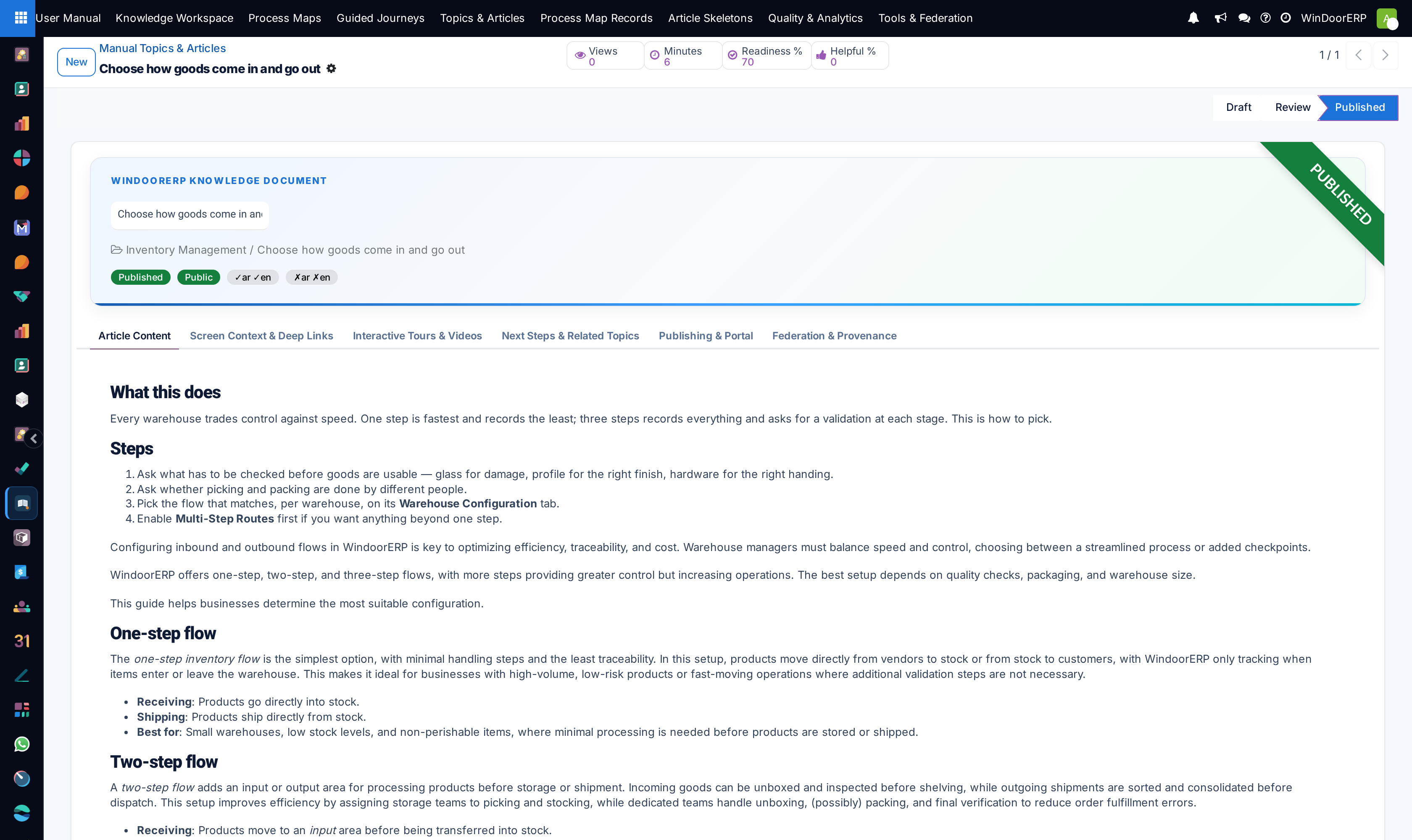
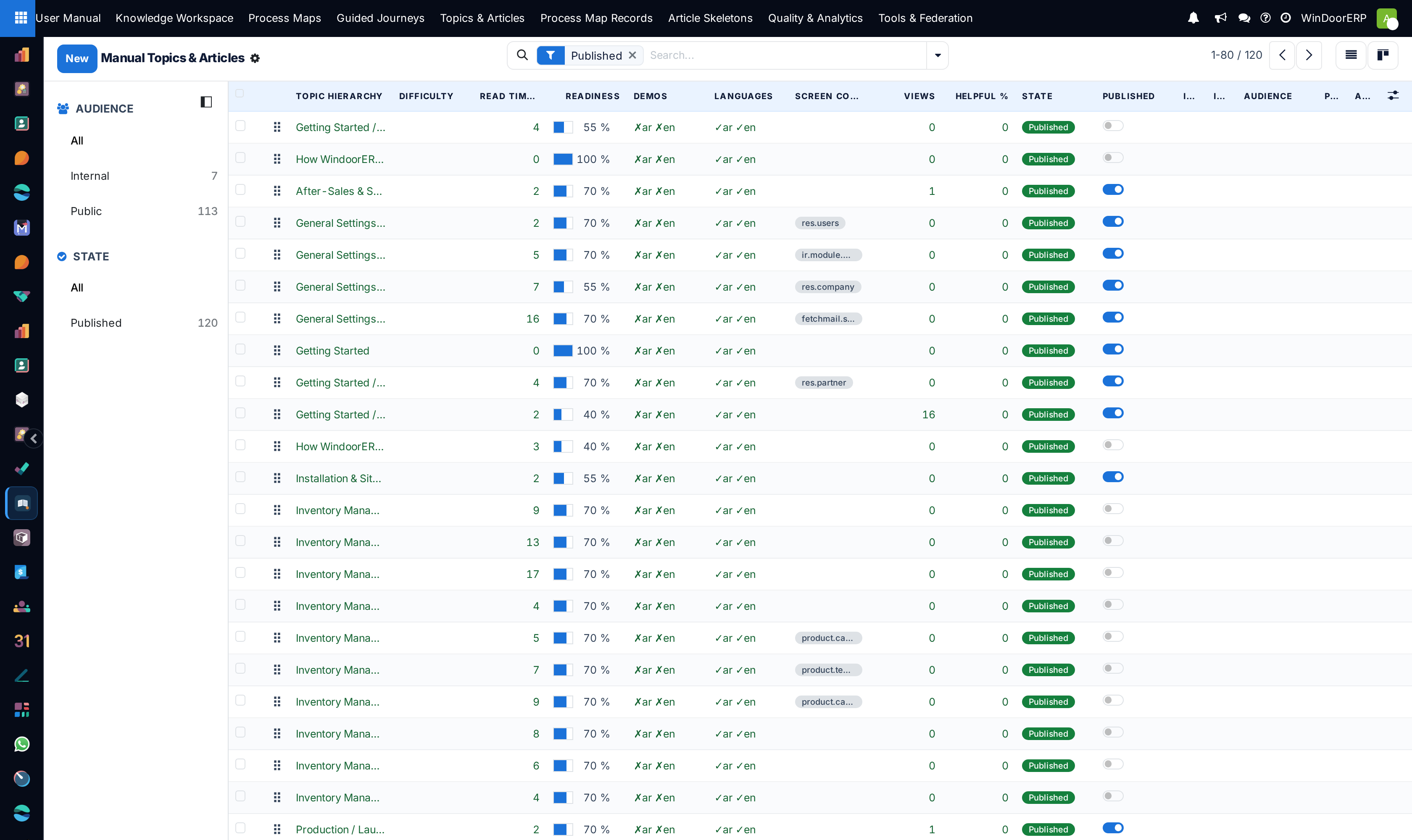
Open User Manual › Topics & Articles and click New. Optionally pick an Article Skeleton to start from a prepared outline.
-
02
Give it a name, set its Parent and Sequence to place it in the tree, and write the content. A node left with no content becomes a section — a heading in the tree rather than an article.
-
03
Fill the metadata that makes it findable: Keywords (the synonyms readers actually type, not the words already in your title), the App the article belongs to, its Difficulty and Version Note.
-
04
Move it from Draft to Review to Published as it matures.
-
05
To put it on the public help centre a publisher sets Published on Website and an Audience of Public. All three — published state, website flag, public audience — are required; any one missing and the article stays internal.
Guided journeys, and the shelves they sit on
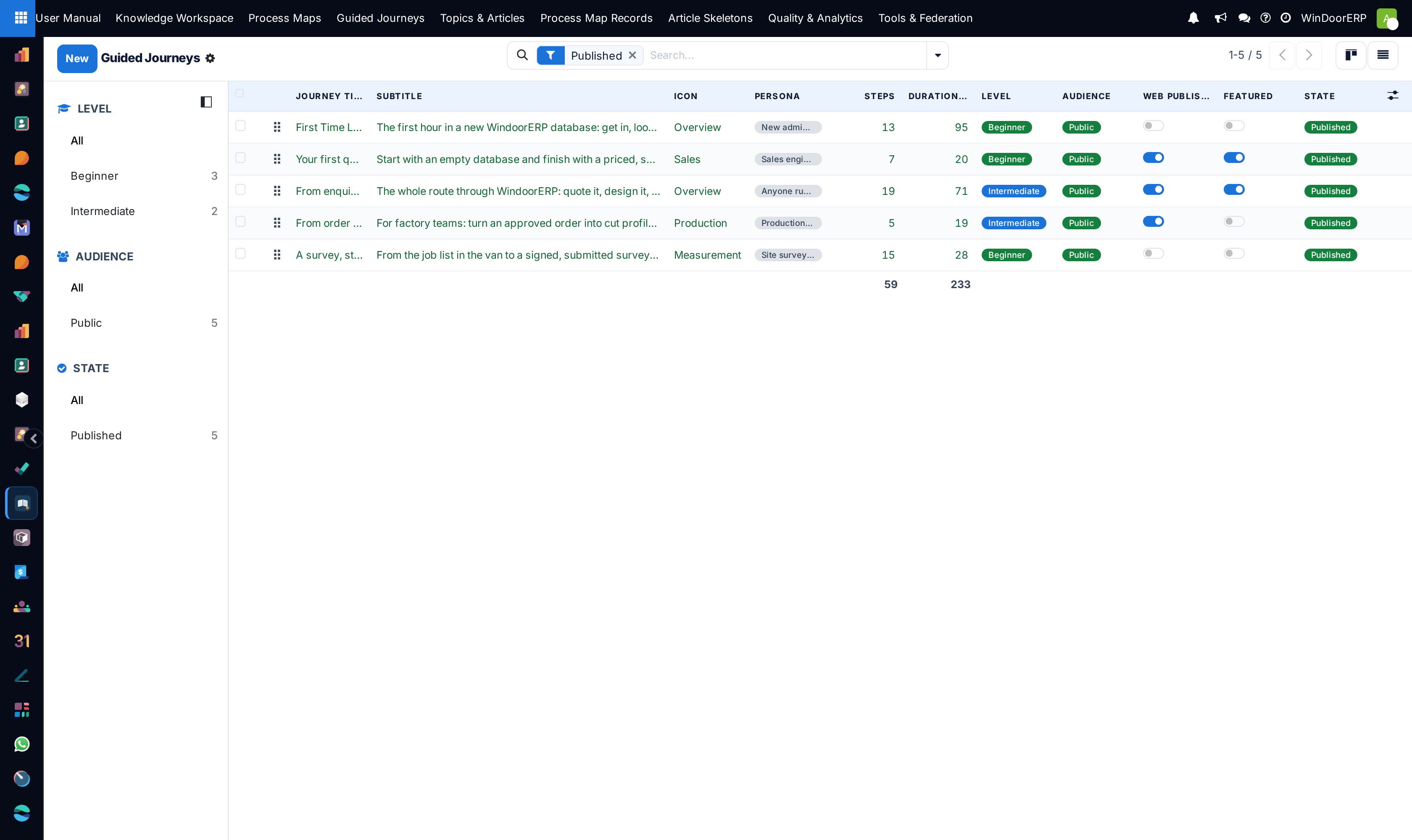
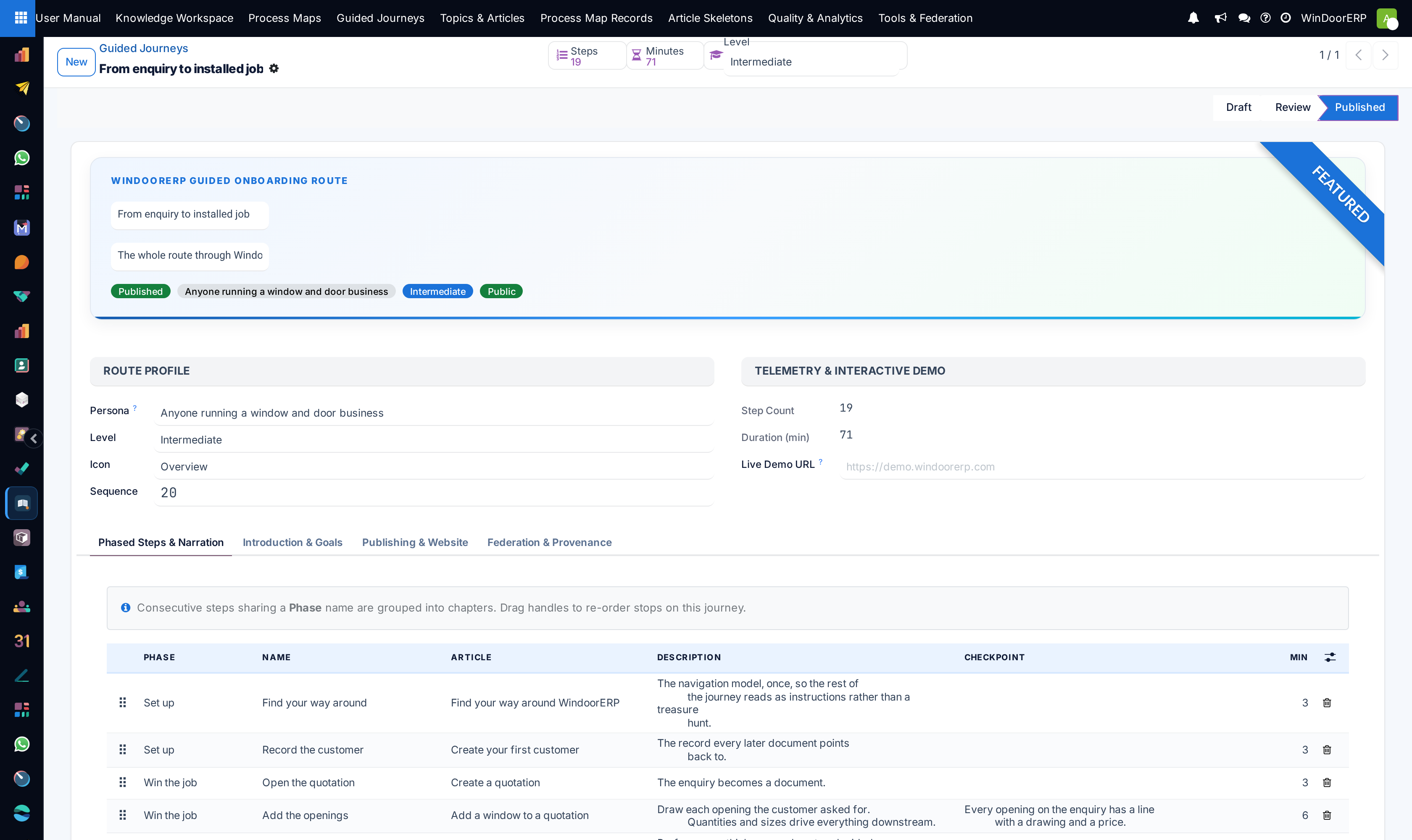
A journey is an ordered path through the manual for one kind of reader: a name, a subtitle, the outcomes it promises, its prerequisites, and its steps. A step usually points at an article, but it does not have to — a step with no article is pure narration, which is how a journey explains a transition between two chapters. Each step carries its own description (why the reader is here) and a checkpoint (how they know it worked). Consecutive steps that share a phase render as one block, and a journey cannot be published without steps.
Journey Groups are the shelves those journeys are filed on. A group has a name, a subtitle and a sequence; each journey points at one through its Group field. Grouping is presentation only — it never changes who may read a journey. Journeys left without a group are gathered under More journeys, and that fallback shelf only appears when there is more than one of them.
The shelves appear in two places, and both start closed
The same groups are rendered by two independent surfaces, and it is worth knowing they behave alike:
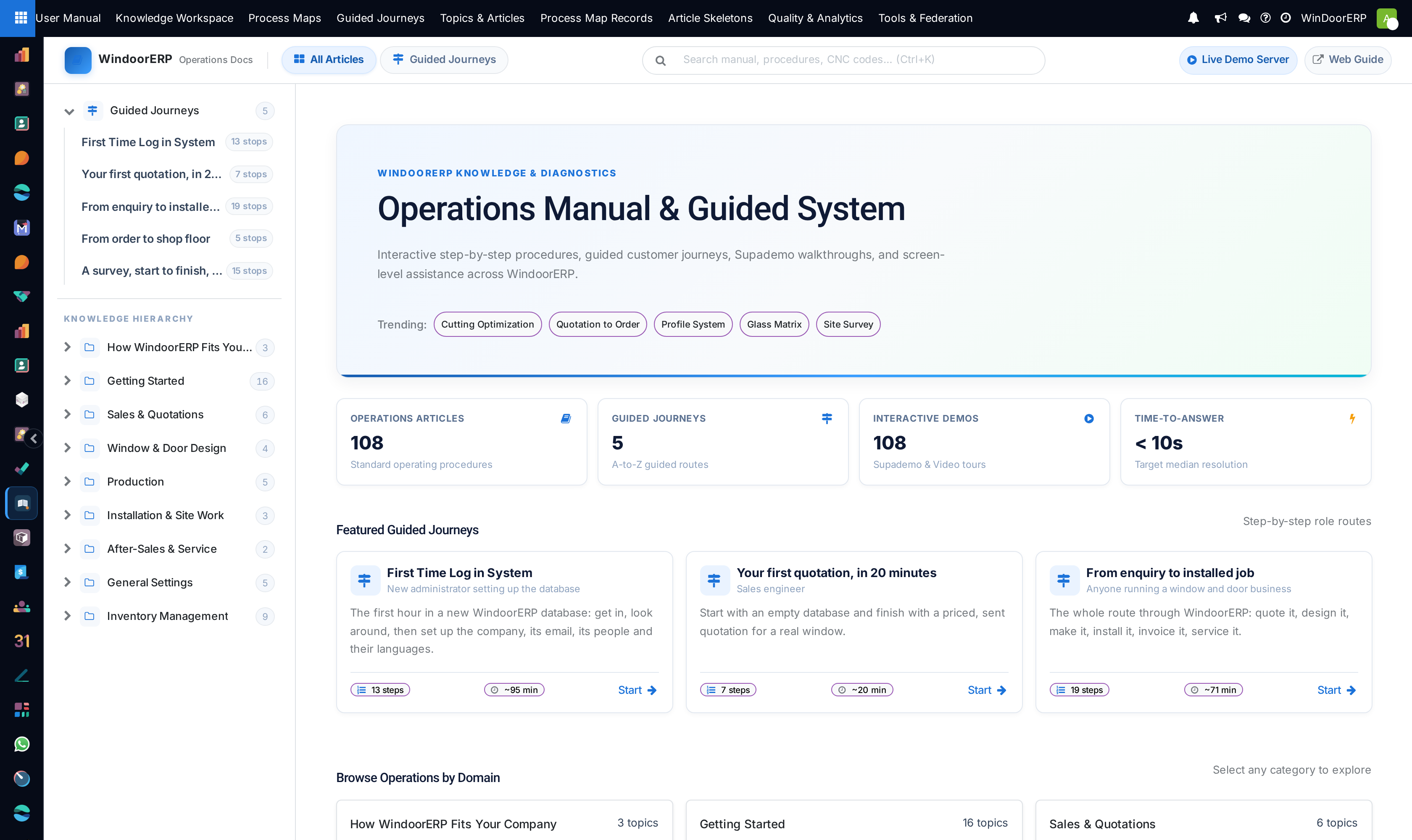
- In the Knowledge Workspace inside the app, each named shelf is a collapsed heading with a chevron; click the heading to open it. Opening a journey expands the shelf it lives on.
- On the public help centre, the sidebar shows the same shelves as fold-out sections, closed except for the one containing the journey being read.
So a reader landing on either surface sees a short list of shelf names rather than every journey at once. That is deliberate — but it means a badly named shelf hides its contents completely, because the name is all anyone sees until they click.
Process maps
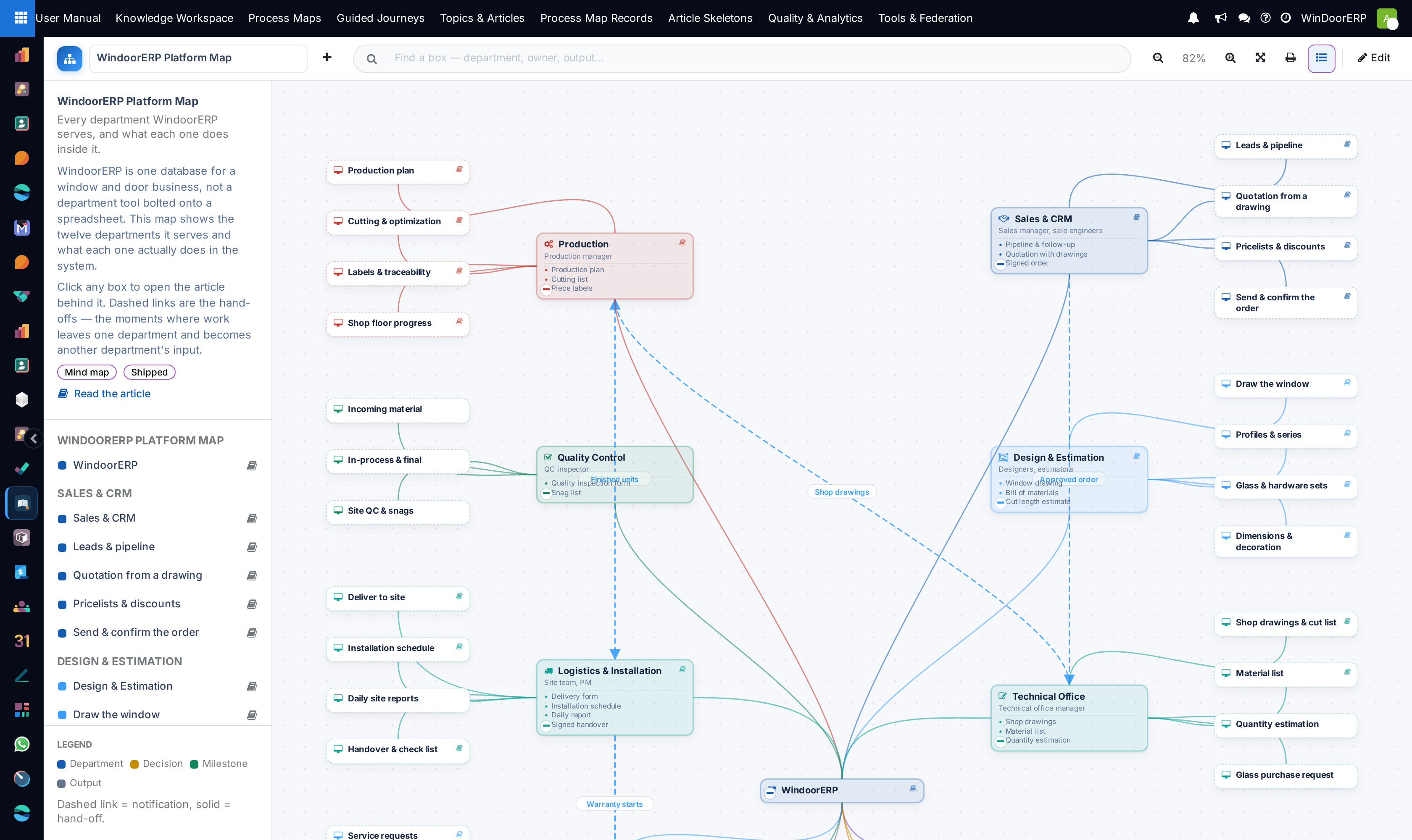
Process Maps opens the canvas where the department mind map and the workflow diagrams are drawn — boxes, lanes, groups and the arrows between them, in either a mind-map or a workflow layout. A box can link to an article, a journey or an action, which is what makes a map a navigation surface rather than a picture. Process Map Records is the same content as ordinary lists, which is the faster way to fix many links at once. Maps that shipped with WindoorERP can be reset to their original drawing; a map drawn here cannot, because there would be nothing to restore from.
Federation: how tenants get this manual
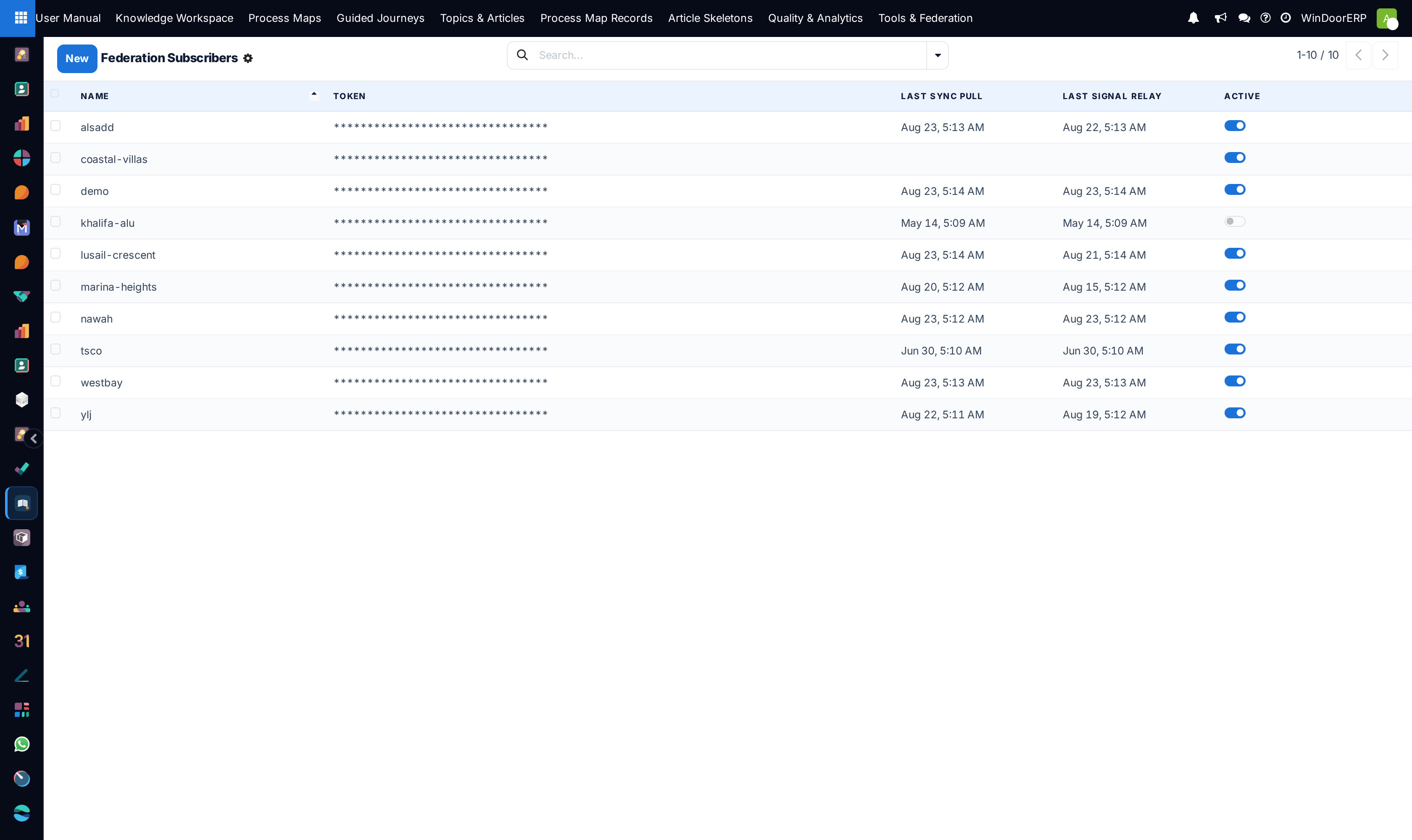
This instance is the master. Tenants subscribe, and articles, journeys and their groups are pushed out to them; a group travels with the journeys that belong to it, so shelves arrive already assembled. Matching is by a stable identifier that survives renaming, translation and slug changes — not by title.
On a subscribed tenant, federated content is read-only and says so when someone tries to edit it; Customize makes an editable local copy, and anything created locally is never overwritten by a later sync. An article archived on the tenant stays archived — the sync will not resurrect it. Tools & Federation holds the subscriber registry, the import package wizard, the import audit logs and the background export jobs.
Quality & Analytics
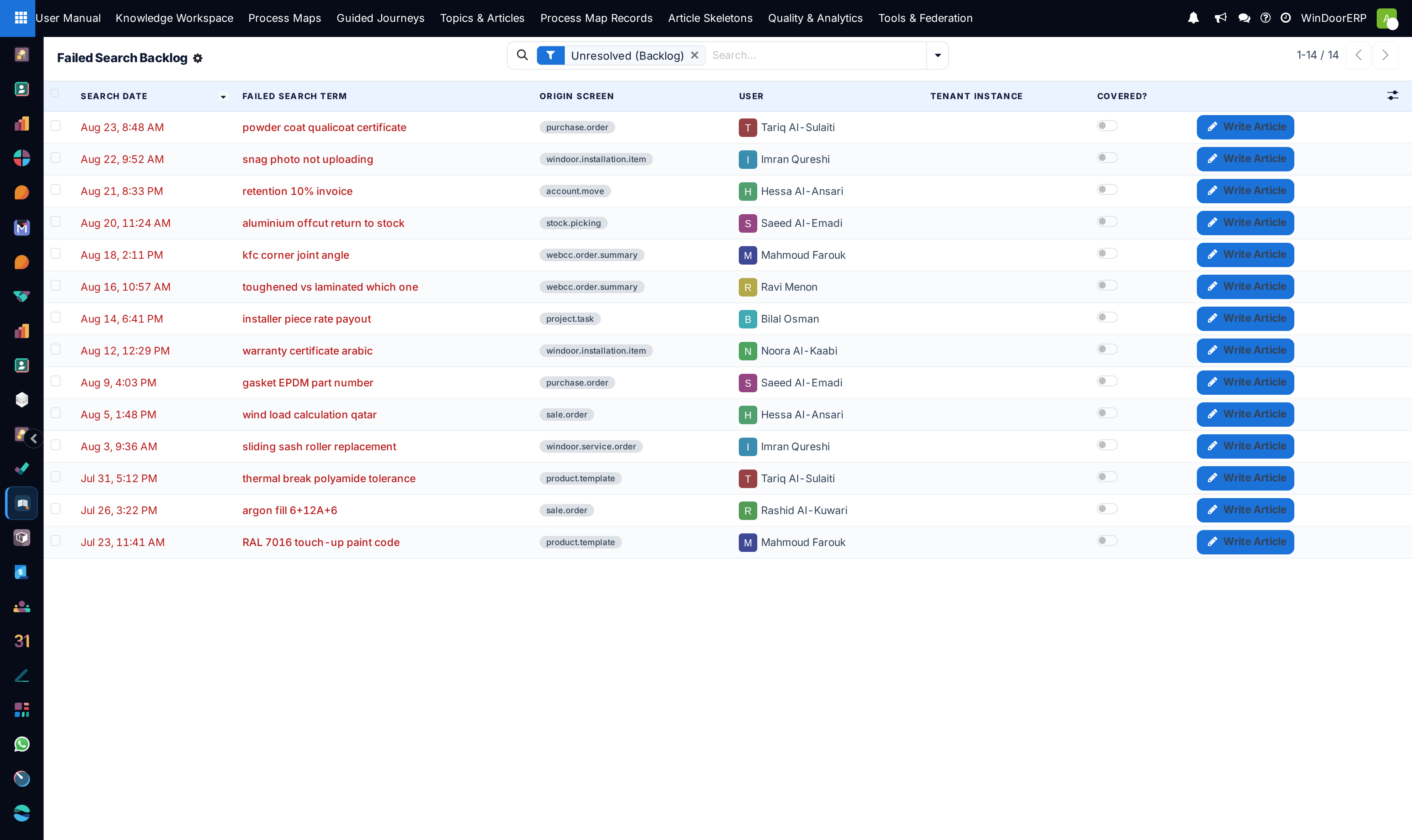
Four screens that tell you what to write next: Health Signal scores the corpus, Reader Feedback collects what readers said about individual articles, Search Backlog lists the searches that found nothing — the most honest to-do list in the app — and Usage Telemetry shows what is actually read.
Troubleshooting
An article will not save because it is too deep — the tree has a depth limit; deeper trees stop being navigable. Re-parent it higher rather than fighting the guard.
Saving reports the slug is already used — two articles cannot share a URL in one language. Change the slug; old slugs keep redirecting, so renaming does not break existing links.
Publishing is refused — setting the website flag or changing the audience needs the publisher right, not merely the author right.
A journey refuses to publish — it has no steps yet.
An article on a tenant cannot be edited — it is federated from here. Use Customize there, or fix it at the master so every tenant gets the correction.
Common mistakes
- Naming a shelf vaguely. It is collapsed by default in both surfaces, so the name is doing all the work.
- Filling Keywords with words already in the title instead of the synonyms readers actually type.
- Editing a federated copy on a tenant instead of fixing the master — the fix then exists in exactly one place and helps nobody else.
- Publishing to the website with the audience left internal, then wondering why the help centre does not show it.
Was this article helpful?
Thanks — your feedback helps.
Running a window or door factory?
Ask for a demo