Build activity plans for quotations and sales orders
What this does
An activity plan is a short, reusable list of follow-up steps. Launch it on a quotation or a sales order and every step is scheduled at once — each with its own kind, its own instruction, its own due date and its own owner — instead of somebody remembering to create them one at a time.
Plans belong to one model and one model only, and this menu holds the ones that belong to sales orders. That scoping is the whole reason this page exists separately from the CRM one: the plans you build here are offered on quotations and sales orders and nowhere else, and the plans built on the CRM menu are offered on leads and opportunities and never appear here. Same feature, two shelves, and neither menu offers a way to move a plan from one to the other.
The natural sequences on this side are the ones that begin when a price goes out: chasing an offer, walking an approved drawing through the customer's consultant, staging deliveries and progress invoices, and looking after a contract after handover.
Before you start
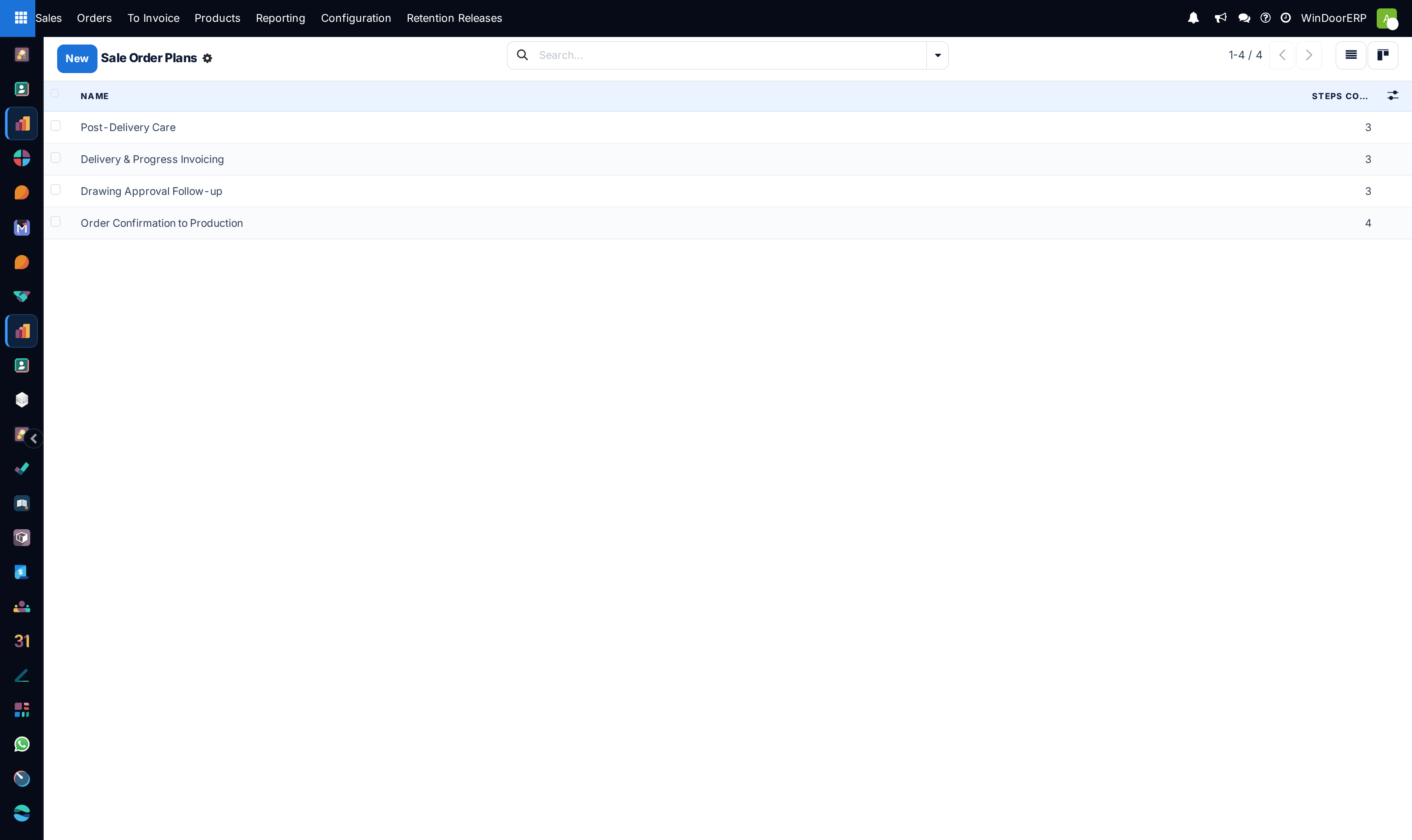
- You need Sales Manager rights. The menu is Sales › Configuration › Activities › Activity Plans, and the screen it opens is titled Sale Order Plans.
- Create the activity types you need first. A plan can only reference types that already exist, and only types that are either general or scoped to sales orders — see Scope activity types to sales orders — and find the menu that lists them.
- WindoorERP ships no sales-order plans. The list is empty on a new tenant, and anything in it was built by your team. The only plans that arrive with the software are the HR onboarding and offboarding ones, which live on a different model and never show here.
- Agree the wording before you type it. A plan's name is one value shared by every user in every language — unlike an activity type's name, which is translated. Whatever you write is what an Arabic reader sees too.
Steps
-
01
Open Sales › Configuration › Activities › Activity Plans and click New.
-
02
Type a Plan Name that reads as a process rather than a task — Drawing approval follow-up, not Call the consultant. The placeholder is e.g. Onboarding.
-
03
Leave Model alone. It is filled in as Sales Order by the menu you came in through and it is read-only here, so a plan made on this screen can only ever be launched on quotations and sales orders.
-
04
On the Activities To Create tab, add one line per step. The list edits inline: pick an Activity Type, write a Summary, and set Assignment.
-
05
Set Interval, Unit and Trigger to place the step in time. Check the trigger on every line — a new line starts at Before Plan Date, which counts backwards, and that is the opposite of what most people intend.
-
06
Drag the handle at the start of each row to order the steps, then save.
-
07
To use the plan, open a quotation or a sales order, click Activity in the chatter, choose the plan from the badges at the top of the dialog, set the date, and press Schedule.
The list and what it filters
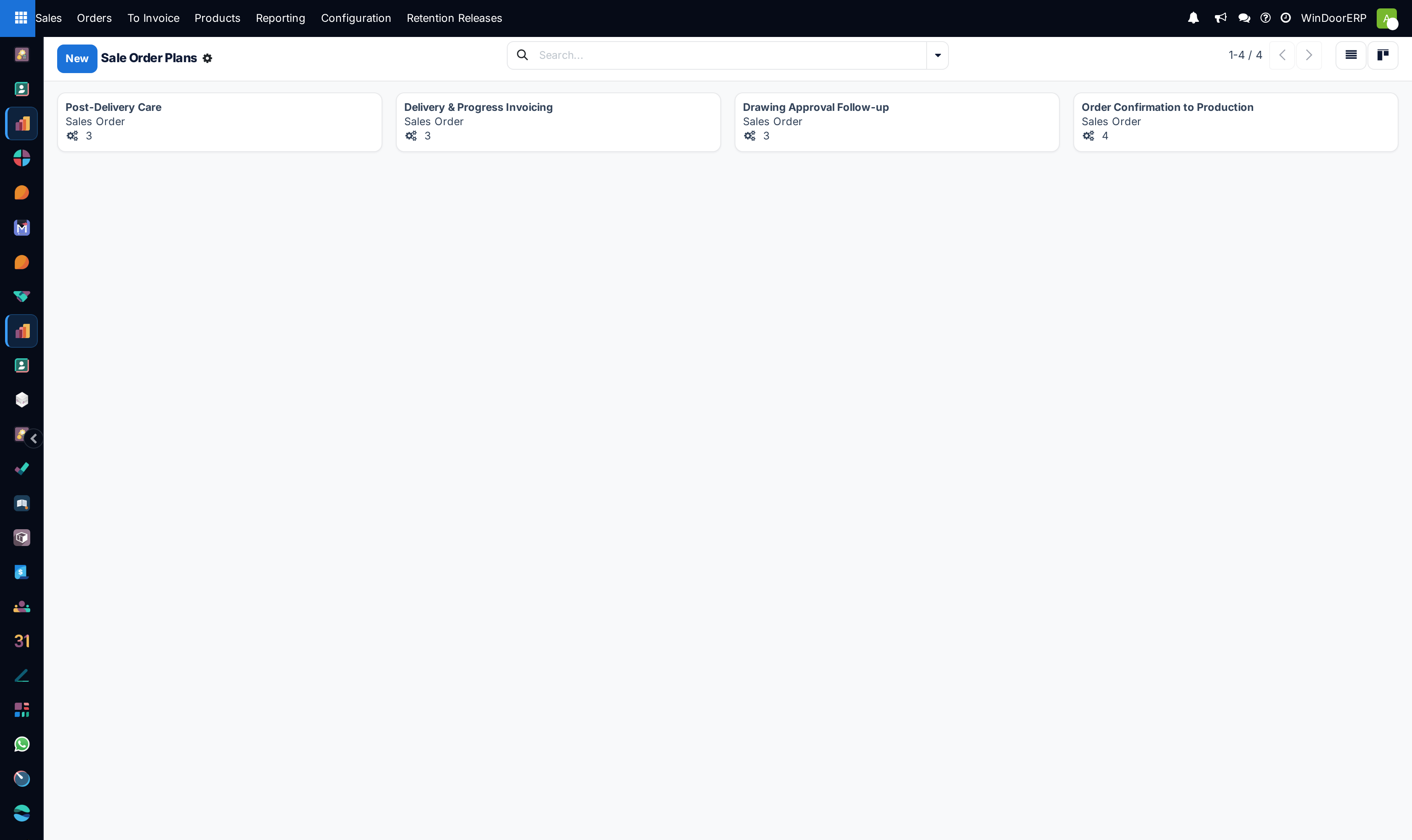
The list shows Name and Steps Count, with Applies to and Company available from the ⚙ column toggle. Steps Count is computed from the lines on the plan, so a plan reading 0 is a plan nobody will ever be offered. A kanban is offered beside the list, and the search panel carries a single filter, Archived, plus a Model grouping that is of no use here because every plan on this screen has the same model.
What the list does not show is anything from the rest of the database. Because the menu filters on the model, the four or five CRM plans your colleagues rely on are simply absent, and so are the HR ones. That is not a permission problem and there is nothing to switch on.
The plan, field by field
| Field | What it does |
|---|---|
| Plan Name | Required. Not translated — one value for every language. See the warning below. |
| Model | Sales Order, fixed by the menu and read-only on this form. The only screen that shows it editable is the general Activity Plans list under Settings ▸ Technical ▸ Activities, and changing it there is refused if any step's activity type is tied to the old model. In practice, to get the same steps on leads, rebuild the plan from the CRM menu. |
| Company | Optional, and it restricts who can use the plan. Left empty it reads Visible to all. |
| Activities To Create | The steps, in sequence. A plan with no steps saves without complaint, but it is never offered in the launch dialog — plans with an empty list are filtered out of it. |
A step, column by column
| Column | What it does |
|---|---|
| Activity Type | Required, and it starts as To-Do. The drop-down offers only types that are general or scoped to sales orders, so a type built for leads cannot be picked here. |
| Summary | The one-line instruction the assignee reads. Pre-filled from the type's own default summary when you pick the type, and worth replacing — a summary that just repeats the type tells nobody anything. Placeholder e.g. Discuss Proposal. |
| Assignment | Ask at launch leaves the owner to be chosen when the plan is run; Default user fixes one person now. It flips itself to Default user automatically if the activity type you picked carries a default user. |
| Assigned to | The person. Editable only when Assignment is Default user, and required in that case — saving without one is refused. |
| Interval / Unit | How far the step sits from the reference date: a number, then days, weeks or months. A new line starts at 0. |
| Trigger | Before Plan Date or After Plan Date. New lines start on Before Plan Date, counting backwards from the reference date. |
| Next Activities | Hidden by default; available from the ⚙ toggle at the right of the header row. It shows what the chosen type will chain to, filled in from the type and not from the plan. |
Check the Trigger on every line
The trigger defaults to Before Plan Date, so a step left at three days lands three days earlier than the date you type when you launch the plan, not later. A plan whose steps all appear in the past is almost always this and not a date error. Before Plan Date is genuinely useful — it is how you build a countdown to a fixed deadline such as a tender submission or a shipment cut-off — but it has to be chosen, not inherited by accident.
How the dates are worked out
Every step is measured from one reference date you supply when you launch the plan. Not from the moment you press the button, and not from each other. An interval of 0 lands on the reference date itself; three days after puts the step three days later; three days before puts it three days earlier.
Because every step hangs off the same date, the steps are independent of one another. Finishing step one early does not pull step two forward, and letting step one go overdue does not push step three back. A plan is a schedule, not a workflow, and on a fenestration contract — where drawing approval slips, then production slips behind it — that difference shows up within the first week.
Launching a plan on a quotation
Open the quotation or the sales order and click Activity in the chatter. The dialog puts every plan available for this model along the top as badges; choose one and the single-activity form is replaced by the plan's own controls.
| What you set | What it does |
|---|---|
| Due Date | The reference date every step is measured from. Defaults to today. |
| Responsible | Who the Ask at launch steps go to. The field only appears if the plan has at least one such step. |
| Plan Summary | A read-only preview of exactly what is about to be created: one line per step with its owner's avatar, its wording and the date it will land on. It updates as you change the date. Read it before pressing the button — it is the only chance to see the plan resolved against real dates. |
| Schedule | Creates the lot. The dialog's buttons change with the plan: with a plan chosen you get Schedule and Discard, without one the ordinary Save and Mark Done. |
Every activity appears at once under Planned Activities in the chatter, and the chatter logs a note reading The plan "…" has been started. If the plan chains — because one of its types triggers another — the preview shows the chained steps too, so the count in the summary can exceed the number of lines on the plan.
Launching the same plan twice creates a second full set. Nothing notices that the first is still open, so a plan run by mistake has to be cancelled activity by activity.
Plan names are not translated; activity type names are
A plan's name is stored once and shown to everybody, whatever language they work in. An activity type's name is stored per language and follows the reader. This is why the plan badges in the dialog can be in one language while the To-Do, Email and Call badges beside them follow the reader's own — and it is not a translation bug, so there is nothing in the translation files to fix. If your team works in two languages, agree plan names both sides can read, or rename the plan itself.
Troubleshooting
| What you see | Why, and what to do |
|---|---|
| The list is empty | Nothing ships one. Build the plans your team actually repeats; four short ones beat one long one. |
| A CRM plan is missing from this list | The menu shows only plans whose model is Sales Order. CRM plans live on CRM › Configuration › Activities › Activity Plans, and neither menu lets you repoint one. Rebuild it here if you need the same steps on quotations. |
| The plan is not offered on a quotation | Three possible reasons: its model is not Sales Order, its Company is set to a company the order does not belong to, or it has no steps. All three are filtered out of the dialog silently. |
| Every step landed on the same day | All the intervals are 0. The interval is per step and a new line starts at 0. |
| Every step landed in the past | The trigger is Before Plan Date, which is the default on a new line. Switch the steps that should follow the date to After Plan Date. |
| "When selecting 'Default user' assignment, you must specify a responsible." | A step is set to Default user with the Assigned to cell empty. Fill it, or switch that step back to Ask at launch. |
| "The activity type … is not compatible with the plan … because it is limited to the model …" | A step uses a type scoped to another model. Pick a general type, or one scoped to sales orders. |
| The activities were created with nobody assigned | The steps are Ask at launch and the question was skipped. Set Default user on the steps that always belong to the same person. |
| Deleting a step did not remove the activities already created | Correct. Editing a plan changes future launches only; activities already created are ordinary records and have to be cancelled individually. |
Common mistakes
- Building a plan of ten steps. Anything past four or five gets ignored wholesale; short plans get used.
- Expecting the steps to chain. They do not — every date is measured from the reference date and nothing waits for anything.
- Leaving Before Plan Date on steps that were meant to follow the date.
- Assigning every step to a named person, then editing the plan whenever someone changes role. Ask at launch ages better.
- Writing a summary that repeats the activity type. Call as the summary of a Call step tells the assignee nothing.
- Building the same plan twice, once here and once on the CRM menu, and letting the two drift apart. Decide which side of the handover each sequence belongs to.
See also
The same feature on the opportunity side, with the full behaviour of the launch dialog, is covered in Build activity plans: reusable step lists launched on an opportunity; the types a plan's steps are built from are covered in Define activity types: action, default summary, schedule and chaining and, for the sales-order scoping specifically, in Scope activity types to sales orders — and find the menu that lists them.
Was this article helpful?
Thanks — your feedback helps.
Running a window or door factory?
Ask for a demo