Handle a service order from complaint to close
What this does
Service orders are how a complaint after handover becomes tracked work: raised from wherever the customer reached you, categorised, scheduled to a technician, worked, and closed — with the warranty position checked before anyone argues about who pays.
Before you start
- Know which product or unit the complaint is about. The warranty check works from the serial or the original order line.
- Decide early whether the visit is under warranty or chargeable — it changes whether the job ends in a quotation.
Steps
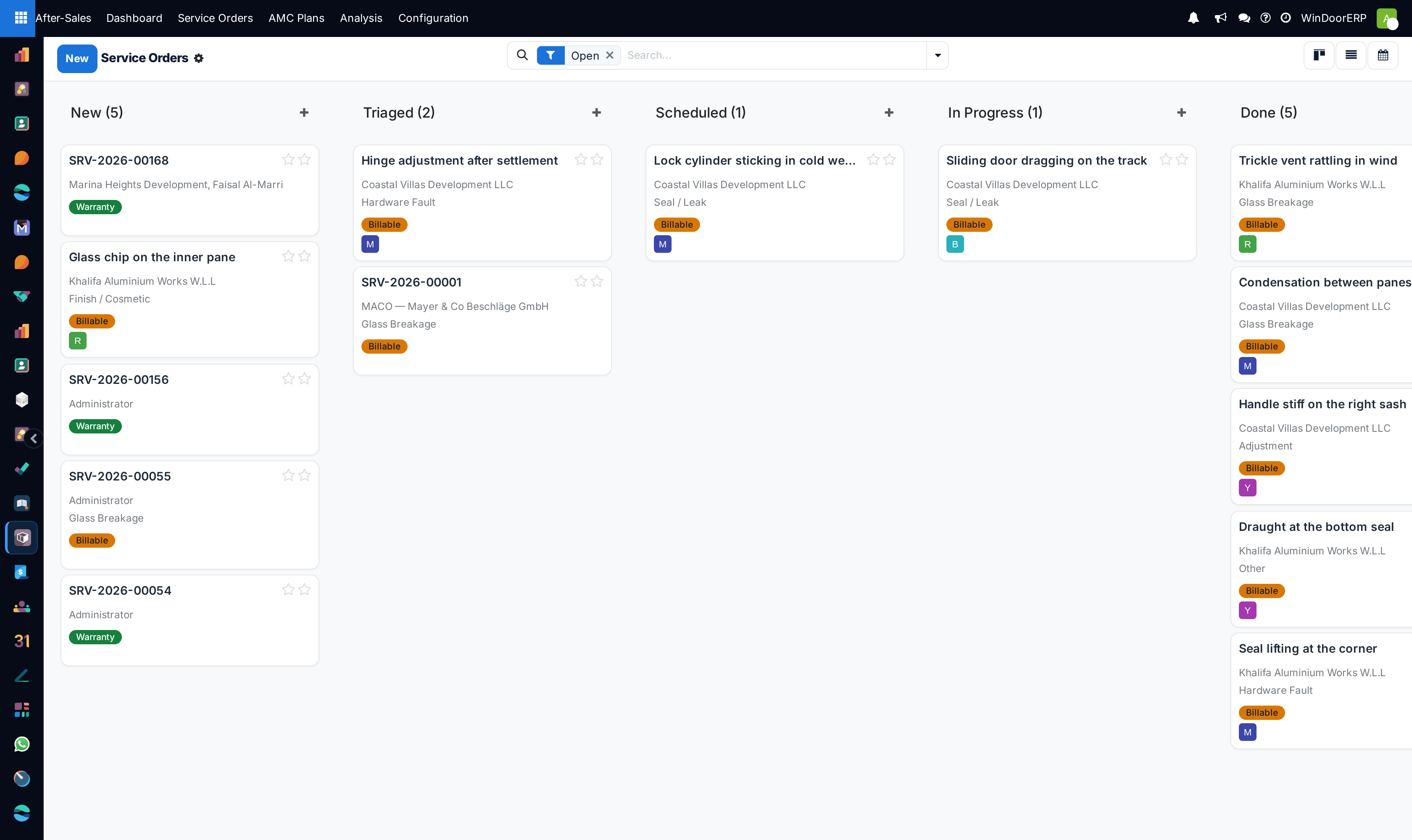
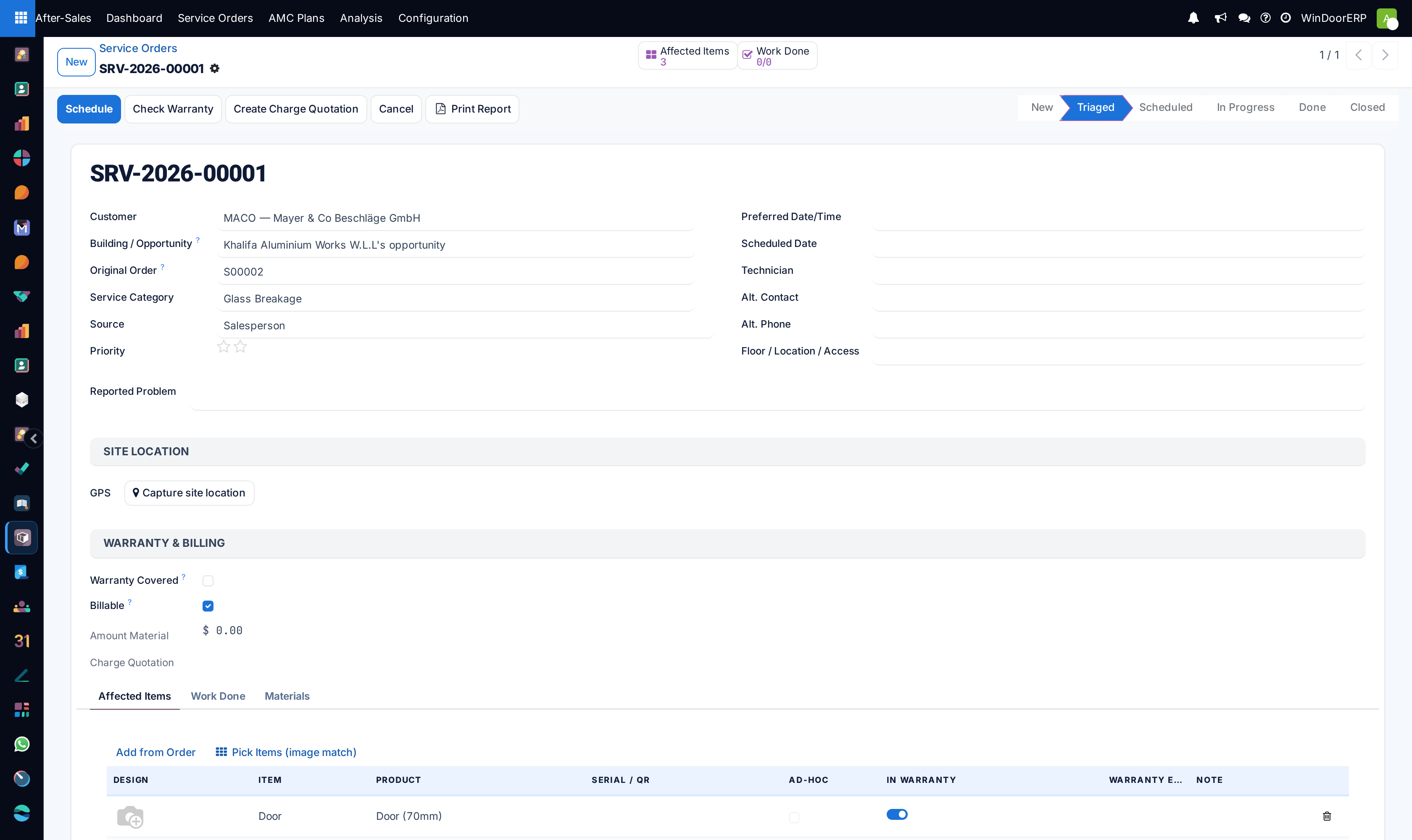
-
01
Open After-Sales › Service Orders. The list opens on open work only — closed and cancelled orders are filtered out.
-
02
Create the order, or open the one that arrived from the portal.
-
03
Set the Service Category and describe the fault as the customer reported it.
-
04
Run Check Warranty to see whether the unit is still covered.
-
05
Assign a Technician and schedule the visit.
-
06
Record what was done and what was used, attach evidence photos, and move the order to Done.
-
07
If the work is chargeable, create the quotation from the order; close the order when the customer is satisfied.
Where service orders come from
| Source | How it arrives |
|---|---|
| Portal | The customer submits a request from their portal account; it lands as a new order. |
| Manually | Someone takes the call or the email and raises it in After-Sales. |
| From a sales order | The Service Request button on a confirmed order raises one already linked to that job, with its product lines pulled in. |
| From a maintenance plan | A contract generates its scheduled visits automatically, or you generate one on demand. |
Note
The warranty check is a search, not a link: it looks up installation items by serial or order line to tell you what it finds. A service order does not permanently attach itself to an installed unit, so record the unit's identity in the order's own fields.
The states, and the one that surprises people
An order runs New → Triaged → Scheduled → In Progress → Done → Invoiced → Closed, with Cancelled alongside. The kanban always shows every column, so empty ones are normal rather than a filter problem.
Important
Invoiced means a charge quotation was created from this order — not that a customer has been billed or has paid. Nothing here watches the invoice afterwards, so treat Invoiced as "we have quoted it" and follow the money on the quotation itself.
Troubleshooting
| Symptom | Cause and fix |
|---|---|
| An order you know exists is not in the list | The list hides closed and cancelled orders. Clear the filter or search by reference. |
| Check Warranty finds nothing | There is no matching serial or order line to find. Confirm the unit's serial against the original order before telling a customer they are out of warranty. |
| The source says Portal for an order you typed in yourself | Portal is the default source. Set it to phone, email or walk-in so the channel mix stays meaningful. |
| Kanban columns are empty | Expected — every state column is always shown, whether or not it holds work. |
Common mistakes
- Reading Invoiced as "paid" and closing the loop too early.
- Promising a warranty position before running the check.
- Leaving the source on its default, then wondering why every complaint appears to come from the portal.
- Closing an order without recording what was actually done — the next technician on that unit has nothing to read.
Was this article helpful?
Thanks — your feedback helps.
Running a window or door factory?
Ask for a demo