Plan and chase requests for quotation
What this does
Turns the requests-for-quotation list into a planning surface: the same records seen as a calendar of deadlines, an activity queue of follow-ups, and pivot and graph views for asking where the time goes.
Before you start
- These are views of the RFQ list, not separate reports — every filter and grouping you apply stays with you as you switch between them.
- Note what the list actually contains: despite the name, Requests for Quotation shows all purchase orders, with the draft ones at the top of your attention. Use the New and Sent filters when you want quotations only.
Steps
-
01
Open Purchase › Orders › Requests for Quotation. The KPI strip above the list gives you the shape of the queue immediately.
-
02
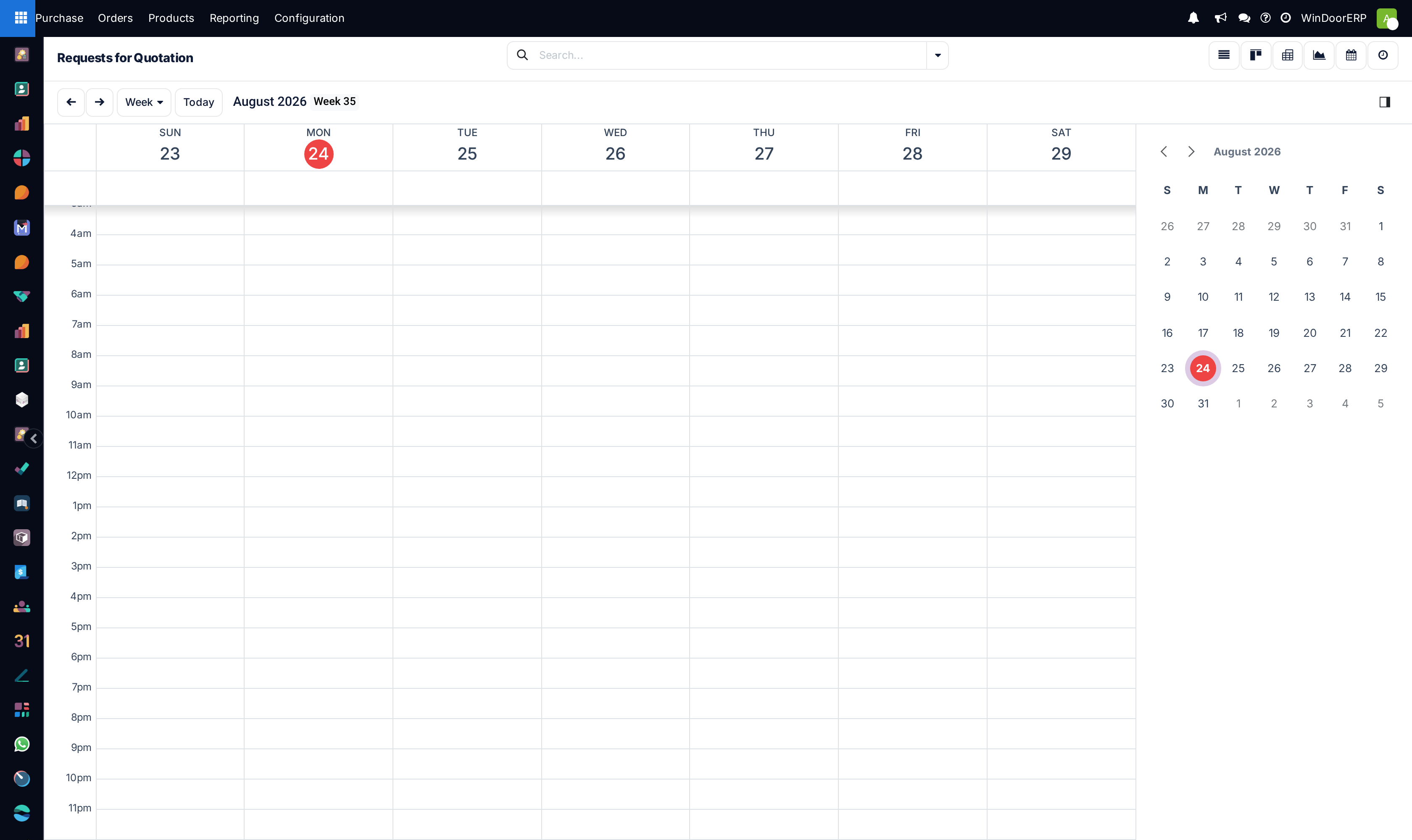
Switch to the Calendar to see order deadlines laid out in time, and spot the week that is overloaded before it arrives.
-
03
Switch to Activity to work the follow-up queue — one row per order, one column per activity type.
-
04
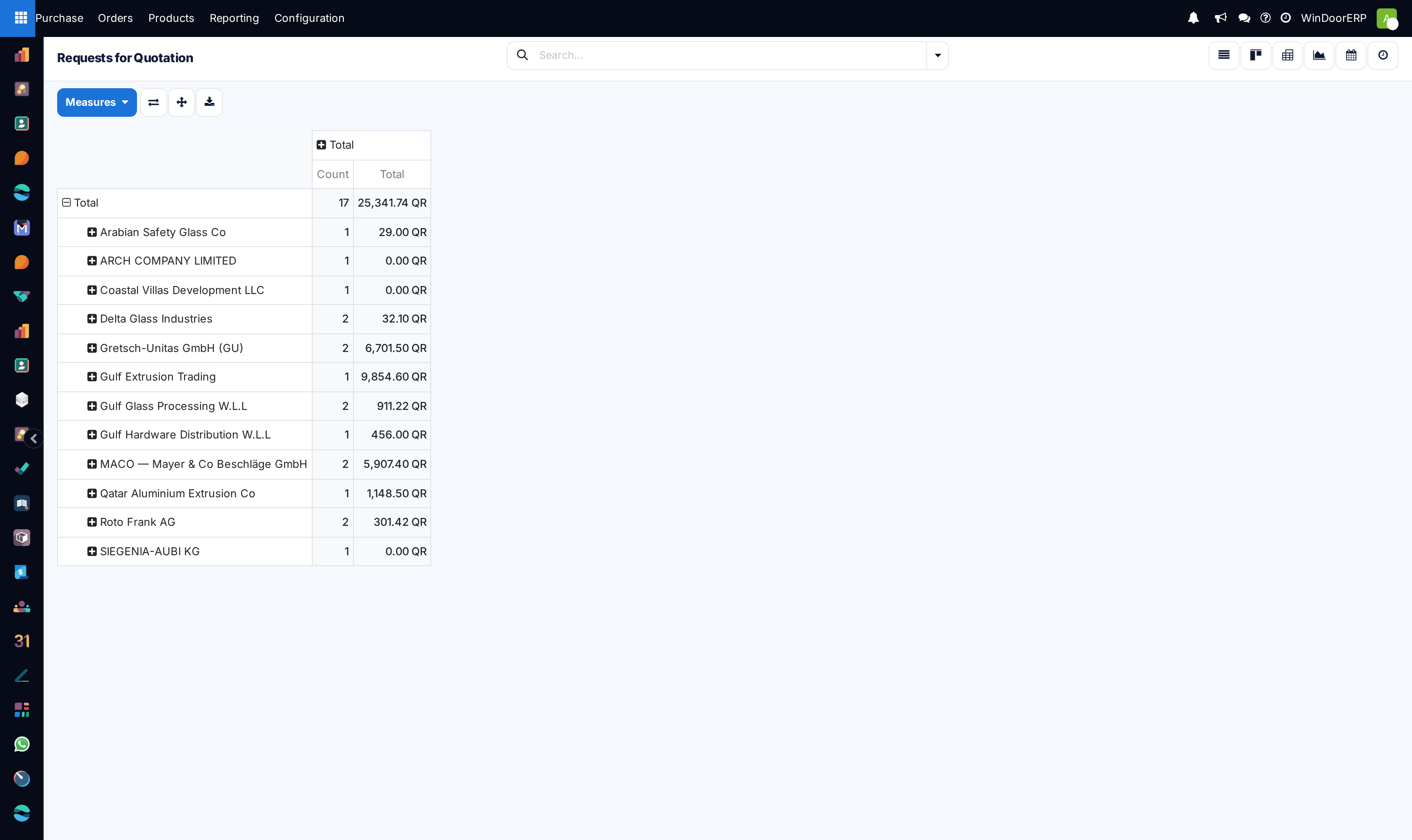
Switch to Pivot or Graph and group by Vendor, Buyer or Order Date to compare volumes and values.
-
05
Schedule follow-up activities on the orders that need chasing, so the chase lives on the record rather than in your head.
The KPI strip
Above the list sits a set of live counters, each of which is a filter you can click: New and Sent for where quotations sit, Late for those whose deadline has passed while still unconfirmed, Not Acknowledged, and Late Receipt for confirmed orders whose goods should already have arrived. Beside them are two averages — days to order and a % on-time figure. Toggle between My and All to switch between your own workload and the department's.
The filters worth knowing
| Filter | What it catches |
|---|---|
| Late | Draft or sent orders whose order deadline has passed — quotations you are sitting on. |
| Late Receipts | Confirmed orders whose expected arrival has passed with the receipt not done — goods you are waiting on. |
| Not Acknowledged | Sent to the vendor with no confirmation back. |
| My Purchases / Starred | Your own queue, and the handful you flagged to watch. |
| Group by Vendor / Buyer / Order Date | The three groupings that answer most questions about where time and money are going. |
Note
The calendar places orders by their deadline, and it is a reading surface — you cannot create an order by clicking an empty day. Create it in the list and it appears here.
Troubleshooting
| Symptom | Cause and fix |
|---|---|
| The list shows confirmed orders too | Expected — this action lists every purchase order. Apply New or Sent for quotations only. |
| The KPI strip is missing | It is shown to internal users only. A portal or restricted account sees the plain list. |
| The calendar looks empty | Orders without a deadline have nowhere to sit. Check the list for blank deadlines. |
| Pivot totals differ from what you expected | Filters carry across view switches. Clear them and re-apply deliberately. |
Common mistakes
- Reading the RFQ list as "quotations only" and drawing conclusions from a set that includes every confirmed order.
- Chasing vendors from memory instead of scheduling an activity — the Activity view only works if the follow-ups are on the records.
- Letting Late and Late Receipts blur together: one is your delay, the other is the vendor's.
Was this article helpful?
Thanks — your feedback helps.
Running a window or door factory?
Ask for a demo