Register machines and operator skills
What this does
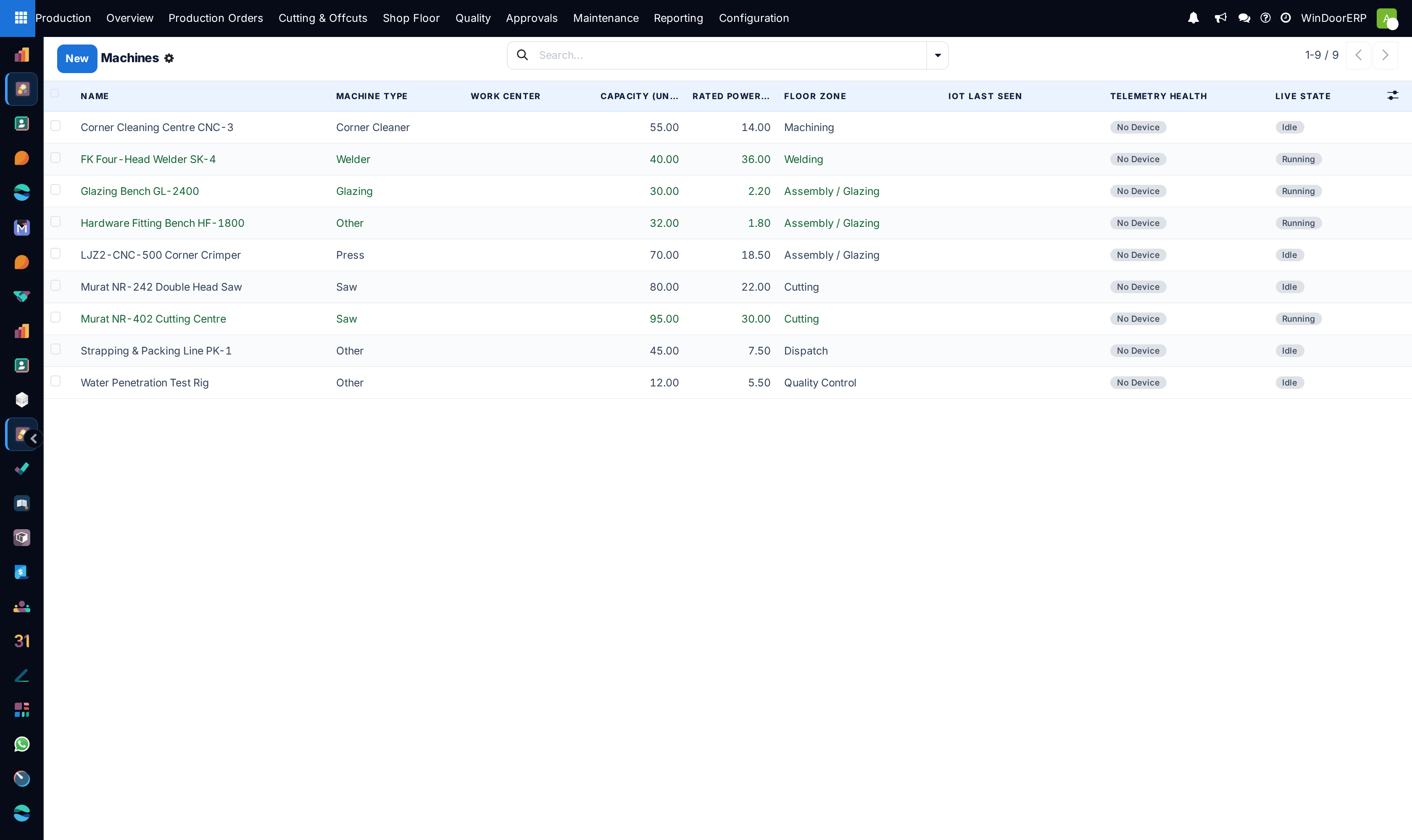
The Machines register is the asset list behind the live factory dashboards: each machine carries its type, capacity and cost figures, its position on the graphical floor plan, and — if a telemetry bridge feeds it — live IoT readings. Its Live State badge (Idle, Running, Down, Blocked) is what the Production Control dashboard, the floor plan and the maintenance flow all read and write.
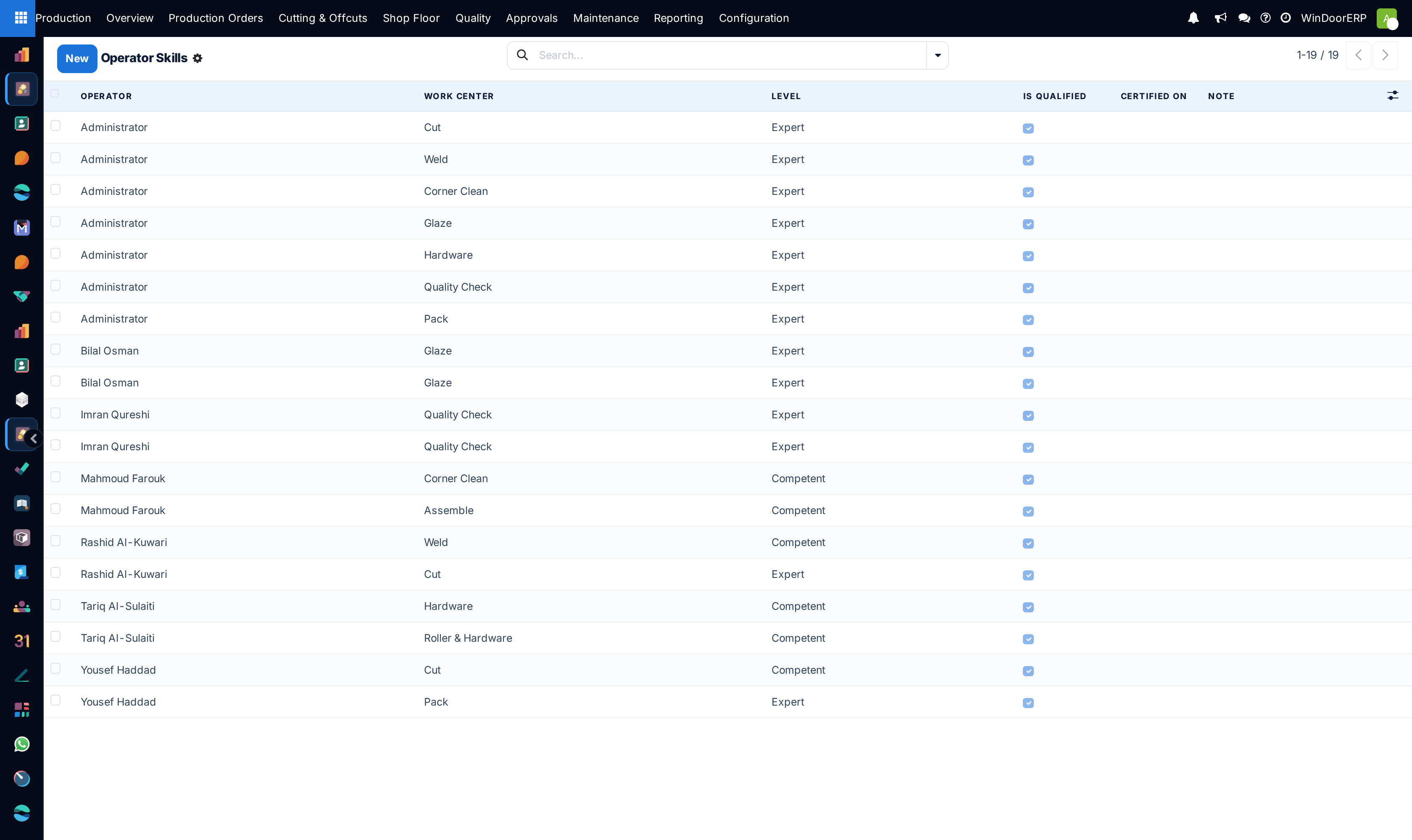
Operator Skills is the qualification matrix: one row per operator and work center, with a level. A qualified row authorises that operator to work that station on the shop-floor terminal — the same authority as the work center's Allowed Operators list, maintained per person instead of per station.
Both screens live under Production › Configuration (visible with the Production Manager role while Work Orders & Routing is on in Settings). Machines are among the few configuration records a plain production user can also edit — including the Live State — though not create; factory layouts are the other user-writable exception.
Before you start
- Work centers configured first — a machine is normally assigned to one (the field is optional), and a skill row always points at one.
- For live telemetry: the machine's IoT Device ID and a bridge that posts readings. Without one, the machine simply shows No Device — nothing else needs it.
Steps
-
01
Open Production › Configuration › Machines and click New.
-
02
Fill the Identity group: name, Code, Machine Type (Saw, Welder, CNC / Machining Center, Corner Cleaner, Copy Router, Reinforcement Drill, Glazing, Press or Other) and the Work Center it serves.
-
03
Enter Capacity & Cost: Capacity (units/hour), Cycle Time (sec) and Cost per Hour.
-
04
Optionally fill Energy / Utilities — Rated Power (kW) and Energy Cost per kWh feed the energy-cost figures on work orders and the overview dashboard.
-
05
Under Factory Floor Layout, pick the Floor Zone (Cutting, Machining, Welding, Assembly / Glazing, Quality Control, Dispatch or Support) — the zone the graphical floor plan groups the machine into. The X/Y/width/height percentages are normally written back by the Factory Planner rather than typed.
-
06
Then open Production › Configuration › Operator Skills and add one row per operator and station: pick the Operator, the Work Center and the Level — Trainee, Competent or Expert.
-
07
Record the Certified On date and a note where certification matters. Is Qualified is computed for you: Competent and Expert qualify, Trainee does not.
The machine form
| Field | What it does |
|---|---|
| Code, Machine Type, Work Center | Identity. The type also decides which catalogue model the Factory Planner maps the machine onto. |
| Live State | Idle / Running / Down / Blocked. It is written automatically — starting a work order sets the machine Running, finishing the last one sets it back to Idle, starting a maintenance request sets it Down — but it is also hand-editable, and any production user may change it. There is no state-transition guard. |
| Capacity (units/hour), Cycle Time (sec), Cost per Hour | Throughput and rate figures the dashboards aggregate. Default capacity is 1.0. |
| Rated Power (kW), Metered Energy (kWh), Compressed-Air Load, Energy Cost per kWh | Energy bookkeeping. Rated power × run hours × cost per kWh becomes the work order's energy cost; metered energy × cost feeds the overview's energy cards. |
| Floor Zone, Floor X/Y (%), Floor Width/Height (%) | Position and size of the machine's tile on the graphical factory floor, in percent of the floor. The planner writes these when you save an arrangement. |
| IoT Device ID | The key a telemetry bridge posts readings against. The read-only IoT Last Seen, IoT Signal and IoT Last Payload show what last arrived. |
| Telemetry Age (min), Telemetry Health | Computed: No Device (no device id), No Signal (never reported), Online, or Stale once the last reading is older than the staleness threshold — 15 minutes unless an administrator changed the system parameter windoor_production.iot_stale_after_minutes. |
Note
There is no serial number, brand or purchase-date field on a machine — asset-ledger details live in Accounting, not here. Telemetry from a device id that matches no machine is dropped silently, so a mistyped IoT Device ID shows as No Signal with no error anywhere.
The skills matrix
Operator Skills is a single editable list — there is no form view. Rows can also be maintained from the other end, on each work center's Skills Matrix tab; both edit the same records.
| Field | What it does |
|---|---|
| Operator, Work Center | Who and where. One row per pair — a duplicate is refused with "An operator can have only one skill row per work center." Stations with the same name on different lines are different work centers, so an operator can legitimately appear twice against two Glaze rows. |
| Level | Trainee / Competent / Expert. Default Competent. |
| Is Qualified | Computed from the level: Competent or Expert — may run this work center's operations. Read-only. |
| Certified On, Note | Free documentation of the certification. |
The search view offers a Qualified filter and grouping by operator, work center or level — group by operator to review one person's coverage across stations.
Important
Skill rows are one of only two ways an operator gets work on the Shop Floor Terminal — the other is the work center's Allowed Operators list. An operator on neither list sees "You are not assigned to any work center yet. Ask a manager to add you (Shop Floor ▸ Operator Skills)." at the terminal and can do nothing. A Trainee row does not qualify.
Troubleshooting
| "An operator can have only one skill row per work center." | A second row for the same operator and the same work center record. Edit the existing row's level instead of adding another. |
|---|---|
| Telemetry Health stuck on No Signal although the bridge is posting | The posted device id or code matches no machine — unknown devices are dropped without any error. Check the IoT Device ID spelling. |
| Telemetry Health shows Stale | The last reading is older than the staleness threshold (15 minutes by default). The machine may be off, or the bridge stopped. |
| A machine shows Down long after the repair finished | Cancelling an in-progress maintenance request does not reset the machine's state — only completing it does, or starting a work order on the machine, or editing Live State by hand. |
| An operator with a skill row still sees no work centers on the terminal | The row's level is Trainee — only Competent and Expert qualify. (A row pointing at the wrong line's station is a different symptom: the work center card shows, but with zero items.) |
Common mistakes
- Reading Down as an interlock. A down machine does not block work orders — starting one on it flips the machine straight back to Running. Downtime is a dashboard and OEE signal, not a lock.
- Granting a skill row at Trainee level and expecting the operator to get work — only Competent and Expert qualify.
- Leaving Rated Power and Energy Cost per kWh empty and then wondering why every work order's energy cost is zero.
- Typing floor coordinates by hand instead of arranging machines in the Factory Planner and saving — the planner overwrites manual X/Y values on its next save.
- Editing Live State by hand to "tidy up" the dashboard while a work order is still in progress — the next start/finish will overwrite it anyway, and the dashboard lies in the meantime.
Was this article helpful?
Thanks — your feedback helps.
Running a window or door factory?
Ask for a demo