Track purchase order arrivals and vendor reliability
What this does
Uses the confirmed purchase orders list to see what is arriving when, what is still waiting to be billed, and — from the separate on-time delivery report — which vendors actually deliver when they said they would.
Before you start
- Purchase Orders shows confirmed orders only. Quotations live on the Requests for Quotation list.
- The Reporting menu is administrator-only; the views described below are on the orders list itself and need no special role.
Steps
-
01
Open Purchase › Orders › Purchase Orders.
-
02
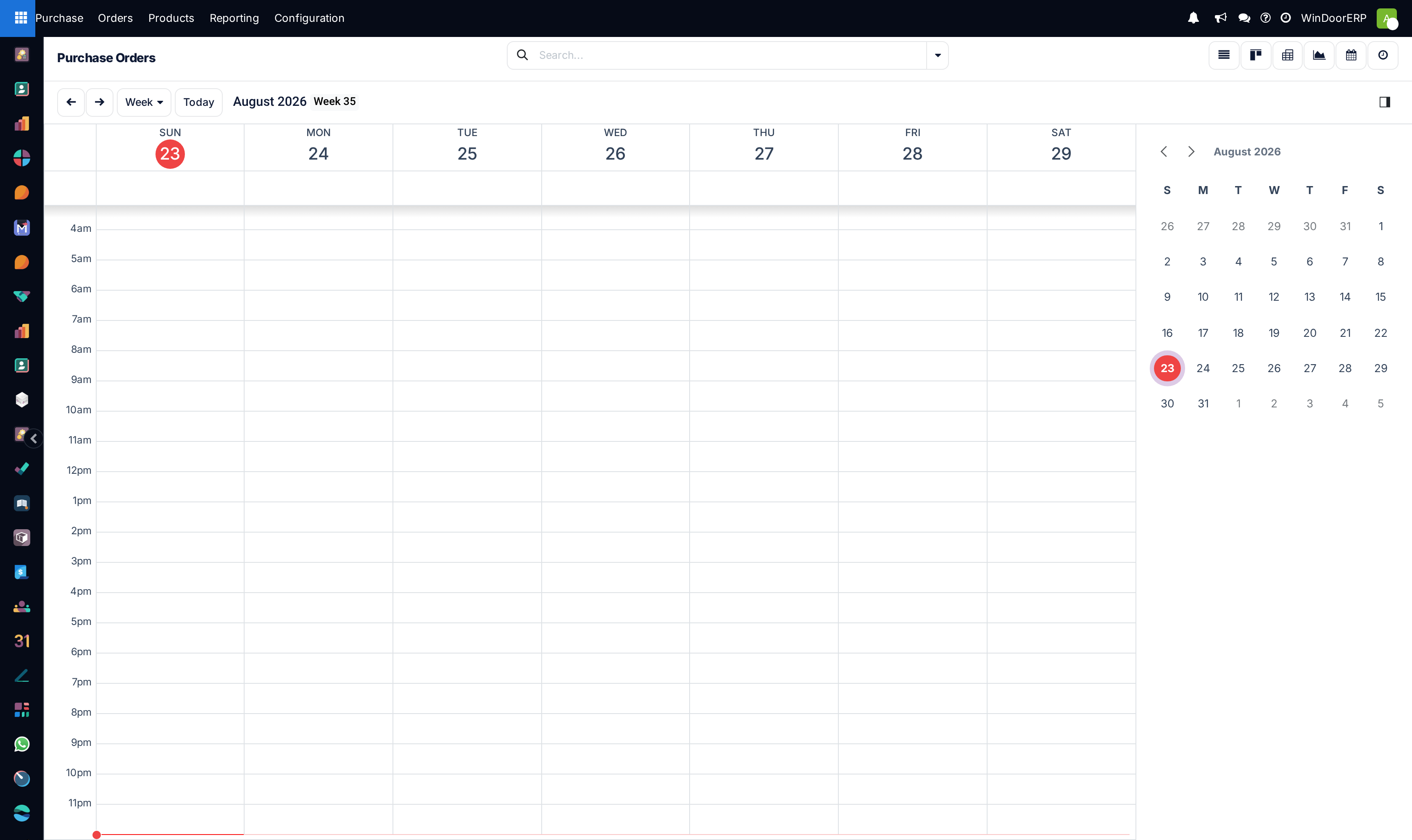
Switch to the Calendar to lay confirmed orders out by their approval date and plan receiving capacity — the entries are coloured by vendor.
-
03
In the list, watch the Expected Arrival column: it turns red once the date has passed and the goods are not in.
-
04
Apply Waiting Bills to find orders with lines not yet invoiced, and Bills Received for those already billed.
-
05
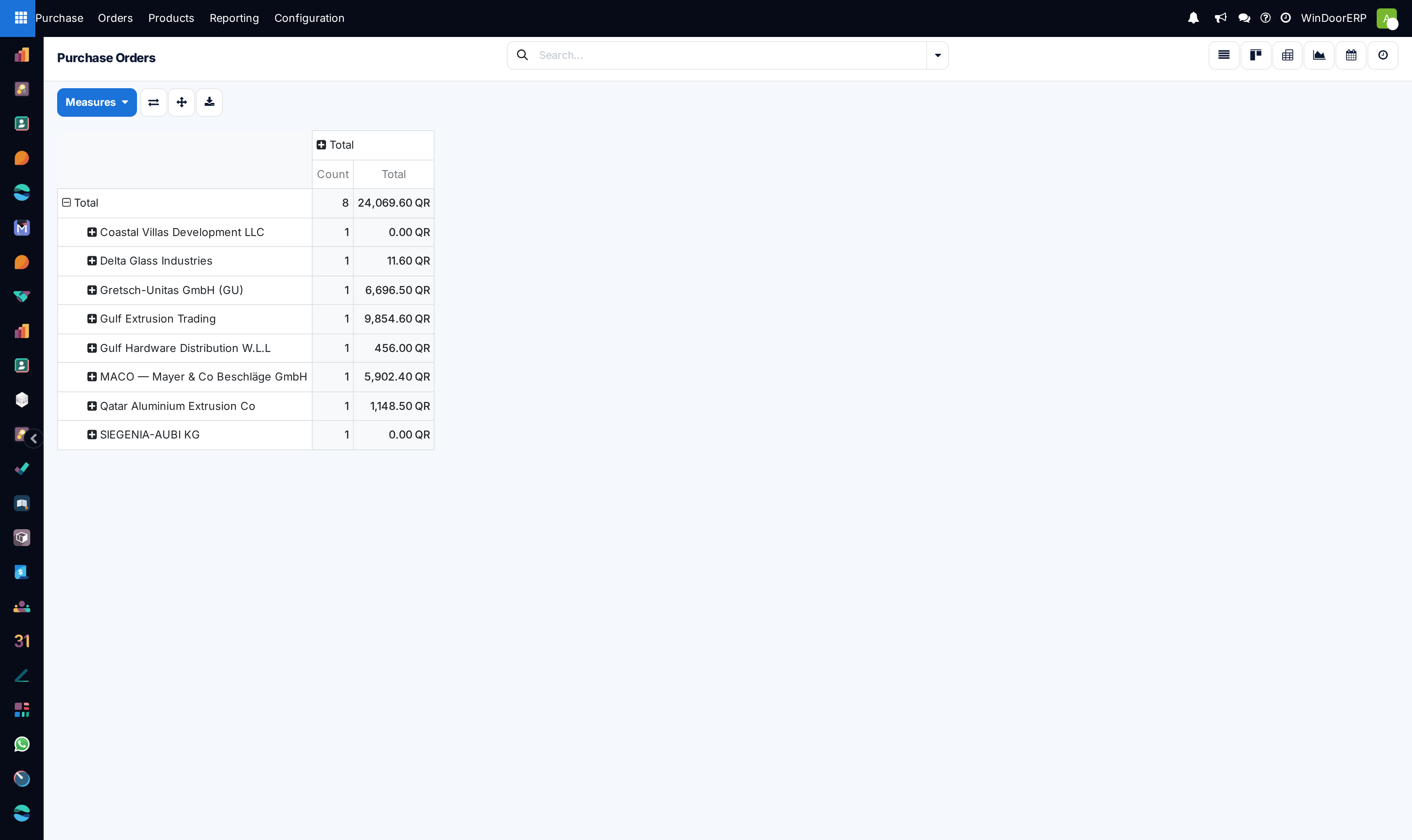
Switch to Pivot or Graph, group by Vendor, and compare order values across suppliers.
Where on-time delivery actually lives
On-time delivery is not a measure you can add to the purchase-order pivot. It is its own report — a graph of the on-time delivery rate, weighted by quantity, per vendor, product or product category, where a line counts as on time when its receipt was completed no later than the expected arrival date on that line.
You reach it in one of two ways: from a vendor's contact form, using the On-time Rate button, or from the percentage link on a draft order. It is deliberately not on the Reporting menu, because it belongs to a vendor rather than to a period.
Important
The report opens with a preset covering roughly the last year. A vendor you started using last month will look either perfect or terrible on a handful of receipts — check how many lines are behind a rate before you act on it.
Columns worth switching on
| Column | Why |
|---|---|
| Receipt Status | Hidden by default. It is the fastest read of whether goods are in, partially in, or still outstanding. |
| Billing Status | Whether the vendor bill has caught up with the receipt. |
| Expected Arrival | Already visible, and red when late — the single column most worth scanning daily. |
| Total in company currency | Hidden by default; switch it on when comparing orders placed in different currencies. |
Troubleshooting
| Symptom | Cause and fix |
|---|---|
| You cannot find on-time delivery in the pivot measures | It is not there. Open it from the vendor's On-time Rate button instead. |
| An order sits in Waiting Bills with everything received | The vendor bill has not been entered or matched. Create the bill from the order. |
| The calendar is emptier than the list | The calendar places orders by approval date; anything not yet approved has no place on it. |
| The Reporting menu is missing | Purchase reporting is administrator-only. The order-list views above are available to any purchase user. |
Common mistakes
- Judging a supplier on a rate built from three receipts.
- Ignoring red expected-arrival dates because the order "is confirmed" — confirmation is a promise, receipt is the fact.
- Leaving revised delivery dates unedited after a shipment slips, so every late-receipt figure afterwards is measured against a date nobody believes.
Was this article helpful?
Thanks — your feedback helps.
Running a window or door factory?
Ask for a demo