Hold a voice or video call, and share your screen
What this does
Turns any channel or chat into a call. Start it from the conversation you are already in, share your screen so the consultant sees the elevation you are arguing about, and hang up back into the same thread — no separate meeting application, no link to send.
Before you start
- The browser must be allowed to use the microphone and camera. It asks the first time; if you refused once, the permission has to be restored in the browser's own site settings.
- A headset. Site calls from a factory floor on laptop speakers are the single commonest reason these calls fail.
Steps
-
01
Open the channel, group or chat you want to talk in.
-
02
Start the call from the header — camera off is the polite default; turn it on when it adds something.
-
03
Click Share Screen to show a drawing, a quotation or the design canvas. This is what the feature is really for: reviewing something on screen together.
-
04
Use mute and camera toggles as normal; anyone in the conversation can join a call that is already running.
-
05
Leave the call. The conversation stays where it was, and anything you typed or attached during the call remains in the thread.
Your own audio settings
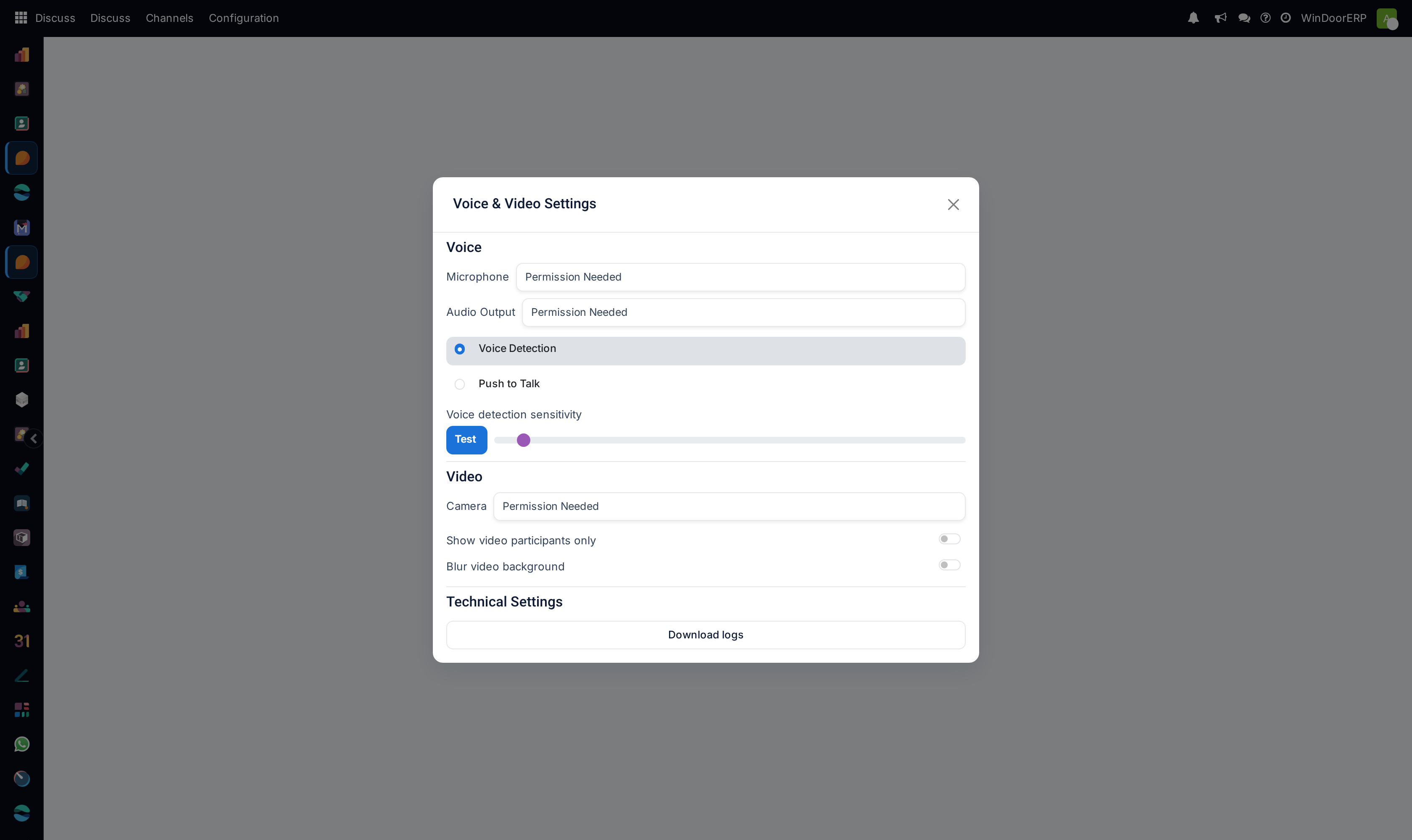
Discuss › Configuration › Voice & Video is a personal page, not an administrator one. Under Voice it picks your Microphone and Audio Output and chooses between Voice Detection — the microphone opens by itself when you speak, with a sensitivity slider and a Test button to set it against your own background noise — and Push to Talk, where nothing is transmitted unless you hold a key. Push to talk is worth the minute it takes if you work anywhere with machinery running. Under Video you choose the Camera, and can Show video participants only or Blur video background. Download logs, at the bottom, produces the diagnostic file to send on when a call misbehaves.
What a call leaves behind
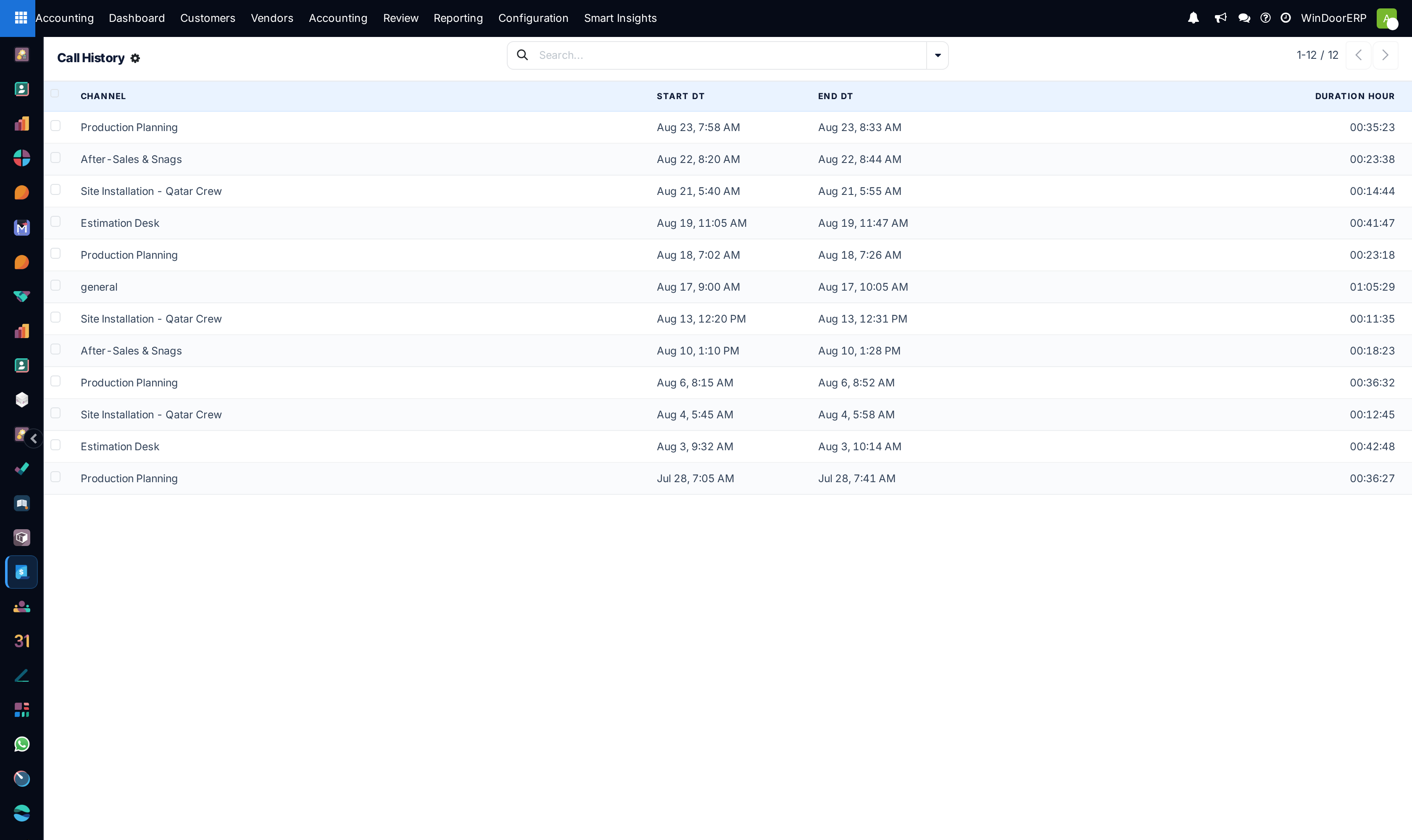
Discuss › Configuration › Call History lists the calls per conversation with their start and end times and duration. It is a record that a call happened and how long it lasted — not a recording, not a transcript, and not a quality report. Nothing said in a call is minuted anywhere: if the call decided something, write the decision in the channel or, better, in the chatter of the order or task it affects.
When calls will not connect
Calls connect the two browsers directly wherever the network allows it. Between offices behind strict corporate firewalls that direct path can fail, and the fix is a relay server — configured under Settings › Technical › Discuss › ICE Servers, which is a developer-mode technical screen for an administrator, not part of the Discuss configuration menu. If calls work inside one office and fail between two, that is the conversation to have with whoever runs the network; nothing in Discuss itself will fix it.
Troubleshooting
Nobody can hear you — the browser blocked the microphone, or push-to-talk is on and you are not holding the key. Check the permission first, the setting second.
The call button does nothing at all — the browser has refused media access outright; restore it in the browser's site settings, then reload.
Screen sharing shows a black rectangle — you shared a window that another application is drawing with hardware acceleration; share the whole screen instead.
Calls work in the office and never between branches — a firewall is blocking the direct path; this needs the relay servers described above, not a Discuss setting.
Common mistakes
- Deciding something important on a call and leaving no written trace — the call history proves only that you spoke.
- Starting a video call in a large channel out of habit, notifying dozens of people who did not need to join.
- Assuming the call is recorded. It is not.
Was this article helpful?
Thanks — your feedback helps.
Running a window or door factory?
Ask for a demo