Manage operator PINs, badges and terminal sessions
What this does
Operators sign into the Shop Floor Terminal with a PIN or a badge scan, not with an Odoo password. This article covers the two screens behind that: Operators (PINs), where a manager issues each operator's terminal credentials, and Operator Sessions, the read-only clock-in / clock-out log those logins produce.
A session starts when the operator logs into the terminal and ends when they sign out — everything they do in between (starting operations, scanning pieces, reporting quantities) is authorised by that session. The backend list is an audit read-out for supervisors; sessions are never created or closed from here.
Before you start
- The Work Orders & Routing feature on in Production › Configuration › Settings — Operator Sessions needs it; Operators (PINs) stays visible to managers regardless, and the terminal entry itself is not feature-gated.
- The Production Manager role to set or clear credentials. Other users may see the Operators list, but the credential columns are hidden from them.
- Operators must be internal users — the screen lists no portal users, and you cannot create users here, only credential existing ones.
Steps
-
01
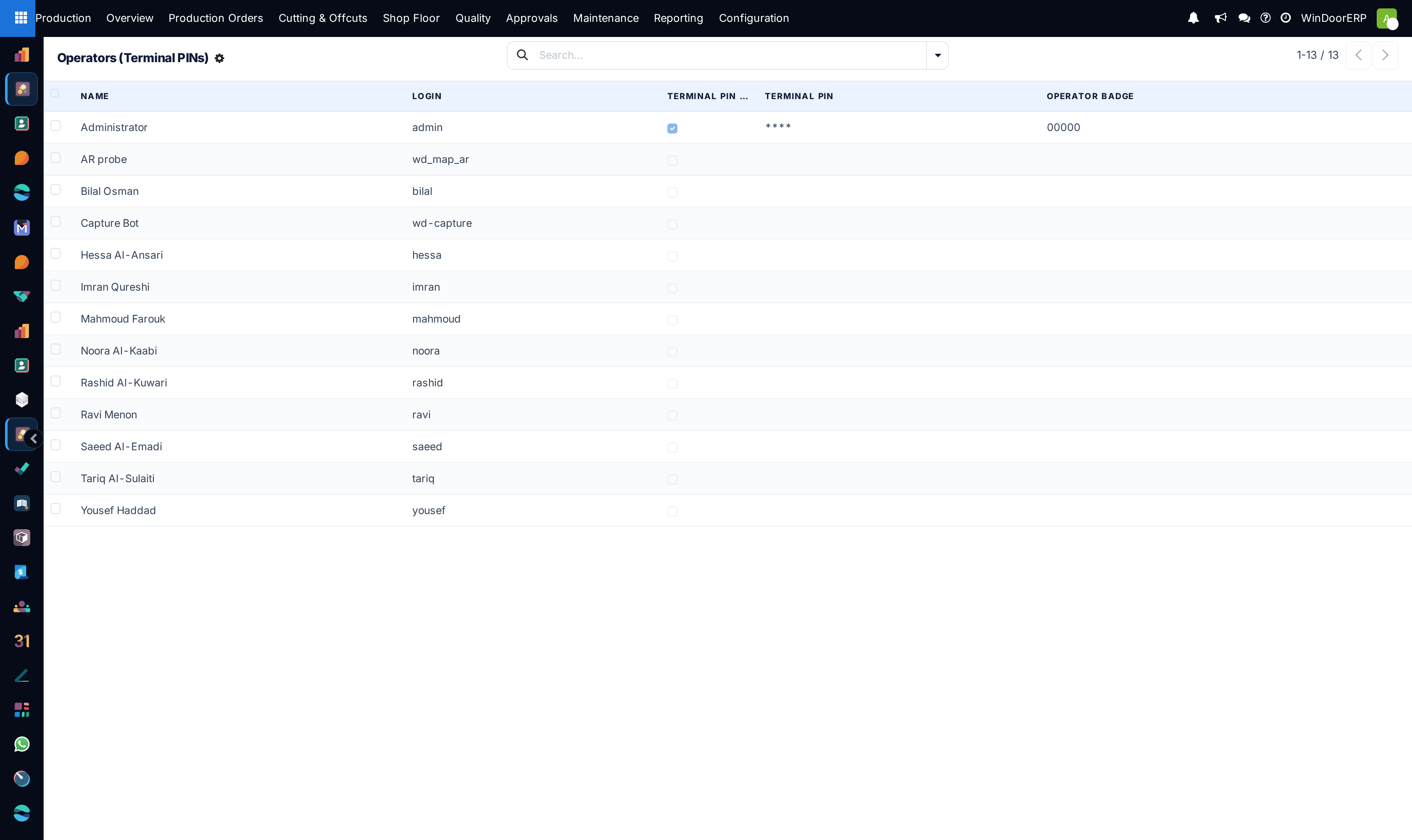
Open Production › Shop Floor › Operators (PINs). The list is edited in place and shows every internal user.
-
02
Click into the Terminal PIN cell of an operator and type a PIN — at least 4 characters. The Terminal PIN Set toggle confirms a PIN exists; the value itself always displays as ••••.
-
03
If the operator carries a badge card, type or scan its code into Operator Badge. The badge is a plain scan key, stored as typed.
-
04
To replace a PIN, type a new value over the mask; to remove it, clear the cell. Leaving the mask untouched keeps the current PIN.
-
05
Open Production › Shop Floor › Operator Sessions to follow who is clocked in: each row carries a
SESS-reference, the operator, clock-in and clock-out times, the duration, and a Clocked In / Clocked Out badge.
How the credentials work
| Field | What it does |
|---|---|
| Terminal PIN | Stored only as a salted hash — no one, including administrators, can read a PIN back; it can only be replaced. Minimum 4 characters, enforced with "The terminal PIN must be at least 4 digits." |
| Terminal PIN Set | Read-only toggle: a hash exists for this user. |
| Operator Badge | The scannable code a keyboard-wedge scanner types at the login screen. Stored in clear text, since it is a scan key, not a secret. |
At the terminal, one input field takes either credential: the value is first tried as an exact badge match, then verified as a PIN against every operator's hash. Neither PINs nor badges are forced to be unique — if two operators share a badge code, the terminal logs in one of them arbitrarily, so keep badge codes unique yourself.
The same credentials can also be maintained per user: the user form carries a WinDoor Terminal tab with the same two fields.
Sessions, timeouts and lockouts
Logging in reuses the operator's open session if one exists, otherwise creates one — so an operator moving between kiosks keeps a single session. Signing out (Leave → Sign Out on the terminal) closes the session and stops the operator's running labour logs; switching users with Change User does not clock the previous operator out.
- Idle timeout. A terminal session that stays untouched for 12 hours (the default — an administrator can change it) is rejected with "Session timed out — please log in again." The session row itself stays Clocked In until someone signs out — a long-open row is not necessarily someone working.
- Lockout. Eight failed credential attempts within five minutes block the kiosk for five minutes — "Too many attempts — wait … min and try again.", counting down the remaining wait. A wrong credential answers "Unknown PIN or badge — try again."
- Duration. The Duration (min) column is computed when the row is written, so an open session shows a stale near-zero figure until it is closed — the clock-in date, not the duration, is what betrays a missed sign-out.

See also
What the operator sees after logging in is covered in Operate the Shop Floor Terminal; which work centers an operator is offered is decided by the skills matrix, covered in Register machines and operator skills.
Troubleshooting
| "The terminal PIN must be at least 4 digits." | The typed PIN is too short. Use 4 characters or more. |
|---|---|
| "Unknown PIN or badge — try again." | The credential matches no badge and no PIN hash. Re-issue the PIN — remember an existing one cannot be read back, only replaced. |
| "Too many attempts — wait … min and try again." | The kiosk hit the lockout: 8 failures in 5 minutes. The number counts down the remaining wait; the block clears itself. |
| "Session timed out — please log in again." | The session passed the 12-hour idle limit. Logging in again resumes work; queued offline scans on the kiosk survive the re-login. |
| The Operators list shows only Name and Login — no PIN columns | You are not a Production Manager. The menu is visible to production users, but the four credential fields are manager-only, so the list looks stripped. That is field security, not a broken view. |
| A session shows Clocked In for days | The operator left without Sign Out — or used Change User, which switches operator without clocking anyone out. A manager can edit the session row directly to close it. |
Common mistakes
- Issuing the same badge code to two operators — nothing refuses it, and the terminal will silently log in whichever it finds first.
- Telling an operator their "forgotten PIN". It cannot be read back; the only recovery is typing a new one over the mask.
- Reading session durations as attendance. Sessions measure terminal logins, open rows carry stale near-zero durations until closed, and Change User leaves the previous session running.
- Expecting an idle kiosk to clock the operator out. The timeout only invalidates the login token — the session row stays open until someone signs out or a manager closes it.
- Creating session rows by hand from the backend list. The next kiosk login of that operator will silently adopt any open row it finds — hand-made sessions muddle the audit trail rather than staying inert.
Was this article helpful?
Thanks — your feedback helps.
Running a window or door factory?
Ask for a demo