Work a production order
What this does
Production › Production Orders is the factory's order book: one order per job released from a production survey, carrying the items to build, the material list generated from their designs, the cutting plans, the work orders and the finished units. This article is the screen tour — the states, the tabs, the smart buttons and the wizards that reshape an order.
Launching an order from a sale is its own subject, covered in Launch production from a sales order; here we assume the order exists and you have to work it.
Before you start
- A production role. Most buttons are open to production users; approvals, if enabled, gate release.
- An order created from a completed production survey — orders are not typed in by hand.
Steps
-
01
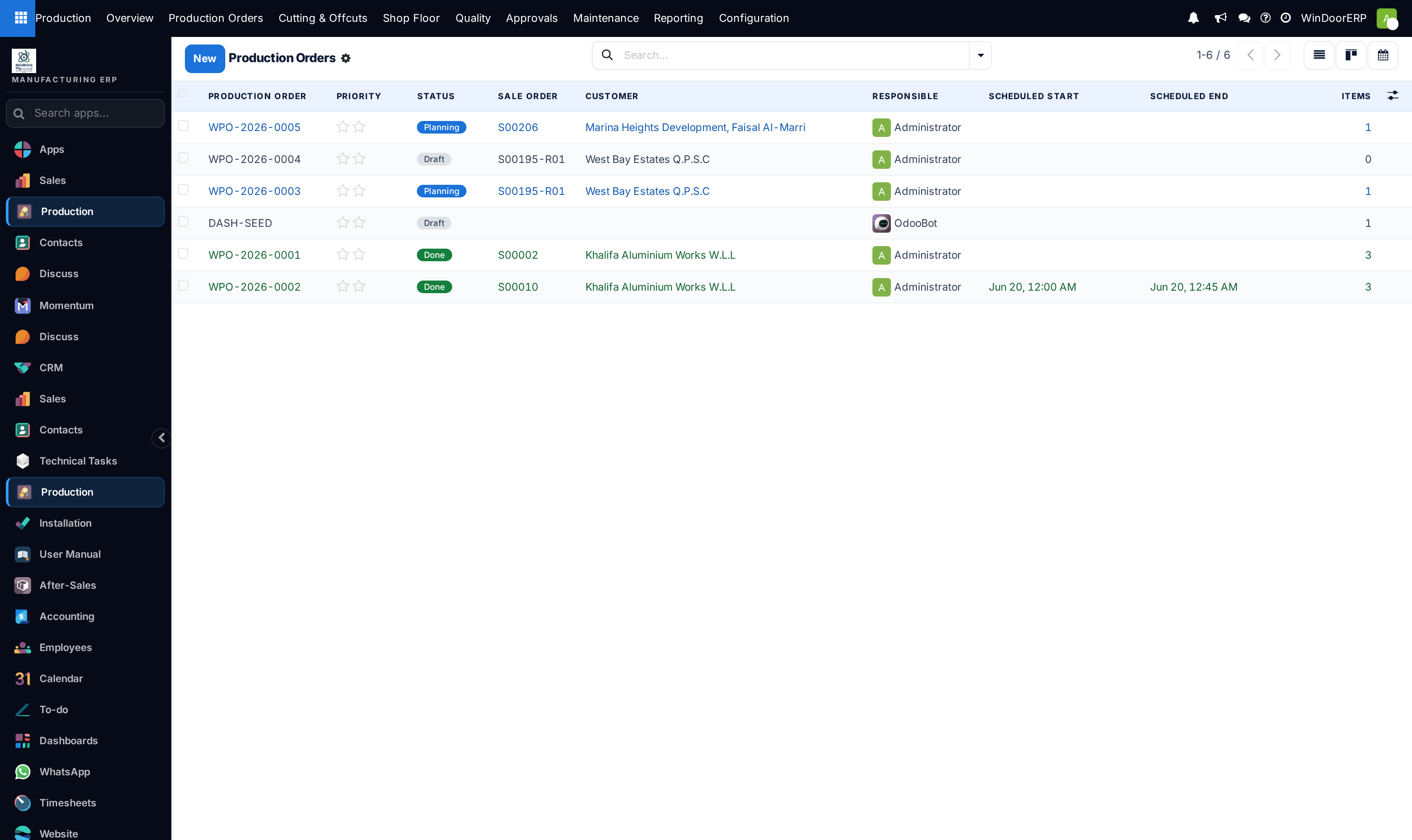
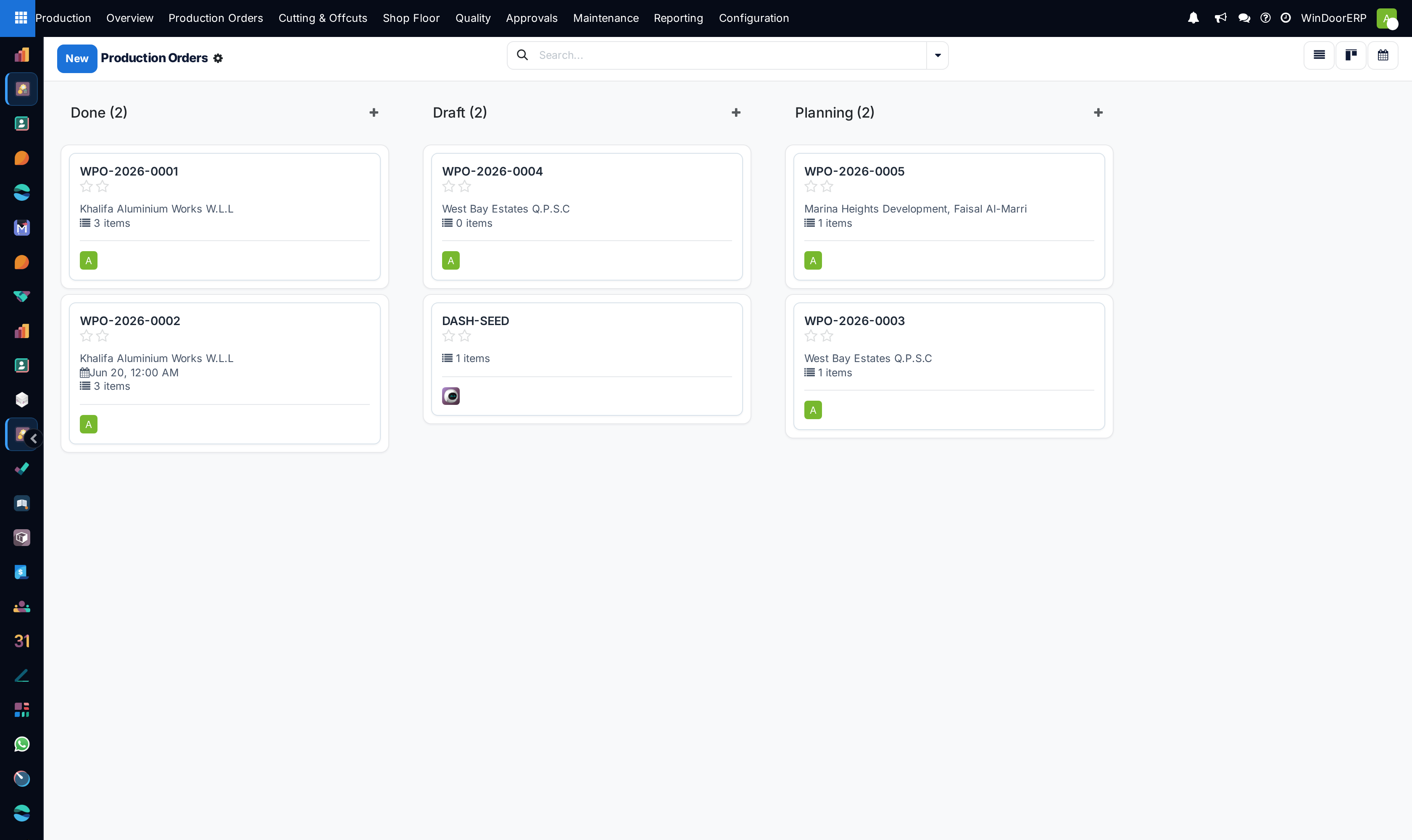
Open Production › Production Orders. The list opens unfiltered; the kanban groups by state, and a calendar view shows the schedule.
-
02
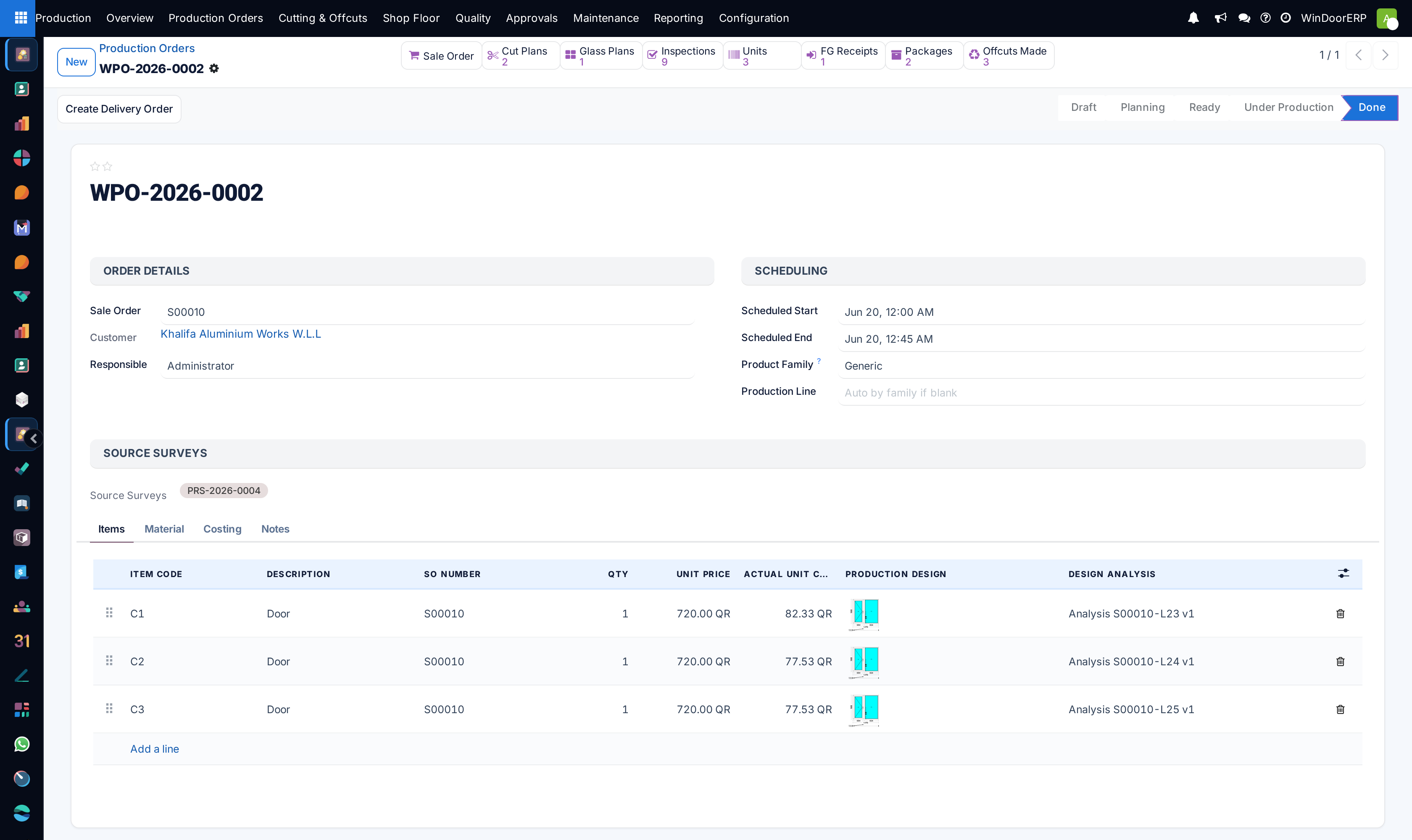
Open an order and read its header: the sale order, customer, responsible person, scheduled start and end, product family and production line.
-
03
Work the tabs: Items (one line per opening, with design and analysis), Material (the generated material list, cutting plans and print buttons), Costing (actual material, labour, subcontract and energy costs) and Notes.
-
04
Drive the state from the header: Confirm → Planning, optional Mark Ready → Ready, Start Production → Under Production, then Mark as Done. Quality Hold and Release Hold park and resume the whole order.
-
05
Use the rest of the header when the job needs it: Generate Work Orders, Schedule, Schedule (Finite Capacity), Create Delivery Order and Request Release Approval. Mind the scope of the second scheduling button — Schedule (Finite Capacity) re-levels every ready and under-production order in the shop, not only this one, so pressing it here moves other orders' work-order times too.
-
06
Use the smart buttons to reach everything the order produced: cut plans, glass plans, inspections, open NCRs, work orders, units, transfers, packages, glass purchase orders and offcuts.
-
07
Reshape when the job changes: Split Order (items into a new order), the list's Merge action, or Request Change to send items back to the technical team as a change-request survey.
The states
| State | What it means |
|---|---|
| Draft | Editable. Splitting and merging are realistically possible only here — Confirm creates transfers and cutting plans, which the restructure guard then protects. |
| Planning | Confirmed: cutting plans generated if none existed, production and installation transfers created, reserved offcuts committed. |
| Ready | Optional staging between planning and start. |
| Under Production | Started. With the Scanning feature on, one serialized piece per unit exists and its label job is queued — best-effort: the step is wrapped so that it never blocks production start, so the units and labels may simply not exist with no visible error. Check the chatter. |
| Quality Hold | Whole-order hold, toggled from the header. |
| Done | Finished; with the Finished-Goods feature on, units are received into stock with a serial each and a delivery can be created. The receipt is best-effort — a stock error is swallowed into the chatter as "Finished-goods receipt could not complete automatically: …", and it can be skipped outright with "Finished-goods receipt skipped: no finished-good product could be resolved. Reinstall/upgrade the module." or "Finished-goods receipt skipped: no warehouse configured." The order still shows Done either way. |
| Cancelled | Open transfers cancelled and reserved offcuts released. Reset to Draft reopens it. |
The wizards
| Wizard | What it really does |
|---|---|
| Split Order | Moves the ticked items to a brand-new draft order and deletes the material list of both — regenerate on each afterwards. It refuses to move every item. |
| Merge (list action) | Moves all items into a target order, cancels the sources and wipes the target's material list. Draft or planning only, and the restructure guard means it works in practice on untouched orders. |
| Request Change | Creates a change-request survey for the selected items. Approving it writes the new designs back — and posts a reminder that the material list must be regenerated by hand. |
| Order Extra Material | Creates a separate extra transfer for a product and quantity; the reason field is required and lands in the chatter and on the transfer. |
| Create Glass PO | Turns the order's glass into draft purchase orders — one per selected vendor, with the glass cutting PDF attached. It also opens itself automatically at Confirm when that setting is on. |
| Production Report in Batches | Prints the production report in item ranges, for orders too large to print at once. |
Important
Confirm does more than change a badge. It generates cutting plans if none exist, creates the production and installation transfers, commits reserved offcuts, and may open the Glass PO wizard. If plan generation fails the order still confirms — the chatter says so, and profiles are then issued as cut pieces rather than whole bars. Read the chatter after confirming; it is where every silent fallback is recorded.
Troubleshooting
| "Generate the material list before confirming the following order(s): …" | Press Generate / Refresh on the Material tab first. |
|---|---|
| "Release to production requires approval for: …" | Approvals are enabled: press Request Release Approval and have it signed. |
| "Cannot mark … done — … work order(s) are still open. Finish or cancel them first." | With the Work Orders feature on, routing must be closed out before Done. |
| Split or Merge is refused | The restructure guard: the order already produced work orders, units, packages, transfers, plans or offcuts. Restructure in draft, or cancel those documents first. |
| Cancel does nothing on a finished order | Done orders cannot be cancelled — the button disappears once the order is Done. |
| The material list came back with items missing | Those items have no design analysis yet; the toast and chatter name them. Analyse the designs and regenerate. |
| "This order is large, so bar optimization is running in the background. You'll see the cutting plans appear shortly." | Above roughly 8000 distinct cuts, Optimize Bars hands the job to a background task instead of running it in front of you. The plans appear when it finishes. There is no progress field on any screen — success and failure are both reported in the chatter only, so that is where to look if the plans never arrive. |
| The quantity or unit price on an Items line went grey | Expected: Quantity and Unit Price become read-only once that item has been released by quality. |
Common mistakes
- Editing the material list by hand and then pressing Generate / Refresh, which discards every manual edit after one confirmation dialog.
- Restructuring after Confirm and being surprised by the guard — the transfers and plans it created are exactly what it protects.
- Approving a change request and assuming the floor now has the new design: the material list must be regenerated deliberately.
- Ignoring the chatter. Fallbacks — reused analyses, non-pass items copied, plans that failed to generate — are recorded there and nowhere else.
Was this article helpful?
Thanks — your feedback helps.
Running a window or door factory?
Ask for a demo