Operate the Shop Floor Terminal
What this does
The Shop Floor Terminal (Pro) is the touch kiosk operators work from: sign in with a badge or PIN, pick your work centers, and the terminal lists the items queued at your station — each with its drawing, its pieces, and big buttons to start, pause and finish operations, scan pieces forward, run quick quality checks, report problems and call a manager. It keeps working through network drops: scans made offline queue up on the kiosk and sync when the connection returns.
It opens from Production › Shop Floor › Shop Floor Terminal (Pro) full-screen in the backend, and as /shop-floor in the browser for kiosk tablets — operators with terminal credentials also get a Shop Floor card on their portal home page. An earlier, simpler Operator Terminal still exists in the software but its menu is hidden when the Pro terminal is installed; the Pro terminal is the one your factory uses.
Before you start
- A terminal credential — badge or PIN — issued under Shop Floor › Operators (PINs).
- A work-center assignment: either on the work center's Allowed Operators or a qualified skill row. Without one the terminal shows "You are not assigned to any work center yet. Ask a manager to add you (Shop Floor ▸ Operator Skills)." and nothing else.
- Work at your station: items appear only while a work order at that work center is Ready or In Progress.
Steps
-
01
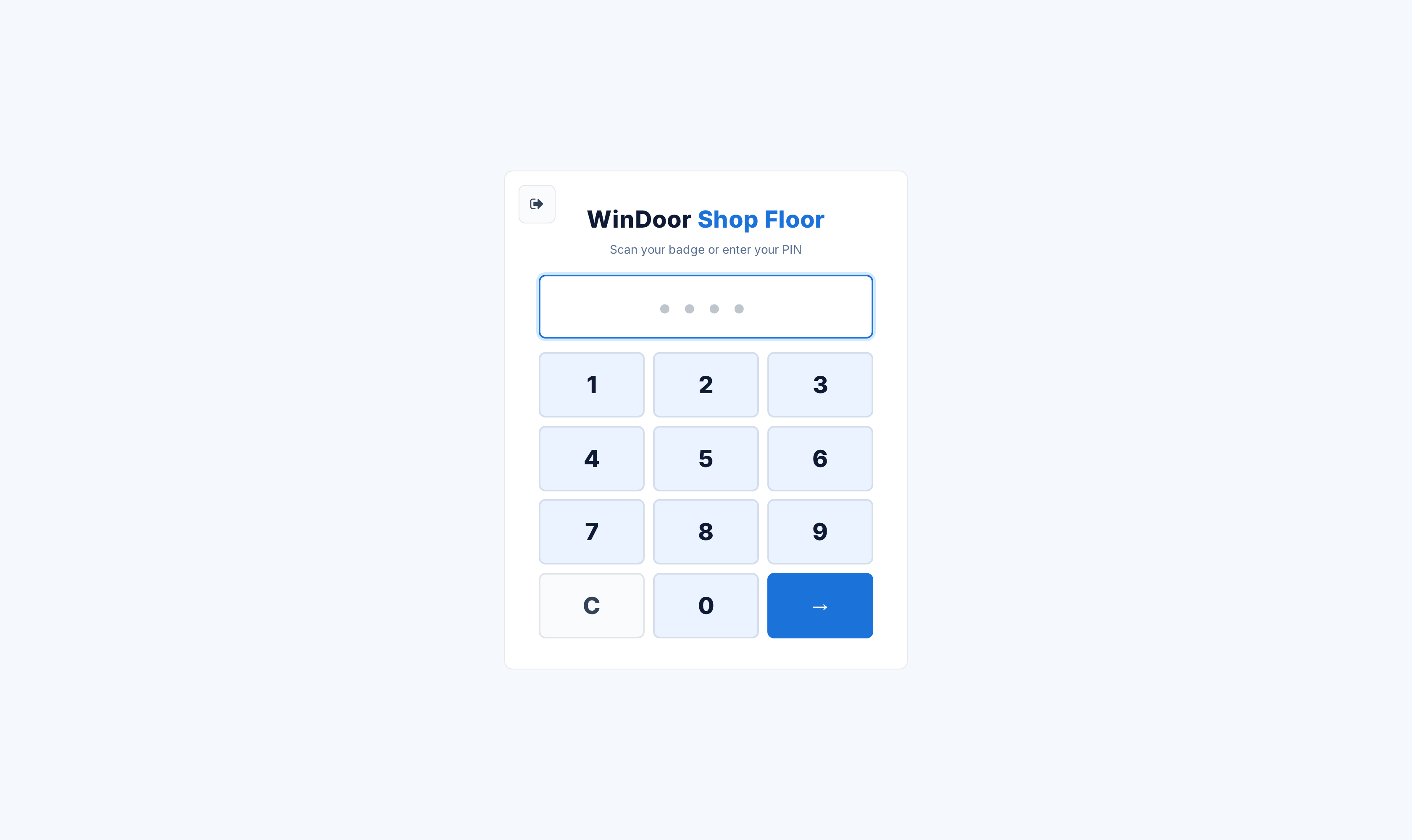
On the login card — "Scan your badge or enter your PIN" — scan, or type the PIN on the keypad and press →.
-
02
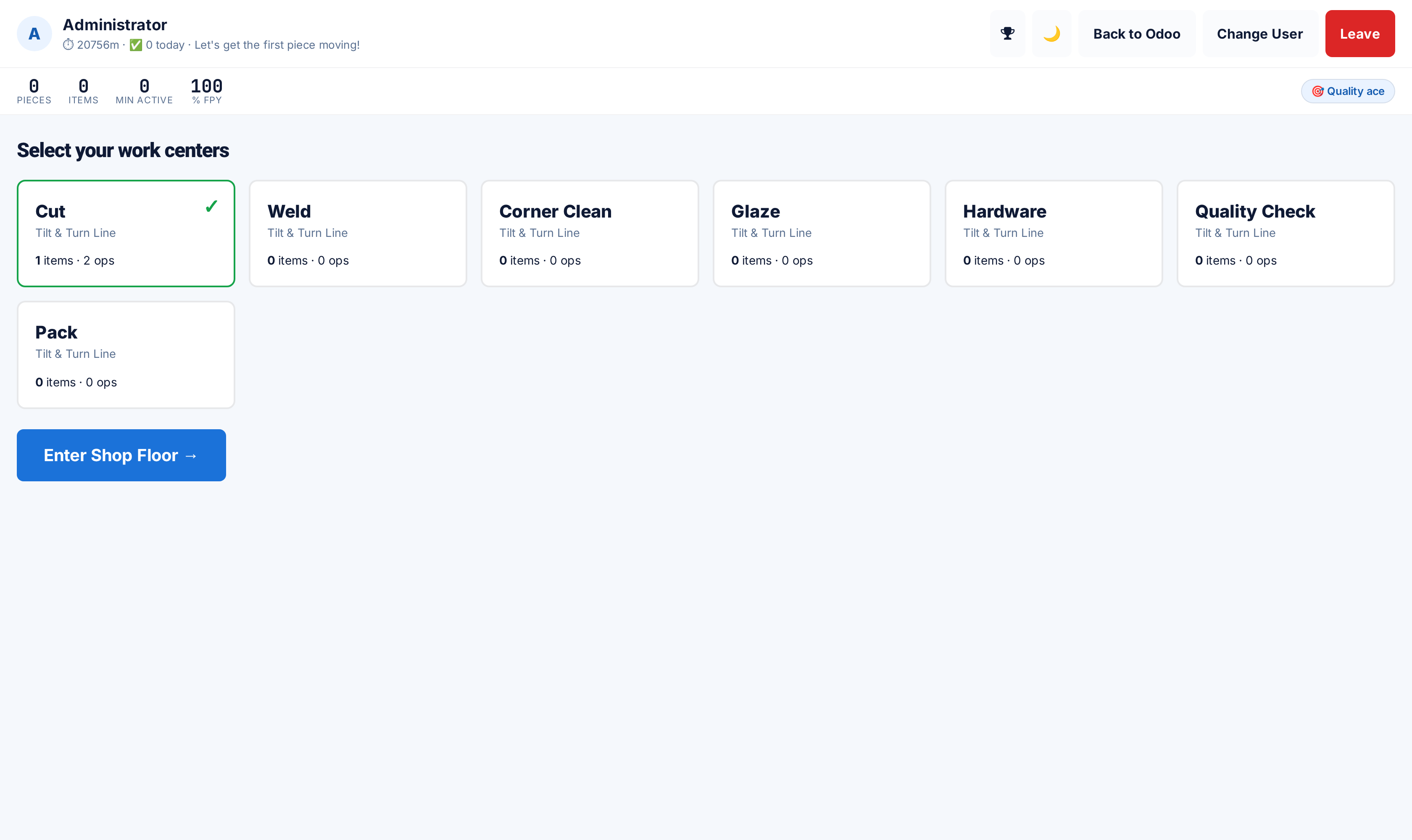
On Select your work centers, tap the stations you are covering (each card shows its line and how many items and operations wait there) and press Enter Shop Floor →.
-
03
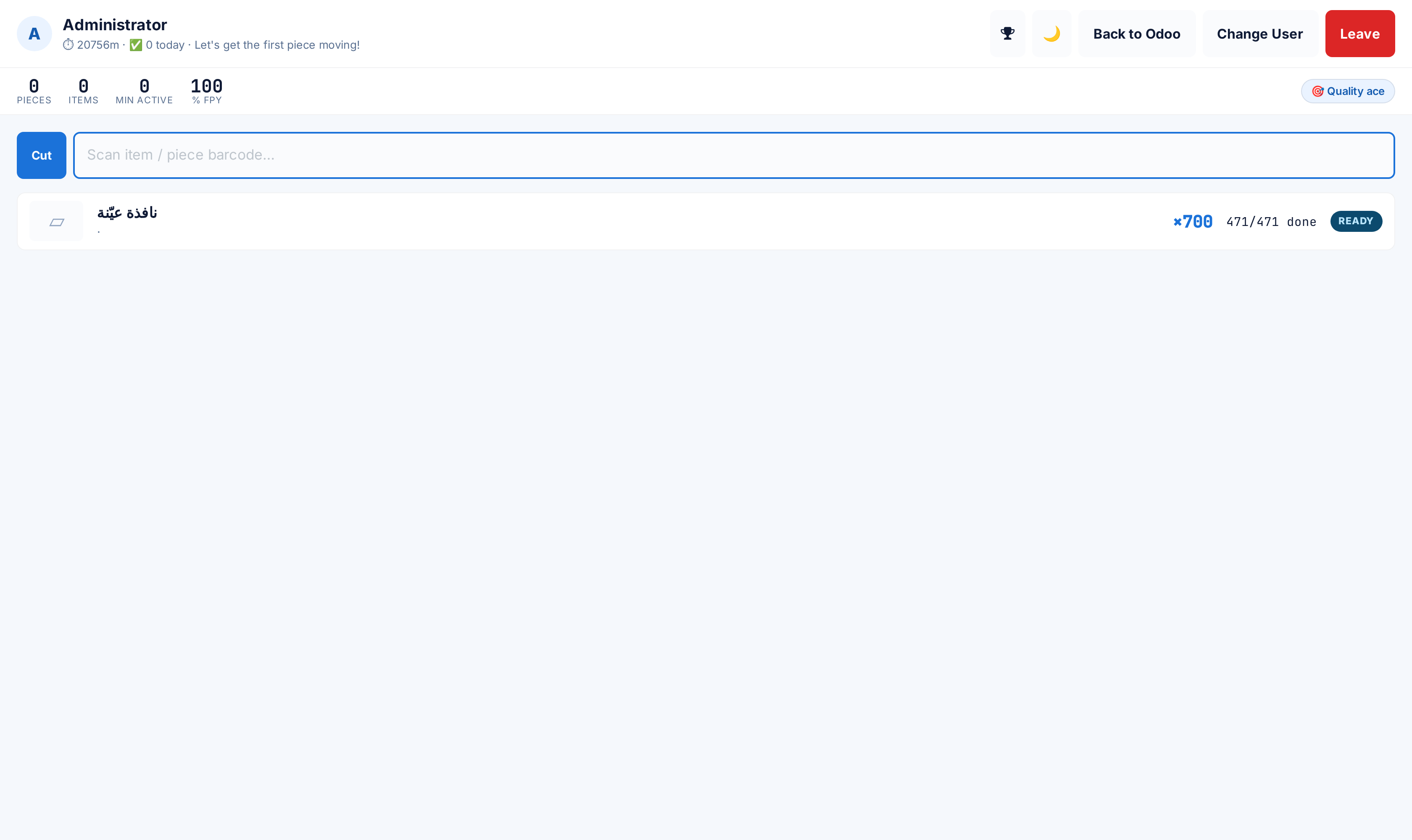
The items screen lists one row per queued item: name, quantity, sale order and customer, a drawing thumbnail, pieces done, and the operation's state chip. Tabs switch between your selected work centers; the scan box takes work-order references and piece serials.
-
04
Tap an item to open it: the drawing, the components for this item, the pieces grid, and the action bar.
-
05
Press ▶ Start Op to begin — this starts the work order and opens your labour log. While running, enter Good / Scrap counts and use ⏸ Pause or ■ Finish Op.
-
06
As pieces physically move on, scan each piece's barcode (or tap Done on its card) — the piece advances one stage and the scan is recorded with your name, the station and the elapsed time.
The screens
| Element | What it does |
|---|---|
| Top bar | Your name, active minutes and pieces today with a motivation line; the 🏆 leaderboard; the theme toggle; Back to Odoo (or My Account on a portal kiosk); Change User — back to login without clocking you out; Leave — the shift summary with Sign Out, which closes your session and stops your running labour logs. |
| HUD strip | Pieces / items / minutes today, your rank, first-pass yield, and badge chips (Top of shift, 50 Club, On a roll, Quality ace, Fast hands). Refreshes every 20 seconds. |
| 🏆 Leaderboard | Today's Leaderboard — top 20 operators by pieces advanced today. This is the kiosk's own, scan-based, today-only ranking; the backend Operator Leaderboard screen measures all-time labour logs and will not match it. |
| Items row | Item, ×quantity, sale order, customer, drawing thumb, pieces done count (pieces that reached packing or beyond) and the work-order state chip. |
| Item detail | The drawing (tap to enlarge; "No drawing" when the item has none), the Components list from the order's material list, and the Pieces grid — every piece with its stage, minutes on the floor, and Done / Scrap / ⎙ per piece. |
The action bar

- ▶ Start Op / ⏸ Pause / ■ Finish Op — drive the work order and your labour log. Finish books the Good/Scrap counts, refusing implausible totals with "Reported quantity exceeds the item quantity." (the actual ceiling is the item quantity plus its piece count). Finishing with both counts at zero books the full item quantity as good — count your scrap before pressing it.
- ✔ QC — the active quality points with Pass/Fail per point. A fail raises a Non-Conformance and, at a blocking point, puts the item on quality hold on the spot.
- ⚠ Report Problem — category, note and an optional camera photo; submits as a Non-Conformance ("Problem reported (NCR …).").
- 🔔 Call Manager — an Andon call: every production manager gets a live pop-up and the call lands on the Andon Calls board; unacknowledged calls re-alert on an escalating timer. The toast answers "Manager called — help is on the way."
- ⎙ Print Labels — queues barcode labels for all pieces of the item (or one piece from its card) to the print queue.
- Scrap on a piece — raises an NCR for that piece and puts it on hold.
Note
Offline behaviour: when the network drops, scans queue on the kiosk — the top bar shows ⏳ n and the banner "Offline — n scan(s) queued, will sync." They replay automatically on reconnection, oldest first, and each scan carries a unique id so a replay is never double-counted ("Already recorded."). The queue survives a session timeout and re-login.
Troubleshooting
| "Unknown PIN or badge — try again." / "Too many attempts — wait 5 min and try again." | Wrong credential; eight failures in five minutes lock the kiosk for five minutes. |
|---|---|
| "You are not assigned to any work center yet. …" | No allow-list entry and no qualified skill row anywhere. A manager fixes this in Configuration; a Trainee-level skill does not count. |
| "Session timed out — please log in again." | The kiosk sat idle past the 12-hour limit. Log in again; queued scans survive. |
| "Nothing matches “…”." | The scanned code is neither a work-order reference nor a piece serial. Piece barcodes are the U-YYYY-###### serials. |
| "That piece is not in your work center." / "That work order is not in your work center." | The code exists but belongs to a station you did not select or are not assigned to. |
| "No pieces yet (enable Scanning so units are created at production start)." | Pieces are created when the production order starts with the Scanning feature on. Without it the grid stays empty. |
| An item vanished from the list | Its operation at your station was finished or cancelled — rows exist only for Ready / In Progress work orders. |
| "Started %s." never appears — the row says the operation "is pending" | The work order's predecessors are not done; scanning it reports its state instead of starting it. |
Common mistakes
- Leaving with Change User and assuming you clocked out — only Leave → Sign Out closes the session and stops your labour logs.
- Pressing ■ Finish Op with 0/0 after scrapping pieces physically — zero counts book the whole quantity as good.
- Comparing the kiosk leaderboard with the backend Operator Leaderboard — one counts today's scans, the other all-time labour logs; they measure different things.
- Tapping Done on a piece that already reads Packed or beyond — receiving into stock is a warehouse step, and the tap does nothing there.
- Sharing one login between operators "to save time" — every scan, labour log and QC result is stamped with whoever logged in.
Was this article helpful?
Thanks — your feedback helps.
Running a window or door factory?
Ask for a demo