Work your assigned tasks and log the hours
What this does
Gives one person the short list of what is theirs: the tasks assigned to you, with their deadlines, their stage, and the hours you have logged against them. It is the same task records everyone else sees — filtered down to you, so the morning starts with a list instead of a search.
Before you start
- Tasks must actually name you in Assignees. A task nobody is assigned to appears on nobody's list, which is the usual reason work goes quiet.
- The Project app is hidden on this system. Tasks are reached through the Installation app — see below.
Steps
-
01
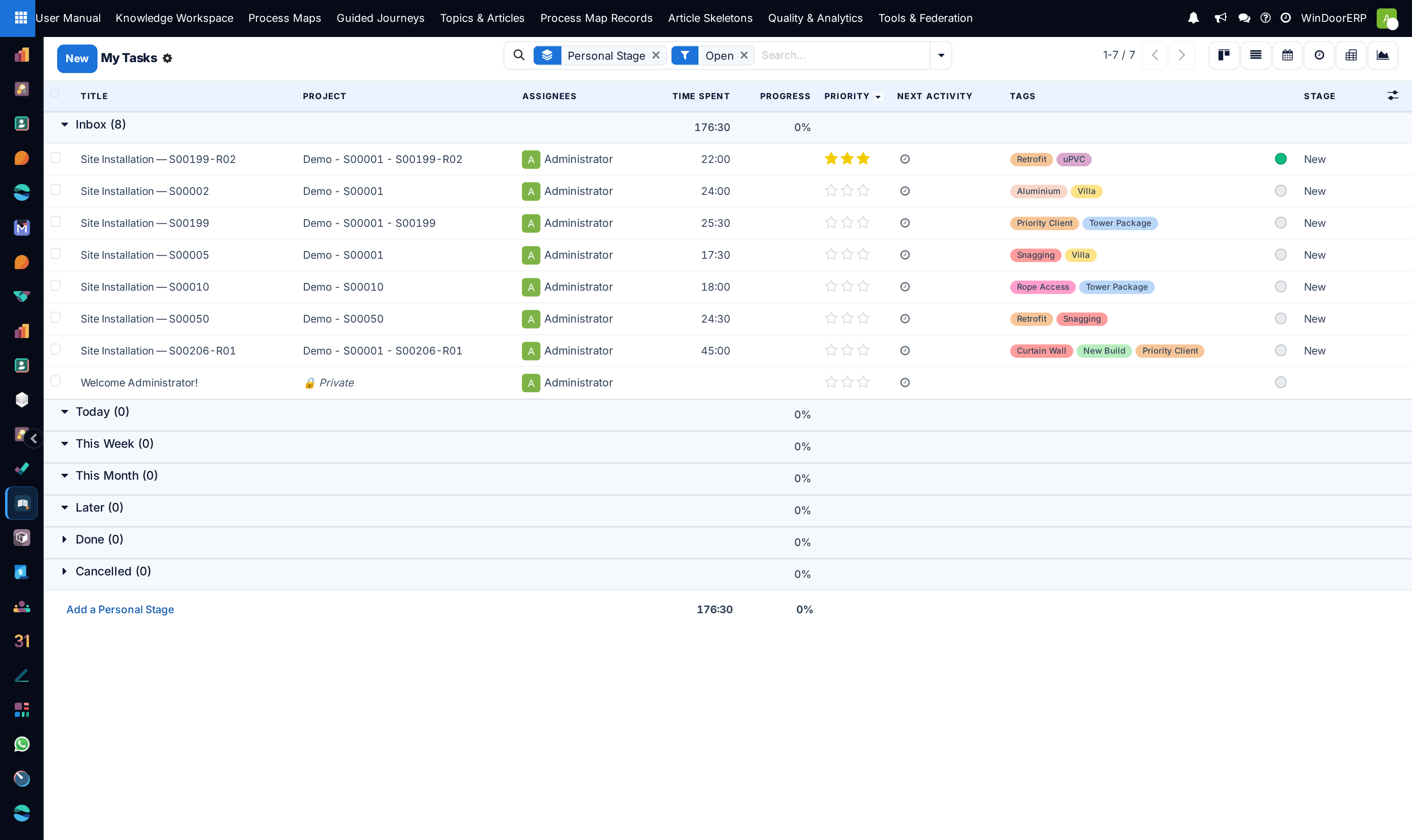
Open Installation › Analysis & Reports › Tasks › My Tasks. All Tasks sits beside it when you need to look past your own.
-
02
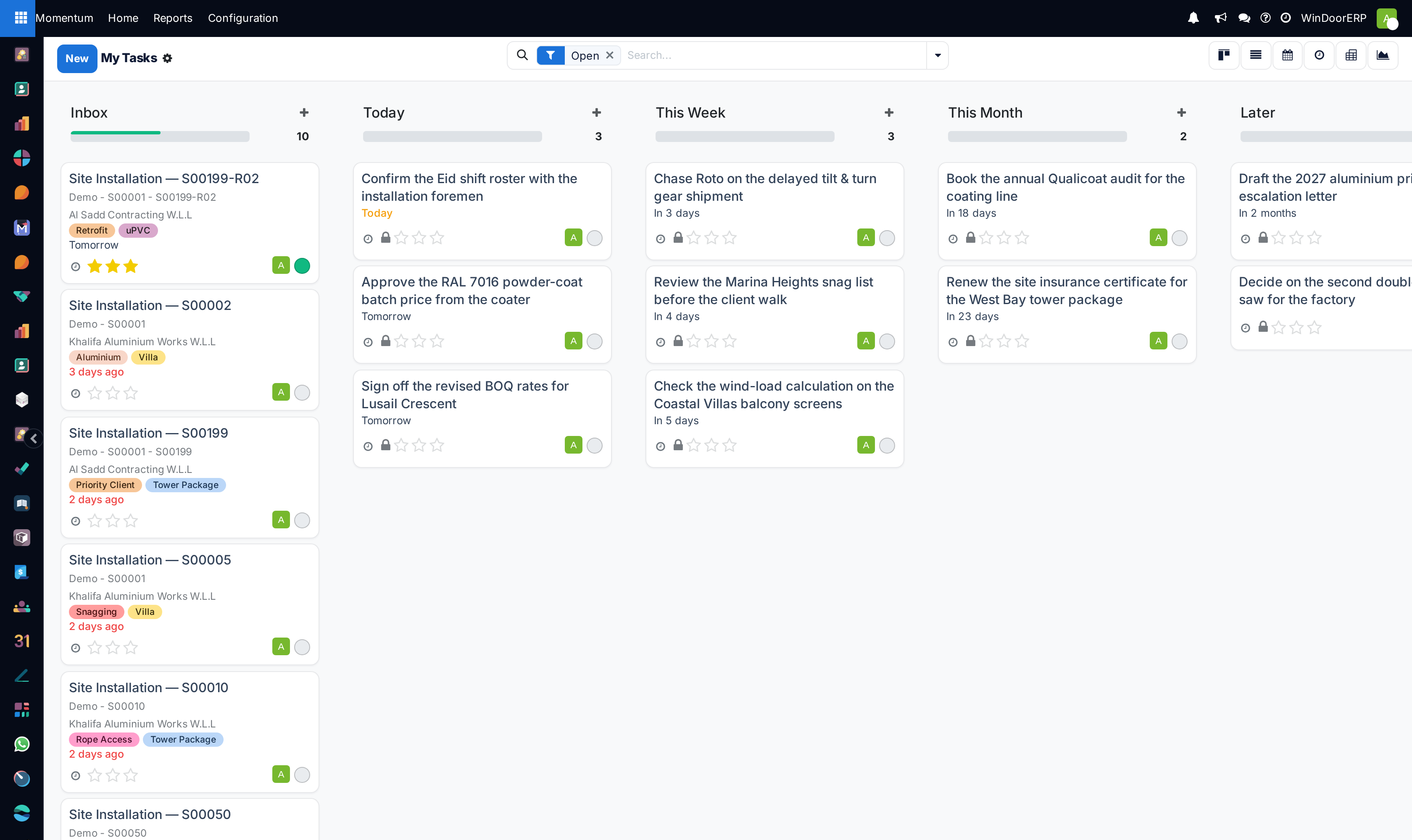
Work in whichever view suits the question: kanban to see your personal stages, list to sort by deadline, calendar to see the week, and the graph and pivot views when somebody asks where the hours went.
-
03
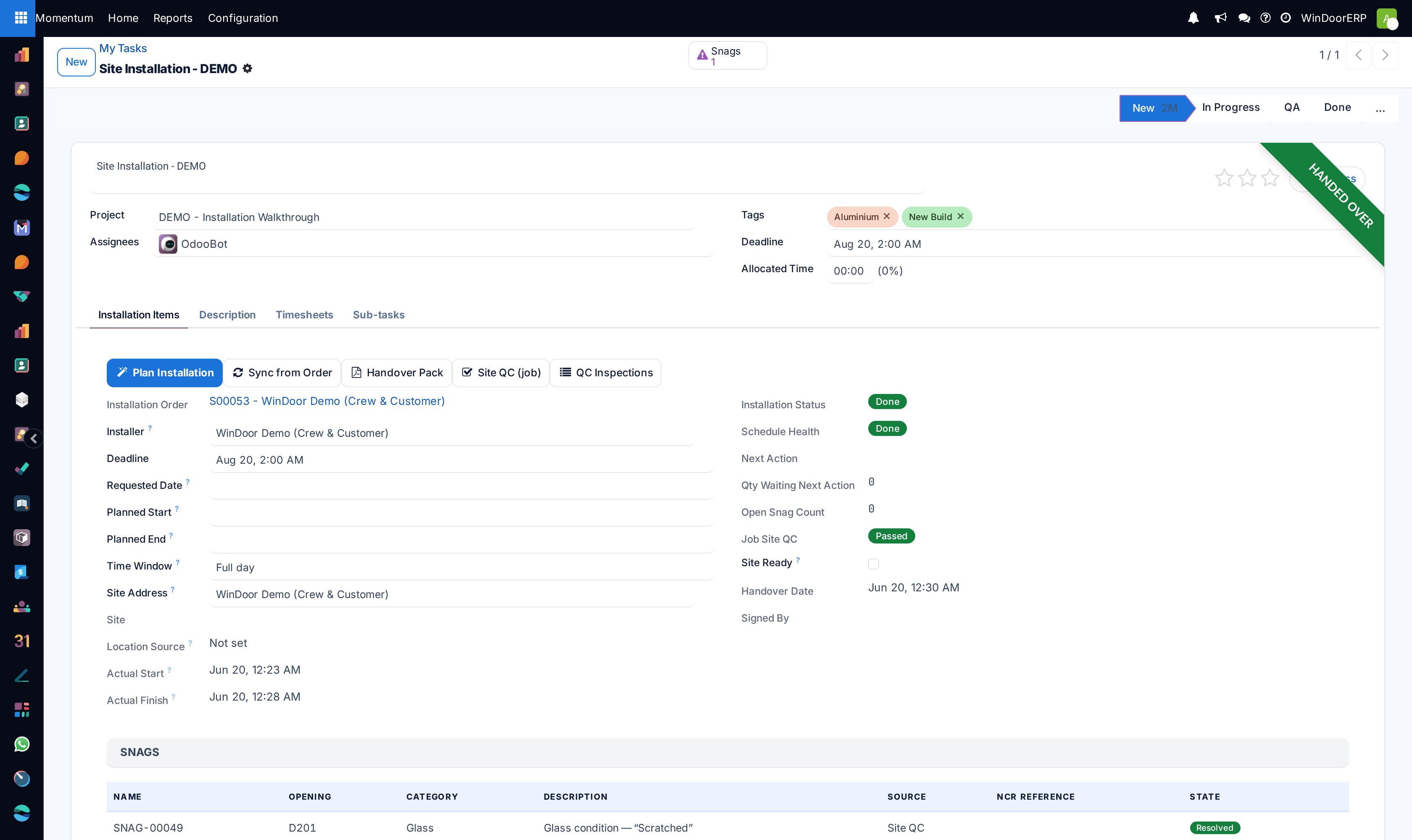
Open a task. The header carries its Stage, and a Personal Stage that only you see — a private "doing / waiting / next" that does not disturb anyone else's board.
-
04
Log your hours in the Timesheets tab: a line per day with the date, a description and the hours. Do it daily.
-
05
Move the work along with the header buttons — Start Progress, Send to QA, Mark Done — and read the note below about what they do and do not change.
Work Status and Stage are two different things
The header buttons write the task's Work Status — Draft, In Progress, QA, Done — and that is all they do. They do not move the kanban card: the stage column stays exactly where it was, with no error and no warning. If your board should reflect the change, drag the card to the new column, or set Stage on the form, as a separate act.
Worth knowing before you build habits on it: a report or a filter written on Stage will disagree with one written on Work Status unless people maintain both. Agree in your team which of the two is the truth, and use that one.
What is on the task
| Field | What it is for |
|---|---|
| Assignees / Roles | Who is doing it. Assignees is what My Tasks filters on; roles describe the part each plays. |
| Deadline | The date the list sorts and colours by. The single most useful field on the record. |
| Allocated Time / Progress | The estimate, and how far the logged hours have eaten it. |
| Customer, Sales Order Item | What the work belongs to commercially — this is what makes logged hours billable. |
| Sub-tasks | Breaks a big task down; the parent shows how many are finished. |
Where the timesheet timer is
There isn't one. Hours are typed as lines in the Timesheets tab — there is no start/stop stopwatch on tasks on this system, so anybody waiting to press a timer will log nothing at all. Type the line when you finish the piece of work, while you still remember what it was.
This is not the technical office's queue
Requests to the technical office — surveys, drawings, quotations — are their own records in the Technical Tasks app, with their own list of what is assigned to you. Project tasks are the installation and delivery side of the job. Two lists, deliberately: check both, or you will finish a quiet week with a full technical queue.
Troubleshooting
My Tasks is empty although you are busy — you are not in Assignees on those tasks, or they are technical requests rather than project tasks.
The Project app is missing from the app switcher — that is deliberate on this system; use the Installation app's Tasks menus.
You pressed Mark Done and the card did not move — expected. The button sets Work Status; the stage is moved by hand.
Your hours do not appear in the project's totals — the timesheet line needs the task (and through it the project). Lines typed against no task land nowhere useful.
Common mistakes
- Reconstructing the whole week's hours on Thursday afternoon — the totals survive, the truth of which task took what does not.
- Using Personal Stage as if colleagues could see it. They cannot; it is private to you.
- Trusting the kanban column to reflect Work Status. It does not follow the buttons.
Was this article helpful?
Thanks — your feedback helps.
Running a window or door factory?
Ask for a demo