Choose the product type and track its inventory
What this does
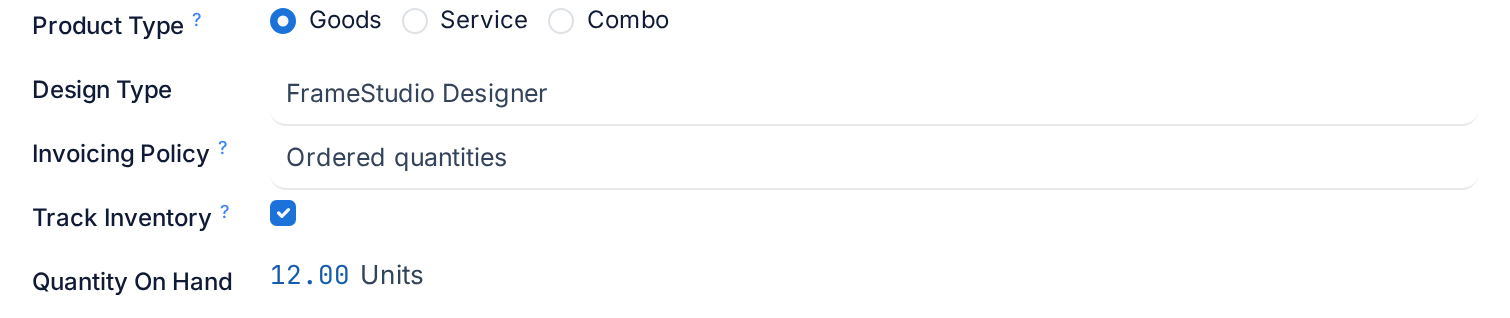
The Product Type radio at the top of the General Information tab decides how the product behaves everywhere else: whether it can sit in a warehouse, whether a delivery is needed to invoice it, and whether it is one thing or a menu of things. Together with Track Inventory it is the single most consequential setting on the form, and the one that is hardest to change later.
There are three types: Goods, Service and Combo. Goods are physical: profiles, glass, hardware, sealant, finished windows. A service is work or a fee: installation, delivery, a site survey. A combo is a package built from other products, where the customer picks one option from each choice.
Before you start
- Decide whether the item needs stock control at all. Tracking is right for anything you count, cost or trace; it is wrong for items nobody will ever count.
- A product's type cannot be changed once it appears on a sales order; WindoorERP warns and keeps the old value. Create a new product instead.
- Combos need their choices to exist first, under Sales › Configuration › Products › Combo Choices.
Steps
-
01
On the General Information tab, choose the Product Type: Goods for anything physical, Service for work and fees, Combo for a package of alternatives.
-
02
For goods, tick Track Inventory if the item is counted, valued or traced: profile bars, aluminium and uPVC sections, glass units, hinges, locks, finished windows. Leave it clear for consumables such as screws, packaging film, cleaning chemicals and sealant cartridges that you buy and use without counting.
-
03
Read the Quantity On Hand line that appears under the checkbox once the product is saved. It is live stock: every receipt, internal transfer, consumption and delivery updates it by itself.
-
04
For a service, choose what Create on Order should do when the service is sold, and the service Invoicing Policy. Installation and survey services are typically Nothing and Prepaid/Fixed Price unless you bill by timesheet.
-
05
For a combo, add the Combo Choices the package is built from. Save; WindoorERP refuses a combo with no choice.
-
06
Save the product. The stock buttons appear across the top as soon as Track Inventory is on.
Goods: consumable or tracked
A product of type Goods is physical, but WindoorERP only manages stock for it when Track Inventory is ticked. The field help says it exactly: a storable product is a product for which you manage stock.
| Setting | Behaviour | Typical products |
|---|---|---|
| Goods, Track Inventory off | Consumable. Receipts and deliveries still move it, but no quantity is kept, there is no valuation, no reordering rule and no forecast. The product never shows a negative stock because it has no stock. | Screws and rivets, packaging materials, cleaning chemicals, foam, tape. |
| Goods, Track Inventory on | Storable. Quantities per location, valuation by the category's costing method, movement history on the In/Out button, the forecast report, reordering rules and putaway rules. | uPVC and aluminium profiles, reinforcement steel, glass units, hinges and locking gear, finished windows and doors. |
The Quantity On Hand shown on the tab is the sum across every internal location of the company. It is read-only for most users; an inventory manager on a system with Storage Locations enabled can type a new value straight into it, which records an inventory adjustment in the background. On a product that has never been saved the field refuses the edit with Save the product form before updating the Quantity On Hand.
Turning tracking on for a product that already has moves does not invent a quantity; the on-hand figure starts from whatever the moves add up to, and a physical count fixes the rest.
Services
A service is non-physical: shipping, delivery, installation, a survey fee, an annual maintenance visit. It never touches the warehouse, so the Inventory tab is hidden, and it appears only on sales and purchase documents. A service that is sold shows two extra fields.
| Field | Options | What it does |
|---|---|---|
| Create on Order | Nothing · Task · Project & Task · Project | What WindoorERP creates in the Project app when a confirmed order contains the service. Task asks for the Project to create it in and an optional Task Template; the two project options ask for a Project Template. Nothing is the default and the right answer for a plain fee. |
| Invoicing Policy (service) | Prepaid/Fixed Price · Based on Timesheets · Based on Delivered Quantity (Manual) | Prepaid invoices the ordered amount straight away; timesheets invoice the hours logged; manual invoices whatever quantity you type as delivered on the order line. Timesheet billing reveals a Threshold percentage that triggers an upsell activity when logged time approaches the prepaid amount. |
A purchased service shows Subcontract Service on its Purchase tab instead: tick it and every sale of the service raises a request for quotation to the vendor.
Combos
A combo is a menu, not a bundle. Each Combo Choice attached to the product is a list of alternatives, and the customer picks exactly one option from each choice when the product goes on a quotation. A window package with a choice of handle finish and a choice of insect screen is two choices; the order gets the combo line plus one line per chosen option.
Prices work like this. The combo product's own Sales Price is the package price. Each choice has a base price, which is the cheapest option in it, and the package price is shared out between the choices in proportion to those base prices, evenly when they are all zero. Each option can carry an Extra Price on the choice, added on top when that option is picked. The combo line itself shows a price of zero; the money sits on the option lines. WindoorERP works this out on the order, so you never enter a computed package price by hand.
The rules WindoorERP enforces on a combo product: it must contain at least one combo choice; a sellable combo may only contain sellable options; a combo cannot have attributes, so the Attributes & Variants tab is hidden; a product that is itself an option in a choice cannot be turned into a combo; and the Purchase box, the Purchase tab and the Inventory tab are switched off, because you buy and stock the options, never the package. Building the choices themselves is covered in the article on combo choices.
Troubleshooting
You cannot change the product's type because it is already used in sales orders: the product has order lines. Archive it and create a new product of the right type.
Combo products can't have attributes: remove the lines on the Attributes & Variants tab before switching the type.
This product is part of a combo, so its type can't be changed to "combo": the product is an option inside an existing choice. Options stay goods or services.
A combo product must contain at least 1 combo choice or A sellable combo product can only contain sellable products: add a choice, or tick Sales on every option product.
The stock buttons and the Quantity On Hand line are missing: the product is a service, a combo, or goods with Track Inventory off.
Common mistakes
- Tracking inventory on screws and sealant, and then spending every stock count reconciling items nobody weighs.
- Not tracking profiles and glass, and discovering at the first cutting list that the system has no idea what is on the rack.
- Creating installation as goods. It then expects a delivery before it can be invoiced.
- Expecting a combo to put every option on the order. It puts one option per choice; a fixed kit of parts is a design or a bill of materials, not a combo.
Was this article helpful?
Thanks — your feedback helps.
Running a window or door factory?
Ask for a demo