Capture shop-floor labour: logs, costs and payroll export
What this does
On the floor, the hour should record itself. With the Work Orders & Routing feature on, every stretch an operator works on a work order becomes a labour log: who, which order, start and stop, good and scrap quantities, any downtime reason — priced automatically from the work center's hourly cost and piece rate. The logs are what feed actual minutes and OEE on the work orders, labour cost into job costing, and a controlled CSV export toward payroll. This article covers the log itself and the office side; the terminal the operators actually touch is covered with the journey-6 shop-floor topics.
Before you start
- The feature is on: Settings › WinDoor Production › Modular Features › Work Orders & Routing — a production manager switches it; off, the whole Shop Floor labour layer is hidden and this screen does not exist.
- Work centers carry their Cost per Hour and, where you pay by the piece, a Piece Rate — logs price themselves from these.
- Operators exist with terminal credentials — the badge and PIN from the Employees chapter.
From station to payroll
-
01
The operator clocks in at the Operator Terminal and starts a work order; a running labour log opens for them — one per operator and order, never doubled.
-
02
On stop or completion they report the counts; the log closes with its Duration, Good and Scrap quantities banked. Clocking out closes anything still running.
-
03
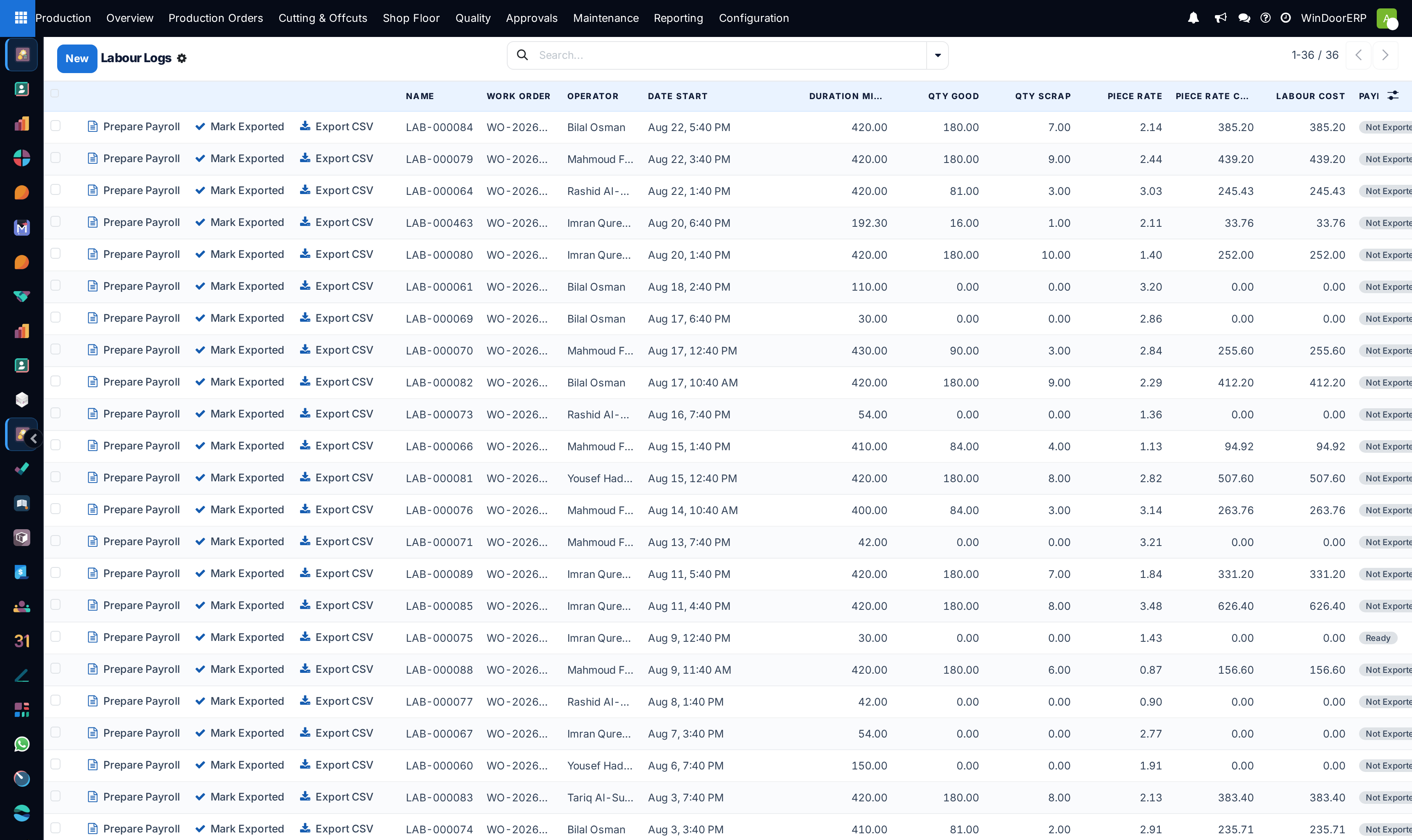
Review the day in Production › Shop Floor › Labour Logs: durations against the routing's planned minutes, scrap counts, and any Downtime / Loss Reason entries.
-
04
A production manager selects the verified logs and presses Prepare Payroll — each gets a batch reference and its amount frozen — then Export CSV, which downloads the batch file and marks every line Exported.
-
05
Corrections after export are deliberate acts: an exported log refuses re-export and says so.
Reading a labour log
| Field | Meaning |
|---|---|
| Work Order / Operator | Where the time went and whose it was. The production order comes along automatically. |
| Start / Stop / Duration | Duration computes from the two timestamps and stays editable for corrections. |
| Good / Scrap | The units this stretch produced — the pair that feeds first-pass yield and the leaderboard. |
| Downtime / Loss Reason | Why time was lost, from the configured loss reasons. Reasons classed as availability losses are what OEE subtracts as downtime. |
| Cost per Hour / Piece Rate | Both default from the work center; the piece rate can be adjusted per log. |
| Labour Cost | Time cost plus piece cost — duration × hourly rate, plus good units × piece rate. |
| Payroll Export | Not Exported › Ready › Exported, with the batch reference, the export timestamp and the frozen amount. |
Logs can also be typed by hand in this list — for a paper catch-up or a correction — but the terminal is the intended source: a typed log has whatever timestamps you give it; a terminal log has the ones that actually happened.
What the logs feed
Each work order rolls its logs up into actual minutes against the routing's plan, its good and scrap totals, and its labour and piece-rate cost — and from the same numbers computes OEE: availability from logged downtime, performance as planned over operating time, quality as good over produced. Machine energy cost rides along from the machine's rated power and the logged hours. In short: the honesty of every efficiency figure in the production reporting starts with whether operators log at the station.
Payroll discipline
All three payroll buttons are production-manager only — pressing them without the role is refused with "Only a production manager can export payroll entries." Prepare Payroll stamps the batch and freezes the amount; Export CSV writes one file per batch (operator, order, times, hours, quantities, piece rate, amount) and flips the lines to Exported; Mark Exported exists for hours settled outside the file flow. A log already exported refuses another export — "…already exported. Only reset it through a controlled payroll correction." — which is the system insisting that paying twice must never be one accidental click.
Troubleshooting
There is no Shop Floor › Labour Logs menu — the Work Orders & Routing feature is off; enable it in the WinDoor Production settings. Off is the shipped default.
A log shows zero cost — the work center behind its work order has no Cost per Hour; rates live there, not on the log.
"No payroll-ready labour logs to export." — nothing is in Ready; run Prepare Payroll on the verified selection first (Export CSV will prepare unprepared lines it was explicitly given).
Two logs for one operator on one order at once — cannot happen from the terminal; if you see it, one of them was typed by hand.
Common mistakes
- Letting operators share a badge — every figure downstream, payroll included, then belongs to the wrong person.
- Logging downtime without a loss reason — the minutes vanish from availability analysis and OEE silently flatters the station.
- Exporting payroll before reviewing durations against plan — the freeze is the point; review first, export once.
Was this article helpful?
Thanks — your feedback helps.
Running a window or door factory?
Ask for a demo