Fill in the Purchase tab: vendors, bill control and description
What this does
The Purchase tab is where a product learns who sells it, at what price, in which unit and how long it takes to arrive. That vendor list is what prices a request for quotation, what the replenishment scheduler uses to raise purchase orders, and what the forecast report uses to compute arrival dates. Below it, the Control Policy decides when a vendor bill can be created, and the Purchase Description is the technical text printed to the supplier.
The tab exists while the Purchase checkbox on the header is ticked and the product is not a combo.
Before you start
- Vendors must exist as contacts. The vendor line points at a company, not at a person: if you pick a contact person, the price is recorded on their company.
- Reordering rules that buy only work when at least one vendor line exists. A rule with no vendor raises no order; it logs an exception instead.
- Agree how bills are controlled with the accountant before choosing the policy; it changes when a bill can be booked.
Steps
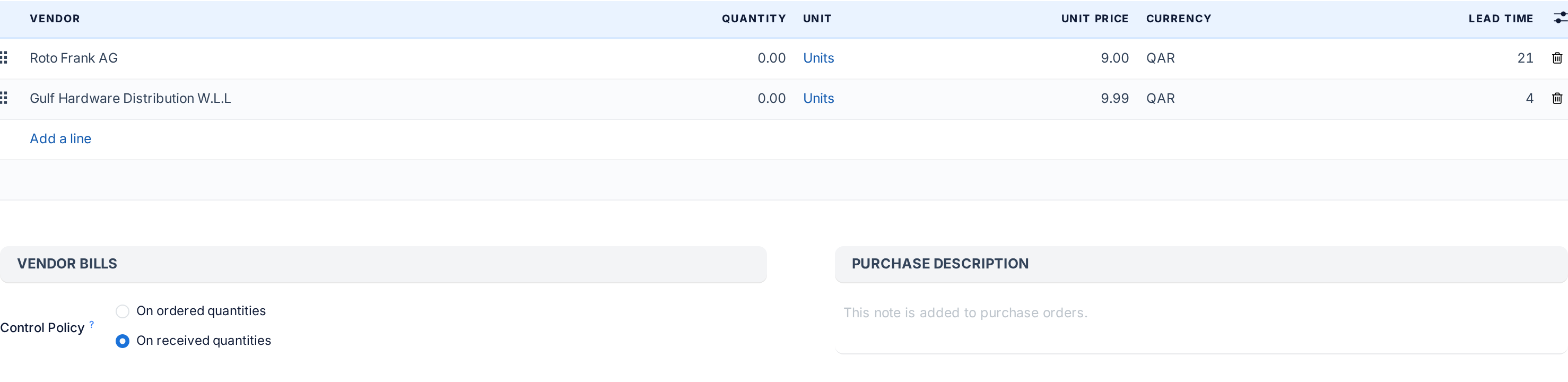
-
01
Open the Purchase tab and click Add a line under Vendors.
-
02
Pick the Vendor.
-
03
Set the Quantity from which this price applies, the Unit the vendor sells in, the Unit Price and the Currency. The currency follows the vendor by itself.
-
04
Enter the Lead Time in days: the delay between confirming the purchase order and receiving the goods in your warehouse.
-
05
Add a second line for a second vendor, or for the same vendor at a higher quantity break with a lower price.
-
06
Choose the Control Policy under Vendor Bills: On ordered quantities lets the bill be created as soon as the order is confirmed; On received quantities waits for the receipt.
-
07
Write the Purchase Description: the alloy, the finish, the supplier's article number, the bar length. It is added to purchase orders.
The vendor list
Each row is a vendor price. The columns shown by default are listed first; the rest sit behind the column picker.
| Column | What it does |
|---|---|
| Drag handle | Orders the vendors. When two vendors offer the same discounted price, the higher one wins. |
| Vendor | The supplier company. Required. |
| Quantity | The quantity to purchase from this vendor to benefit from the unit price, in the vendor's unit when one is set. Quantity breaks are several rows with rising quantities and falling prices. |
| Unit | The unit the vendor sells in, for example a 6-metre bar when you stock by the metre. |
| Unit Price | The price to purchase one vendor unit. |
| Currency | The currency of the price; defaults to the vendor's. |
| Lead Time | Days between confirmation of the purchase order and receipt in your warehouse. The scheduler and the forecast report add it to the order date. |
| Hidden: Vendor Product Name, Vendor Product Code | Printed on the request for quotation instead of your own name and reference. |
| Hidden: Start Date, End Date | Validity of the price; outside the dates the row is ignored. |
| Hidden: Discount (%), Product Variant, Company | A discount off the unit price; a restriction to one variant, empty meaning all; a restriction to one company. |
When a purchase order line is priced, WindoorERP takes the rows for that vendor whose quantity, dates and unit fit, and prefers the lowest discounted price, then the row order. The replenishment scheduler does the same without a vendor constraint, so the cheapest valid row across all vendors wins.
WindoorERP also writes this list for you. When a purchase order is confirmed, each product on it that does not yet list the order's vendor gains a vendor row at the order price, as long as the product has ten vendors or fewer. Prices agreed by email therefore end up here without anyone typing them.
A product with several variants shows the same list read-only on the template; the prices are then maintained per variant. The article on buying product variants covers that case.
Vendor Bills, Reordering and the description
| Field | What it does |
|---|---|
| Control Policy | On ordered quantities: the billable quantity is what was ordered minus what was billed, so a bill can be created and paid as soon as the order is confirmed. On received quantities: the billable quantity is what was received minus what was billed, so nothing is billed until the goods are in. Goods default to On received quantities, services to On ordered quantities. Choose received for materials, so the store confirms the profiles before the invoice is booked. |
| Subcontract Service | Services only, under Reordering. When ticked, each sale of the service through a sales order automatically creates a request for quotation to buy it; the tooltip reminds you to set a vendor first. |
| Purchase Description | Free text added to purchase orders: technical details the supplier needs to pick the right item. |
The Purchased button at the top of the form shows the quantity bought over the last 365 days and opens the purchase history for the product.
Troubleshooting
The reordering rule never raises an order, and the rule shows an exception reading There is no matching vendor price to generate the purchase order for product … (no vendor defined, minimum quantity not reached, dates not valid, ...). Go on the product form and complete the list of vendors: add a vendor line, or lower its quantity, or fix its dates.
The request for quotation prices the line at zero: no vendor row matches that vendor, quantity, unit and date. Add one.
The bill cannot be created after confirming the order: the policy is On received quantities and the receipt has not been validated.
A vendor appeared in the list that you never added: a purchase order to that vendor was confirmed and WindoorERP recorded the price. Delete the row if it was a one-off.
The tab is missing: Purchase is off on the header, or the product is a combo.
Common mistakes
- Entering the price per bar while the vendor line's Unit is the metre, or the other way round.
- Leaving Lead Time at 0, so every forecast promises material tomorrow.
- Choosing On ordered quantities for materials and booking bills for profiles that never arrived.
- Expecting a reordering rule to buy without a vendor row.
Was this article helpful?
Thanks — your feedback helps.
Running a window or door factory?
Ask for a demo