Fill in the Inventory tab: routes, logistics and transfer notes
What this does
The Inventory tab describes how the product moves and who looks after it: the routes that decide how it is resupplied, the person responsible for its logistics, its weight and volume, the delivery lead time promised to customers, and the notes printed on receipts, internal transfers and deliveries. Physical goods have it; services and combos do not.
One field here means more in WindoorERP than it does elsewhere: Weight on a profile is read as kilograms per metre and drives the bar weights on production reports.
Before you start
- Routes are defined once under Inventory configuration. On this installation there is no manufacturing app, so the only product-level route is Buy.
- Know the linear weight of every profile from the system supplier's catalogue.
- Counterpart locations and the internal-transfer note only show when Storage Locations is enabled.
Steps
-
01
Open the Inventory tab.
-
02
Under Operations, tick the Routes that apply. Tick Buy on purchased materials so reordering rules can raise purchase orders. View Diagram draws the resulting flow.
-
03
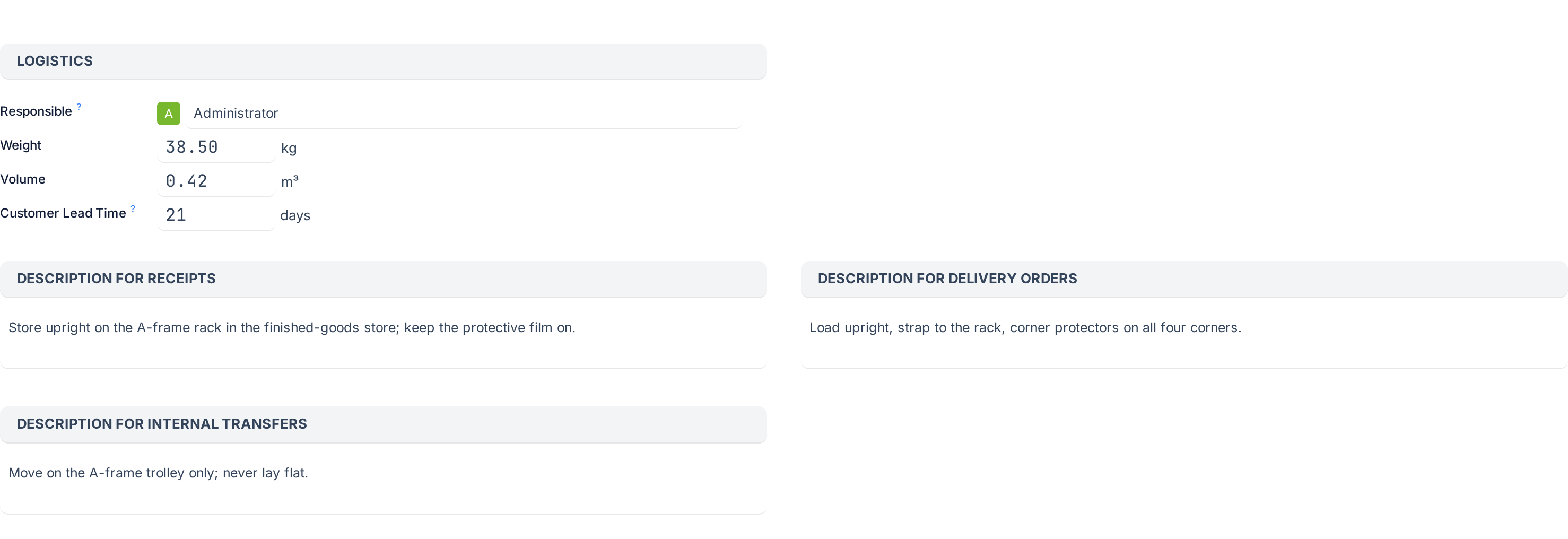
Under Logistics, set the Responsible user who receives the follow-up activities about the product's logistics.
-
04
Enter the Weight. For a profile bar this is the kilograms per metre from the supplier's data sheet; for everything else, the weight of one unit.
-
05
Enter the Volume if you plan deliveries by van space.
-
06
Enter the Customer Lead Time in days for products that are sold: the delay promised between confirming the sales order and delivering.
-
07
Write the notes for Receipts, Delivery Orders and, when shown, Internal Transfers. They are printed on the corresponding transfer, so a receipt note such as store on rack A1, keep dry reaches the storeman.
Field by field
| Group and field | What it does |
|---|---|
| Operations › Routes | Checkboxes, one per route that can be selected on a product. Depending on the apps installed this decides whether the product is bought, manufactured or replenished on order; here it is Buy. A product with no route cannot be replenished by a reordering rule. |
| Operations › View Diagram | Opens a drawing of the routes and rules that apply to the product. |
| Operations › Category Routes | Read-only. Routes inherited from the product category, shown only when the category carries some. |
| Logistics › Responsible | The user responsible for the next activities related to logistic operations for this product, such as a late receipt. Per company. |
| Logistics › Weight | Weight in the company's weight unit. On profiles WindoorERP treats it as the weight per metre of bar; the production material list and the bills of quantities multiply it by cut length. It is deliberately the only place a linear weight is entered. |
| Logistics › Volume | Volume of one unit, in the company's volume unit. |
| Logistics › Customer Lead Time | Delivery lead time in days, the number of days promised to the customer between confirmation of the sales order and delivery. Shown only for products that are sold; it sets the scheduled date of the delivery order. |
| Counterpart Locations › Production Location, Inventory Location | Override the virtual source location used for manufacturing moves and for inventory adjustments of this product. Per company. Leave empty to use the warehouse defaults. |
| Description for Receipts | Text added to receipt orders, for example where to stock the product in the warehouse. |
| Description for Delivery Orders | Text added to delivery orders. |
| Description for Internal Transfers | Text added to internal transfers. Shown only with Storage Locations enabled. |
Where the tab is not
Two settings people look for here live elsewhere. The unit of measure is on the General Information tab beside the prices. Lot and serial tracking is a field that appears under Track Inventory only when Lots & Serial Numbers is enabled in Inventory settings, which it is not on this installation; until it is, every product is tracked by quantity.
Troubleshooting
The tab is missing: the product is a service or a combo.
No route is offered: none is configured as selectable on products. The Buy route ships selectable; check Inventory › Configuration › Routes.
The replenishment report says the product is missing a way to be replenished: no route is ticked here and none comes from the category.
Bar weights on the material list are zero: Weight is empty on the profile.
The delivery is scheduled for today although the customer was promised a week: Customer Lead Time is 0.
Common mistakes
- Entering the weight of a whole bar instead of the weight per metre on a profile.
- Forgetting the Buy route on materials and wondering why reordering rules do nothing.
- Typing storage instructions into Internal Notes instead of Description for Receipts, where the storeman would read them.
- Setting a responsible who has left the company; the activities go to nobody.
Was this article helpful?
Thanks — your feedback helps.
Running a window or door factory?
Ask for a demo