Send a product to its shelf with a putaway rule
What this does
A putaway rule tells WindoorERP which shelf a product goes to when it arrives, so the receipt names the rack instead of the whole warehouse. Profiles to the profile racks, glass to the glass stillage, hardware to the accessories shelf: type the rule once and every receipt after it points at the right place. From the product form, the Putaway Rules button opens the rules that apply to this product or to its category.
A putaway rule does not move anything. It changes the destination that a new receipt or transfer proposes; the goods still arrive with the one validation you were going to do anyway. Nothing is transferred afterwards, and stock already on the shelf is not touched.
Before you start
- Storage Locations must be enabled in Inventory settings; without it there are no sublocations to put away to, and the button is not shown.
- The target locations exist under the warehouse stock, for example
WH/Stock/Raw Materials/Profile Rack A1. - Decide whether to write rules per product or per category. A category rule covers every hardware item at once; a product rule wins over it when both match.
Steps
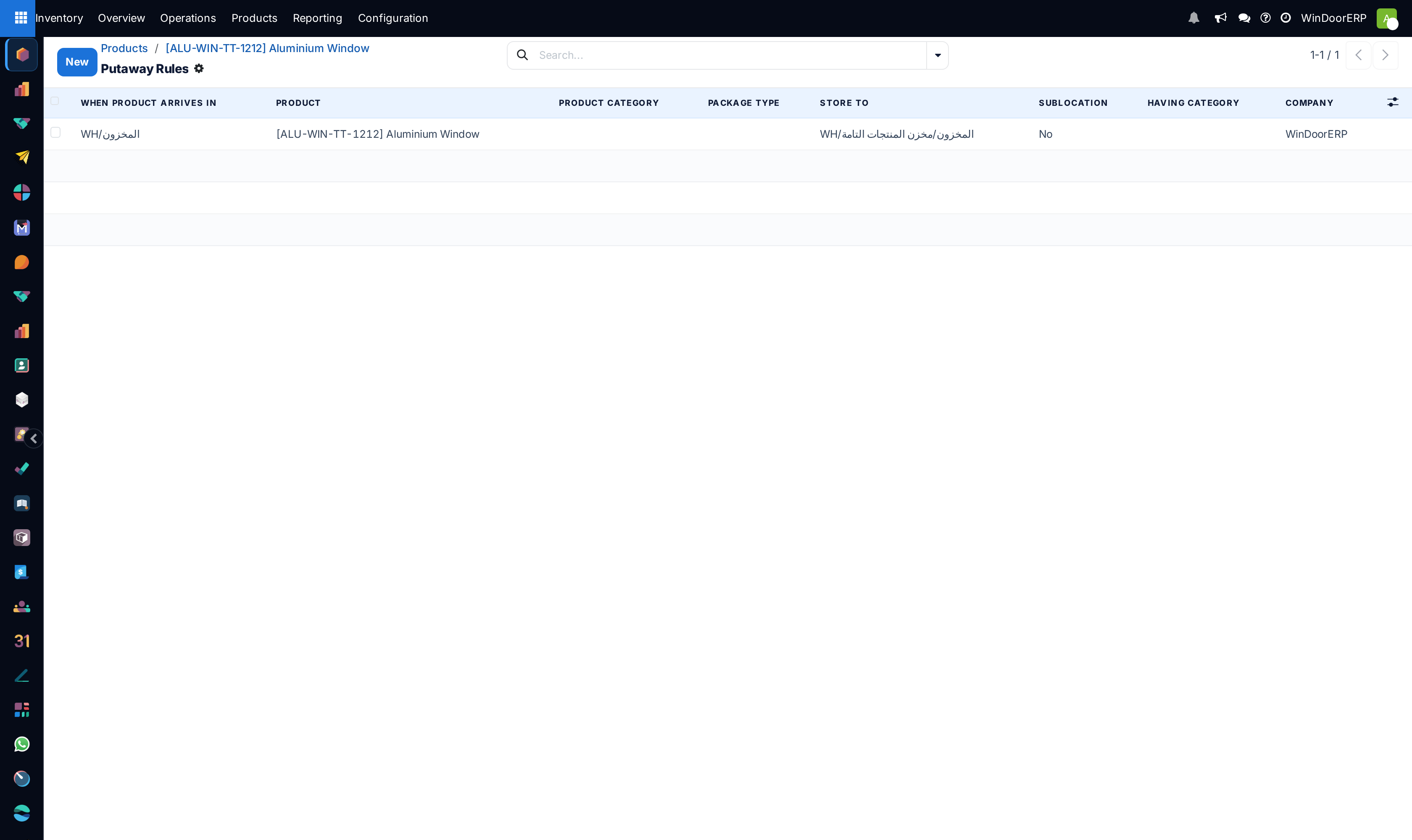
-
01
On the product, click Putaway Rules. The list opens with the rules for this product and for its category.
-
02
Click New.
-
03
In When product arrives in, pick the location goods land in: the main warehouse stock location, or the receiving area when receipts go through one.
-
04
Leave Product on this product, or clear it and pick a Product Category to write the rule for a whole family. A rule holds one or the other, never both.
-
05
In Store to, pick the target location: the rack or stillage the product belongs on. It must lie under the arrival location.
-
06
Set Sublocation: No stores to the location named; Last Used and Closest Location pick a child of it automatically.
-
07
Save. The next receipt of the product proposes the rack as its destination; validating it puts the goods there.
The rule, column by column
| Column | What it does |
|---|---|
| Drag handle | The rule's priority. Higher in the list wins among rules of equal specificity. |
| When product arrives in | The location whose incoming moves the rule applies to. Required. |
| Product | The product the rule is for; the placeholder All Products means any. Read-only once a category is set. |
| Product Category | The category the rule is for, including its child categories; All Categories means any. Read-only once a product is set. |
| Package type | Restricts the rule to goods arriving in these package types. Empty means any. |
| Store to | The destination sublocation. Cannot be set before the arrival location. |
| Sublocation | No: store exactly where Store to says. Last Used: the child location the product was last put in. Closest Location: the nearest child with room, by location order. Required. |
| Hidden: Having Category, Company | A storage category the target must belong to, and the company the rule belongs to. |
Which rule wins
When a move is created into the arrival location, WindoorERP collects the active rules on that location and on its parents, keeps those whose product, category or package type match, and sorts them: a package-type rule first, then a rule on the product itself, then a rule on the product's own category, then a rule on a parent category. The first rule wins and its Store to becomes the destination of the move line. A rule with an empty product and an empty category is a catch-all for the location.
The Putaway Rules button on the product shows every rule that names the product plus every rule that names its category. The Storage Capacities button beside it shows how much of the product each storage category may hold, which is the other half of automatic placement.
Troubleshooting
The receipt still proposes the main stock location: the arrival location on the rule is not the one the receipt delivers to, the rule is archived, or the target does not lie under the arrival location.
The list from the button shows rules for other products: this product has no Category, so the filter for its category matches every product rule that also has none. Set the category on the product.
The button is missing: the product is a service, or Storage Locations is off.
Existing stock is still in the old place: putaway acts on arrivals only. Move what is already on the shelf with an internal transfer.
Two rules match and the wrong one wins: the more specific rule always wins; among equals, drag the preferred one higher.
Common mistakes
- Expecting the rule to move stock that is already in the warehouse.
- Writing a product rule for every hardware item when one category rule would do.
- Pointing Store to at a location outside the arrival location's tree, which the rule then never applies.
- Leaving products without a category, so the product's putaway list fills with unrelated rules.
Was this article helpful?
Thanks — your feedback helps.
Running a window or door factory?
Ask for a demo