Combo choices: a menu of alternatives, one pick per choice
What this does
A combo choice is a list of alternatives the customer picks one of. Build several choices, attach them to a product, and that product becomes a package: one handle from this list, one screen from that list, one service level from a third.
This is the single most misread thing on the screen. A combo choice is not a bundle of parts that all go in — it is a menu, and each choice contributes exactly one line to the order.
Before you start
- Reach it at Sales › Configuration › Products › Combo Choices.
- The options have to exist as products first, and they must be sellable if the package is going to be sold.
- Decide the pricing shape. The cheapest option sets the package price and every dearer option is expressed as what it adds — so choose the alternatives with that in mind.
Steps
-
01
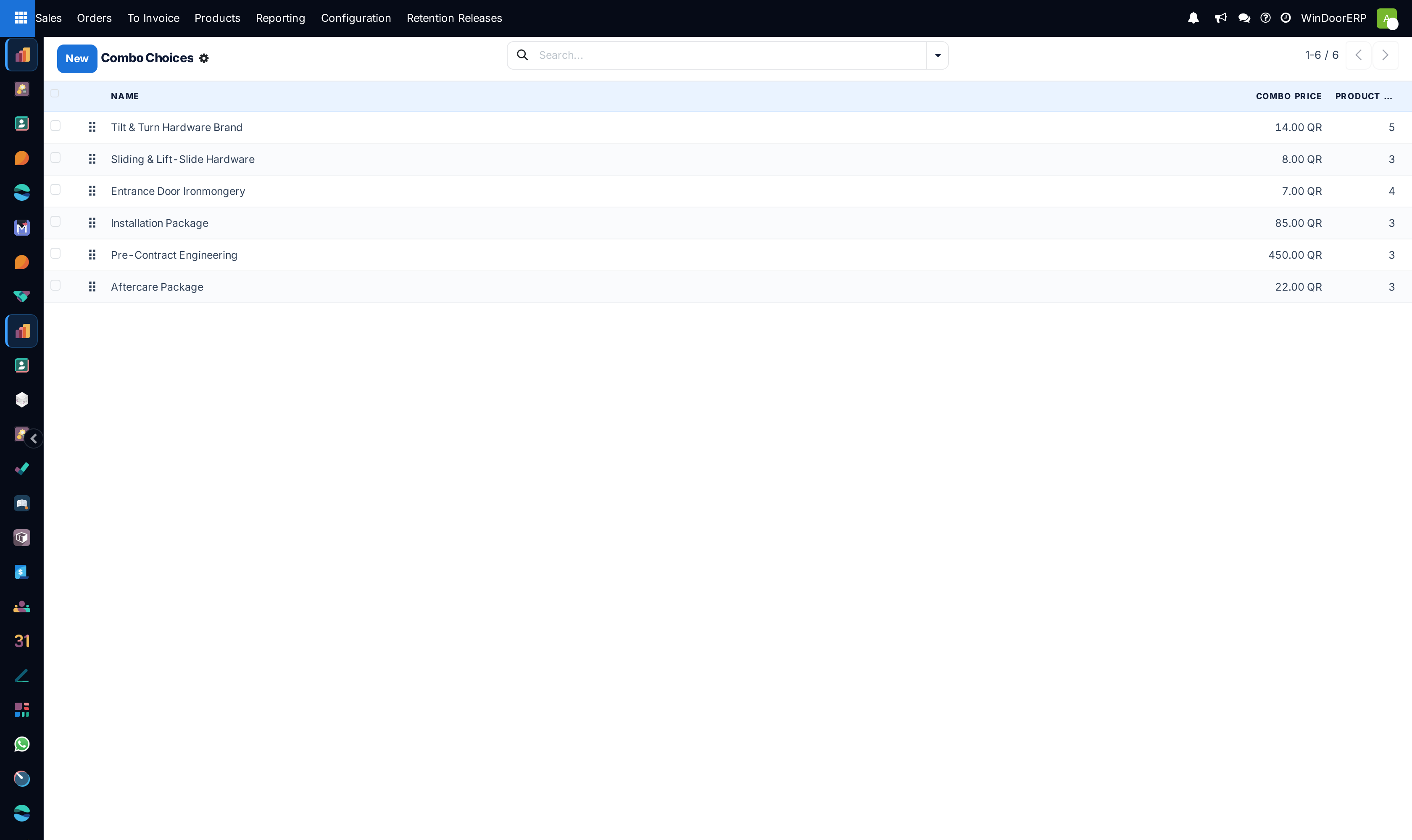
Open Sales › Configuration › Products › Combo Choices and click New.
-
02
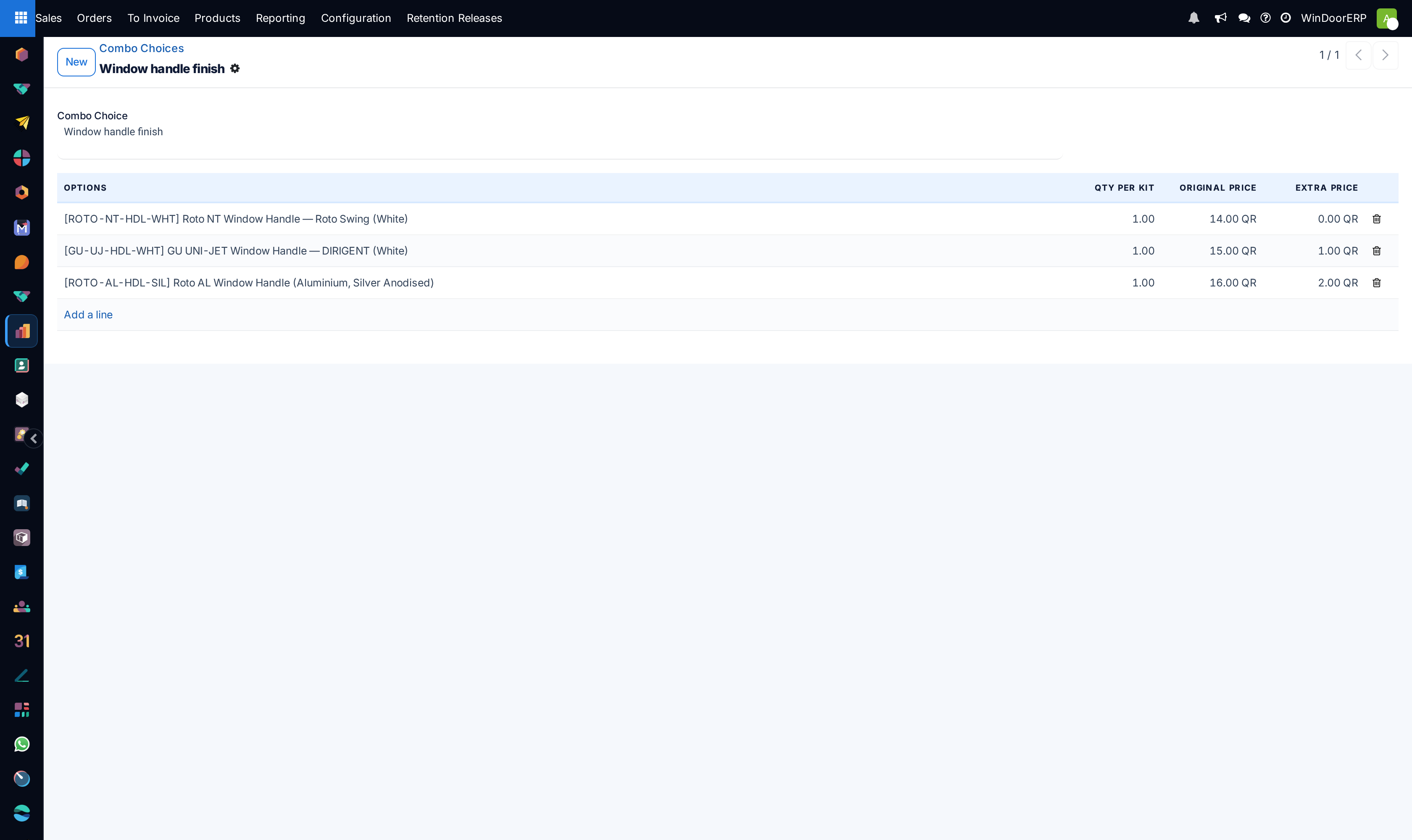
Name the choice after the decision the customer is making — Window handle finish, not Handles.
-
03
Add a line per alternative under Options. Only real products are offered, and a package cannot be listed as an option inside another package.
-
04
Leave Qty per Kit at 1 unless one unit of the package genuinely consumes several of that item.
-
05
Read Original Price — it is the option's own sales price, shown for reference and not editable here.
-
06
Set Extra Price to what this option adds over the cheapest one in the list. Leave the cheapest at zero.
-
07
Save, then open the product that sells the package, set its type to Combo, and add this choice to it.
The screen, field by field
| Combo Choice | The name. Required, and shown to the customer as the heading of the choice. |
|---|---|
| Company | Optional. Visible to all when empty. |
| Options | The alternatives. Each is a product; a product of type Combo is rejected here. |
| Qty per Kit | How many of that option one package contains. Normally 1. |
| Original Price | The option's own sales price, taken live from the product. Read-only. |
| Extra Price | What choosing this option adds. Defaults to zero. |
| Combo Price | On the list, not the form. Computed, never typed: the lowest original price among the options. |
| Product Count | How many options the choice holds. |
How the price is worked out
The choice's Combo Price is the cheapest option in it. When a product carries several choices, the product's own price is shared out across them in proportion to those figures, and the option's Extra Price is added on top of the customer's pick.
The point of that arrangement is that the package has one advertised price and every upgrade is visible as an upgrade. A customer who takes the cheapest option in every choice pays exactly the package price; anything dearer shows on the order as a named extra rather than as a silently different total.
Because Original Price is read live from the product, raising a product's sales price changes what the choice is worth immediately. Extra Price does not follow — it is a fixed figure you typed, so a price rise on one option quietly narrows the gap it was meant to represent. Re-check the extras whenever the underlying products are repriced.
A choice does nothing until a product uses it
Combo choices are configuration, not a sellable thing. Nothing is offered to a customer until a product of type Combo lists the choice, and such a product must reference at least one — saving one without a choice is refused with "A combo product must contain at least 1 combo choice." WindoorERP ships a set of choices ready to use; check whether any product actually sells them before assuming a package is live.
Troubleshooting
| A product will not save as a Combo | It has no combo choice attached. Add at least one. |
|---|---|
| A product cannot be added as an option | It is itself of type Combo. Packages do not nest. |
| Saving is refused over a non-sellable option | A sellable package cannot contain an option that is not sellable. Either mark the option sellable or take it out. |
| A product used in a choice cannot be deleted | Deletion is blocked while it is an option. Remove it from the choice first, or archive it. |
| The package price is not what was expected | Look at the cheapest option: it is what sets the base. An extra price left at zero on a dearer option makes an upgrade free. |
Common mistakes
- Treating a choice as a bill of materials. Every alternative in one choice is mutually exclusive; parts that all go in belong on separate lines or in a kit.
- Setting an extra price on the cheapest option. It should be zero — the cheapest is the baseline the package price is built from.
- Building choices and never attaching them to a product, then wondering why no package can be quoted.
- Repricing the underlying products and leaving the extras alone, so the upgrade steps drift away from the real price differences.
Was this article helpful?
Thanks — your feedback helps.
Running a window or door factory?
Ask for a demo