Maintain the survey master lists: floors, locations and dropdown options
What this does
Under Technical Tasks › Site Surveys › Configuration › Dropdown Options live the master lists two very different things depend on. Floors and Locations are working data: every survey item is tagged with one of each, the mobile portal offers them as pickers, item lists group by floor, and the floor's code is what generates the automatic item numbers on pre-quote surveys. The options catalogue (All Options, Site Conditions, Fittings & Hardware, Finishes) is the company's controlled vocabulary — names paired with technical values, kept here so that "anodised", "anodized" and "ANOD" stop being three different things.
Before you start
- The whole Configuration menu needs the Survey Manager access right.
- Agree the floor codes before the first pre-quote survey — item codes minted from them end up on quotations and orders.
Set up the lists
-
01
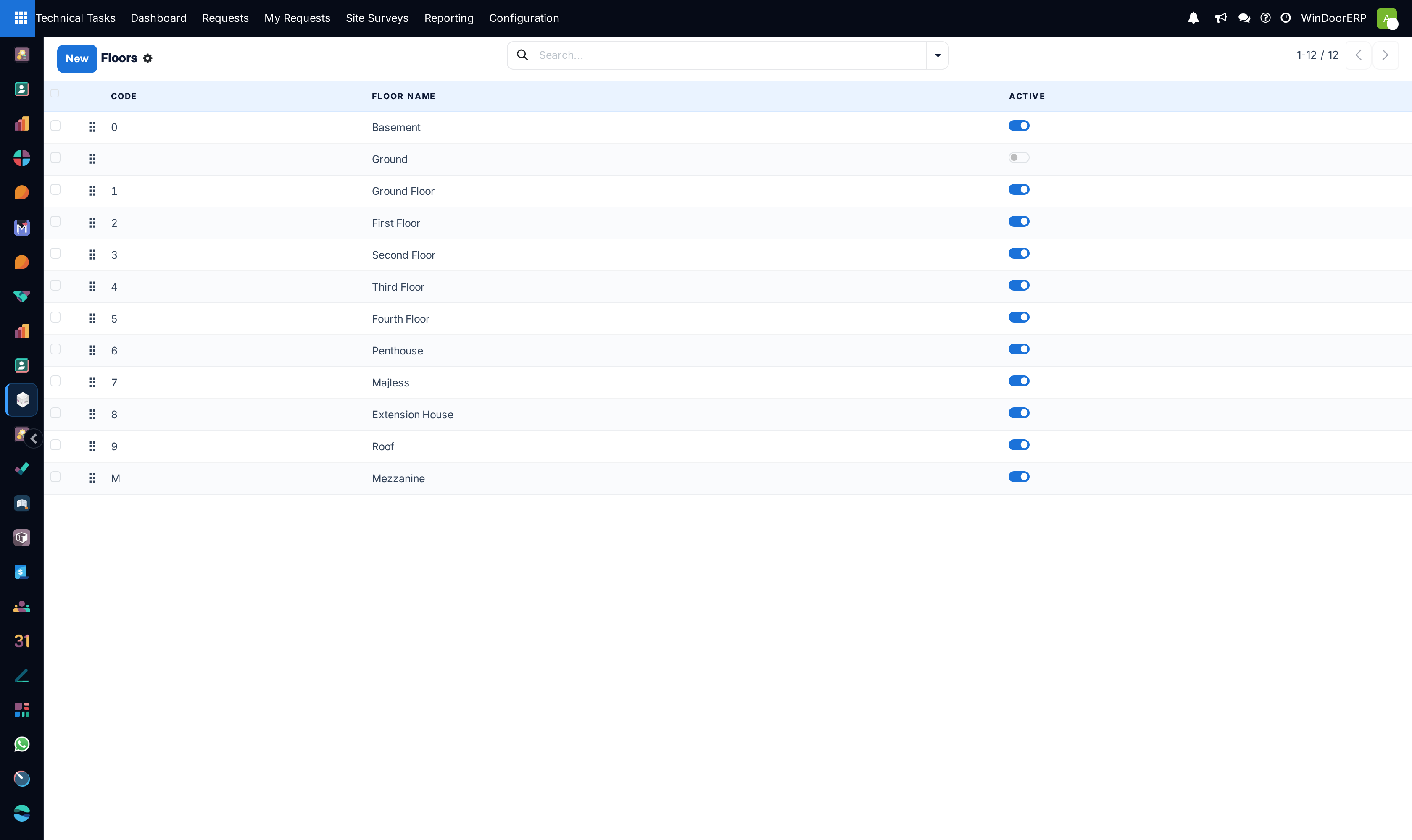
Open Dropdown Options › Floors and enter each level with a single-character Code: 0 Basement, 1 Ground Floor, 2 First Floor… The code plus a two-digit item number becomes the item code — floor 1, fifth opening =
105. -
02
Open Locations and list the room names your surveyors should use — Kitchen, Majless, Master Bedroom — with the drag handle setting the picker order.
-
03
Review the options catalogue under All Options, or per category through the Site Conditions, Fittings & Hardware and Finishes menus. Add an option by choosing the Field it belongs to, its display Option Name and its stored Technical Value.
-
04
Archive rather than delete anything the team should stop using — the Active toggle is on every row.
Floors
A floor is a Floor Name (unique), a one-character Code (unique) and a sequence. The code is worth care: pre-quote item codes are generated as code + two-digit counter per floor, and those codes travel onto the quotation lines built from the survey. A floor saved without a code still works — the system falls back to guessing a digit from the floor's name — but explicit codes are what keep numbering predictable. The Floors and Locations screens deliberately show archived rows too, greyed out, so a retired floor can be reactivated rather than recreated.
Locations
A location is just a unique Location Name, a sequence and the Active flag — but it is referenced from every survey line that uses it, so a location in use cannot be deleted; archive it instead. Keep the list short and unambiguous: it is what makes two surveyors on the same tower produce records you can group without cleaning the text first.
The options catalogue
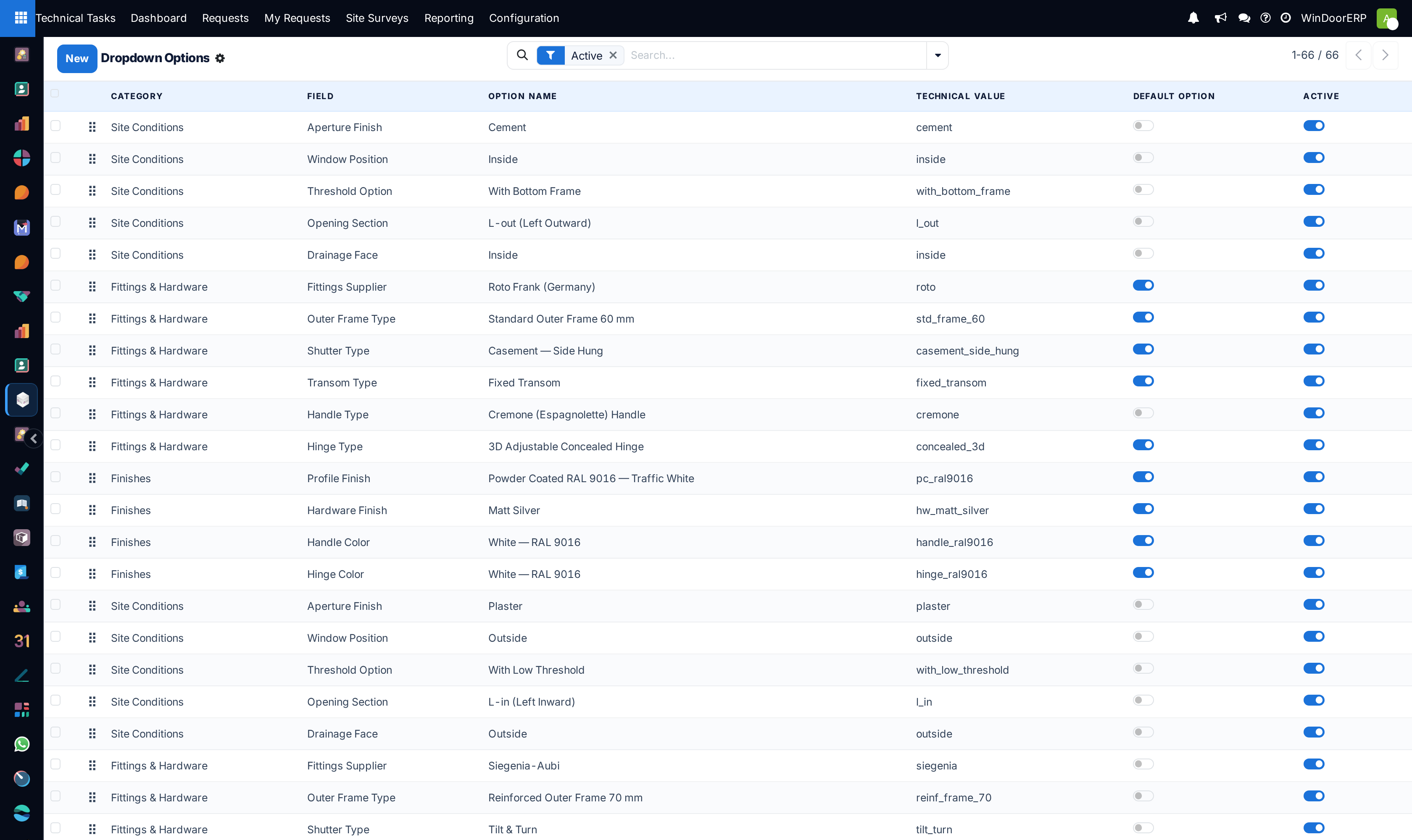
Each option row holds:
| Field | Meaning |
|---|---|
| Category | Site Conditions, Fittings & Hardware, Finishes or Other — set automatically from the chosen Field. |
| Field | Which survey attribute the option belongs to. Twenty exist, from Aperture Finish and Window Position through Fittings Supplier, Handle Type and Hinge Type to Profile Finish, Handle Color and the exhaust cut-out attributes. |
| Option Name | The wording shown to people. Translatable — the Arabic name is entered through the language flag on the field. |
| Technical Value | The stable identifier behind the name — must be unique per field and company. |
| Default Option | Marks the value your standard specification assumes for that field. |
| Active | Archived options stay on old records but leave the working vocabulary. |
One honest limitation to know: in this release the catalogue is reference data. The survey item's own selection fields — window position, drainage face, the aperture finishes, threshold, opening section — are fixed built-in lists, and the fittings and finishes boxes are free text. Adding a catalogue option therefore does not add a choice to those fields; the catalogue is where the agreed vocabulary is written down and maintained, ready for the screens that adopt it.
Troubleshooting
"Floor name must be unique!" / "Floor code must be unique!" / "Location name must be unique!" — the name or code already exists, possibly on an archived row. Both screens list archived rows greyed out; reactivate instead of duplicating.
"Each technical value must be unique within a field type per company." — an option with that technical value already exists for the same field; change the value or edit the existing option.
Deleting a floor or location fails with a database reference error — survey items point at it. Archive it; history keeps its label, new surveys stop offering it.
A newly added option does not appear on the survey item form — expected for the fixed selection fields; see the limitation above.
Common mistakes
- Leaving floors without codes and letting the name-guessing decide the item numbers.
- Creating near-duplicate locations — Living Room and Living Rm — which splits every grouped report in two.
- Deleting options instead of archiving them, losing the record of what a value meant on old surveys.
Was this article helpful?
Thanks — your feedback helps.
Running a window or door factory?
Ask for a demo