Understand access rights, record rules, user devices, and privacy tools
What this does
Four screens under Settings › Technical decide and record who can do what: Access Rights (which groups may read, write, create and delete on each model), Record Rules (which rows of a model a user sees), User Devices (every signed-in session, with a real kill switch), and Privacy Logs (the audit trail of personal-data lookups). This article explains how the two permission layers actually combine — they behave in opposite ways — and what the two housekeeping screens do.
See also
Day-to-day permission work — creating users and picking their access levels on the Access Rights tab — is covered in Add and manage users and Set access rights for a user. This article is about the machinery underneath those choices.
Before you start
- You need administrator access and developer mode — the whole Technical menu is hidden without it.
- Changes on these screens take effect immediately, for every user, on their next click. There is no "apply" step and no restart.
- Prefer adjusting a user's groups over editing access rights or record rules — the shipped rules are re-created by upgrades, and a wrong global rule locks data away from everyone at once.
Steps
-
01
Open Settings › Technical › Security › Access Rights to see every model-level permission; group the list by Model to audit one screen's access.
-
02
Open Security › Record Rules to see the row-level filters; open a rule to read its domain and groups.
-
03
Open Security › User Devices to review active sessions; press Log out on any device that should not be signed in — you confirm your own password, and that session is terminated server-side.
-
04
To find or remove a person's data, open their Contact (or user) form and run Privacy Lookup from the ⚙ Actions menu; anything you archive or delete there is recorded under Technical › Privacy › Privacy Logs.
Access rights — model-level permissions
Every row grants a Group up to four permissions on a Model: Read Access, Write Access, Create Access, Delete Access. The list is inline-editable at the top, and the form warns you plainly: "Please note that modifications will be applied for all users of the specified group".
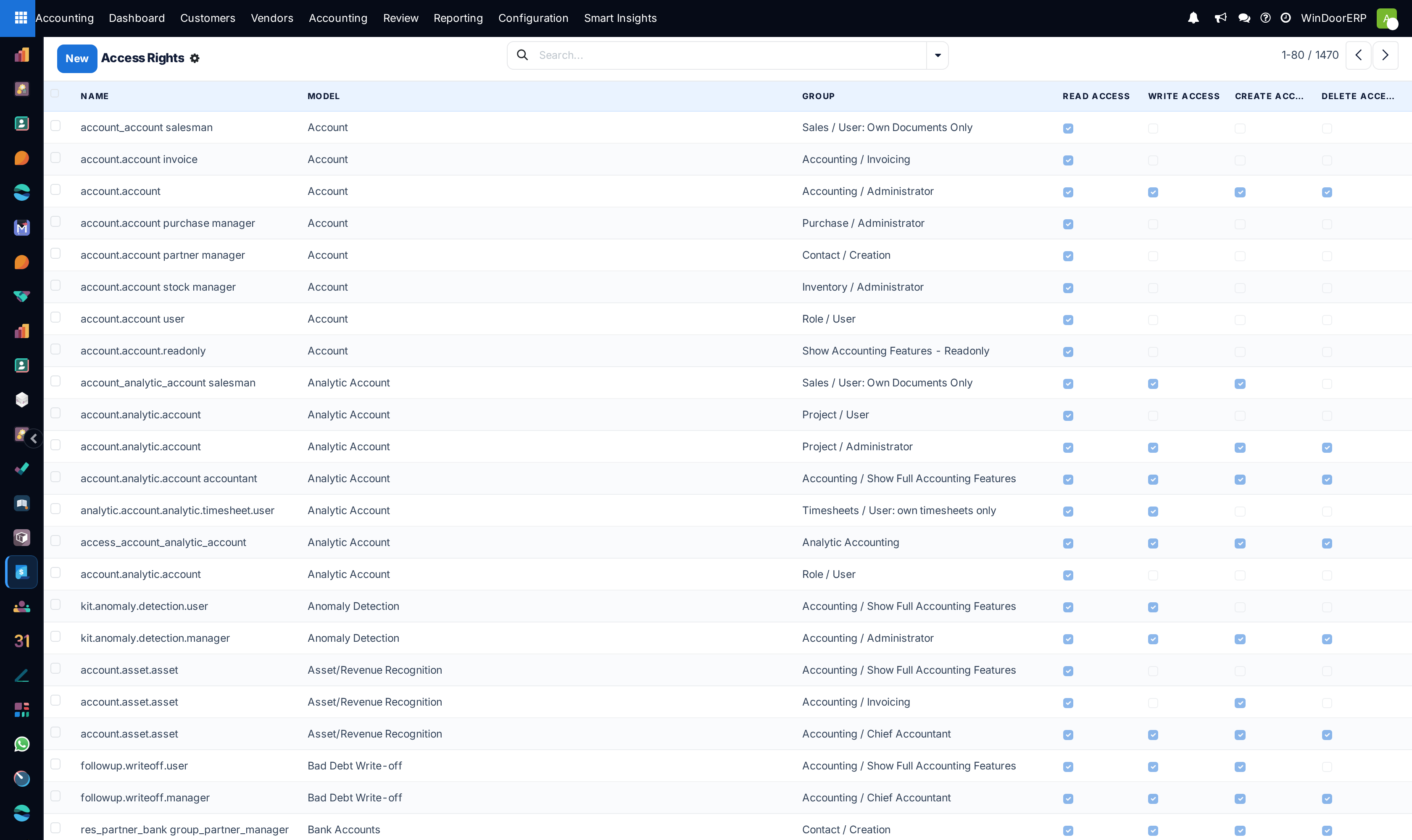
The semantics are the part worth memorising: access rights are purely additive. If any one of a user's groups has the permission, the user has it — there is no "deny" row, and a row with all four boxes unticked grants nothing but blocks nothing. A row with an empty Group column applies to everyone including portal users, which is why the list paints such rows warning-yellow. And the absence of any row for a model means nobody (except the superuser) can touch it — no rule means denied, not open.
A user who runs into the limit sees the standard refusal — "You are not allowed to access '…' records." followed by either the list of groups that would allow it or "No group currently allows this operation." — which tells you exactly which group to grant. Rows can be archived (Active off) to disable them without deleting; a deleted shipped row comes back on the next module upgrade.
Record rules — row-level filters
Where access rights answer "may this user open sales orders at all", record rules answer "which sales orders". A rule attaches a domain filter to a model for one operation or more (Read, Write, Create, Delete — here ticked by default, and an unticked box means the rule simply does not apply to that operation). The form's sections say the rest: Rule Definition (Domain Filter) holds the filter, and Groups (no group = global) decides who it binds.
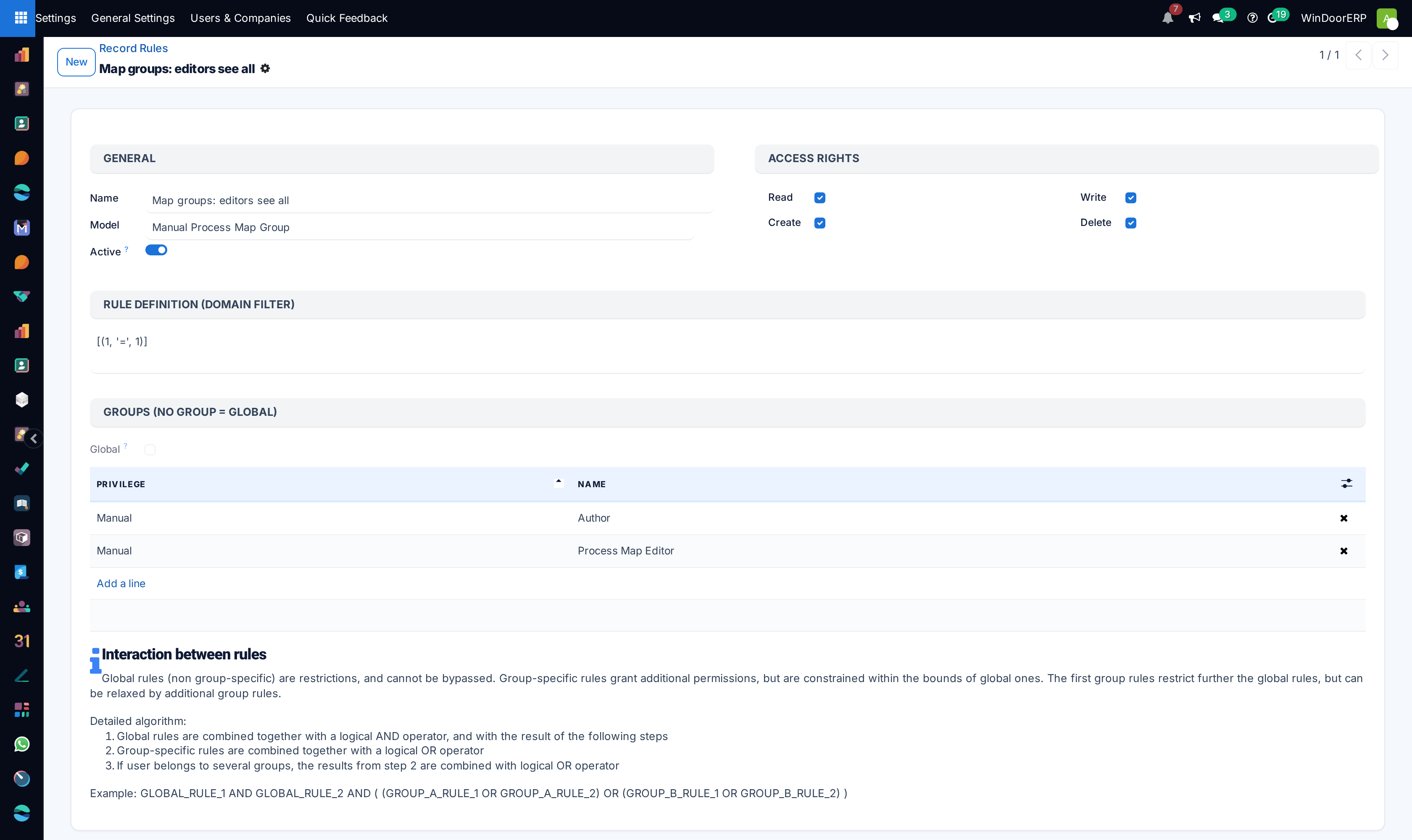
The combination algorithm is printed on the form itself, and it is the opposite of access rights: "Global rules (non group-specific) are restrictions, and cannot be bypassed. Group-specific rules grant additional permissions, but are constrained within the bounds of global ones." Concretely: all global rules are AND-ed together — every one must pass — while all group rules of the user's groups are OR-ed, so any one of them is enough within what the global rules allow. The form even shows the formula: GLOBAL_RULE_1 AND GLOBAL_RULE_2 AND ( (GROUP_A_RULE_1 OR GROUP_A_RULE_2) OR (GROUP_B_RULE_1 OR GROUP_B_RULE_2) ). A model with no rules at all is unrestricted — again the mirror image of access rights, where no row means no access.
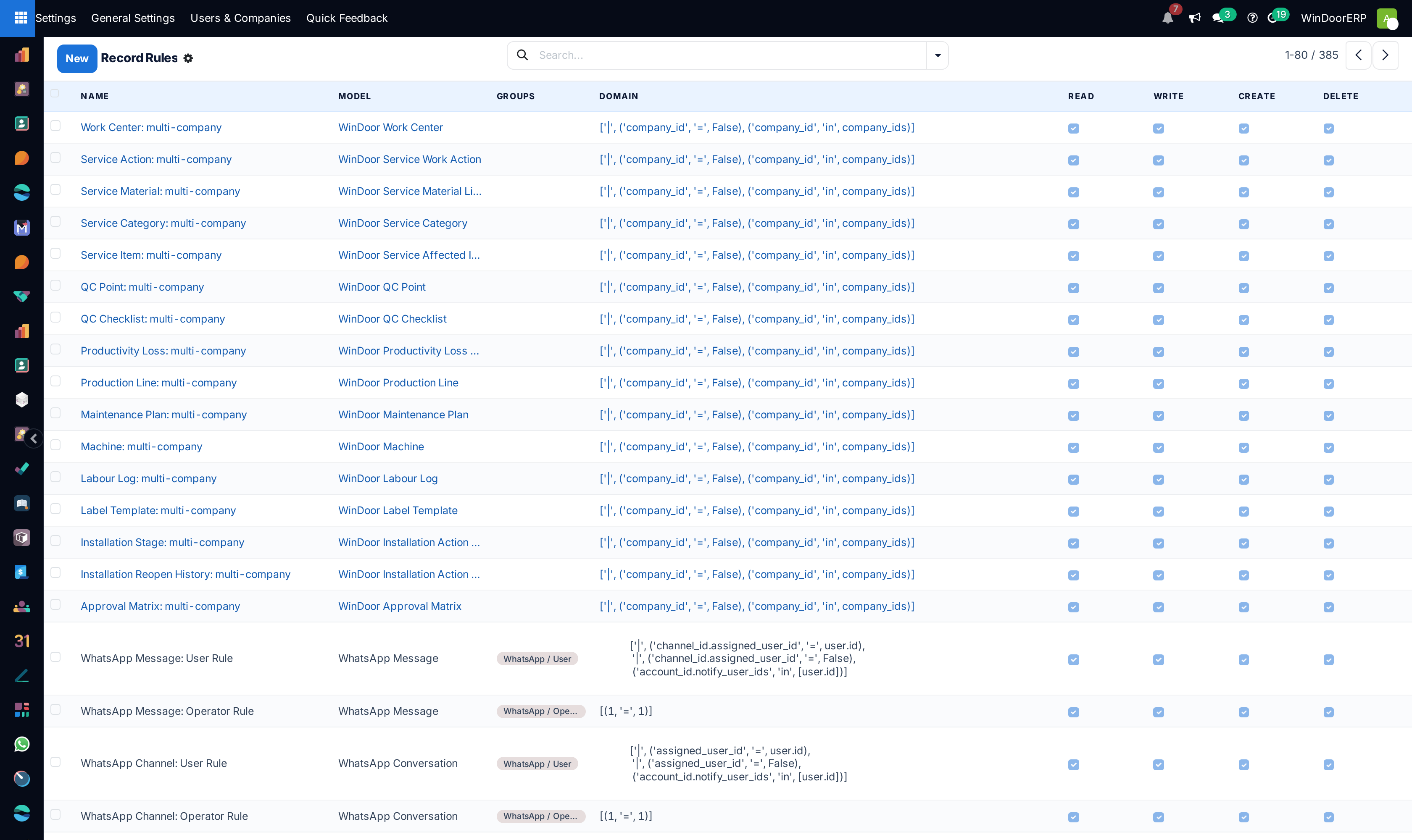
A user filtered out by a rule gets the famous refusal starting "Uh-oh! Looks like you have stumbled upon some top-secret records." — with developer mode active it also names the offending records and lists "Blame the following rules:", which is the fastest way to debug a "record disappeared" report. Two guards while editing: a rule must keep at least one operation ticked ("Rule must have at least one checked access right!"), and a rule cannot target the Record Rules model itself.
User devices — sessions you can terminate
Every authenticated session shows up here, one card per user, platform, browser and IP, with first and last activity, GeoIP country and city, and a green dot on your current device. The screen is read-only by construction — rows appear automatically and Last Activity refreshes at most hourly, so do not expect a to-the-minute view.
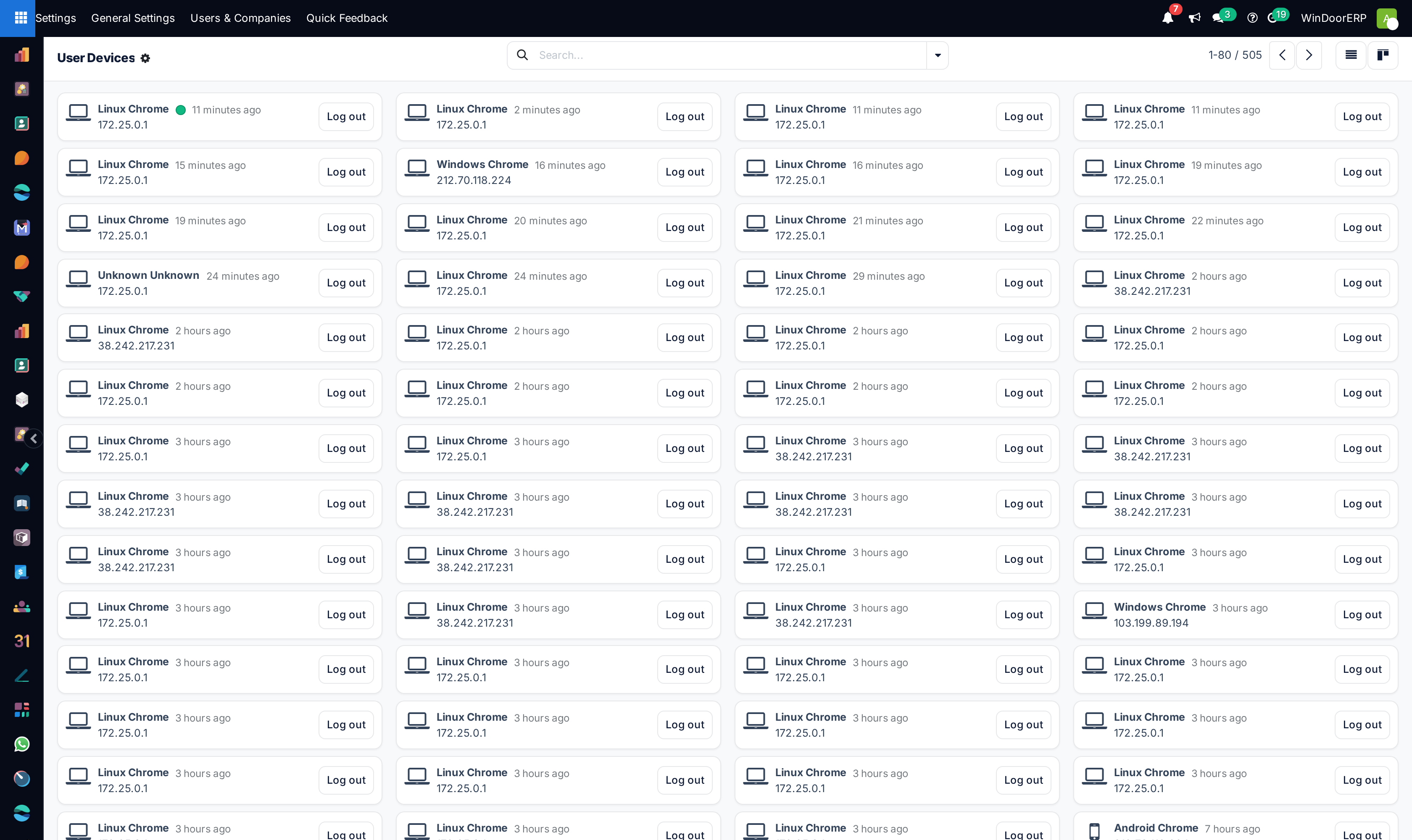
The one action is real: Log out (the list view labels it Revoke) first asks you to re-enter your own password in the Access Control dialog, then deletes that session on the server — the kicked user's very next request lands on the login page. This is the button for a lost laptop or a departed employee's forgotten browser. Users can do the same for their own sessions from the Security tab of their profile, where Log out from all devices ends everything except the session pressing the button; the same tab holds their password change, two-factor authentication and API keys.
Privacy — lookup first, logs second
The Privacy Logs menu is only the paper trail; the tool that writes it has no menu of its own. To act on a person's data, open their Contact or user form and pick Privacy Lookup from the ⚙ Actions menu. The wizard searches the whole database for the name and email — contacts, users, messages they authored, and every model that stores an email or points at the contact — and lists the hits as References, grouped by model. On each line a toggle archives or unarchives the record immediately, and a Delete button removes it for good after the warning "This operation is irreversible. Do you wish to proceed to the record deletion?".
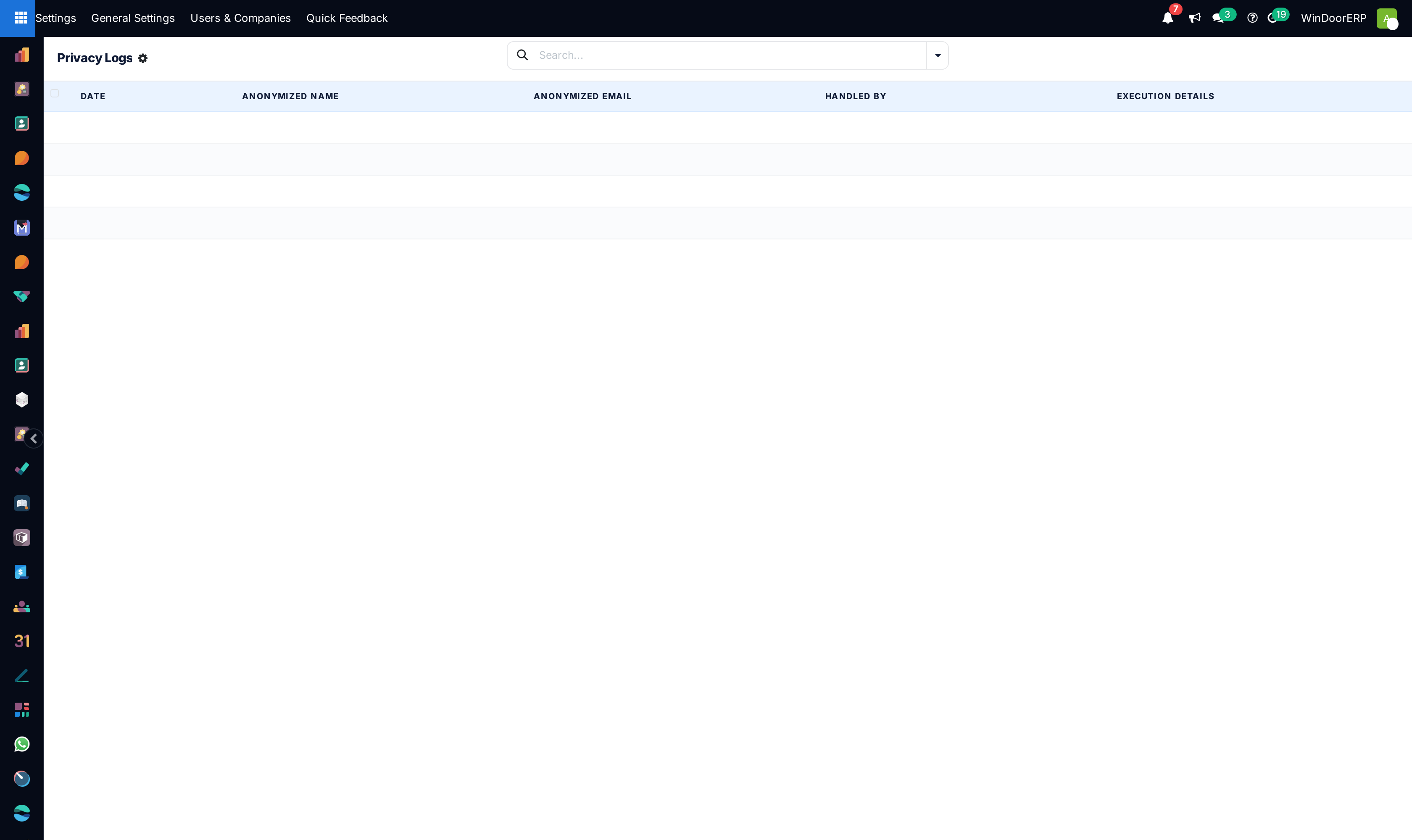
A log row is written only when a lookup actually archives or deletes something — browsing alone records nothing, so an empty list is normal. The log deliberately stores the subject's identity masked (J*** D**, j***@d*****.com) with the acting user, the date, and one line per action taken. Rows cannot be created by hand.
Troubleshooting
| Symptom | Cause and fix |
|---|---|
| "You are not allowed to access …" naming a model | None of the user's groups has an access-rights row for that model and operation. The message lists the groups that would allow it — grant one of those on the user's Access Rights tab rather than adding a new ACL row. |
| "Uh-oh! Looks like you have stumbled upon some top-secret records." | A record rule filtered the record out. Reproduce with developer mode on: the error then names the rules to blame. If the domain mentions the company, the note about multi-company in the message is the hint — check the user's allowed companies. |
| A permission you removed keeps coming back | Another group the user still holds implies it, or grants the same model through its own ACL row. Check the group's implied groups (see Set access rights for a user) before touching ACLs. |
| "Rule must have at least one checked access right!" | You unticked all four operations on a record rule. Untick Active instead if the goal is to disable it. |
| Everyone lost access to a model at once | Almost always a new global record rule (blue row in the list) — global rules restrict unconditionally and no group rule can widen them. Archive the rule and re-test. |
| Log out on a device seems to do nothing | It asked for your password first — the Access Control dialog — and was cancelled. Confirm your identity and the session file is deleted server-side; the device is out on its next request. |
| Privacy Logs is empty after a lookup | Normal if the lookup only browsed. A log row is created the moment the wizard archives or deletes a record, not before. |
Common mistakes
- Editing shipped access rights or record rules instead of changing the user's groups — upgrades re-create shipped rules, and your edit silently returns to stock.
- Adding an access-rights row with no group "just to test" — an empty group means everyone, portal users included; that is why the row turns yellow.
- Expecting a record rule to deny — rules filter rows for the groups they name; a model with no rules is unrestricted, and an unticked operation is unrestricted too.
- Auditing sessions by eye and stopping there — if a device looks wrong, log it out; the button genuinely terminates the session.
- Running a Privacy Lookup delete without checking the References list first — the deletion is irreversible and spans every model that references the person.
Was this article helpful?
Thanks — your feedback helps.
Running a window or door factory?
Ask for a demo