Wrap quotations in PDF headers and footers, and fill their form fields
What this does
Headers and footers are PDF pages that wrap a quotation: a cover page and company profile in front, terms, payment details and a warranty page behind. The priced pages WindoorERP generates sit in the middle, so one file reaches the customer instead of four attachments.
Those PDFs can also be filled in. If a page carries form fields, WindoorERP finds them on upload and lets you point each one at a value from the order, so the cover page can carry the customer's name and the quotation total without anyone editing the PDF again.
Before you start
- Enable the quote builder in Sales › Configuration › Settings.
- Have the pages ready as PDFs. Only PDFs are accepted, and the file must not be password-protected — an encrypted file is refused on upload.
- If you want fields filled automatically, add the form fields to the PDF first, in whatever tool made it. Name them with letters, digits, hyphens and underscores only, and never begin a header or footer field with
sol_id_, which is reserved.
Steps
-
01
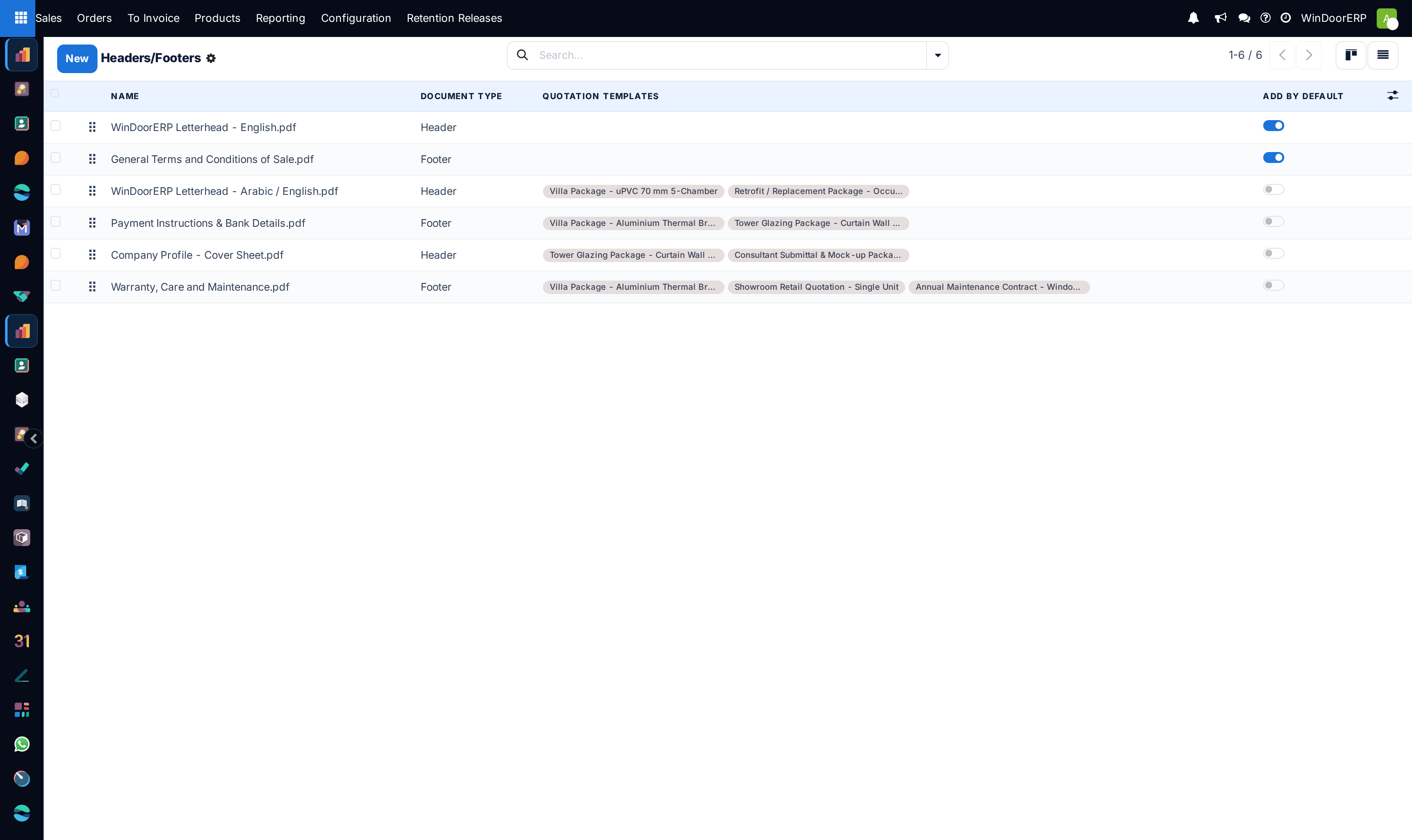
Open Sales › Configuration › Sales Orders › Headers/Footers and click New.
-
02
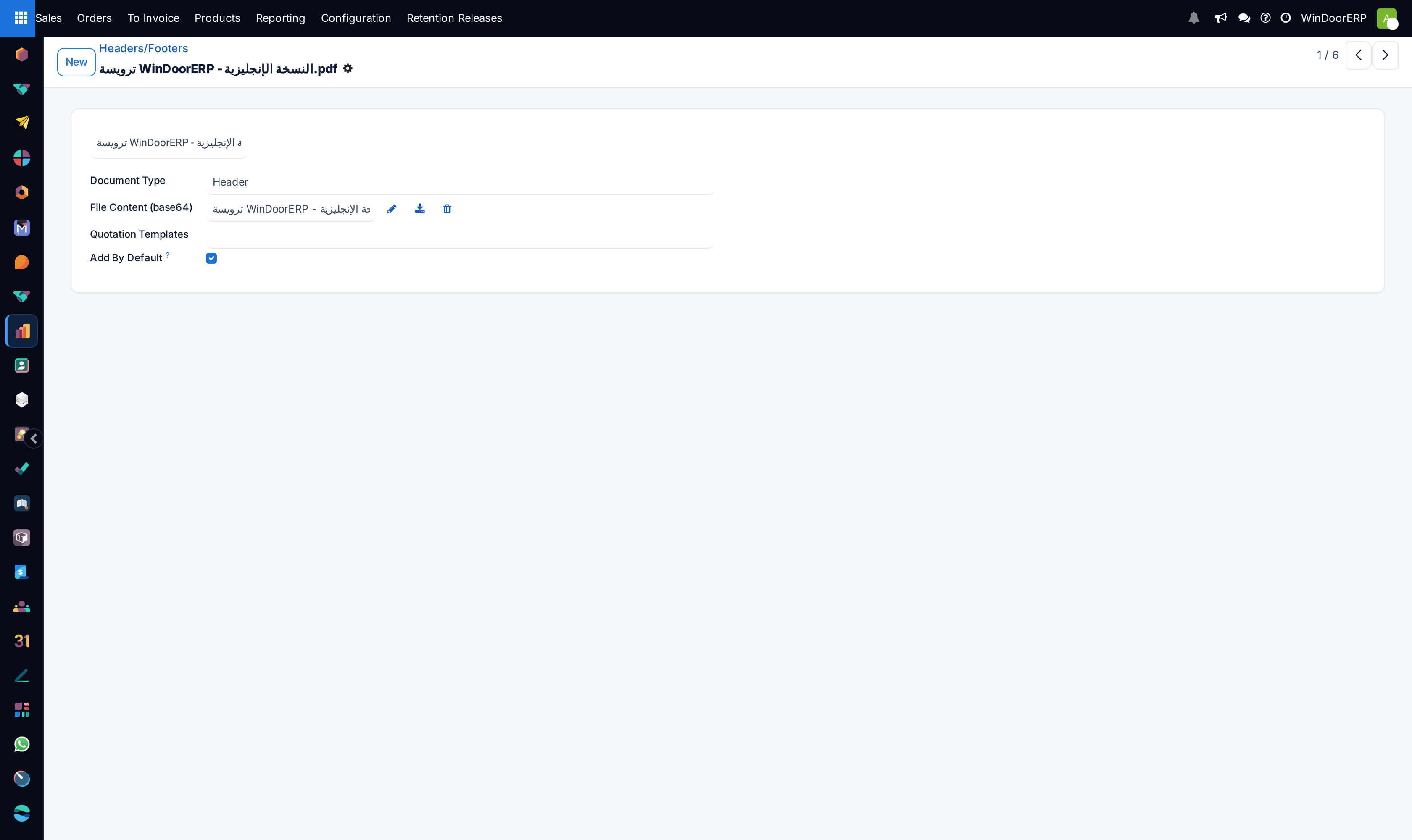
Set Document Type to Header or Footer — front of the quotation or back of it.
-
03
Upload the PDF into File Content. The name defaults to the file name; give it a clearer one if the file name is not self-explanatory.
-
04
Tick Add By Default if this page belongs on every quotation. Leave it clear for pages that only suit certain work.
-
05
Use Quotation Templates to restrict the page to particular templates. Empty means it can be used with any of them.
-
06
If the PDF contained form fields, they are now listed. Give each one a Path — a field on the sale order, written with dots to follow relations. Leave a path empty to fill that field by hand on each quotation instead.
-
07
Save, then check a real quotation's preview before anyone sends one.
The document, field by field
| Name | What the document is called in the lists and pickers. Taken from the file name at upload. |
|---|---|
| Document Type | Header or Footer. Headers are listed before footers, and within each type the order follows the sequence you drag them into. |
| File Content | The PDF itself, with buttons to replace, download or remove it. The label mentions base64 because the file is stored as an attachment; you still just upload a file. |
| Quotation Templates | Limits the page to those templates. Empty means unrestricted. |
| Add By Default | Puts the page on every new quotation without anyone choosing it. This is the setting that surprises people — see below. |
| Form Fields Included | Read-only, and only present when the PDF actually contains form fields. Filled in automatically when the file is uploaded. |
| Active | Archiving hides a page from new quotations without deleting it or disturbing quotations that already used it. |
Dynamic fields, and what a path is
A path is a field name on the sale order, or a chain of them joined by dots. partner_id.name is the customer's name — follow the customer link, then take the name. amount_total is the order total. date_order is the quotation date, and commitment_date the delivery date.
The path is checked as you save, against the sale order itself, so a mistake is caught immediately rather than producing a blank page later. A field that does not exist is refused with "The field … doesn't exist on model sale.order"; a path that stops following relations too early is refused with "Please use only relational fields until the last value of your path."; and anything other than letters, digits, hyphens, underscores and dots is refused outright.
The form field's own name in the PDF does not have to match the Odoo field. A field called delivery_date in the artwork is perfectly happy pointing at commitment_date, which is what that date is actually called.
Add By Default reaches every quotation, template or not
A document marked Add By Default is added to new quotations regardless of which template is used, and regardless of the Quotation Templates list on the document. It is the usual reason a page turns up on a proposal where it does not belong. When a customer receives the wrong cover page, check the defaults before you check the template.
Headers and footers versus product documents
These pages wrap the whole quotation. There is a second, similar mechanism for documents attached to individual products, which are inserted next to the line that carries the product — a data sheet, a test certificate. They use the same form-field machinery but their paths are read against the order line rather than the order, which is why a header field may not begin with sol_id_: that prefix belongs to the per-line documents.
Troubleshooting
| "Only PDF documents can be used as header or footer" | The file is not a PDF. Export it as one; an image or a Word file will not do. |
|---|---|
| The upload is refused on an encrypted file | Password-protected and permission-restricted PDFs cannot be assembled. Save an unprotected copy. |
| No form fields were detected | The PDF has none. Adding text that looks like a blank is not the same as adding a form field. |
| A field is blank on the finished quotation | Its path is empty, which means it was meant to be filled by hand on the quotation. |
| A page appears on quotations it should not | Add By Default. It overrides the template restriction. |
| The pages come out in the wrong order | Headers sort before footers, and within a type by sequence. Drag them into order in the list. |
Common mistakes
- Marking everything Add By Default, then wondering why every quotation is twelve pages long.
- Expecting a path to accept an expression. It is a field path, not a formula — no arithmetic, no conditions, no formatting.
- Replacing a PDF with a new revision whose form fields are named differently, which silently detaches the paths that were mapped to the old names.
- Deleting a page that is no longer wanted instead of archiving it, and losing the record of what old quotations were built from.
Was this article helpful?
Thanks — your feedback helps.
Running a window or door factory?
Ask for a demo