Manage product catalog, attach technical PDF cut-sheets, and configure specifications
What this does
Attaches technical documents — profile cross-sections, thermal and acoustic reports, manufacturer datasheets — to a product, and controls whether each one reaches the customer with a quotation.
The point is the submittal pack. A consultant asking for U-values wants them attached to the quotation, not emailed separately three days later.
Before you start
- Sales or Inventory access with rights to edit products.
- The documents themselves, named so a customer can tell what they are — a file called scan001.pdf helps nobody.
- Decide for each document whether the customer should see it at all. Some datasheets are internal.
Steps
-
01
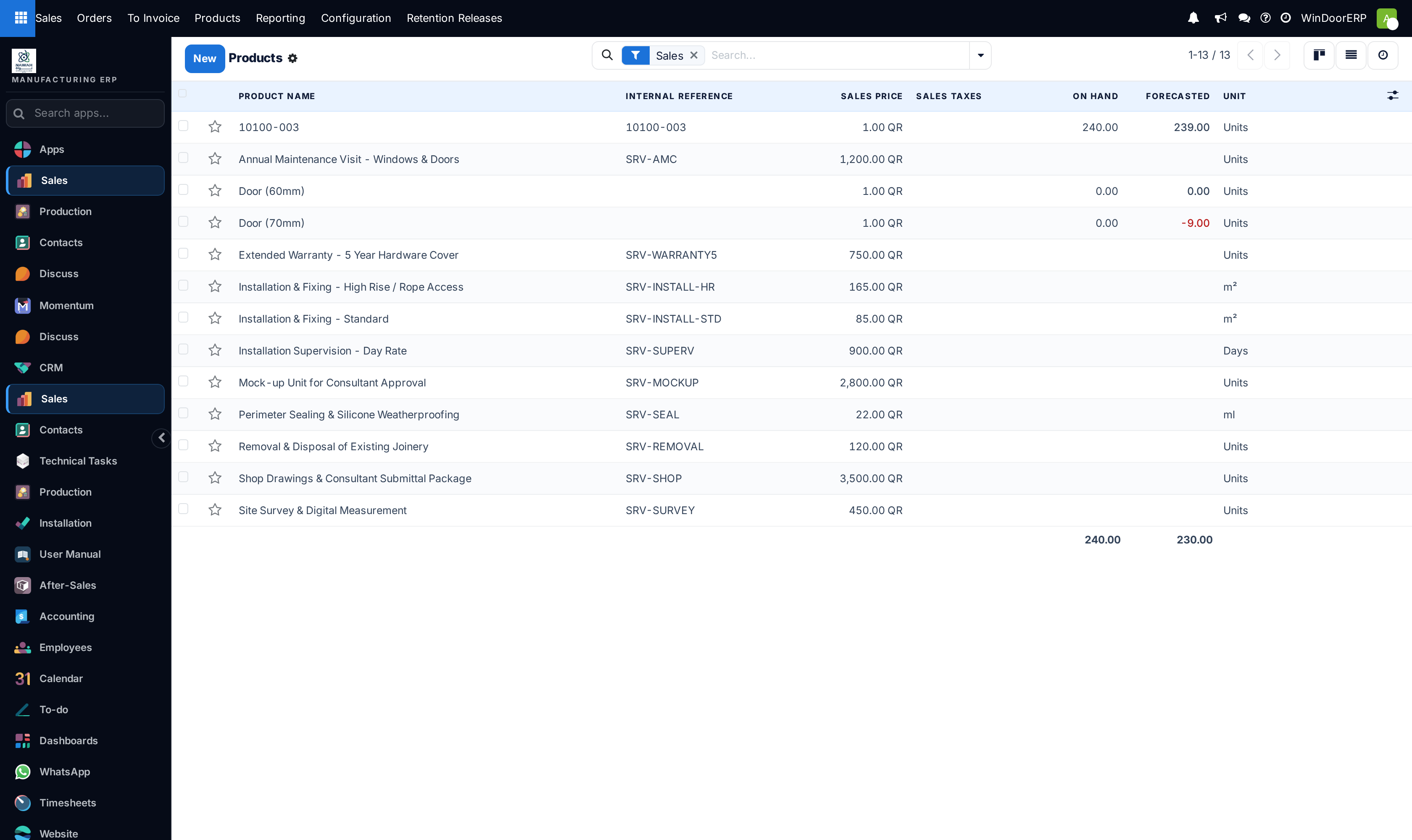
Open Sales ▸ Products ▸ Products and open the product.
-
02
Go to the Documents tab and upload the file, or add a URL if the document lives on the manufacturer's site.
-
03
Set Sale : Visible at — this is the field that decides whether and how the customer receives it.
-
04
Give it a clear Name and, where it helps, a Description.
-
05
Save, then produce a real quotation containing that product and check the document arrives as intended.
Sale : Visible at — the field that matters
| Hidden | Kept on the product for internal reference. The customer never sees it. Right for cost sheets and supplier correspondence. |
|---|---|
| On quote | Sent with the quotation as a separate attachment. Right for a datasheet the customer may want to file on its own. |
| On confirmed order | Held back until the order is confirmed. Right for installation instructions or a warranty document that only matters once the job is real. |
| Inside quote pdf | Merged into the quotation PDF itself, so the customer receives one document. Right for the technical pages a submittal must contain. |
The distinction between On quote and Inside quote pdf is the one people miss. The first arrives as a second file; the second becomes part of the quotation. For a consultant's submittal, merged is usually what is wanted.
Every field on a product document
| Name | What the customer sees. Use the document's real title. |
|---|---|
| Type | An uploaded file or a link. |
| Url | For a document hosted elsewhere — a manufacturer's specification page. |
| Sale : Visible at | Hidden, on quote, on confirmed order, or inside the quotation PDF. |
| Description | Context for whoever opens it later. |
| Sequence | The order documents are attached in — which becomes the page order in a merged PDF. |
| Is public document | Whether it can be reached without signing in. |
| File Size | Worth watching. Several large PDFs merged into a quotation make an email nobody can receive. |
| Active | Archive a superseded revision rather than deleting it. |
Keeping submittals honest
Attach documents to the product, not to individual quotations. Then every quotation containing that profile carries the current datasheet automatically, and there is one place to update when a certificate is renewed.
Watch the total size. Four merged reports at several megabytes each produce a quotation that bounces — check the outgoing mail server's attachment threshold if large quotations stop arriving.
When a certificate is superseded, archive the old one and upload the new. Leaving both attached means the customer receives two contradictory reports and picks the wrong one.
Troubleshooting
| The document did not reach the customer | Sale : Visible at is Hidden, or On confirmed order on a quotation that is not yet confirmed. |
|---|---|
| It arrived as a separate file, not in the PDF | That is On quote. Use Inside quote pdf to merge it. |
| The quotation email bounces | Merged attachments made it too large. Reduce them, or link rather than attach. |
| Pages are in the wrong order | Sequence on the documents. |
| An old certificate is still going out | Both revisions are attached. Archive the superseded one. |
| A link does not open for the customer | It points somewhere that requires a login, or the document is not public. |
Common mistakes
- Attaching documents to individual quotations, so the next one goes out without them.
- Confusing On quote with Inside quote pdf and sending a submittal in two pieces.
- Leaving a superseded certificate attached beside its replacement.
- Merging several large reports and producing a quotation nobody can receive.
- Uploading files named after the scanner rather than the document.
Was this article helpful?
Thanks — your feedback helps.
Running a window or door factory?
Ask for a demo