Create and manage sales teams from Sales: the Configuration list, the team on every order, and archiving
What this does
A sales team is the label WindoorERP stamps on every quotation, every sales order and every customer invoice, and it is the axis your sales reports group by. This article covers the whole life of one: creating it from Sales › Configuration › Sales Teams, staffing it, watching it land on the documents your salespeople raise, and retiring it when the organisation changes shape.
Settle one thing first, because it is the most common misunderstanding about teams: the team does not decide who may see which order. Visibility in the Sales app comes from the salesperson on the document. Someone whose access level is User: Own Documents Only sees the orders where they are the salesperson; someone on User: All Documents sees every order — and neither is affected by which team either of them belongs to. A team is for grouping, reporting and routing, not for privacy.
Most companies need very few teams. One per way of selling, not one per person: a joinery contractor might run Residential, Contracting and Trade Counter and never need a fourth.
Where the rest of the team is documented
The team record has a CRM half — the Pipeline and Leads toggles, the email alias, member capacity and rule-based lead assignment. That half is covered in Set up sales teams: leader, email alias, invoicing target and members and in Set member capacity, pause assignment and the two lead filters. Using a team's card as a launcher into its orders, invoices and Sales Analysis is covered in Open a sales team's orders, invoices and Sales Analysis from its card. This article is the one about creating the team and looking after it afterwards.
Before you start
- You need the Administrator level of the Sales access privilege to see Sales › Configuration at all. The two levels below it — User: Own Documents Only and User: All Documents — may read team records but cannot create or change one, and never see the menu.
- A standard WindoorERP tenant ships with one active team called Sales, led by the administrator. Two more, Website and Point of Sale, ship archived and stay out of your way.
- A person belongs to one team. If someone genuinely sells for two, that has to be switched on deliberately, from a banner on the team form, and it is a database-wide change with no button to undo it.
- Decide the shape with the sales owner before you type. Renaming a team later is easy; splitting one that has a year of orders on it is not, because the team recorded on those orders does not move when the organisation does.
Steps
-
01
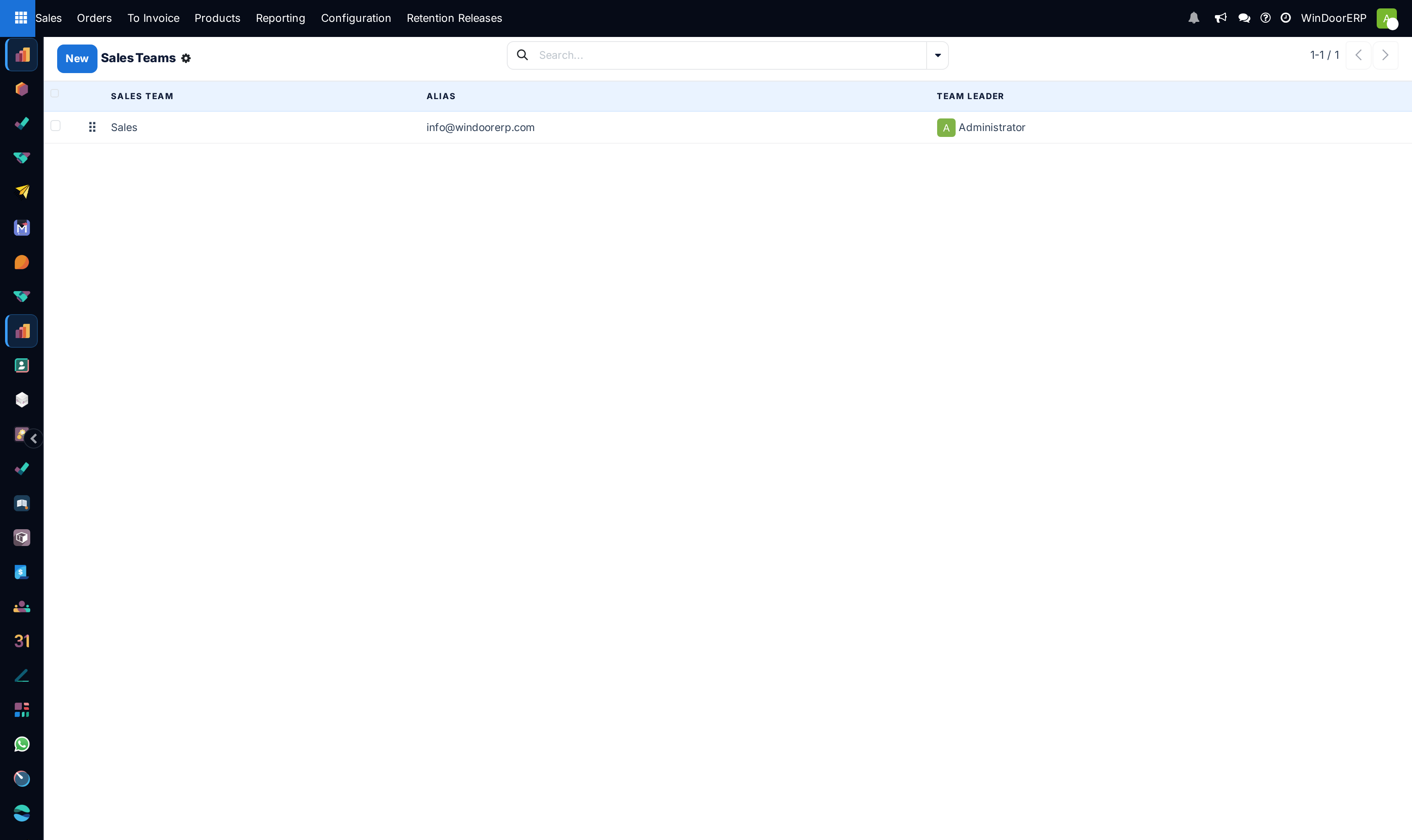
Open Sales › Configuration › Sales Teams. This is a list — one row per team — and it is a different screen from the card view at Sales › Orders › Sales Teams.
-
02
Click New. The team form opens on an empty record.
-
03
Type the team's name in the Sales Team box at the top. The placeholder suggests a region; naming a team for what it sells usually ages better than naming it for where it sells.
-
04
Pick a Team Leader. Only internal users are offered — portal and shared users are filtered out of the list, so if someone is missing that is why.
-
05
Enter an Invoicing Target if you want to record one. It is a monthly figure in the company currency and the form writes / Month beside it.
-
06
In a multi-company database, set Company only if the team belongs to one of them. Left empty — the placeholder reads Visible to all — the team is available to every company.
-
07
Open the Members tab and click the Add Salespersons tile. Pick the people who sell for this team.
-
08
Save. The chatter posts Sales Team created, and from that moment every change to the record is logged there.
-
09
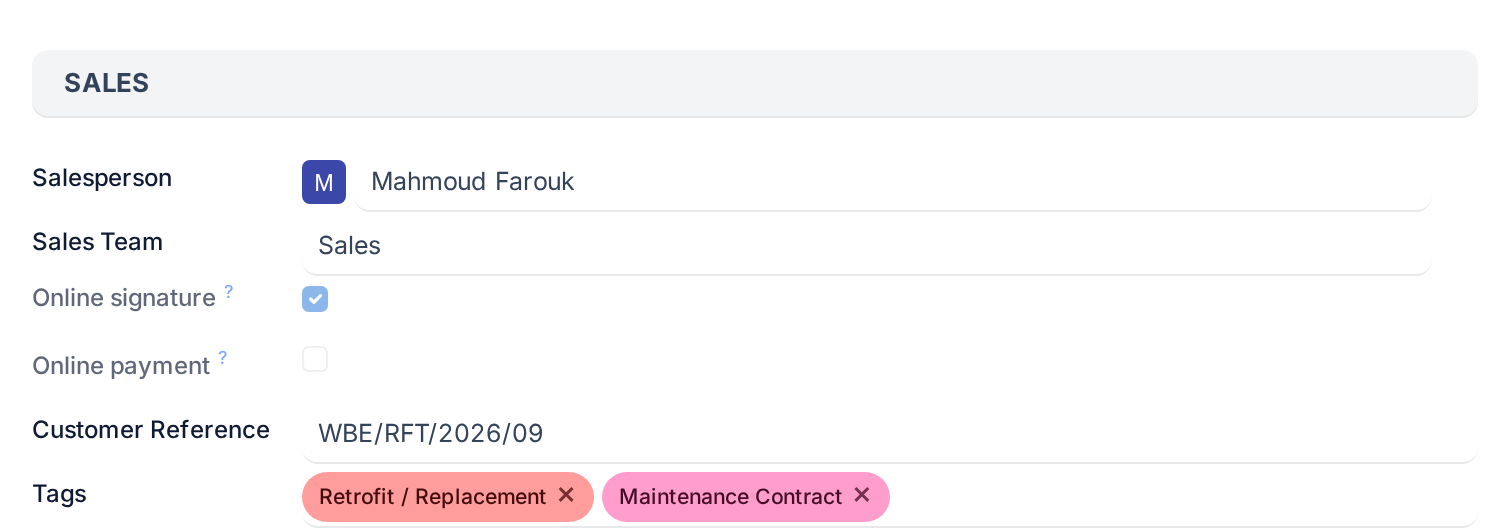
Check it worked: start a new quotation as one of the members and open its Other Info tab. The Sales Team box should already hold the team you just made.
The Sales Teams list, column by column
The list is deliberately narrow. It exists to let you see every team at once, put them in the order you want, and open the one you need.
| Column | What it does |
|---|---|
| The drag handle, far left | The team's Sequence. Dragging a row changes the order teams appear in everywhere they are listed — and, less obviously, which team the system picks first when it has to guess one for a document. Teams sort by sequence ascending, then most recently created first. |
| Sales Team | The name. It is read-only in this list: you cannot rename a team by clicking the cell, you have to open the record. The name is translated per language, so an Arabic reader may legitimately see a different string for the same team. |
| Alias | The team's incoming mail address, shown as a whole address. Mail arriving there creates records for this team. The column is contributed by the CRM app; the alias itself is documented with the rest of the CRM half. |
| Team Leader | Shown as an avatar and a name. Restricted to internal users. |
| Company | Present only in a multi-company database. Blank means the team is visible to all companies. |
Above the list, the search box matches on three things: the team name, the team leader, and the members — so typing a salesperson's name is the quickest way to find out which team they are on. One filter is offered, Archived, and two groupings: Team Leader, and Company in a multi-company database.
The list also accepts multi-edit: tick several rows, change a cell, and WindoorERP asks whether to apply the change to every record you selected. It is the fast way to hand five teams to a new leader.
The team form as it opens from Configuration
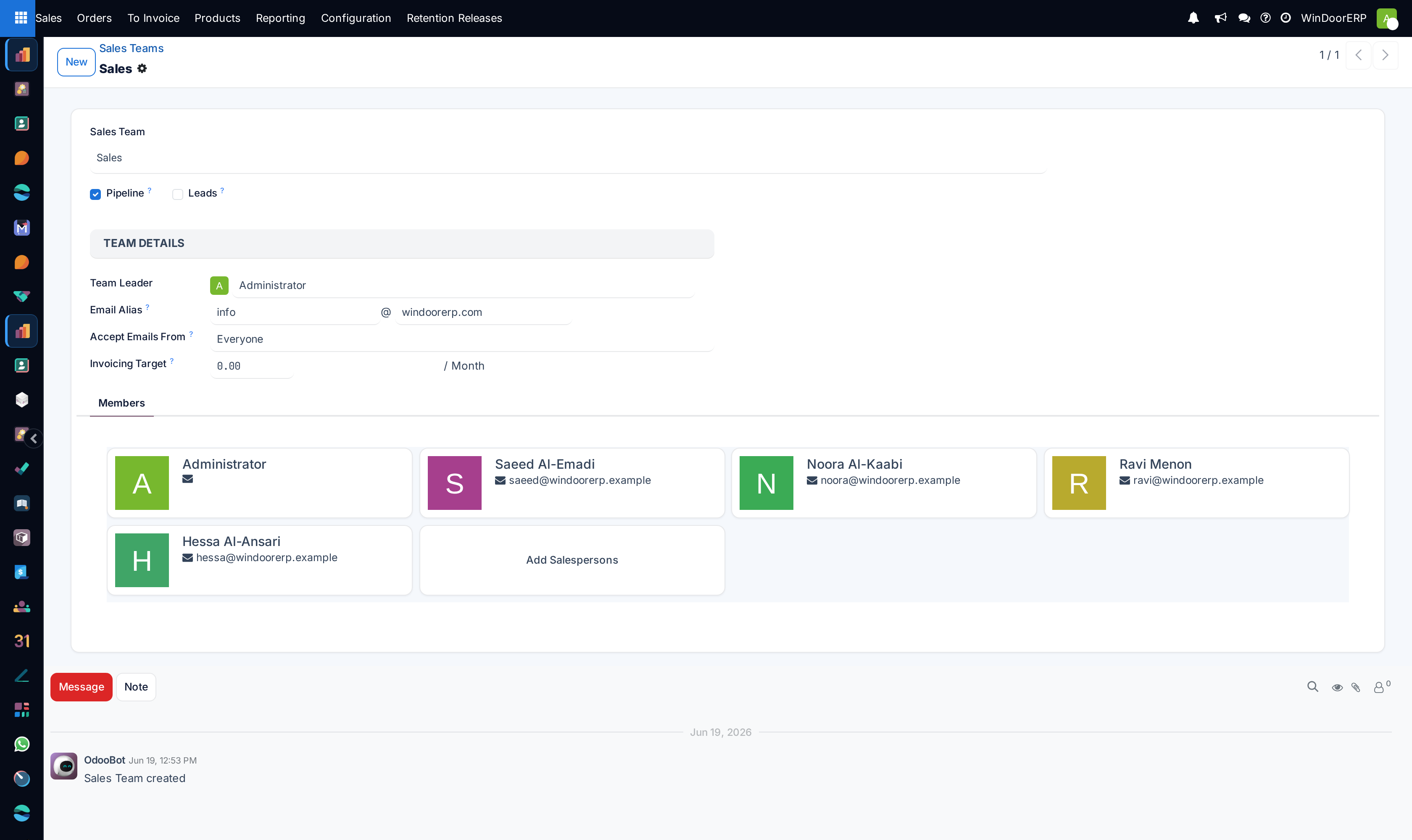
The form is one sheet: the name and its toggles at the top, a Team Details group on the left, the Members tab below, and a chatter at the bottom. These are the fields this article owns.
| Field | What it does |
|---|---|
| Sales Team | The name, required, translated per language. Placeholder e.g. North America. |
| Team Leader | A single internal user, shown with an avatar. Used as the default follower on the team's records. Not the same thing as being a member — a leader who should also carry deals has to be added on the Members tab too. |
| Company | Only rendered in a multi-company database. Empty means visible to all; the placeholder says so. Setting it restricts the team, and it also restricts who may be a member: a member has to belong to that company. |
| Invoicing Target | A monthly money figure in the company currency, suffixed / Month. It is a goal you record, nothing more — no screen compares against it automatically, nothing is blocked when it is passed, and there is no progress bar on any card in this release. |
| Members tab | A grid of salesperson cards, each with a name and an email, plus an Add Salespersons tile at the end. This is the plain membership list. It is replaced by a richer set of member records — one per person per team, each with a capacity and its own filters — once rule-based lead assignment is enabled, which it is not by default. |
| The Archived ribbon | Drawn across the top right of the sheet when the team is archived. It is the only sign on the form, so look for it before wondering why a team is not offered anywhere. |
| The chatter | Present, so team changes are logged and people can follow a team. The first entry on a new record is Sales Team created. |
The form shows more than the Sales app puts there
Because CRM is installed on this tenant, the same form also carries the Pipeline and Leads toggles, the Email Alias and Accept Emails From boxes, and — when rule-based assignment is switched on — an Assign Leads button and an assignment group on the right. Those belong to the CRM half of the record and are documented there. The form is the same record whichever app you reach it from.
How the team lands on a quotation, an order and an invoice
The team on a sales document is a real stored value, written when the record is created and editable afterwards. It is not looked up on the fly, which is exactly why a team change today does not rewrite last year's orders.
When a quotation is created, WindoorERP chooses the team by working down this list until something matches:
- A team that the order's salesperson leads or is a member of, and that the order's company may use. If more than one qualifies, the team the screen you started from already suggested wins; failing that, the first by the ordering on the list — lowest sequence, then most recently created.
- The team the screen suggested, even if the salesperson does not belong to it. Starting a quotation from a team's card is what puts a team there.
- Any team the order's company may use, taken first by that same ordering.
Note what drives it: the salesperson recorded on the order, not the person typing. A manager raising a quotation on a colleague's behalf gets the colleague's team, provided the salesperson is set before the record is saved.
Once written, the field lives on the Other Info tab, in the Sales group, directly under Salesperson.
Elsewhere the same value turns up in three places worth knowing about.
| Where | What you get |
|---|---|
| The Quotations and Orders lists | A Sales Team column that is available but hidden by default. Add it from the column picker at the right-hand end of the header row. |
| The search bar on those lists | Sales Team is a searchable field: type a team name and pick it to filter. It is also a grouping in Sales Analysis. |
| The order's chatter | The team is a tracked field, so moving an order from one team to another is logged with the old and new value and who did it. |
Changing the salesperson overwrites a team you set by hand
The team is recomputed from the salesperson. If you pick a team yourself and then change the Salesperson on the same order, the team is recalculated from the new salesperson and your choice is replaced. Set the salesperson first, the team second.
Invoices behave in two different ways depending on where they come from. An invoice raised from a sales order — from the order's Create Invoice button or the To Invoice queue — copies the order's team, whatever it says. An invoice created by hand in Accounting gets its team from the same rule as above, applied to the invoice's own salesperson. So a hand-written invoice can carry a different team from the order it relates to, and nothing warns you.
Changing the team on a record
The Sales Team box on an order is an ordinary editable field: open the order, change it on the Other Info tab, save. Three things follow, and it is worth knowing which.
| What follows | Detail |
|---|---|
| Reporting moves with it, retroactively | Every team-filtered report reads the value as it stands now, so an order moved to another team leaves the old team's figures — including last month's — and joins the new team's. |
| Nothing else changes | No repricing, no change of salesperson, no effect on delivery, production or invoicing. The team is a label. |
| The change is on that record only | It is logged in the chatter, and it applies to that one order — there is no bulk "move this salesperson's history" anywhere in the product. |
Managing a team over time
Teams outlive the arrangements that created them, so most of the work is maintenance rather than creation.
| What you want to do | How, and what happens |
|---|---|
| Add or remove a salesperson | The Members tab. Removing someone does not touch their existing orders — those already carry the team as a stored value. It only changes what new documents will be given. |
| Move someone to another team | Add them to the new team. With one-team membership in force, that moves them rather than duplicating them, and their old membership is deactivated. |
| Let someone sell for two teams | The form shows a banner naming the clash — "… already in other teams (…)" — with an Activate "Multi-team" button. Pressing it switches multi-team membership on for the whole database, not for this team, and only an Administrator may press it. There is no button anywhere that switches it back off. |
| Rename a team | Open the record and edit the name; the list will not let you. The name is translated per language, so renaming while working in Arabic changes the Arabic name and leaves the English one alone. |
| Re-order the teams | Drag the handle on the list. Besides tidiness this decides which team is picked first when the system has to fall back to "any team". |
| Copy a team | The cog menu beside the team's name on the form offers Duplicate. The copy keeps the leader and the invoicing target, arrives with no members, and carries the same name as the original — rename it before you save or you will have two teams called the same thing. |
Archiving and deleting a team
When a team stops being used, archive it. Deleting is possible but usually refused, and for good reasons.
To archive, open the team and use the cog menu beside its name, then Archive. The team disappears from the list, from the card view and from every dropdown that offers a team. Its history is untouched: the orders and invoices it collected still name it, and reports still group by it. Bring it back with the Archived filter on the list and Unarchive in the same menu.
The two guards on Delete
Deleting is in the same menu, and two guards stand in front of it.
- The two teams that ship with the system, Website and Point of Sale, refuse outright: "Cannot delete default team "Website"". Archived is how they already are; leave them alone.
- A team carrying five or more sales orders that are not cancelled refuses: "Team Sales has 37 active sale orders. Consider cancelling them or archiving the team instead." Quotations count towards that five — the guard counts every order whose status is anything other than Cancelled.
Below five orders, the delete goes through, and the Sales Team box on those documents is simply emptied rather than the delete being blocked. That is the real argument for archiving: a deleted team takes its name off the history and leaves you with orders belonging to nobody.
Who can do what
| Access level | On sales teams |
|---|---|
| User: Own Documents Only | May read team records — the Sales Team box on an order is a working dropdown for them — but cannot create or change one, and does not get the Configuration menu. Sees the orders where they are the salesperson. |
| User: All Documents | The same on teams, plus every order regardless of salesperson or team. |
| Administrator | Creates, edits, archives and deletes teams; the only level that sees Sales › Configuration › Sales Teams, the Sales › Orders › Sales Teams card view, and the Activate "Multi-team" button. |
Every internal user, including people with no sales rights at all, can read team records — that is what lets a team name render on a document they are allowed to open.
Troubleshooting
| What you see | Why, and what to do |
|---|---|
| No Configuration menu in the Sales app | Your Sales access level is not Administrator. Nothing in this article is reachable below that level. |
| "Cannot delete default team "Website"" | You are deleting one of the two teams that ship with the system. They cannot be removed. They are already archived and harmless. |
| "Team … has … active sale orders. Consider cancelling them or archiving the team instead." | The team carries five or more orders that are not cancelled. Archive it instead — that is what the message is telling you to do. |
| "The following team members are not allowed in company '…' of the Sales Team '…': …" | You set a Company on a team whose members do not belong to that company. Either clear the company or fix the members' company access. This message is not translated and appears in English even in an Arabic session. |
| A banner reading "… already in other teams (…)" | Not an error. It is warning you that saving will move those people off their current team, because one-team membership is in force. |
| Adding someone to a team removed them from another | Exactly what the banner warned about. Use Activate "Multi-team" if people genuinely sell for two teams. |
| A new quotation shows the wrong team | Look at the Salesperson on it. The team follows the salesperson, and where the salesperson is on no team it falls back to the first team in the list. |
| The team you set on an order changed by itself | Somebody changed the salesperson afterwards, which recomputes the team. The chatter will show both changes. |
| You cannot rename a team from the list | The name column is read-only there. Open the record. |
| A person is missing from the Team Leader dropdown | They are a portal or shared user, not an internal one. Only internal users may lead a team. |
| A team is nowhere to be found | It is archived. Apply the Archived filter on the list to see it. |
Common mistakes
- Expecting a team to restrict what its members can see. It does not — access comes from the salesperson on the document and the user's own access level.
- Creating a team per salesperson. Teams group ways of selling; individuals are handled by membership inside a team.
- Changing membership and expecting old orders to follow. The team was written onto them once and stays there.
- Deleting a team instead of archiving it. Below five orders the delete succeeds and quietly empties the team on the documents that had it.
- Setting an Invoicing Target and waiting for something to happen. Nothing measures against it automatically in this release.
- Assuming every invoice carries the team of the order behind it. Invoices raised from an order do; invoices typed by hand take the team of whoever is on the invoice.
- Picking the team first and the salesperson second on a new quotation. The second choice overwrites the first.
Was this article helpful?
Thanks — your feedback helps.
Running a window or door factory?
Ask for a demo