Configure scheduled actions, email templates, SMS logs, and Discuss infrastructure
What this does
Settings › Technical is where an administrator watches and adjusts the machinery that runs behind every WindoorERP screen: the Scheduled Actions that post mail queues and sync data on a timer, the Email Templates behind every automatic message, the per-recipient Notifications log that answers "why did she not get it", the SMS log and blacklists, the Discuss (internal chat) plumbing, activity types and plans, and digest emails. This article covers those surfaces; the mail servers themselves have their own articles.
See also
How mail actually enters and leaves the database — outgoing and incoming servers, aliases and the catchall — is covered in Understand how WindoorERP sends and receives email, Send outgoing email from the database and Fix an email that did not arrive.
Before you start
- You need administrator access and developer mode — the whole Technical menu is hidden until developer mode is active.
- These screens change live system behaviour. Deactivating a scheduled action or editing a template affects every user immediately.
- There is no Automation Rules menu and no live chat on WindoorERP — the Automation section holds exactly Scheduled Actions and Scheduled Actions Triggers, and the Discuss menus serve internal chat, not a website chat widget.
Steps
-
01
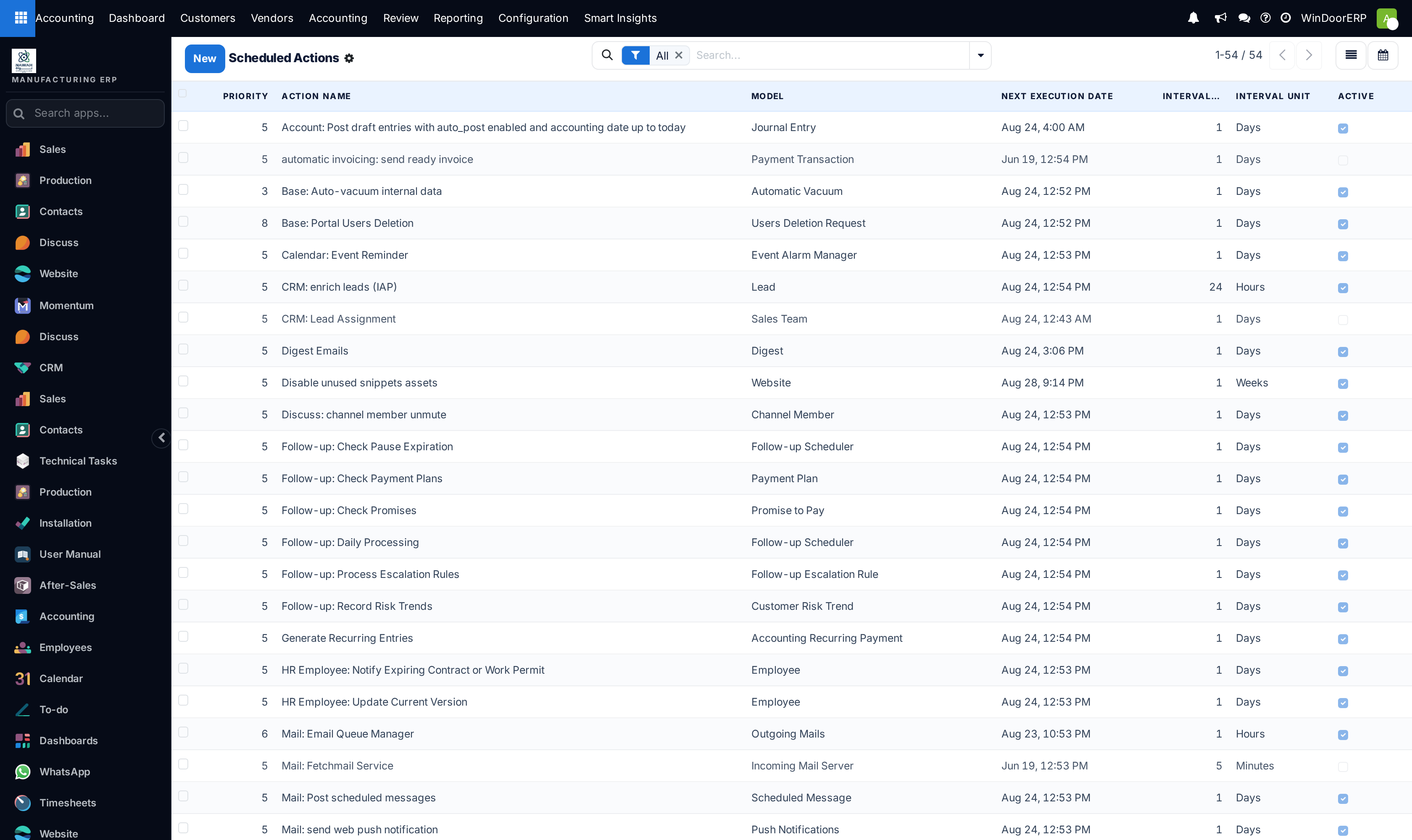
Open Settings › Technical › Automation › Scheduled Actions to see every background job, its model, its next run and whether it is active.
-
02
Open a job and press Run Manually to execute it now instead of waiting for its schedule — the usual reason is "the mail queue runs hourly and I want this quotation out now".
-
03
Open Settings › Technical › Email › Email Templates to adjust the wording of an automatic message; use Preview to render it against a real record before saving.
-
04
When someone says a message never reached them, open Settings › Technical › Discuss › Notifications and read the Status and Failure type of their row.
-
05
Manage opted-out recipients under Phone / SMS › Phone Blacklist and Discuss › Email Blacklist.
-
06
Under Email › Digest Emails, open a digest and press Subscribe to receive the periodic KPI summary yourself.
Scheduled actions — the background heartbeat
Every recurring job in WindoorERP is a record here: mail queues, auto-vacuum, follow-up processing, digest sending, plus the WindoorERP-specific jobs your modules add. The list shows each job's Priority (0 runs first, 10 last), Action Name, Model, Next Execution Date, interval and Active flag; a calendar view of the same action plots jobs by their next run.
The form is compact:
| Field | What it does |
|---|---|
| Model | The model the job's code runs against — the code reaches it as model. |
| Scheduler User | The job runs with this user's permissions. Most shipped jobs run as OdooBot. |
| Execute Every | The repeat interval: a number plus Minutes, Hours, Days, Weeks or Months. The number must be strictly positive. |
| Active | Off means the job never runs — several jobs ship deactivated on purpose and wait for you to switch them on. |
| Next Execution Date | When the scheduler will next pick the job up. The Last Execution Date of the last successful run is also stored on the record. |
| Priority | Order among jobs due at the same moment: 0 is highest, 10 lowest, 5 the default. |
| Code / Help / Usage tabs | The Python the job executes, and its documentation. |
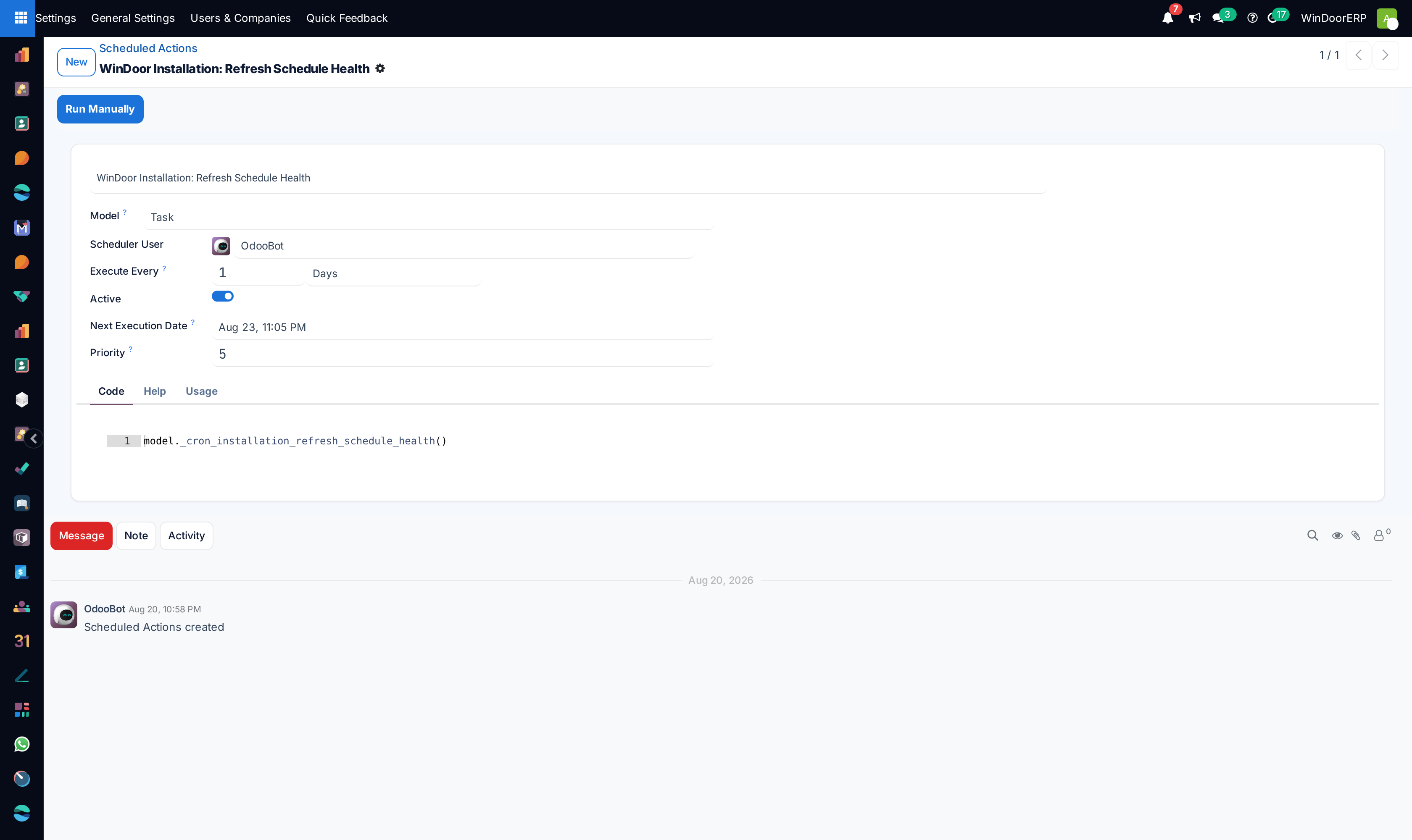
Run Manually executes the job immediately, in your session, exactly as the scheduler would. If a server worker is executing the same job at that moment you are refused with "Job '…' already executing" — and for the same reason a running job briefly refuses edits with "Record cannot be modified right now". Errors the job raises are shown to you in a dialog instead of disappearing into the log.
Failures are tracked per job: a Failure Count and First Failure Date are stamped on every consecutive failed run and reset by any successful one. A job is deactivated automatically only when it has failed five or more times and its first failure is more than seven days old — administrators are then notified in Discuss: "Cron job … has been deactivated after failing … times. More information can be found in the server logs …". A job that times out three consecutive times counts as failed.
The Scheduled Actions Triggers menu lists one-off wake-ups that make a job run before its Next Execution Date — features like "send now" create them internally. They are consumed when the job starts; you never create them by hand.
Jobs worth knowing on a WindoorERP database: Mail: Email Queue Manager (hourly — this is why an email can legitimately sit "in queue" for up to an hour), Mail: Fetchmail Service (every 5 minutes once an incoming server is configured; it ships deactivated), Mail: Post scheduled messages (daily, posts chatter messages queued with Send Later), Digest Emails (daily), Base: Auto-vacuum internal data (daily housekeeping), and the WindoorERP jobs such as Manual: process export jobs. Deactivated rows like CRM: Lead Assignment or automatic invoicing: send ready invoice are features waiting to be enabled, not faults.
Email templates
Every automatic email — quotation sent, portal invitation, rating request — is rendered from a mail.template record here, so this screen is where you change the wording your customers see. The Body tab is a normal editor; type /field inside it (or {{ … }} in the Subject) to insert a placeholder filled from the record at send time.
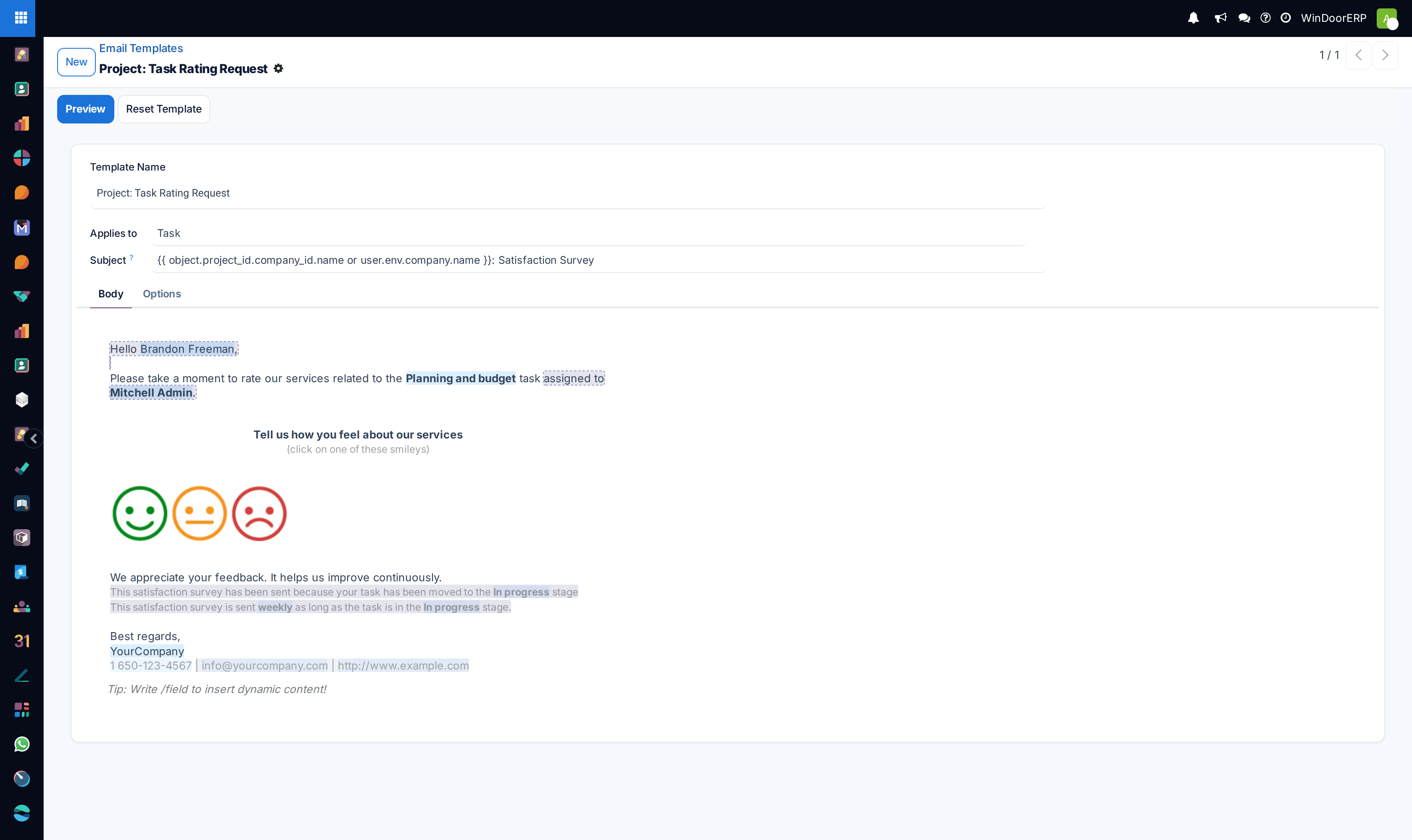
| Field | What it does |
|---|---|
| Template Name / Applies to | The template's name and the model whose records it renders against. |
| Subject | Supports inline placeholders — the form's own example is Nice to meet you, {{ object.name }}. |
| Body tab | The message HTML with dynamic placeholders. |
| Options tab | Addressing and delivery: Send From, To (Emails), To (Partners), Cc, Reply To, Default Recipients, Language, Outgoing Mail Server (empty = by server priority), Scheduled Send Date, Auto Delete, static Attachments and Dynamic Reports — PDF reports rendered per record and attached at send time. |
Preview renders the template against a record you pick (it preselects the model's first record) in any installed language; a broken placeholder shows its error inside the preview window rather than crashing. Reset Template restores a shipped template to its factory content. Add Context Action puts the template in the ⚙ actions menu of its model so users can send it from any list or form; Remove Context Action takes it out again. Two guards to know: a template cannot be saved on an abstract model ("You may not define a template on an abstract model"), and saving test-renders the dynamic fields — a broken expression is refused with "Oops! We couldn't save your template due to an issue" and the error detail.
When a message does not arrive — the Notifications log
Discuss › Messages stores every chatter post, email and comment in the database; Discuss › Notifications stores one row per recipient per message, and that row is where delivery questions are settled. Each row carries the Notification Type (Inbox, Email, SMS, Snailmail), the Status ladder — Ready to Send, Processing, Sent, Delivered, Bounced, Exception, Cancelled — and on failure a precise Failure type: Invalid email address, Connection failed (outgoing mail server problem), Blacklisted Address, Duplicated Email, the SMS failures, and more.
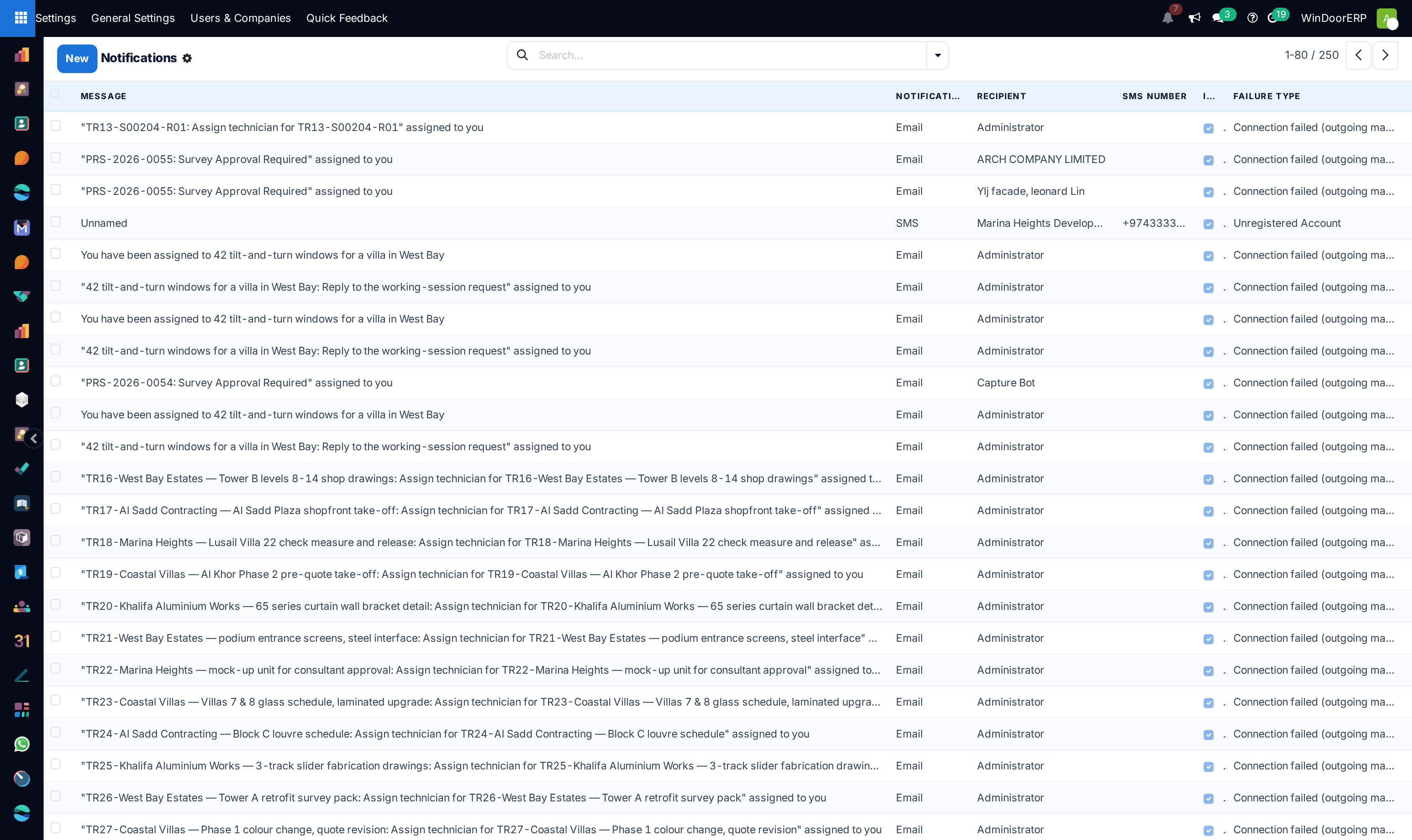
Read the ladder carefully: Sent means WindoorERP handed the message to the mail server; Delivered means delivery was confirmed. A recipient complaining about a message whose row says Sent has a mailbox or spam problem, not a WindoorERP problem. Rows older than six months are purged by the Notification: Delete Notifications older than 6 Months job.
Two configurable models live beside these logs. Subtypes define the events a follower can subscribe to on each model; Default means new followers get that event automatically, and Internal Only means portal followers never receive it — the switch to check when a customer is getting chatter noise they should not see. Followers lists who follows which document and which subtypes they receive.
SMS — log, templates, blacklist, and the sending truth
SMS in WindoorERP is sent exclusively through the Odoo IAP service — there is no SMS gateway to configure, no provider screen, no SMSC host. Sending requires an IAP account registered for SMS with purchased credits; on a fresh WindoorERP database none exists, so an attempted SMS fails with Unregistered Account or Insufficient Credit. Treat these menus as the inspection surface they are.
Phone / SMS › SMS is the outbound log: number, customer, body, and an SMS Status of In Queue, Processing, Sent, Delivered, Error or Cancelled, with a Failure Type naming the cause — Missing Number, Wrong Number Format, Country Not Supported, Insufficient Credit, Unregistered Account, Blacklisted, Duplicate, Opted Out. The queue is drained by the SMS: SMS Queue Manager job. SMS Templates mirror email templates in plain text, with the same placeholders and the same context-action buttons.
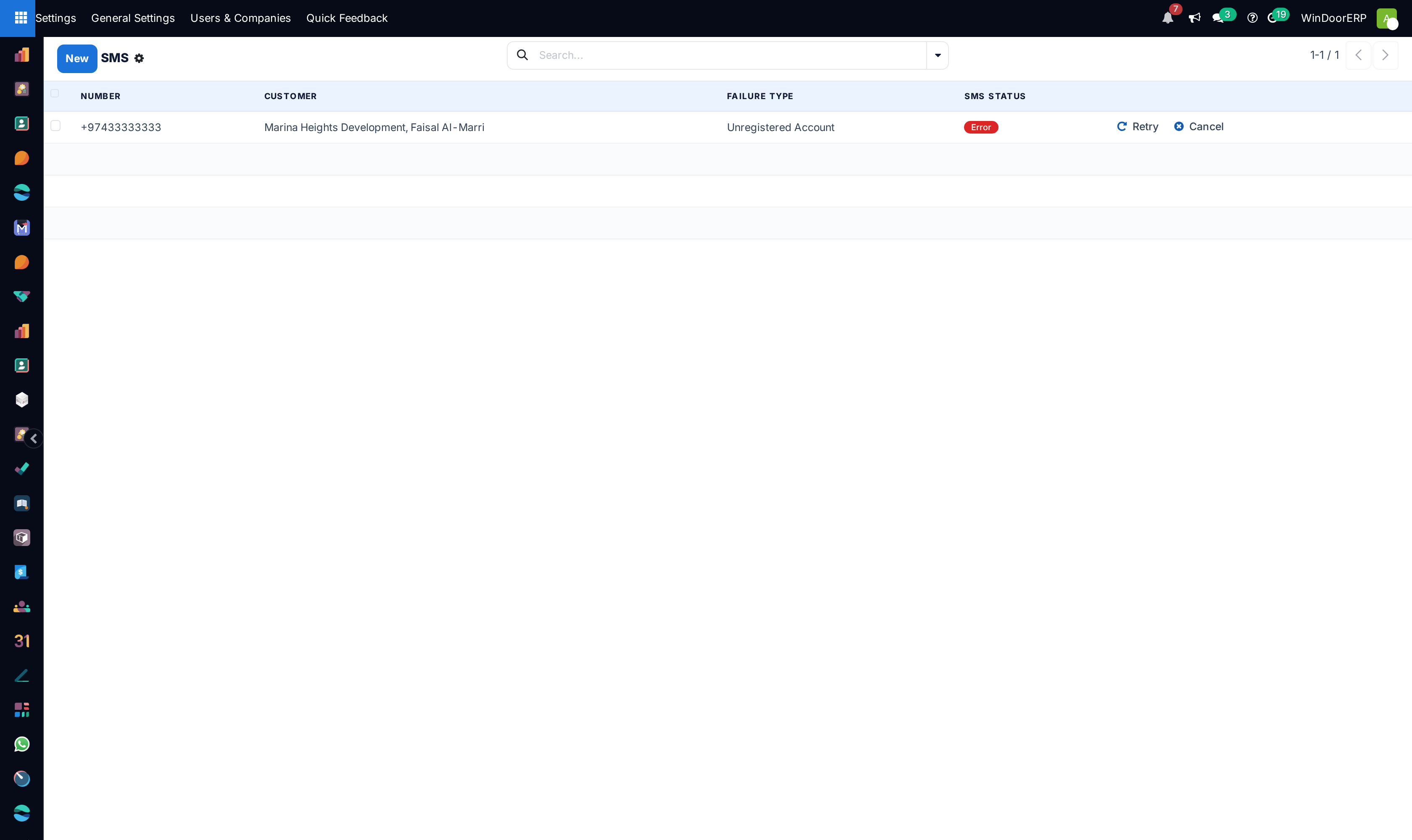
Phone Blacklist holds numbers that must never be texted — added by an unsubscribe link or by hand. Every number is validated and normalised to international +974… format on save; a number that cannot be parsed is refused with "… Please correct the number and try again.". The email equivalent is Discuss › Email Blacklist, which refuses non-addresses with "Invalid email address" — blacklisted recipients then fail with the Blacklisted Address / Blacklisted failure types rather than being silently skipped.
The rest of the Discuss menus
The remaining Discuss entries are logs and per-user preferences you will mostly read, not edit:
| Menu | What it holds |
|---|---|
| Tracking Values | The audit trail behind every "field: old ➜ new" chatter line, kept even after a field is uninstalled. |
| Ratings | Customer satisfaction answers (list, kanban, pivot, graph) collected by rating emails. |
| User Settings | Per-user Discuss preferences: sidebar state, push-to-talk key, voice duration, notification choices. |
| Scheduled Messages | The chatter Send Later queue, posted by its daily job. |
| RTC sessions | Discuss voice/video calls in progress right now — normally empty. |
| ICE Servers | Optional STUN/TURN servers for Discuss calls (see below). |
| Link Previews | The cached URL cards shown under chat messages. |
| Message Reactions | Every emoji reaction, with who reacted. |
| Guests | People who joined a Discuss channel or call from an invite link without logging in. |
| GIF favorite | Per-user GIF bookmarks. |
On ICE Servers, the screen's own guidance is the whole story: "Use your own servers for calls to manage heavy traffic and ensure reliability if Twilio is unavailable." Each record is a stun: or turn: URI with optional credentials; only the first five are used. With none configured, Discuss calls still work on ordinary networks but can fail across strict firewalls.
Activities: types and plans
Activities › Activity Types defines the to-do vocabulary offered on every chatter — each type sets its default summary, its due-date offset (Schedule, counted from the previous activity's completion or deadline), and an Action that hooks special behaviour: Upload Document asks for a file when marking done, Meeting opens the calendar flow. Chaining Type decides what happens when the activity is done: Suggest Next Activity offers the follow-ups you list, Trigger Next Activity schedules one automatically. A type can be limited to one model or usable everywhere.
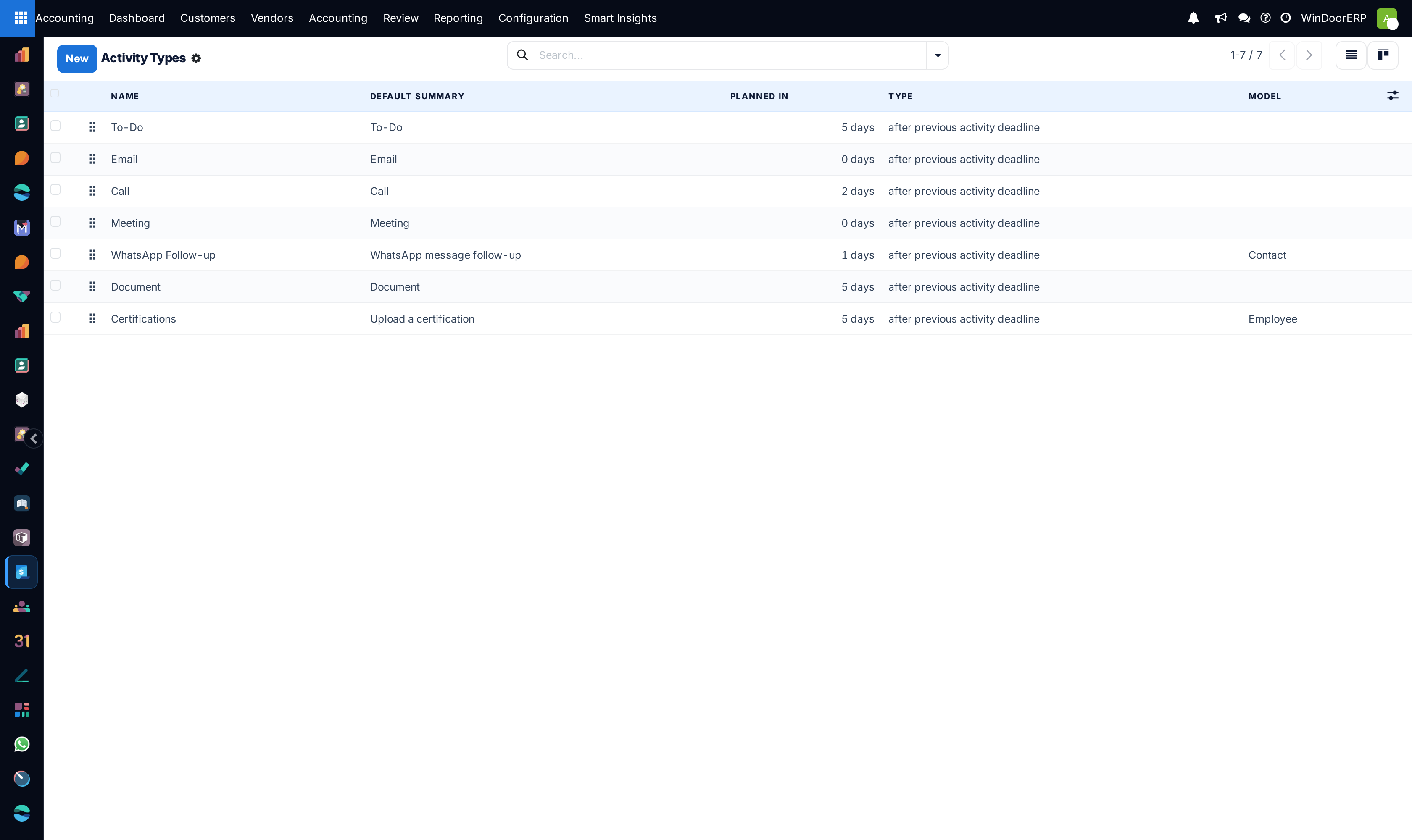
Activity Plans bundle several activity templates into one checklist — one click on a record schedules the whole sequence, each step with its own type, assignee rule and delay. Activity Overview lists every scheduled activity across all models with its state: overdue, today or planned.
Digest emails
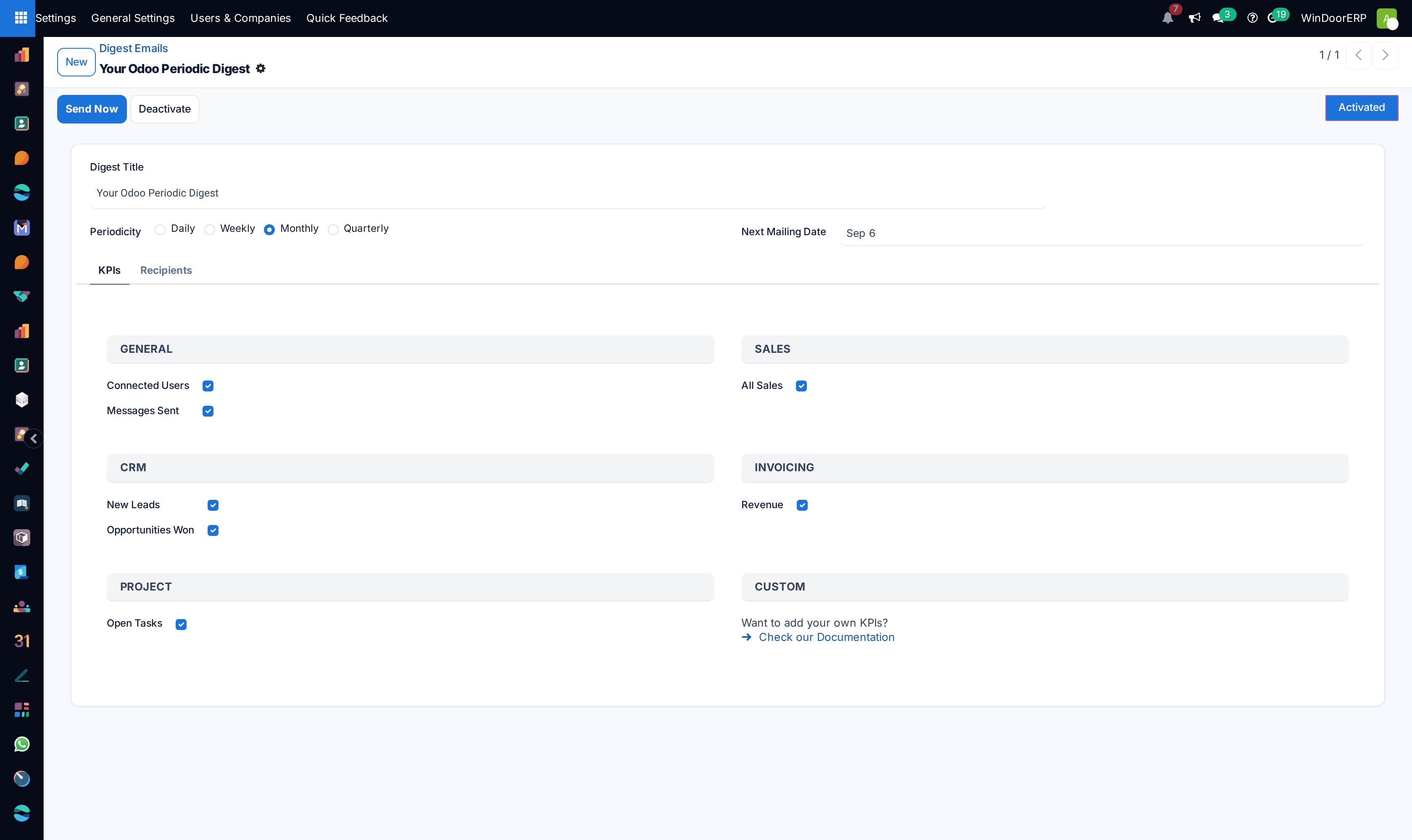
Email › Digest Emails sends recipients a periodic KPI summary — connected users, messages sent, revenue, new leads, opportunities won, open tasks — at a Periodicity of daily, weekly, monthly or quarterly. Any internal user can press Subscribe / Unsubscribe on the form, administrators can edit Recipients directly, and Send Now mails the current numbers immediately without moving the schedule. A digest whose recipients stop logging in slows its own periodicity and says so in the email. Digest Tips is the pool of rotating tips appended to each issue.
IAP accounts
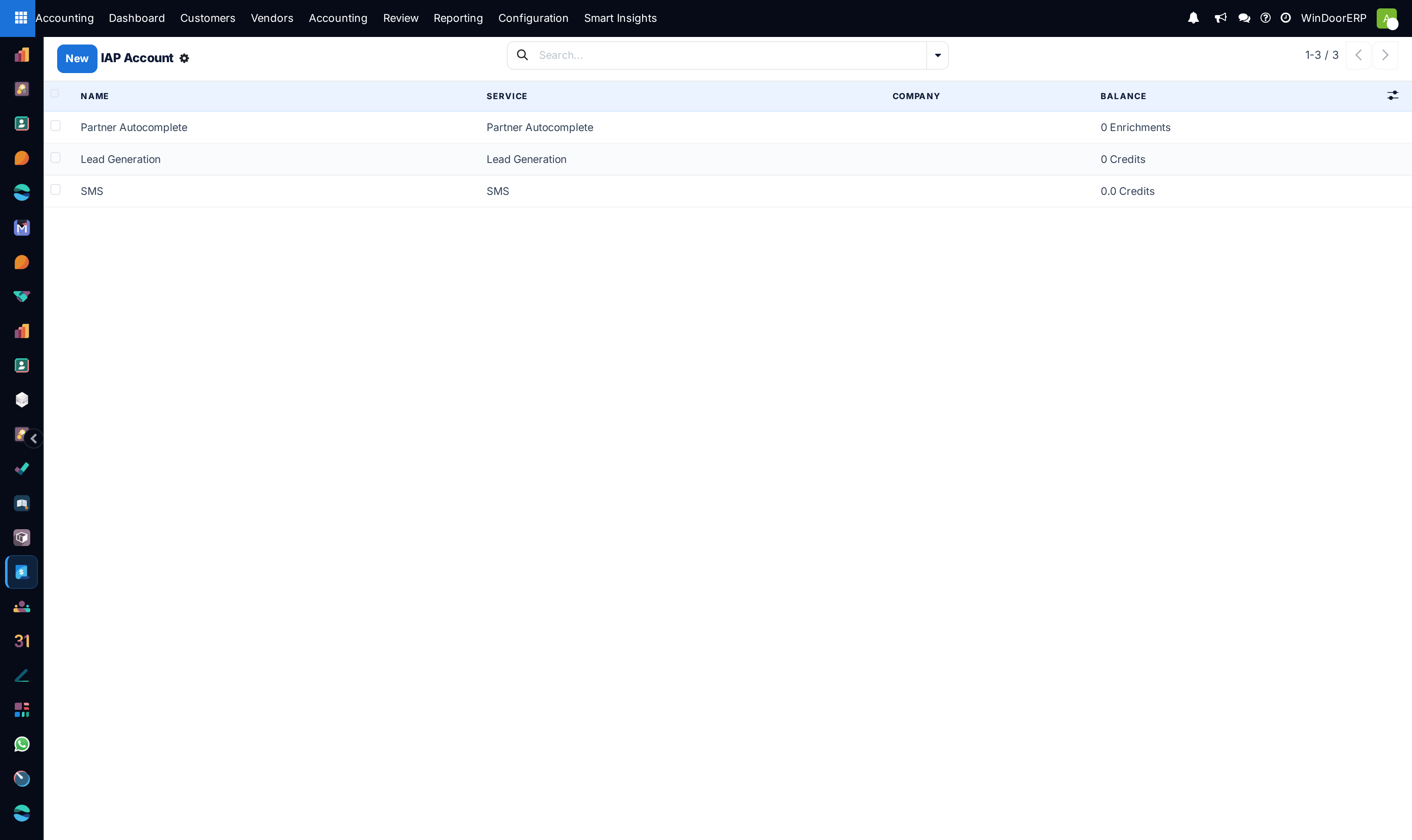
IAP › IAP Accounts lists the database's accounts for Odoo's paid in-app services — partner autocomplete, lead generation, SMS. Each shows its Balance, its State (Unregistered, Registered, Banned), an Email Alert Threshold with recipients for low-credit warnings, and Buy Credits, which opens Odoo's external IAP portal — purchases happen there, not inside WindoorERP. The Account Token identifies the account and should be treated as a secret.
Troubleshooting
| Symptom | Cause and fix |
|---|---|
| "Job '…' already executing" on Run Manually | A server worker holds the job right now. Wait for it to finish; the message is a refusal, not an error in the job. |
| "Record cannot be modified right now" when editing a scheduled action | Same cause — the job is mid-run. Try again in a few minutes. |
| A scheduled action switched itself off | It failed at least five times over more than seven days; the deactivation notice with the exact time to check in the server logs was posted to the administrators' Discuss channel. Fix the cause, reset Active. |
| Emails leave up to an hour after being "sent" | Normal: the Mail: Email Queue Manager job runs hourly. Run it manually to flush the queue now. |
| "Oops! We couldn't save your template due to an issue." | A dynamic placeholder in the template is invalid — the error detail names it. Correct the expression and save again. |
| Notification row says Sent but the customer has nothing | Sent means handed to the mail server. Check the recipient's spam folder and address; only Bounced/Exception rows are WindoorERP-side failures. |
| Every SMS fails with Unregistered Account | No IAP account is registered for SMS on this database. Register one and buy credits on the IAP portal, or remove SMS from your flows. |
| "… Please correct the number and try again." on the Phone Blacklist | The number cannot be parsed as a real phone number — enter it in international format. |
Common mistakes
- Editing intervals or code of shipped scheduled actions instead of deactivating what you do not want — a wrong interval on the mail queue affects every user's mail.
- Reading Sent as "delivered" in the Notifications log and blaming the mail server for a spam-folder problem.
- Deleting a shipped email template instead of pressing Reset Template or editing it — documents that auto-send with that template stop sending.
- Expecting SMS or paper-letter features to work without a funded IAP account — they queue and fail, silently from the sender's point of view.
- Marking a chatter subtype Default on a busy model — every new follower is then subscribed to that noise automatically.
Was this article helpful?
Thanks — your feedback helps.
Running a window or door factory?
Ask for a demo