Back on the form: the stock buttons
Reordering Rules: location, trigger, minimum and maximum
Why this step
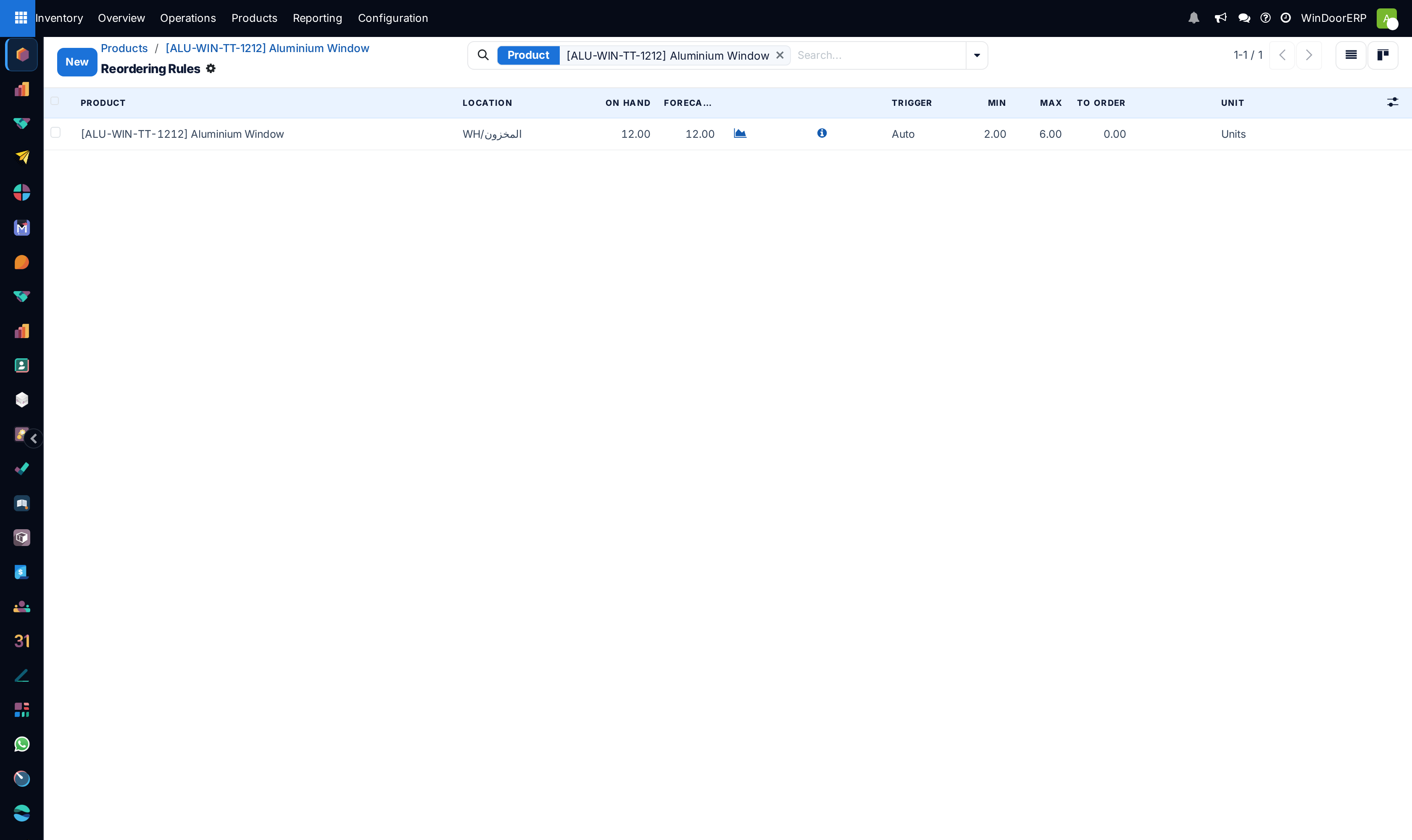
From the Reordering Rules button, click New, specify the location the rule applies to, set the Trigger to create purchase orders automatically when stock drops below the minimum or manually from the Replenishment report, and define the minimum and maximum quantities.
What this does
A reordering rule keeps a product between a minimum and a maximum without anyone watching the rack. When the forecast drops to the minimum, WindoorERP raises the purchase order that brings it back to the maximum, on its own or on request. This topic sets the rule from the product form, where the Reordering Rules button opens the rules for this product with the product already filled in.
The full rule screen, with the hidden columns and the replenishment report, is described in the article on setting a reordering rule; this is the product-side path the demo follows.
Before you start
- The product is goods with Track Inventory on. The button only exists on tracked products.
- The Purchase box is ticked, the Buy route is on the Inventory tab, and at least one vendor sits on the Purchase tab. Minimum and maximum quantities only work when a vendor exists; without one the rule raises nothing and logs an exception.
- Decide the location the rule watches. With Storage Locations enabled a rule is per location, so a rule on the main stock does not count material sitting on a site location.
Steps
-
01
On the product, click Reordering Rules. The list opens filtered to this product; when a single rule exists the button reads Min/Max with the two values instead.
-
02
Click New. A row opens with the Product already set.
-
03
Choose the Location the rule applies to, normally the warehouse stock location.
-
04
Set the Trigger: Auto creates the purchase order by itself when the forecast falls below the minimum; Manual only lists the product on the Replenishment report and waits for someone to click Order.
-
05
Enter Min, the level that triggers a replenishment, and Max, the level to reach when replenishing.
-
06
Save the row. The To Order column shows what the rule would buy now, and the Order, Automate and Snooze buttons appear at the end of the row.
-
07
Return to the product. The button now shows the rule's minimum and maximum.
The rule, column by column
| Column | What it does |
|---|---|
| Product | Preset from the product you came from. |
| Location | The internal location whose stock the rule watches and replenishes. Shown when Storage Locations is enabled. |
| On Hand, Forecast | The current figures at that location; the chart icon beside them opens the forecast report, and turns into a warning when future receipts would overshoot. |
| Information icon | Opens the replenishment information. It becomes a warning reading Your product is missing a way to be replenished (Route, Vendor, Bill of Materials) when the rule cannot buy. |
| Trigger | Auto: the scheduler, which runs nightly and can be started from Inventory › Operations › Procurement › Run Scheduler, creates the order. Manual: the rule only appears on the replenishment report. |
| Min | The minimum stock level that will trigger a replenishment. |
| Max | The stock level to reach when replenishing. |
| To Order | What the rule would order now: the higher of min and max, minus the forecast, rounded up to the Multiple. Read-only on automatic rules; on manual rules you may overtype it, and the undo icon restores the computed value. |
| Unit | The product's unit. |
| Hidden: Route, Vendor, Multiple, Deadline, Company | Which route the rule uses, which vendor row it buys from, the packaging or unit the order is rounded up to, and the date by which the order must be placed, shown red when passed. |
| Order | Creates the purchase order for the To Order quantity now. |
| Automate | Turns a manual rule into an automatic one. |
| Snooze | Hides a manual rule from the report until a chosen date. Automatic rules cannot be snoozed; archive them instead. |
The rule's minimum and maximum are compared with the Forecast, not with what is on the shelf, so a confirmed sales order that will consume profiles next week already counts. Because the purchase goes through the vendor list, the vendor's lead time decides when the order must be placed to arrive in time; that date is the hidden Deadline.
Troubleshooting
The rule exists but nothing is ordered: the trigger is Manual, or the scheduler has not run yet, or the rule has no way to buy. The warning icon on the row tells you which.
The rule logged There is no matching vendor price to generate the purchase order …: the product has no vendor line, or the line's quantity, dates or unit do not fit. Complete the Purchase tab.
Location is not shown: Storage Locations is off in Inventory settings; the rule then applies to the warehouse stock.
You can only snooze manual orderpoints: switch the trigger to Manual or archive the rule.
The Reordering Rules button is missing: the product is not tracked.
Common mistakes
- Setting min and max on a product with no vendor, and finding out at the next cutting list.
- Setting the maximum to the minimum. The rule then buys one bar at a time.
- Watching the wrong location, so material on a site location keeps the rule quiet while the workshop rack is empty.
- Leaving demonstration rules on automatic trigger and receiving purchase orders nobody asked for.
Checkpoint
The product has a reordering rule with a location, a trigger, a minimum and a maximum, and the rule can actually buy because a vendor exists.