Work your own request queue
What this does
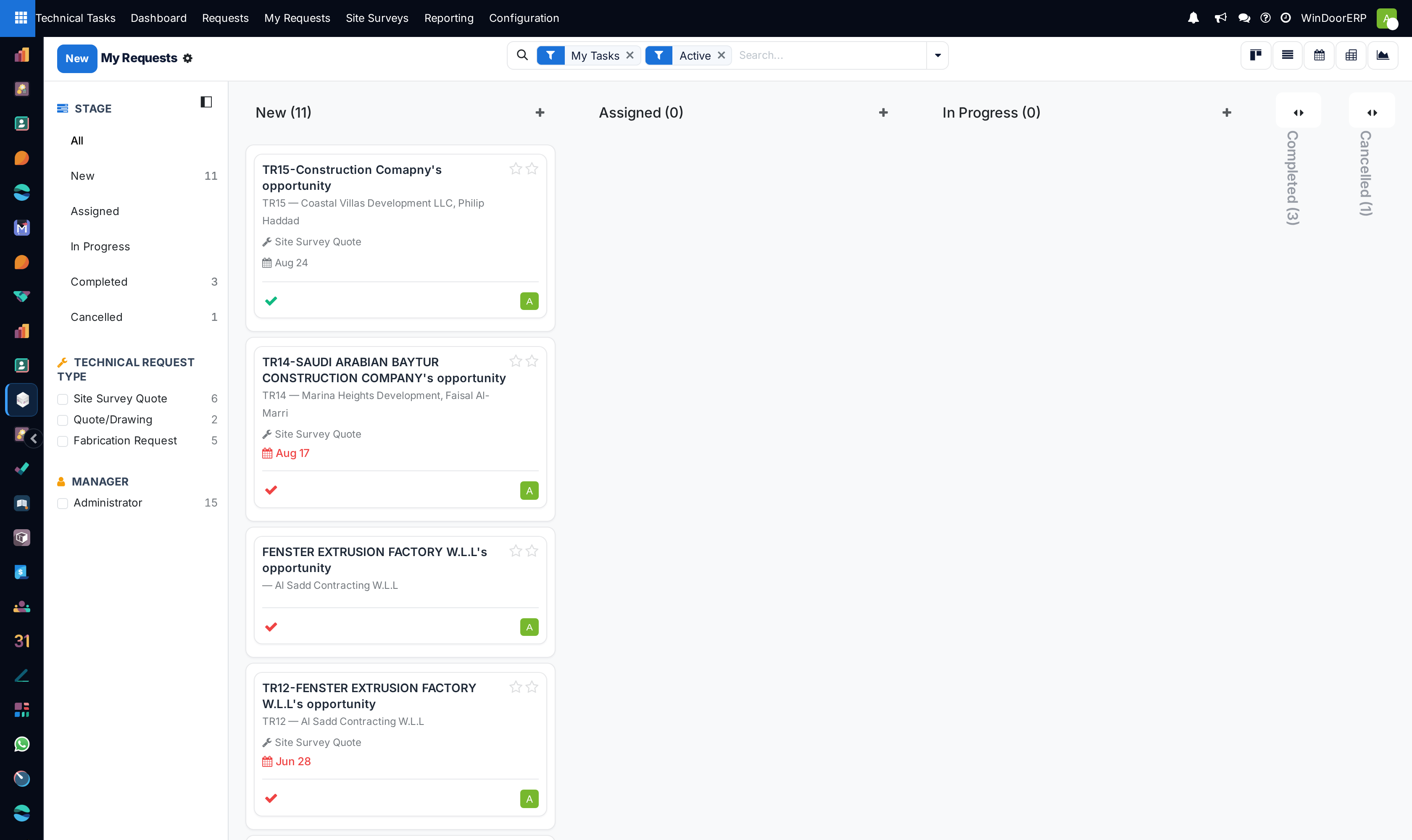
Technical Tasks › My Requests is the personal half of the request queue: the same records, views and filters as Requests, opened on the requests where you are the Manager and that are still active. It is the screen a draughtsman or surveyor opens in the morning to answer one question — what should I do today, in what order.
Before you start
- Requests are assigned to you in their Manager field — that field, not team membership, is what this menu filters on.
- Your user has the Technical Measurment or Technical Manager access right.
A working day in the queue
-
01
Open Technical Tasks › My Requests. The kanban opens grouped by stage with the My Tasks and Active filters applied.
-
02
Order the day: add the Deadline Today or Deadline This Week filter, or switch to the calendar view to see the week laid out by deadline. Overdue cards show their date in red.
-
03
Open a request and work it. Moving it along is two separate signals: drag the card (or click the stage bar) to change the Stage, and use the kanban-state dot to say how it is going — In Progress, Blocked, or Ready for next stage.
-
04
Record your hours as you go in the Time Sheet tab — date, description, hours. The first entry on a request still in New moves it to In Progress for you.
-
05
When the work is measuring, stay on the request's Survey & Measurements tab and let Run Step take you to the next survey action.
What "my" means here
The My Tasks filter matches the request's Manager field against your user. Being listed on the Team Members tab, or belonging to the request's Technical Team, does not put a request in your queue — if you work requests you do not manage, find them in Requests by clearing the My Tasks filter and filtering by Team in the left panel instead.
Both menus otherwise behave identically, so everything in the requests topic — the six views, the search panel, the optional list columns, the form tabs — applies here unchanged.
Troubleshooting
My Requests is empty although work was assigned to you — you are a team member on those requests, not their Manager. Ask the manager of the queue to set you as Manager, or work from Requests filtered by your team.
A finished request keeps showing — moving it to a folded stage (Completed or Cancelled) is what removes it from the default view; the kanban state Ready for next stage alone changes nothing about the filters.
A request disappeared from the queue — it was archived (the Active filter hides archived records) or its stage is folded. Use the Archived filter to check.
Common mistakes
- Logging the whole week's hours in one entry at the end of the week — the Spent figure stays at zero all week and the planned-versus-actual reports mean nothing.
- Using the Blocked flag as a way to park work indefinitely — a blocked request keeps counting against you in the Overdue report until its stage moves.
Was this article helpful?
Thanks — your feedback helps.
Running a window or door factory?
Ask for a demo