Set the reference, barcode, warranty and coupler flag
What this does
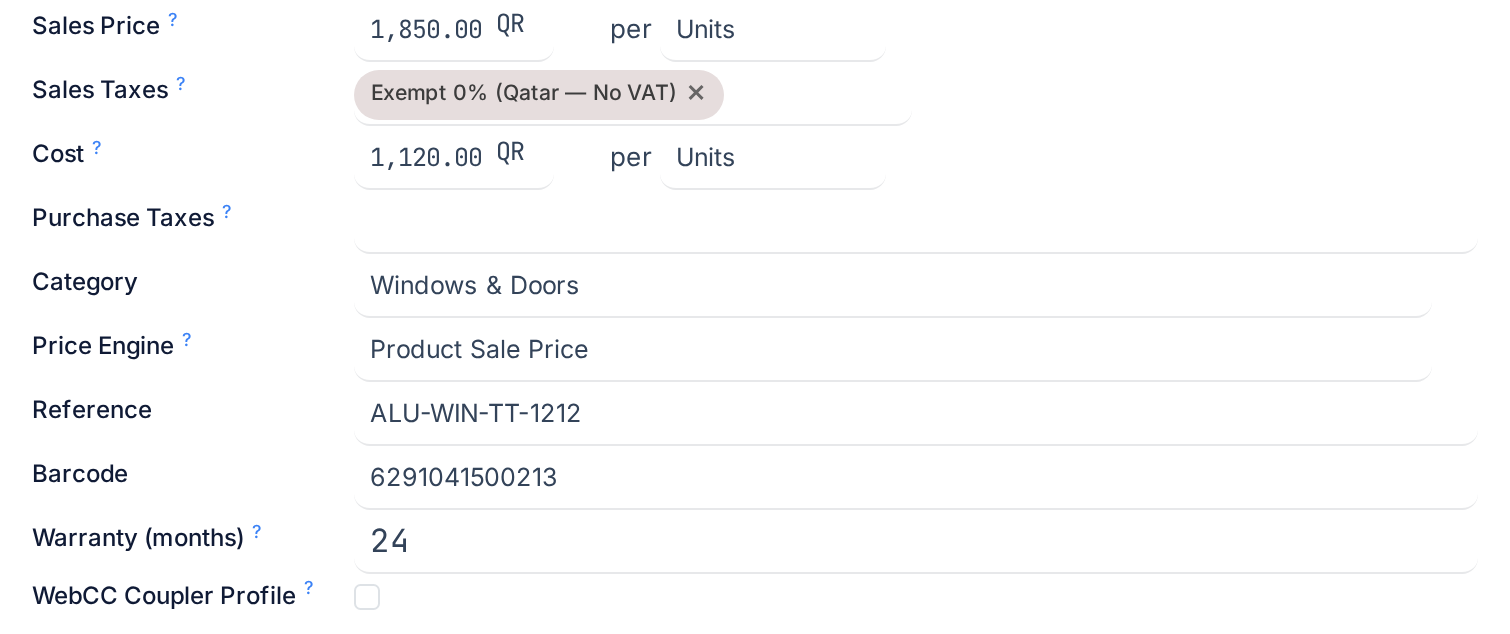
Below the price block on the General Information tab sit the fields that identify a product to people and to machines: the Reference the office searches by, the Barcode the factory scans, the Warranty (months) the installation team inherits on every installed unit, and the WebCC Coupler Profile flag that offers a bar to the designer as a joining profile. The tab ends with the internal notes and, for products whose category defines them, custom properties.
Before you start
- Agree a reference scheme before loading products. References are free text, so two people typing them independently produce two schemes.
- Barcodes must be unique within the company. If your factory scans supplier barcodes, use those; if it prints its own, decide the nomenclature first.
- The warranty field only matters for products that end up as installed items: windows, doors, curtain-wall units.
Steps
-
01
Enter the Reference: your own product code, such as
ALU-70-FRMfor a 70-series outer frame. The list shows it in brackets before the name and the search box matches it. -
02
Enter the Barcode if the product is scanned on receipt, in the store or on the shop floor. Type it or scan it into the field.
-
03
Enter the Warranty (months) for finished products: the number of months the customer is covered from handover.
-
04
Tick WebCC Coupler Profile only on a bar that joins two frames, such as the coupling profile between a fixed light and a sliding unit.
-
05
Write any Internal Notes. They stay on the product and never print.
-
06
Fill in the Properties if the product's category defines any, such as a colour code or a thermal value your engineering office wants on every profile.
Field by field
| Field | What it does | Hidden when |
|---|---|---|
| Reference | The internal reference. Searchable from every product field in the system, printed in brackets before the name. | The product has more than one variant; each variant then carries its own reference. |
| Barcode | The code the barcode scanner resolves to this product. Must be unique per company, and must not be the barcode of a packaging: WindoorERP refuses with A packaging already uses the barcode. | The product has variants or attribute lines that will create them, or is a service or a combo. |
| Warranty (months) | The recommended warranty term. When an installation is handed over, each installed item's warranty end date is calculated as its warranty start plus this many months, and can be edited per item afterwards. | Never; leave it empty on materials. |
| Company | Restricts the product to one company. Empty means shared by all companies. | Never. |
| WebCC Coupler Profile | Lists the product in the designer's coupler picker, the profile used to join two frames, for example a hinged frame coupled to a sliding frame. The designer stores the pick per joint and the design analysis prices the connector bar with it. | The product is not goods. |
| Properties | Custom fields whose definition lives on the product category. Every product in the category shows the same set. | The category defines none. |
| Internal Notes | Rich text for internal purposes only; the placeholder says so. It does not print on any document. | Never. |
Two more things on this tab belong to other topics: the Image Gallery tab next to it holds extra photos in an ordered list with a name and an image per row, and the weight of a bar in kilograms per metre is entered on the Inventory tab, never here.
Troubleshooting
The Reference and Barcode fields have disappeared: the product now has variants. Open the variant from the Variants button and set them there.
The barcode is refused: another product or a packaging in the same company already uses it. Search the barcode in the product list and in Units & Packagings.
The installed item shows no warranty end date: the product had no Warranty (months) at handover, or the item has no warranty start. Set the end date on the item by hand.
The coupler you flagged is not offered in the designer: the product is not goods, or it is archived. Only active goods flagged as couplers are listed.
Common mistakes
- Putting the supplier's code in the name and leaving Reference empty. The reference is the field made for it.
- Reusing one barcode across colours of the same profile. Either use variants, each with its own barcode, or separate products.
- Entering the warranty in years. The field is in months.
- Flagging every profile as a coupler. The picker should offer joining profiles only.
Was this article helpful?
Thanks — your feedback helps.
Running a window or door factory?
Ask for a demo