WinDoor Production tab
Bar cutting, profile drawing, accessory usage, package quantity
Why this step
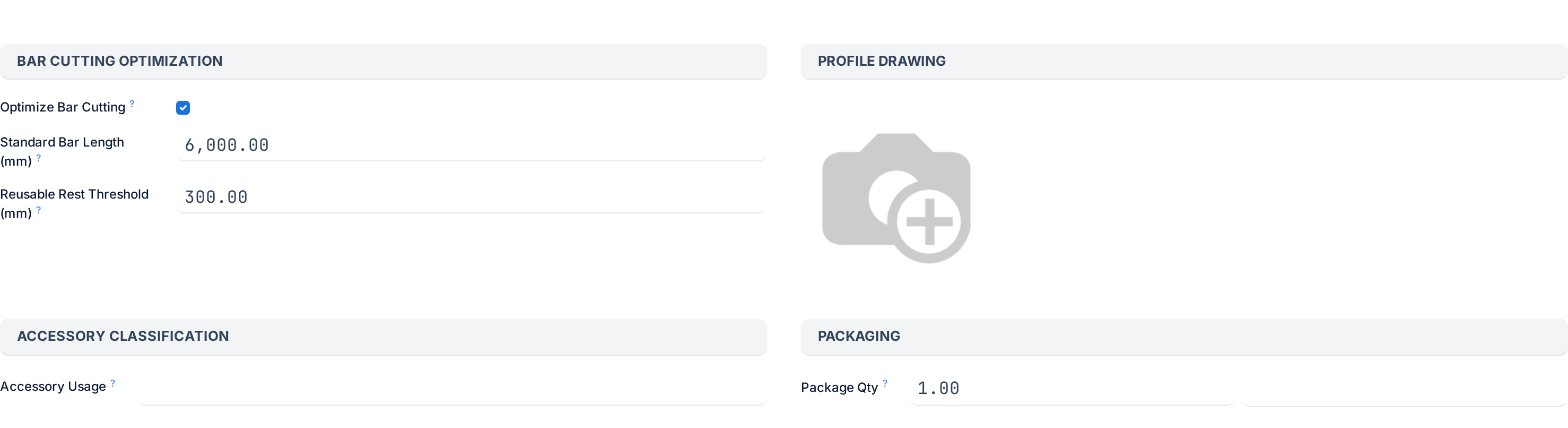
Optimize Bar Cutting with the standard bar length and the reusable rest threshold, the profile drawing uploaded with Edit, Accessory Usage set to Fabrication or Installation to route hardware between production and installation, and the package quantity.
What this does
The WinDoor Production tab holds the settings the factory reads when a production order explodes a design into material: whether the product is a bar that should be nested on standard lengths by the cutting optimiser, how long that bar is and what leftover is worth keeping, the profile drawing that prints on the bill of quantities, whether a piece of hardware belongs to fabrication or to installation, and how many pieces come in a package.
Every field here is optional, and every field changes a printed document or an optimisation result. Fill it in on profiles and hardware; leave it alone on services and finished products.
Before you start
- Know the bar length your supplier actually delivers, in millimetres. Aluminium and uPVC systems commonly ship 5,900 or 6,000 mm bars; the default is 5,900.
- Have the profile cross-section drawing as an image; it is printed at a small size, so a clean line drawing works better than a photo.
- Decide, per hardware item, whether the workshop fits it or the site crew does. That decision drives which pick list it lands on.
Steps
-
01
Open the WinDoor Production tab on a profile product.
-
02
Tick Optimize Bar Cutting. Two fields appear beneath it.
-
03
Enter the Standard Bar Length (mm), the raw length the optimiser nests cuts onto. It is required while optimisation is on and must be greater than zero.
-
04
Enter the Reusable Rest Threshold (mm), the shortest offcut worth putting back on the rack. Leave it at 0 to use the global default from the Production settings, which is 300 mm on this installation.
-
05
Click the pencil on the Profile Drawing image and upload the cross-section.
-
06
On a hardware product, set Accessory Usage to Fabrication or Installation.
-
07
Enter the Package Qty and pick the Package Unit, for example 100 per Box, so the accessories bill of quantities can show packages as well as pieces.
Bar Cutting Optimization
| Field | What it does |
|---|---|
| Optimize Bar Cutting | Enables cutting-stock optimisation for this product. When on, the production order groups every required length of this profile and nests them on standard bars, producing the cutting plan and the offcut list. |
| Standard Bar Length (mm) | The raw bar length the optimiser starts from. Default 5,900. Required and visible only while optimisation is on; saving with 0 is refused with Standard Bar Length must be greater than 0 when optimization is enabled. |
| Reusable Rest Threshold (mm) | Leftover pieces at or above this length are counted as reusable inventory; pieces below it are counted as waste. 0 means use the global default set in the Production app settings. |
The optimiser also reads two global settings from the Production app, the saw kerf and the end trim, and can prefer existing offcuts before cutting a new bar. Those are described in the article on optimising profile cutting; the product only says which bar and which threshold.
The linear weight of a bar, in kilograms per metre, is not on this tab on purpose. It is the standard Weight field on the Inventory tab, and the production reports read it from there.
Profile Drawing, Accessory Classification and Packaging
| Field | What it does |
|---|---|
| Profile Cross-Section | The section drawing, stored at up to 512 pixels. It is printed beside the profile on the profiles bill of quantities and on optimisation reports so the saw operator can recognise the bar. |
| Accessory Usage | Fabrication or Installation. When a production order builds its material list, hardware flagged Installation is grouped as installation hardware and hardware flagged Fabrication, or left empty, as fabrication hardware. That grouping is what separates the workshop's hardware pick from the site crew's, on the material list and on the accessories bill of quantities. |
| Package Qty | Number of pieces per package, default 1. The accessories bill of quantities prints it next to the piece quantity so the storeman can issue whole boxes. |
| Package Unit | The unit that names the package, such as Pkg, Box or Can. Pick an existing unit; the field does not create one. When empty the report prints Pkg. |
Troubleshooting
Standard Bar Length must be greater than 0 when optimization is enabled on …: enter the real bar length before saving.
The profile appears on the cutting list but is not nested on bars: Optimize Bar Cutting is off for that product. The list still shows the lengths; only the optimisation is skipped.
Offcuts you expected to keep are counted as waste: the product's threshold, or the global default when it is 0, is longer than the offcut.
A hinge lands on the site crew's list instead of the workshop's: its Accessory Usage is Installation. Empty means fabrication.
No drawing prints on the bill of quantities: the Profile Cross-Section is empty on that product.
Common mistakes
- Leaving the default 5,900 mm on a system delivered in 6,000 mm bars. Every nesting is then wrong by 100 mm.
- Entering the bar weight on this tab. There is no field for it here; it belongs on the Inventory tab as Weight.
- Setting a very low rest threshold and filling the rack with stubs nobody will use.
- Forgetting Accessory Usage on installation-only items such as fixing anchors, so they are picked into the workshop.
Checkpoint
Profiles optimise on the bar length the supplier delivers, every hardware item knows whether the workshop or the site crew fits it, and boxed items carry their package quantity.