Configure Purchase settings: approvals, locking and reminders
What this does
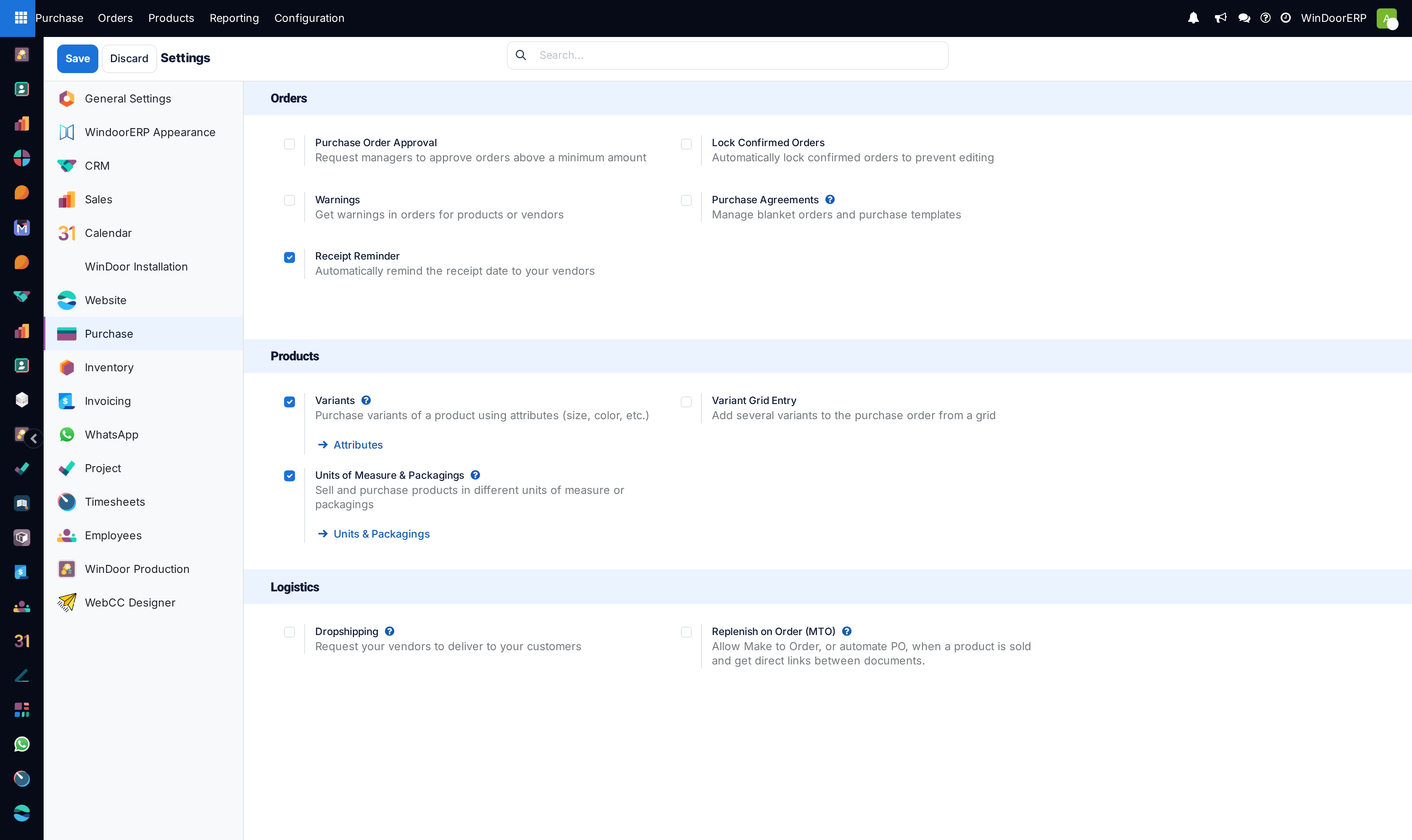
Purchase settings decide who can commit the company's money and how orders behave after confirmation: approval above a threshold, automatic locking, vendor warnings, and the receipt reminder. The screen is under Purchase › Configuration › Settings, visible to administrators.
Before you start
- Settings apply per company; the approval amount in particular is a per-company value.
- Two toggles on this page are module installers, not switches — see the table.
Steps
-
01
Open Purchase › Configuration › Settings.
-
02
Decide the approval rule: Purchase Order Approval with its Minimum Amount makes orders above the amount wait for a Purchase administrator.
-
03
Decide the after-confirmation rule: Lock Confirmed Orders freezes every confirmed order read-only.
-
04
Keep Receipt Reminder on and let the daily job chase unconfirmed vendors before the arrival date.
-
05
Save — and test the approval rule as a normal buyer, not as yourself, for the reason below.
Every setting on the page
| Setting | What it really does |
|---|---|
| Purchase Order Approval + Minimum Amount | Two-step confirmation: a buyer confirming above the amount lands in To Approve; a Purchase administrator releases it. The default amount is 5,000 — and administrators themselves bypass the rule entirely: their confirmations never wait. |
| Lock Confirmed Orders | Every confirmation locks the order; only an administrator can Unlock. With this off there is no Lock button anywhere — manual locking is not offered. |
| Warnings | Enables per-product and per-vendor purchase warnings (and blocking messages). Off by default — the warning fields on products and vendors are invisible until this is on. |
| Purchase Agreements | An installer for the blanket-orders module, which is not installed on WindoorERP — ticking it would install new software. Leave it to a deliberate decision, not a casual save. |
| Receipt Reminder | On. A daily job emails vendors of confirmed, unacknowledged orders shortly before the expected arrival; the days-before default is 1 and can be tuned per vendor and per order, where a ✉ button sends yourself a preview. |
| Bill control | There is no bill-control switch on this page, and the 3-way-matching module is not installed. The working control on WindoorERP is each product's Control Policy — goods bill on received quantities by default, which is the protection that matters. |
| Variants / Variant Grid Entry | Variants are on; the grid-entry matrix is a not-installed module. |
| Units of Measure & Packagings | On; the link opens the single Units & Packagings screen used across the system. |
| Dropshipping / Replenish on Order (MTO) | Dropshipping is a not-installed module; the MTO toggle activates the Replenish-on-Order route for make-to-order purchasing. |
Note
Days to Purchase — the buffer for how long confirming an RFQ takes — is not on this page: it lives in Inventory › Configuration › Settings › Advanced Scheduling, next to the other scheduling buffers.
Troubleshooting
| Symptom | Cause and fix |
|---|---|
| Approval "does not trigger" | The tester is a Purchase administrator — administrators bypass the threshold. Test with a plain Purchase user above the Minimum Amount. |
| No Lock button on confirmed orders | By design: the button exists only while Lock Confirmed Orders is on, and then locking happens automatically anyway. |
| Warning fields nowhere to be found on products or vendors | The Warnings setting is off; the fields are hidden with it. |
| Settings menu missing for a purchase manager | The menu entry itself is administrator-level; the manager sees the rest of Configuration. |
Common mistakes
- Believing approval covers everyone — the administrator bypass means the rule guards buyers, not managers.
- Ticking installer toggles (Purchase Agreements, Variant Grid Entry, Dropshipping) casually — each installs a module on save.
- Looking for a bill-control setting here: billing control moved to the product's Control Policy.
Was this article helpful?
Thanks — your feedback helps.
Running a window or door factory?
Ask for a demo