Set the purchasing rules
Decide who may commit money
Why this step
Approval levels and automatic warnings are the whole control system in one screen: above what value a purchase needs a second signature, and what the buyer is warned about before they commit.
What this does
Administers global procurement policies in WindoorERP, establishing multi-level purchase approval thresholds, automated vendor quality warnings, 3-way matching rules, and purchase order locking.
Before you start
- System Administrator access.
Steps
Important
Purchase Order Approval thresholds prevent unauthorized high-value raw material commitments without executive signoff.
-
01
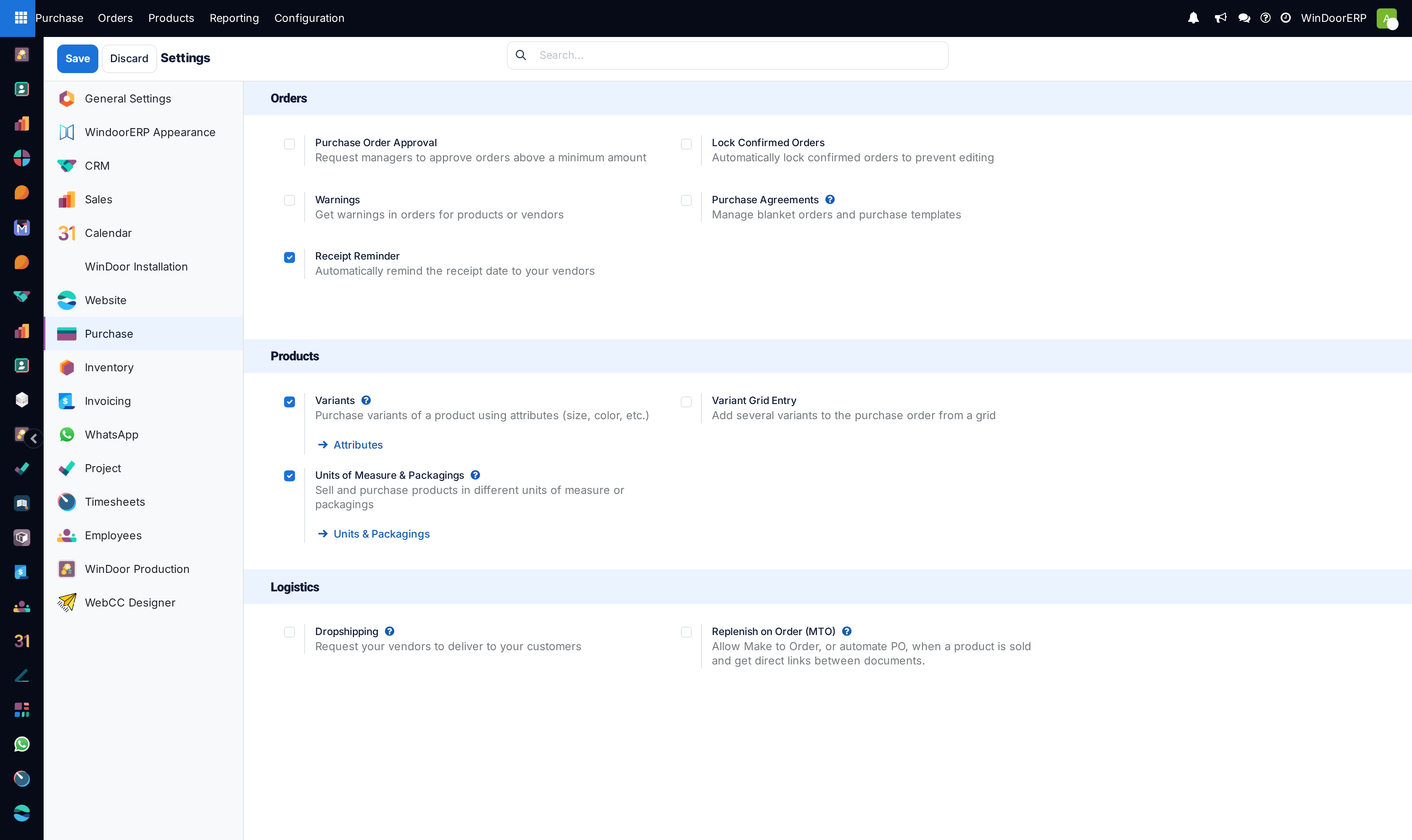
Open Purchase › Configuration › Settings.
-
02
Under Orders, enable Purchase Order Approval and set the threshold limit (e.g. orders > $15,000 require General Manager approval).
-
03
Enable Lock Confirmed Orders to freeze unit rates once a purchase contract is finalized.
-
04
Under Invoicing, enforce Bill Control: 3-Way Matching to prevent payment without warehouse receiving notes.
-
05
Under Products, enable Vendor Pricelists and Warnings to flag blocked or low-quality suppliers during RFQ drafting.
-
06
Click Save to commit global purchase configuration policies.
Common mistakes
- Leaving purchase order approval limits disabled, allowing junior buyers to issue unapproved mill orders.
- Permitting vendor invoice creation without enforcing 3-way matching validation.
Checkpoint
A purchase order above your threshold cannot be confirmed by the buyer alone.