Execute individual technician tasks and log mobile site timesheets
What this does
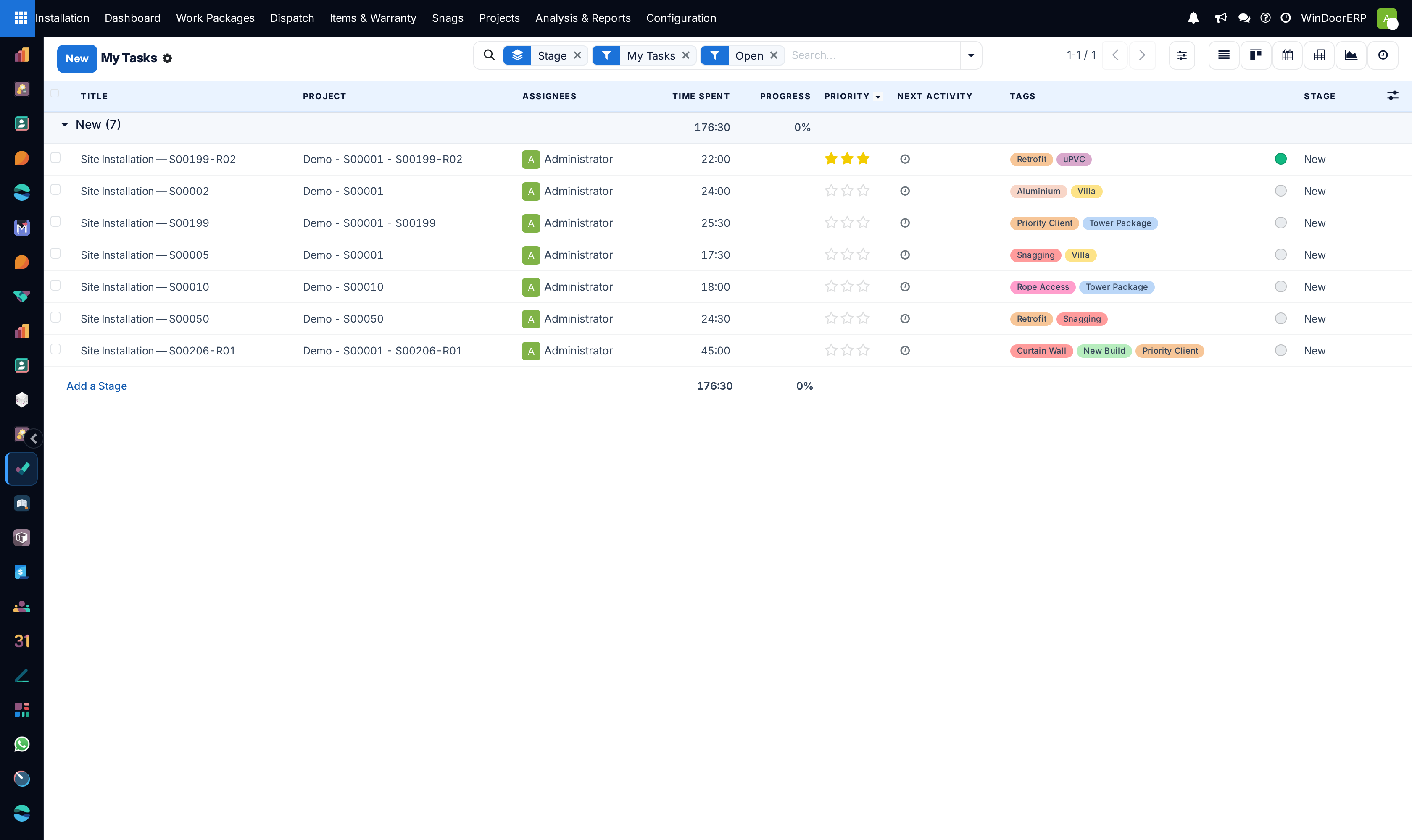
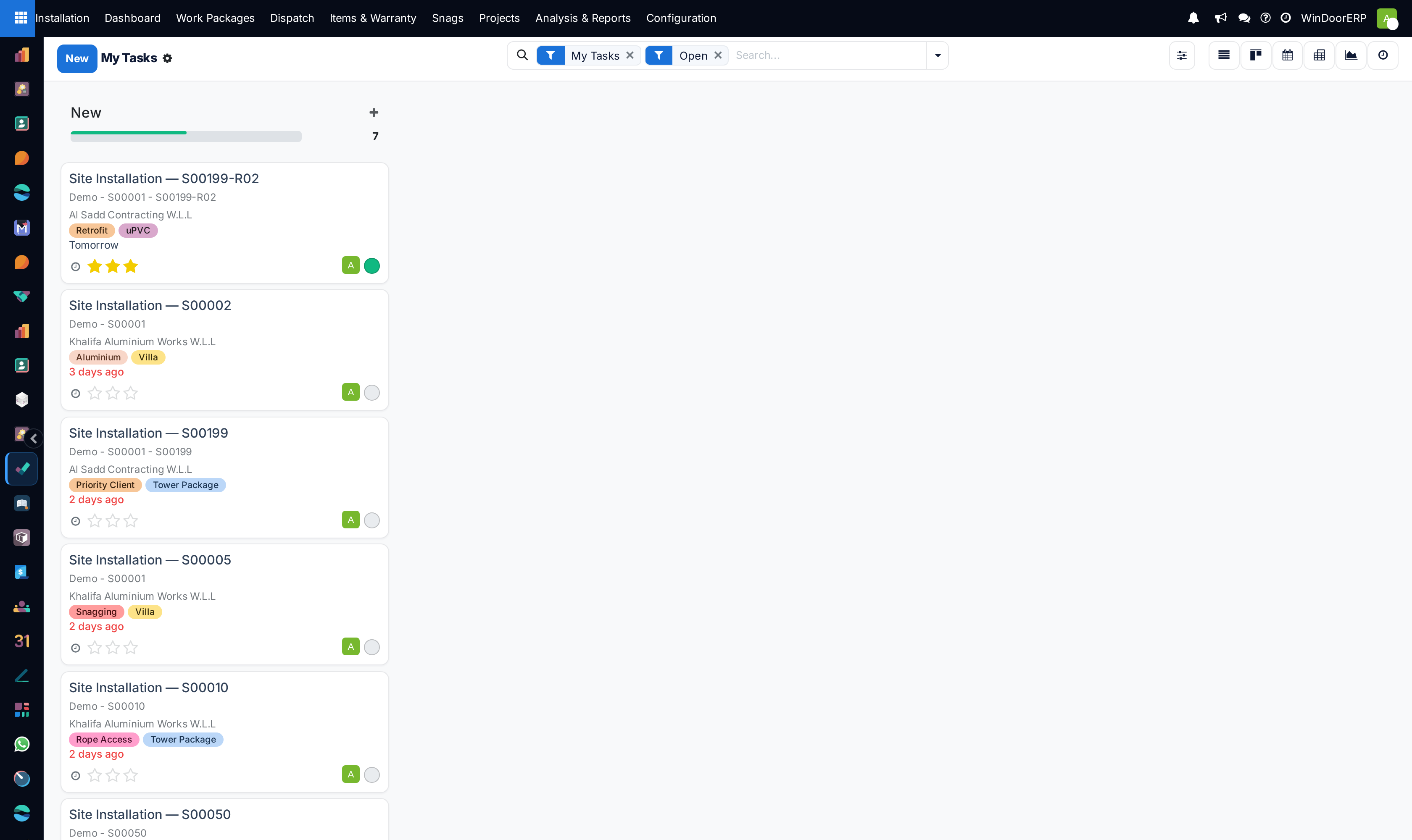
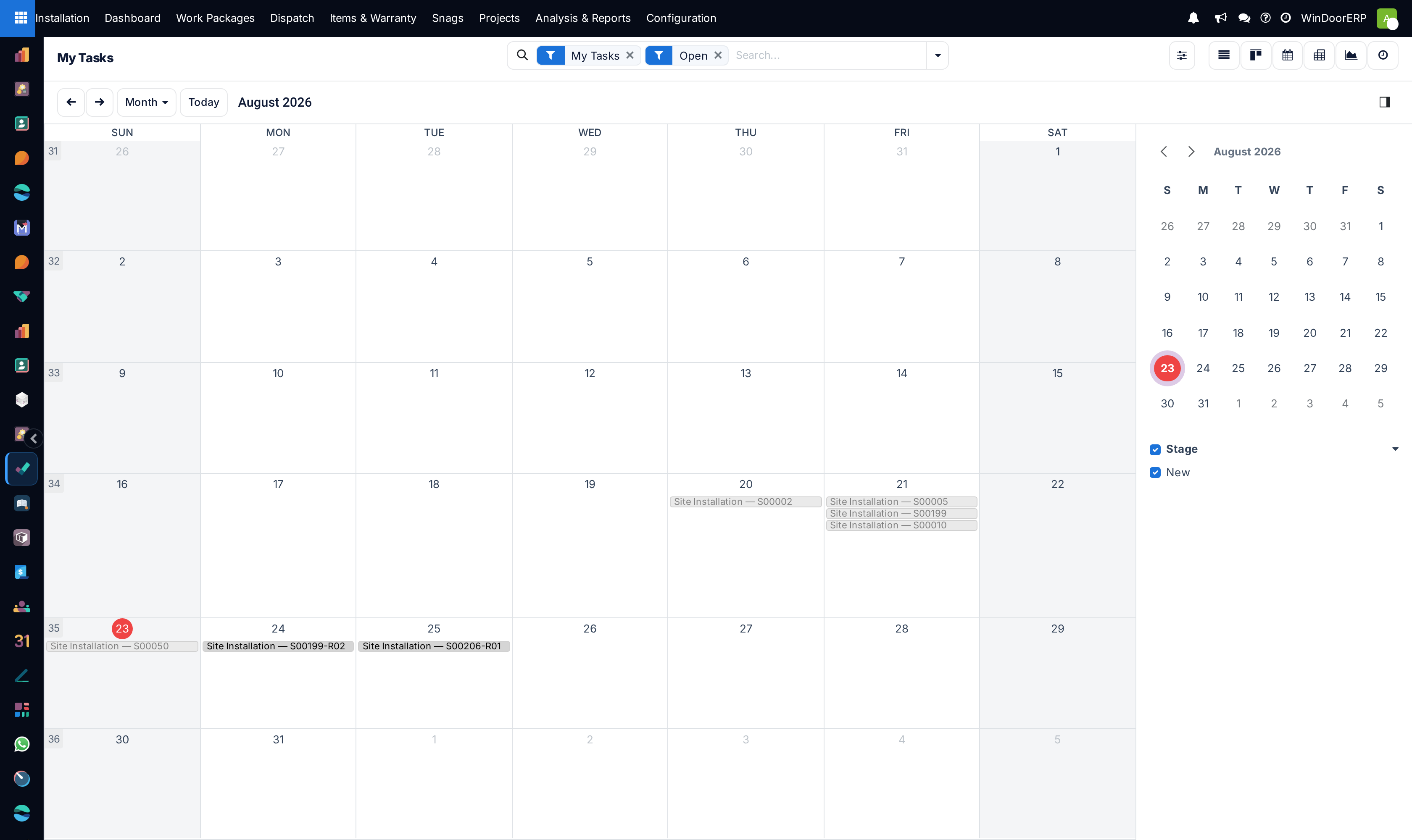
Empowers field installation technicians with a personalized mobile workspace showing daily assigned window openings, technical specifications, and live timesheet timers.
Before you start
- Technician logged in on mobile device or tablet.
Steps
Important
Field technicians must capture clear photo verification showing silicone sealant backing rod depth and bubble-free sealant tooling.
-
01
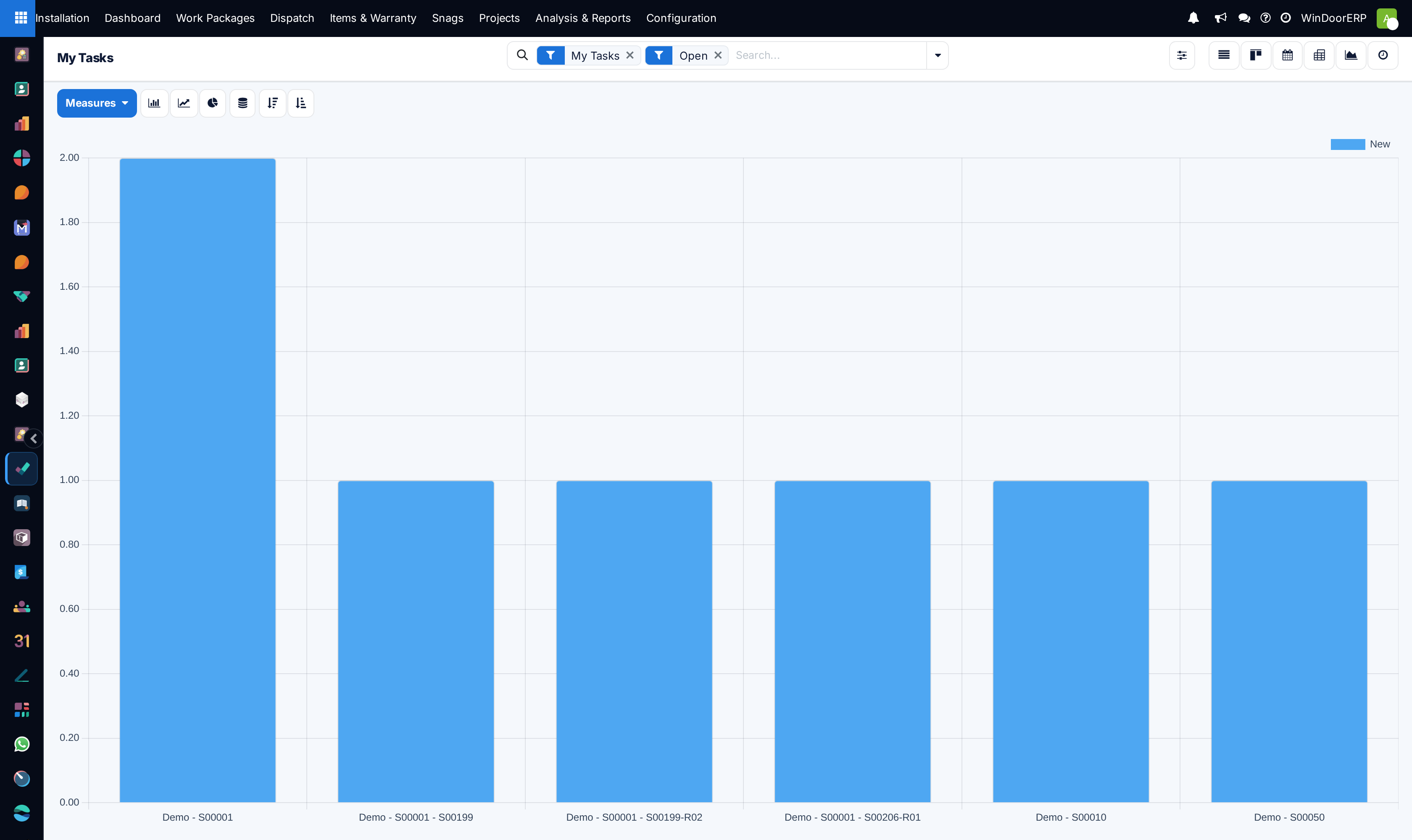
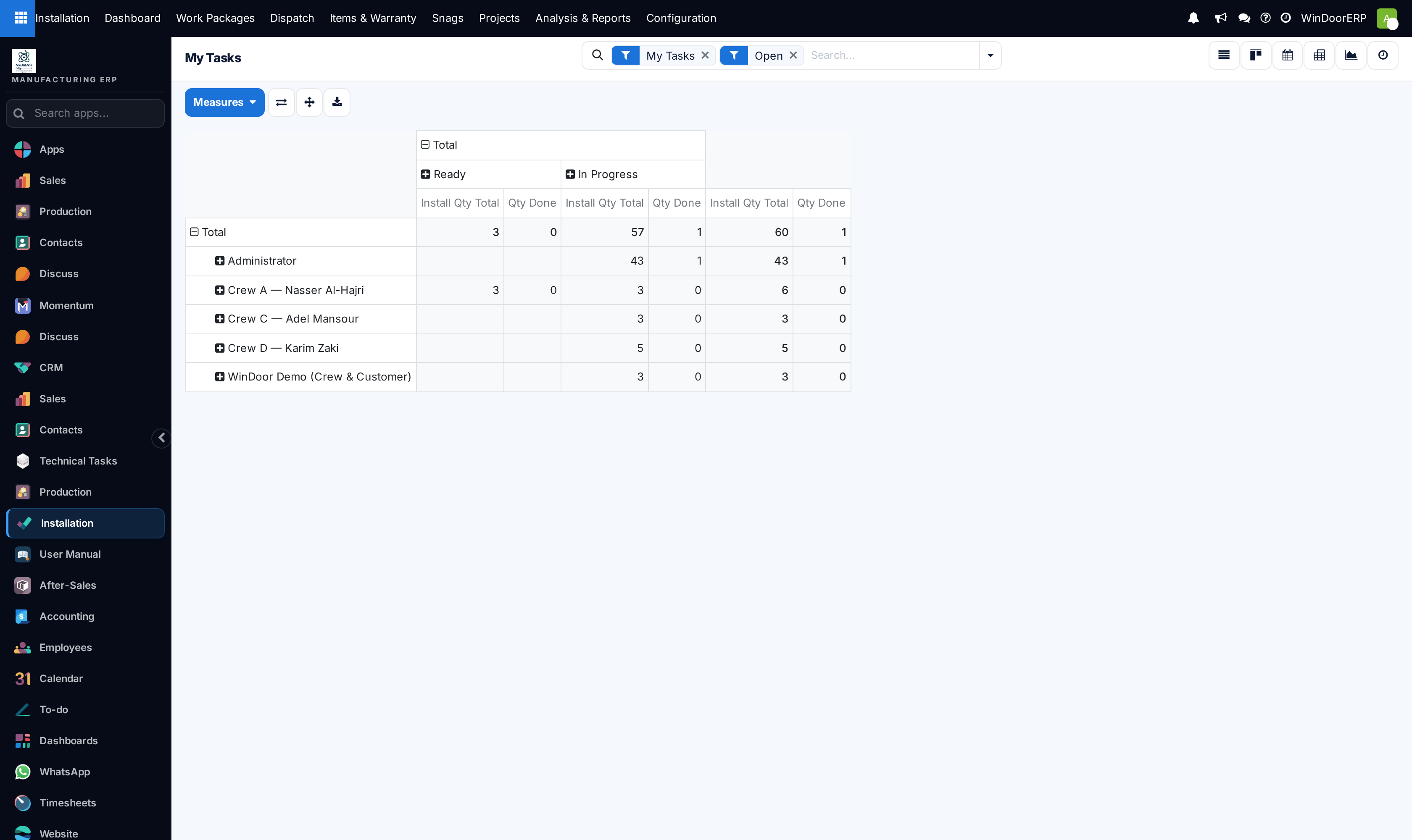
Open Installation › Tasks › My Tasks to review your daily work roster.
-
02
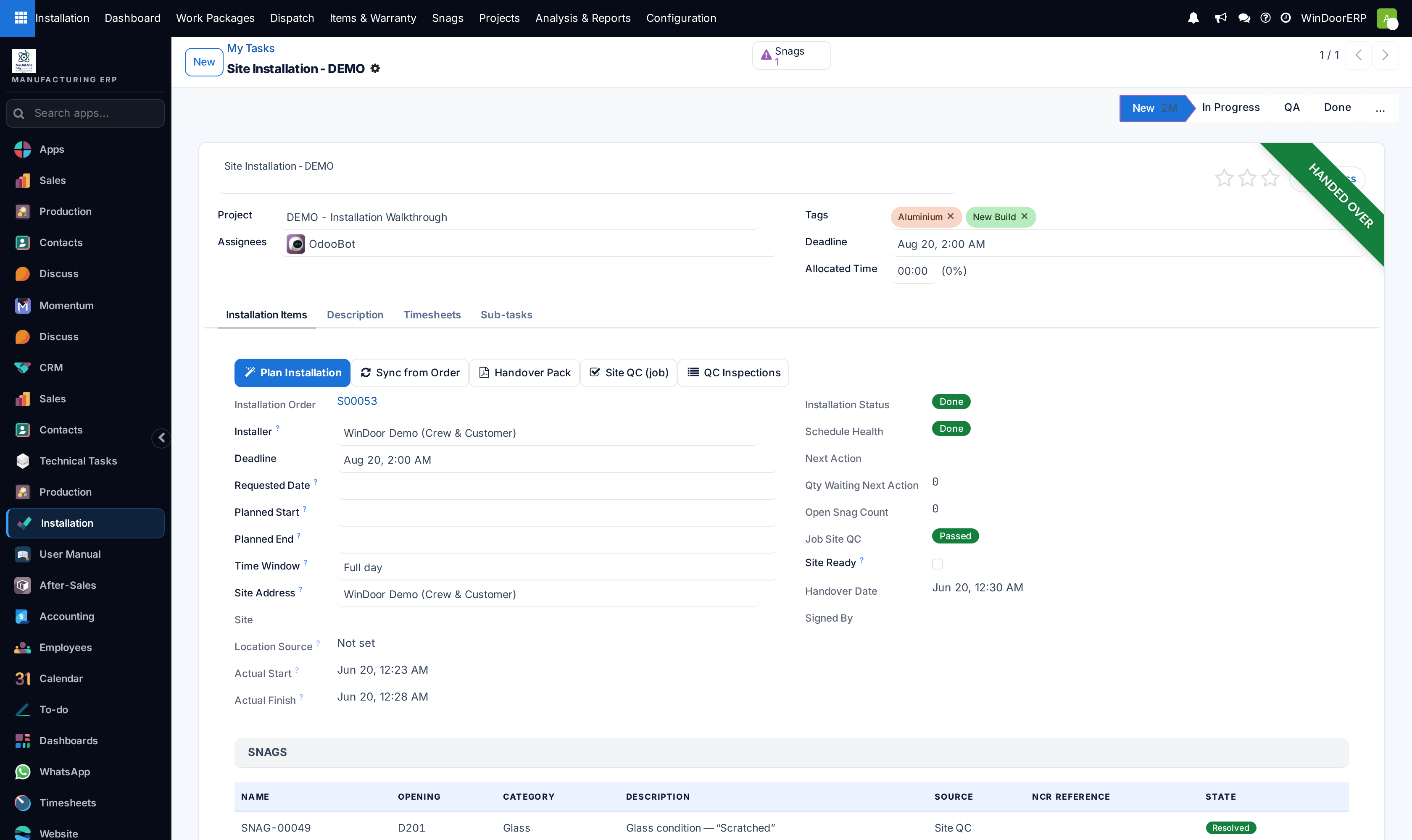
Tap any task to review window dimensions, opening elevation location, and hardware installation guide.
-
03
Click Start to log work hours, or enter manual timesheets under the Timesheets tab.
-
04
Upload before-and-after photos and click Mark as Done to notify the site engineer.
Common mistakes
- Marking tasks as complete without recording consumed anchors, expansion foam cans, or structural silicone tubes.
- Logging timesheet hours against the wrong project code.
Was this article helpful?
Thanks — your feedback helps.
Running a window or door factory?
Ask for a demo