Configure PDF Quote Builder, dynamic PDF form fields, and architectural submittal packs
What this does
Configures the enterprise PDF Quote Builder engine to assemble high-end architectural submittal packs, merging custom PDF Header pages (Company Profile, ISO Certifications), dynamic quote pricing tables with Jinja form fields, and custom Footer pages (Warranty & Handover terms).
Before you start
- PDF Quote Builder enabled in Sales › Configuration › Settings.
Steps
Important
Dynamic PDF form fields eliminate manual Word/Photoshop editing, ensuring every proposal looks like an agency-designed corporate tender submission.
-
01
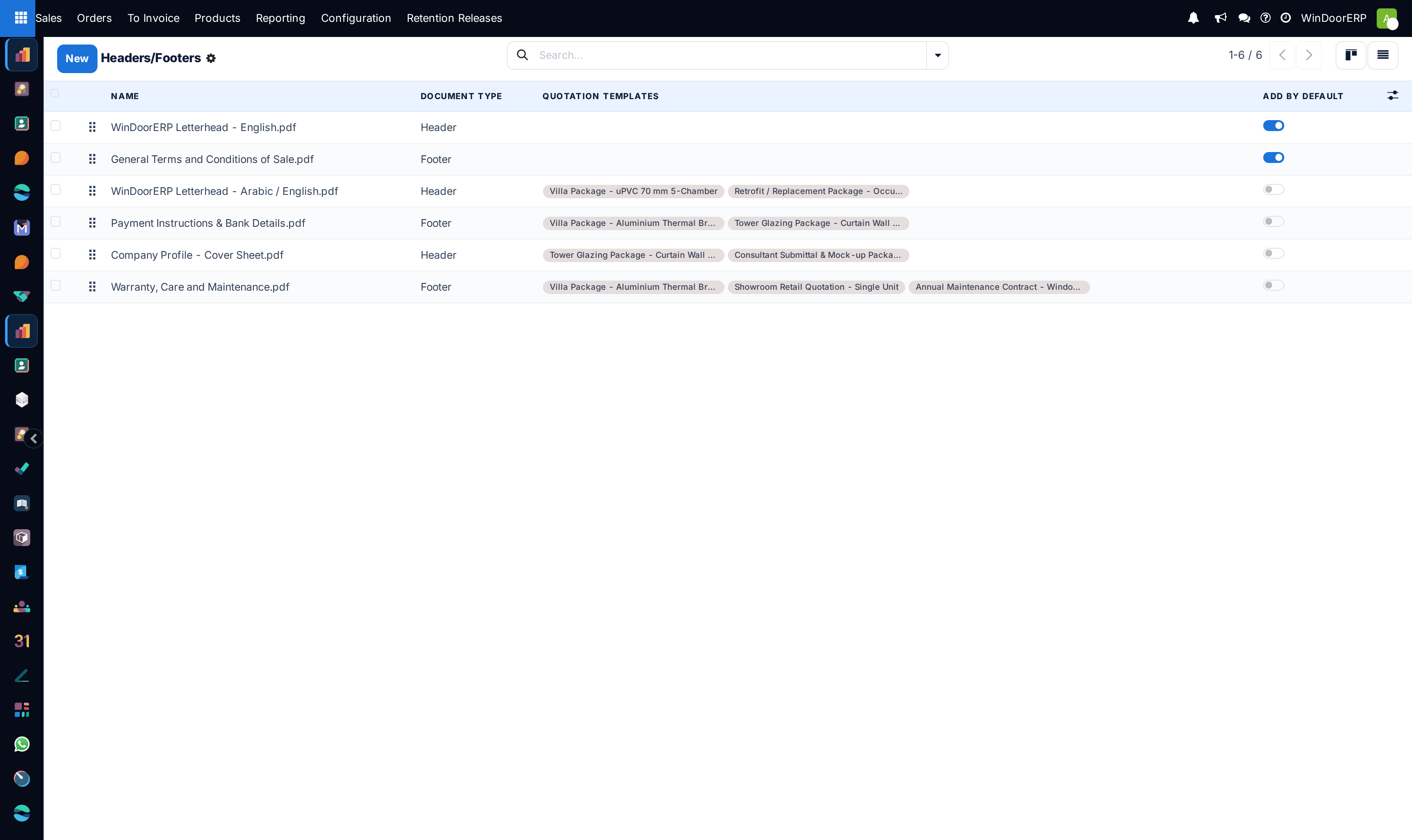
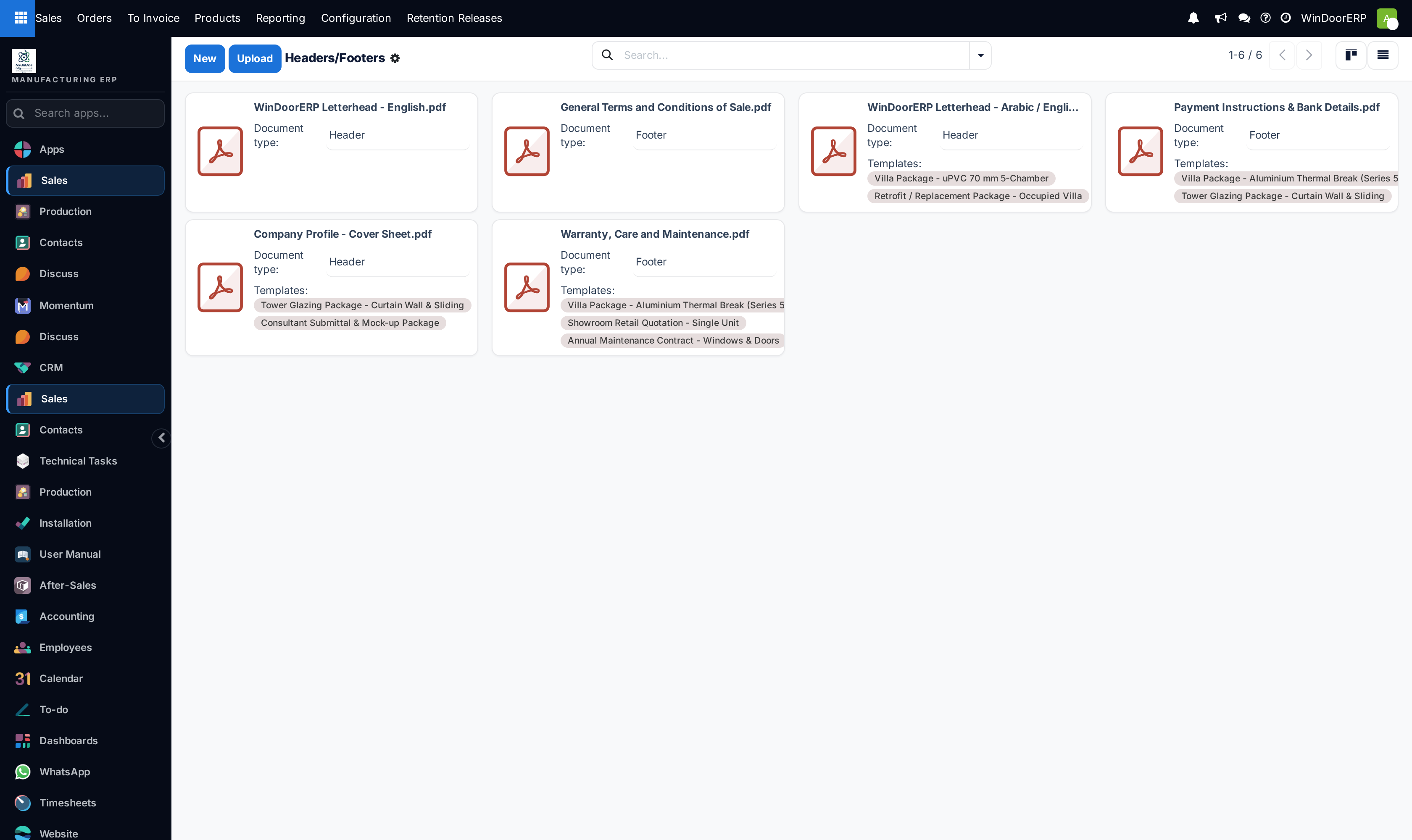
Open Sales › Configuration › Headers/Footers (or configure inside Quotation Templates).
-
02
Upload high-resolution PDF Header Pages (e.g. Cover page, company credentials, factory plant profile) and Footer Pages (e.g. 10-year warranty certificate, glass care guide).
-
03
To insert Dynamic Form Fields in PDFs: Open your PDF template in Adobe Acrobat, add form text fields, and set field names to WindoorERP dynamic tokens (e.g.
{{ object.partner_id.name }}for customer name,{{ object.user_id.name }}for sales engineer,{{ object.amount_total }}for total price,{{ object.validity_date }}for expiration date). -
04
Upload the form-enabled PDF into WindoorERP; the system automatically populates dynamic field values when generating customer proposals.
-
05
Print or email a quotation to verify that the generated document is a seamless, unified multi-page architectural submittal booklet.
Common mistakes
- Uploading non-standard PDF page sizes that conflict with default A4 print dimensions.
- Using incorrect Jinja token syntax inside PDF form field names, causing dynamic text to remain blank.
Was this article helpful?
Thanks — your feedback helps.
Running a window or door factory?
Ask for a demo