Operate touchscreen Shop Floor Terminals for real-time station execution
What this does
Provides a rugged, tablet-optimized touchscreen interface for machine operators to view CAD drawings, scan barcodes, and log completions without keyboards.
Before you start
- Configure Shop Floor Work Centers and assign operator login PINs.
Steps

Important
Shop Floor Terminals display high-resolution opening cross-sections, allowing operators to verify gasket direction and locking point positions on the fly.
-
01
Launch Shop Floor Terminal Pro or Operator Terminal on the workstation screen.
-
02
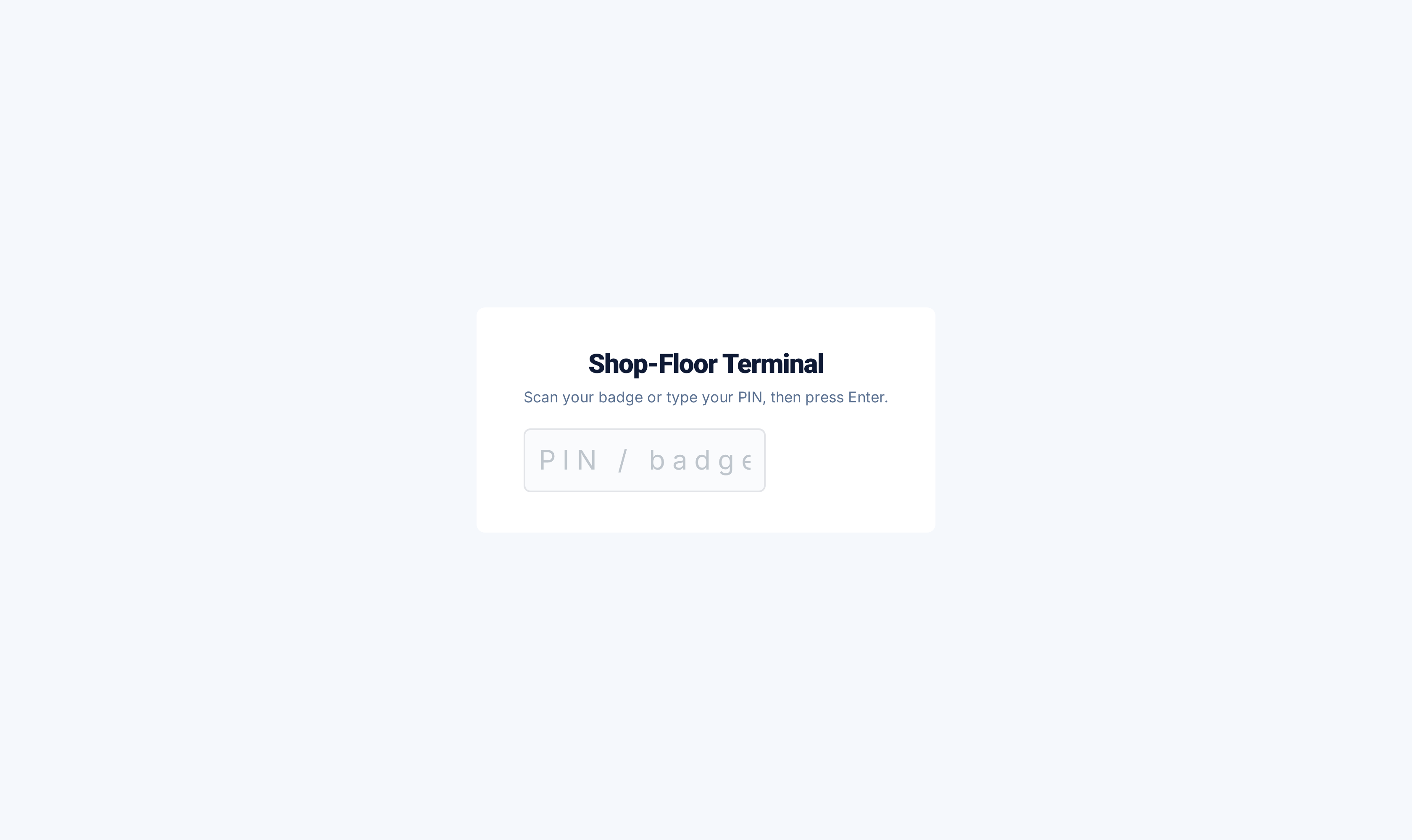
Scan the operator badge or enter your 4-digit PIN to activate your session.
-
03
Select your active work center (e.g. Assembly Station 2) to view queued jobs.
-
04
Scan the workpiece barcode or tap an order card to display visual fabrication diagrams and opening dimensions.
-
05
Tap Mark as Done to complete the operation and advance the unit to the next downstream station.
Common mistakes
- Working on window frames under another operator's logged-in terminal session.
- Bypassing required checklist confirmations on the touchscreen.
Was this article helpful?
Thanks — your feedback helps.
Running a window or door factory?
Ask for a demo