Define custom fenestration activity types, chaining rules, and automated mail templates
What this does
Configures granular activity categories tailored to window and door fabrication (e.g. Site Survey, Glass Sample Approval, Structural Glazing Calculation) with automatic next-activity chaining.
Before you start
- CRM Configuration administrator access.
Steps
Important
Setting the action type to 'Upload Document' requires the surveyor to upload site measurement photos or PDF reports before closing the task.
-
01
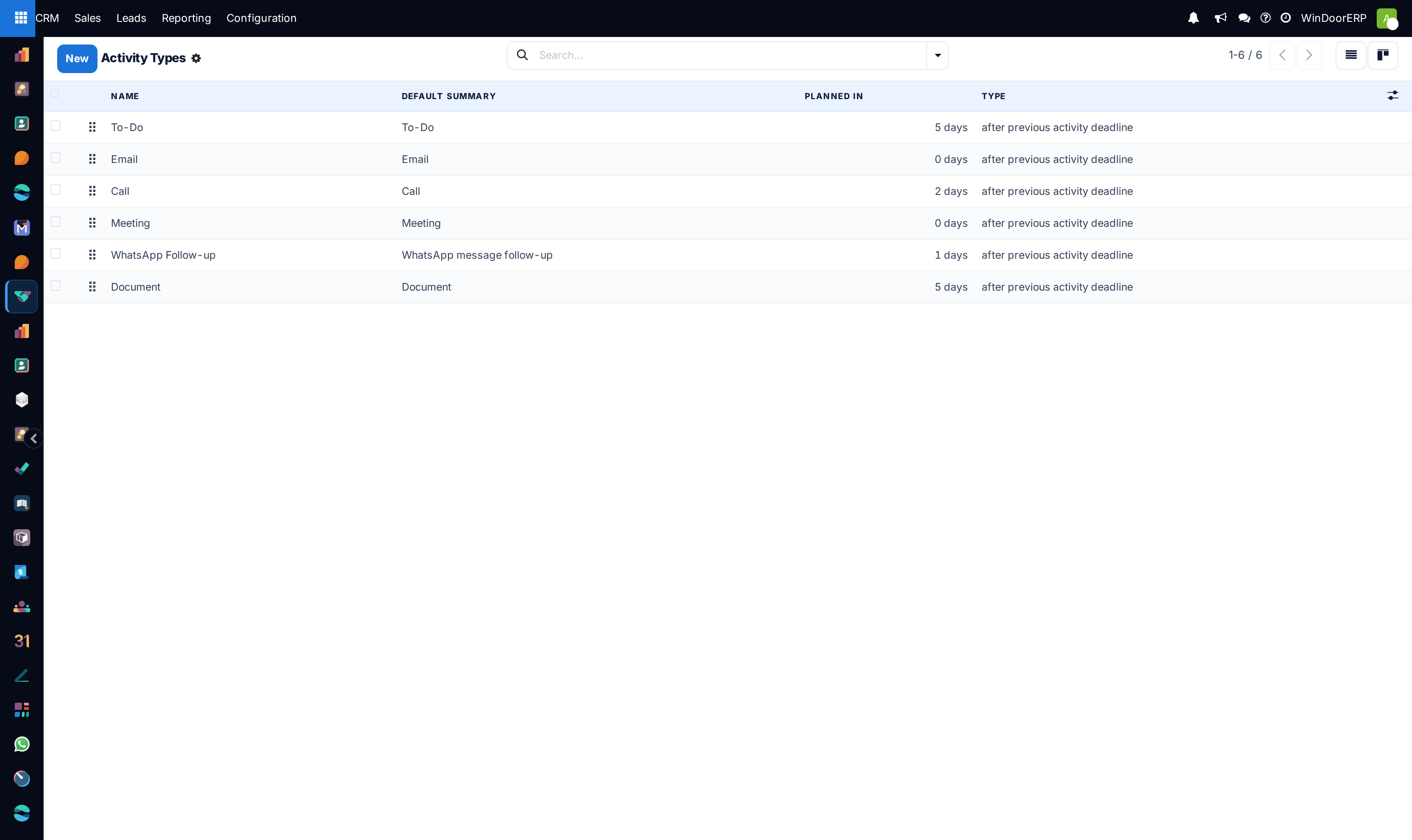
Open CRM › Configuration › Activity Types.
-
02
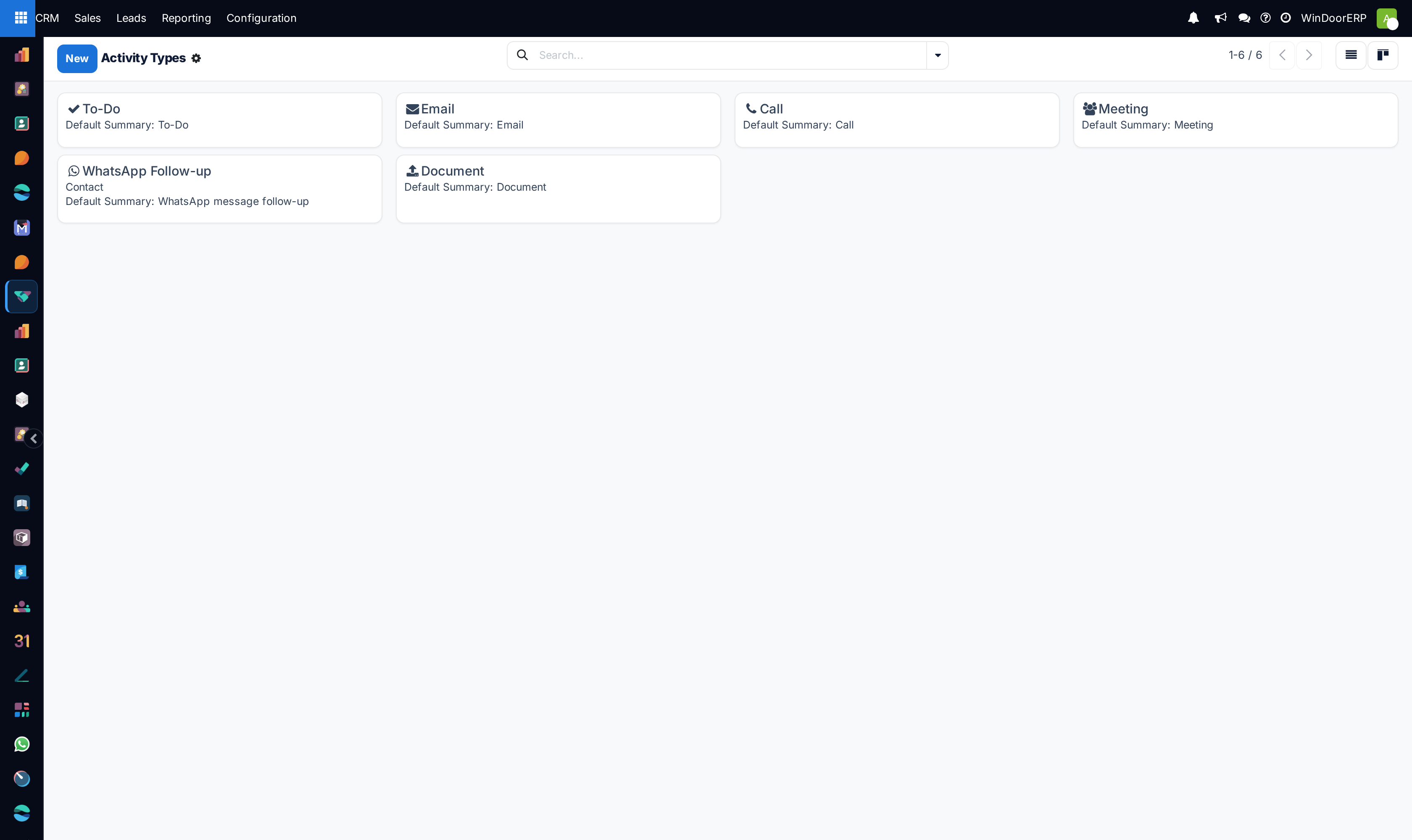
Click New to define specialized activities (e.g. Laser Site Survey, Consultant CAD Review, Contract Signature Visit).
-
03
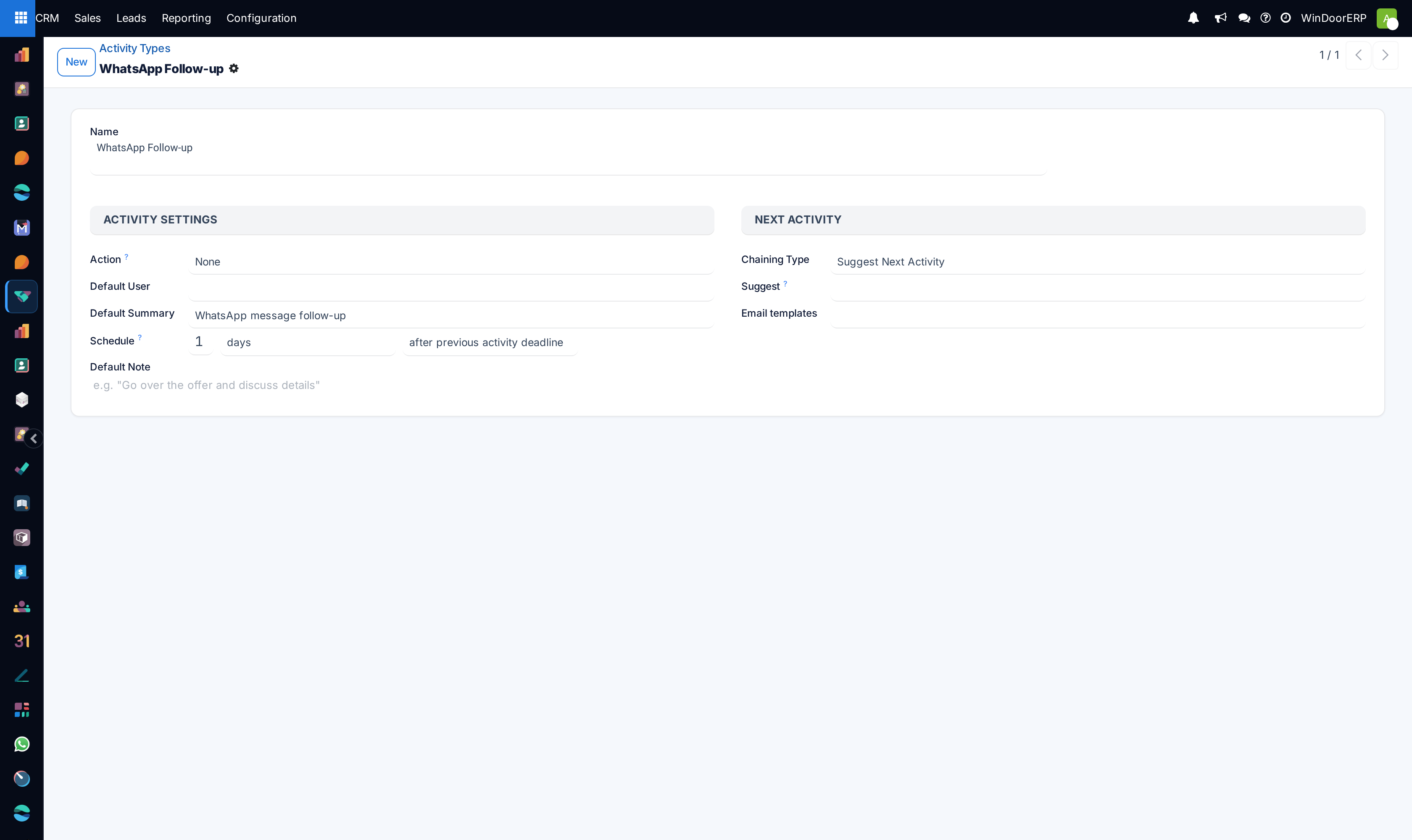
Set the Action (None, Upload Document, Phonecall, Meeting).
-
04
Configure Default User, Default Summary, and Default Delay (e.g. 3 days).
-
05
Select a Chaining Type: choose Suggest Next Activity or Trigger Next Activity to auto-schedule the next phase immediately upon completion.
Common mistakes
- Forgetting to assign default delays, causing all generated activities to be due immediately on the current day.
- Not configuring email templates on appointment confirmation activities.
Was this article helpful?
Thanks — your feedback helps.
Running a window or door factory?
Ask for a demo