Design automated Meta-approved message templates for quotations, delivery notices, and invoices
What this does
Designs rich interactive message templates containing dynamic ERP placeholders (Customer Name, Order Total, Tracking Link, PDF attachments) approved by Meta for transactional notifications.
Before you start
- Meta Business Manager verified and WhatsApp template namespace configured.
Steps
Important
Always attach signed bilingual PDFs with official company stamps when transmitting quotations and tax invoices via WhatsApp.
-
01
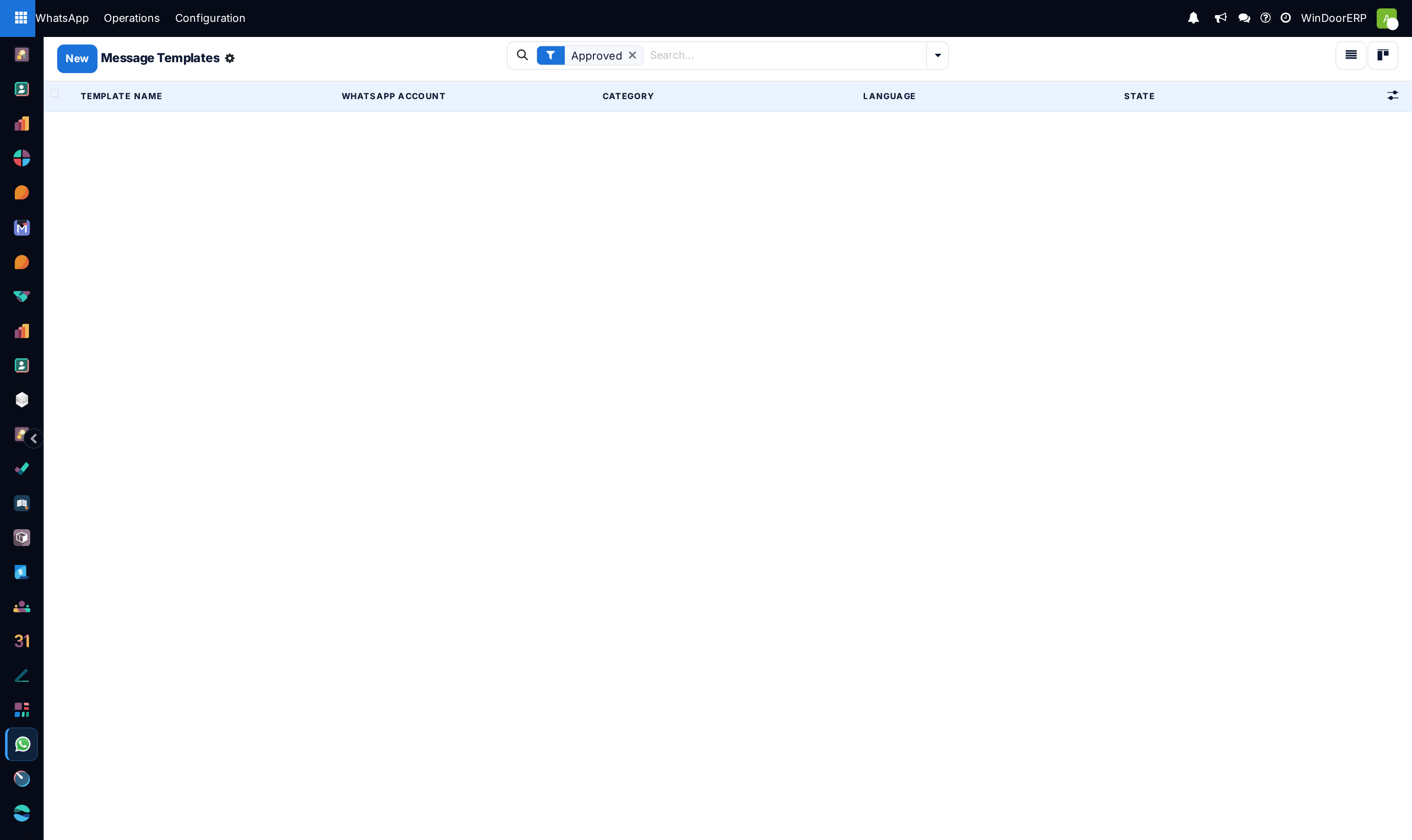
Navigate to WhatsApp › Operations › Templates and click New.
-
02
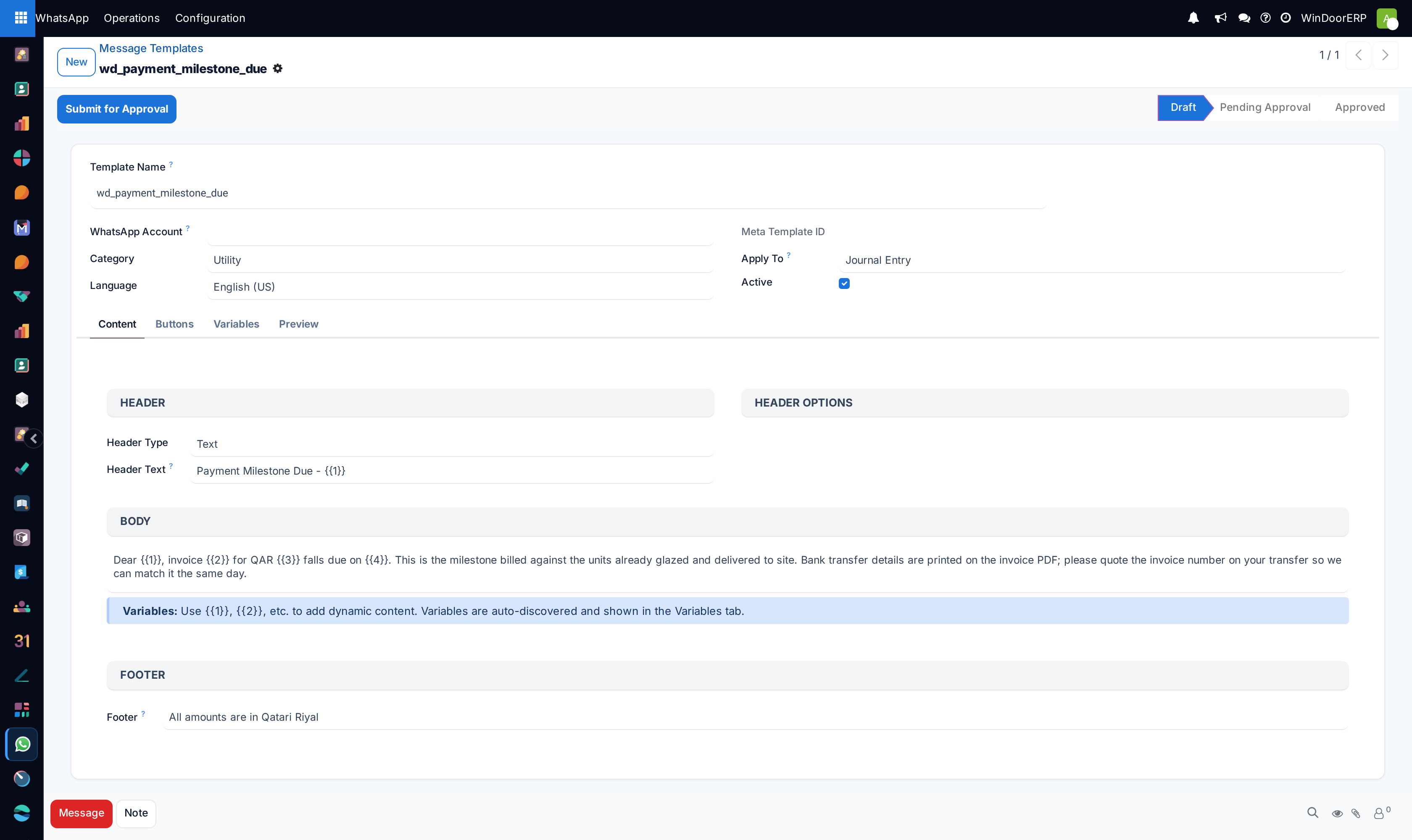
Select the Category (Marketing, Utility, Authentication) and target Language (Arabic / English).
-
03
Compose the message body using dynamic placeholders like
{{1}}for Customer Name and{{2}}for Quotation Reference. -
04
Add interactive buttons: Call to Action (Approve Quotation Online) or Quick Reply (Confirm Site Readiness).
-
05
Submit to Meta for instant review and link approved templates to automated triggers on Sales, Invoices, and Delivery Orders.
Common mistakes
- Sending promotional marketing broadcasts using 'Utility' category templates, risking account phone number banning by Meta.
- Failing to configure fallback email routing when customer phone numbers are invalid.
Was this article helpful?
Thanks — your feedback helps.
Running a window or door factory?
Ask for a demo